
Once your data is analyzed, the Reports section helps bring your insights to life through dynamic, easy-to-read visualizations. Whether you're monitoring customer satisfaction, identifying key trends, or preparing presentations, Caplena reports make storytelling with data simple and impactful.
What You Can Do With Reports
-
Visualize your data using charts, graphs, and summaries.
-
Share compelling insights with your team or stakeholders.
-
Track performance and feedback over time.
💡Tip:
Think of reports as the final chapter of your analysis, where raw data becomes actionable insight.
Step 1: Access the Reports Section
-
Open your Caplena project.
-
Click on the Reports tab in the top navigation bar.
-
Select the New Report button in the top-right corner.
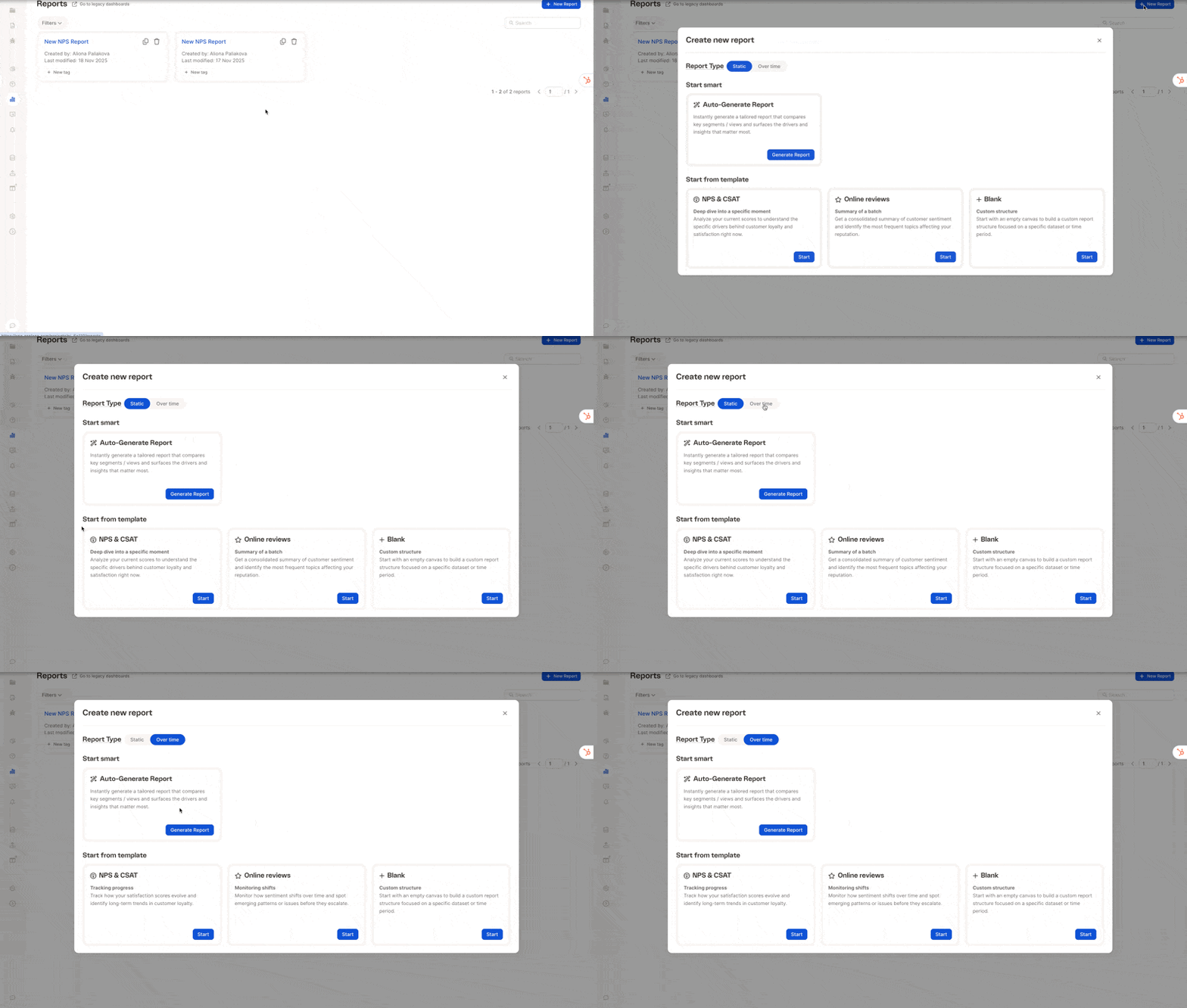
Step 2: Choose a Report Template
Caplena lets you choose between two report types at the top of the “Create new report” screen:
-
Static – A point-in-time report
-
Over time – A report comparing results across periods (e.g., months, weeks)
Once you select the report type, you can choose how you want to start building your report.
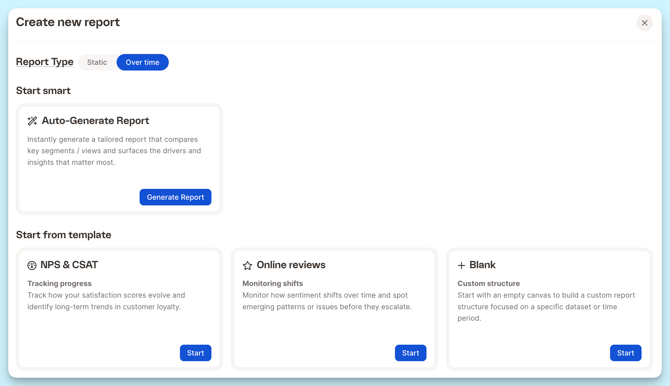
✨ Auto-Generate Report
Generates a tailored report instantly based on your dataset.
Caplena highlights key segments, meaningful differences, and the main drivers behind sentiment and experience. Click Generate Report to create it automatically.
Depending on the report type you selected, you can pick a template that matches your goal:
| Template | Best For |
|---|---|
| NPS & CSAT | Tracking satisfaction over time and identifying long-term trends in loyalty. |
| Online Reviews | Monitoring shifts in sentiment and spotting emerging themes or issues. |
| Blank | Full flexibility, start with an empty structure and define everything yourself. |
Tip:
If you want to analyze how customer satisfaction evolved after a product update, choose NPS & CSAT under the “Over time” tab.
Click Start under your preferred template to continue.
⚠️ Note:
Some templates may limit or customize the types of charts available based on the focus of the report.
Step 3: Configure Your Report
Let’s walk through the configuration using the NPS Over Time template as an example.
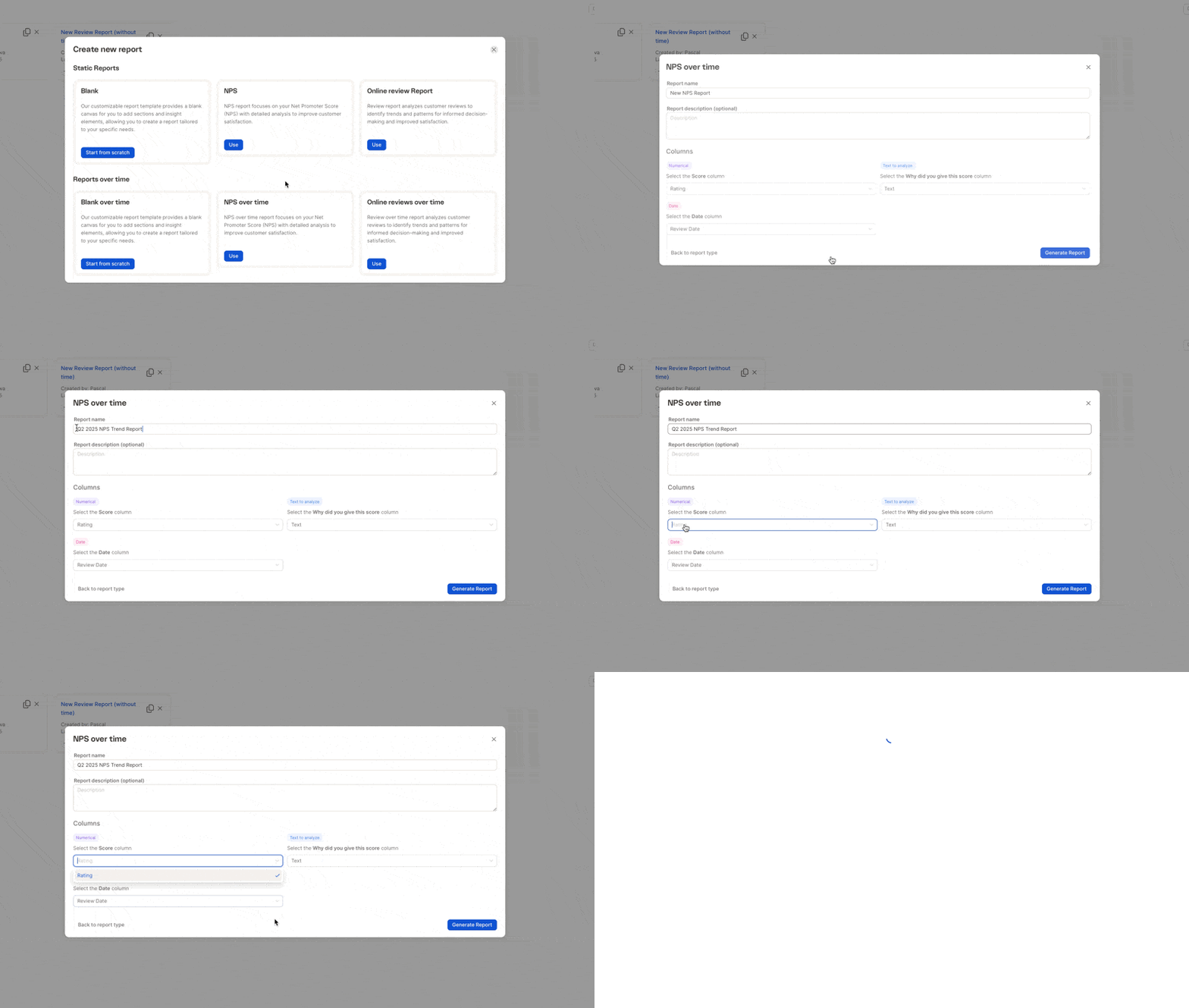
Basic Info
-
Report Name: e.g., Q2 2025 NPS Trend Report
-
Description (optional): Brief goal or context
e.g., “Tracking NPS after April onboarding update”
Data Columns
-
Score: Numeric field (e.g., NPS Score, Satisfaction Rating)
-
Open-Text: Explanation field (e.g., Why did you give this score?)
-
Date (optional): For time-based charts (e.g., Survey Completion Date)
Step 4: Generate and Customize Your Report
Click Generate Report to instantly create your first draft.
From there, you can:
-
Drag & drop visual elements.
-
Apply filters by segments like country, product, or sentiment.
-
Add titles and annotations to tell a clear story.