> ## Documentation Index
> Fetch the complete documentation index at: https://docs.caplena.com/llms.txt
> Use this file to discover all available pages before exploring further.
# Add & Replace Columns in Your Dataset
> Use Add & Replace to update specific rows or columns in your dataset
The **Add** & **Replace** function allows you to update existing rows in your Caplena dataset using a new file upload, without losing any manual coding or topic assignments.
This is especially helpful when refreshing or correcting your data while preserving previous work.
## When Should You Use "Replace Columns"?
The **Replace Rows** feature is ideal in the following scenarios:
### 1. You want to add a new column (Both TTA and Non-TTA)
*(TTA = Text to Analyze)*
Example: Add a demographic variable, metadata field, or custom tag that wasn't included in the original dataset.
**Use case:** Add new columns without re-uploading everything from scratch.
### 2. You want to update values in a TTA column
If you've corrected or enriched your open-ended responses:
**Use case:** Replace rows while preserving existing coding or AI analysis.
### 3. You want to update values in a non-TTA column
Example: Fixing or completing metadata like **Gender**, **Age**, or **Brand**.
**Use case:** Update values without re-uploading the whole dataset.
## How to use Replace Rows
Go to the **Data** section by clicking the **📄 document icon** in the left sidebar.
In the top-right corner, click the **Replace rows** button.
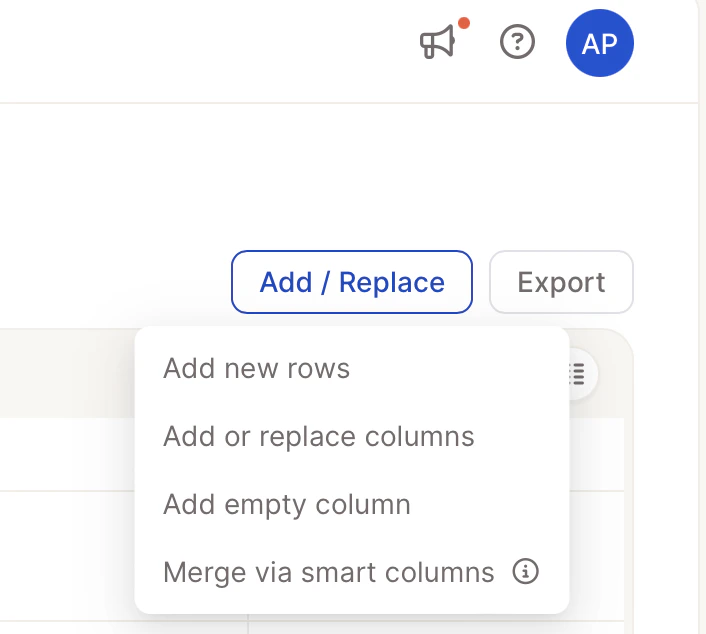 Upload a **CSV** or **Excel** file that contains the updated rows and/or new columns.
In the column matching screen:
**Select the identifier column** (e.g. "ID") — this is **required**. Caplena uses it to match the new rows to your existing dataset.
If no identifier is selected, the system won't know which rows to update, and the replacement process will not be possible.
When combined, these fields can form a unique identifier for each response.\\
You can select **multiple identifier columns** if your dataset doesn't contain a unique response ID. For example, a combination of **Date**, **Name**, and **Open-end content** can together form a unique identifier.
Upload a **CSV** or **Excel** file that contains the updated rows and/or new columns.
In the column matching screen:
**Select the identifier column** (e.g. "ID") — this is **required**. Caplena uses it to match the new rows to your existing dataset.
If no identifier is selected, the system won't know which rows to update, and the replacement process will not be possible.
When combined, these fields can form a unique identifier for each response.\\
You can select **multiple identifier columns** if your dataset doesn't contain a unique response ID. For example, a combination of **Date**, **Name**, and **Open-end content** can together form a unique identifier.
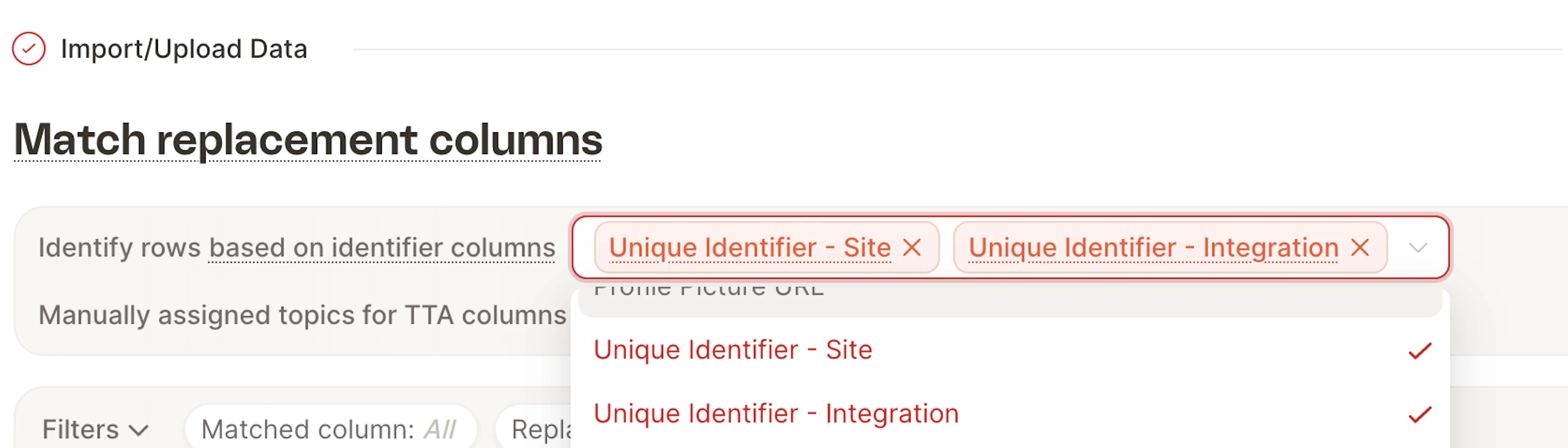 Then **select only the columns you want to update** — columns that stay the same don't need to be selected.\\
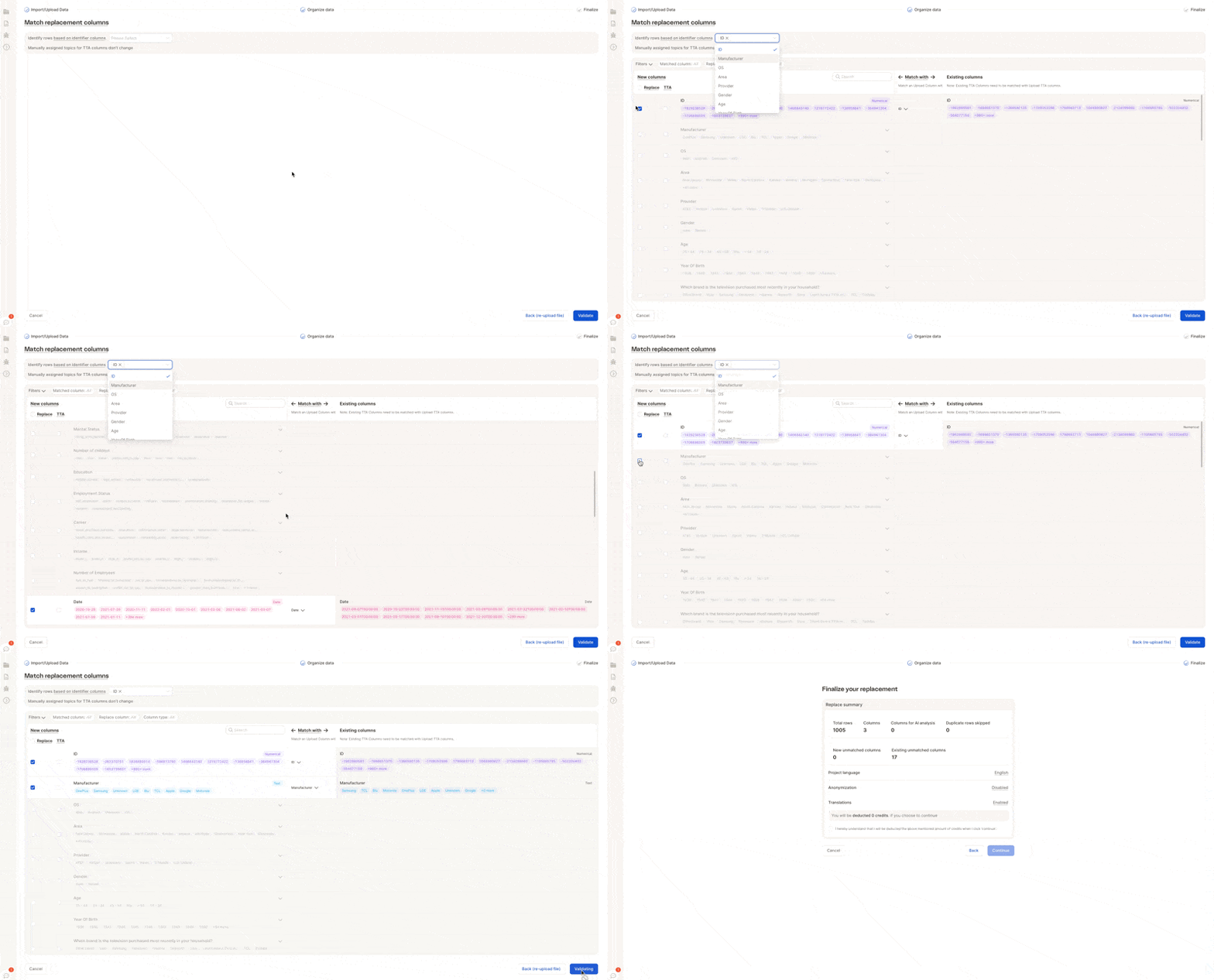 When creating a new TTA column, don't forget to enable it by selecting the **TTA** checkbox.
Click **Validate** to preview changes, then click **Finalize** to complete the replacement.
When creating a new TTA column, don't forget to enable it by selecting the **TTA** checkbox.
Click **Validate** to preview changes, then click **Finalize** to complete the replacement.
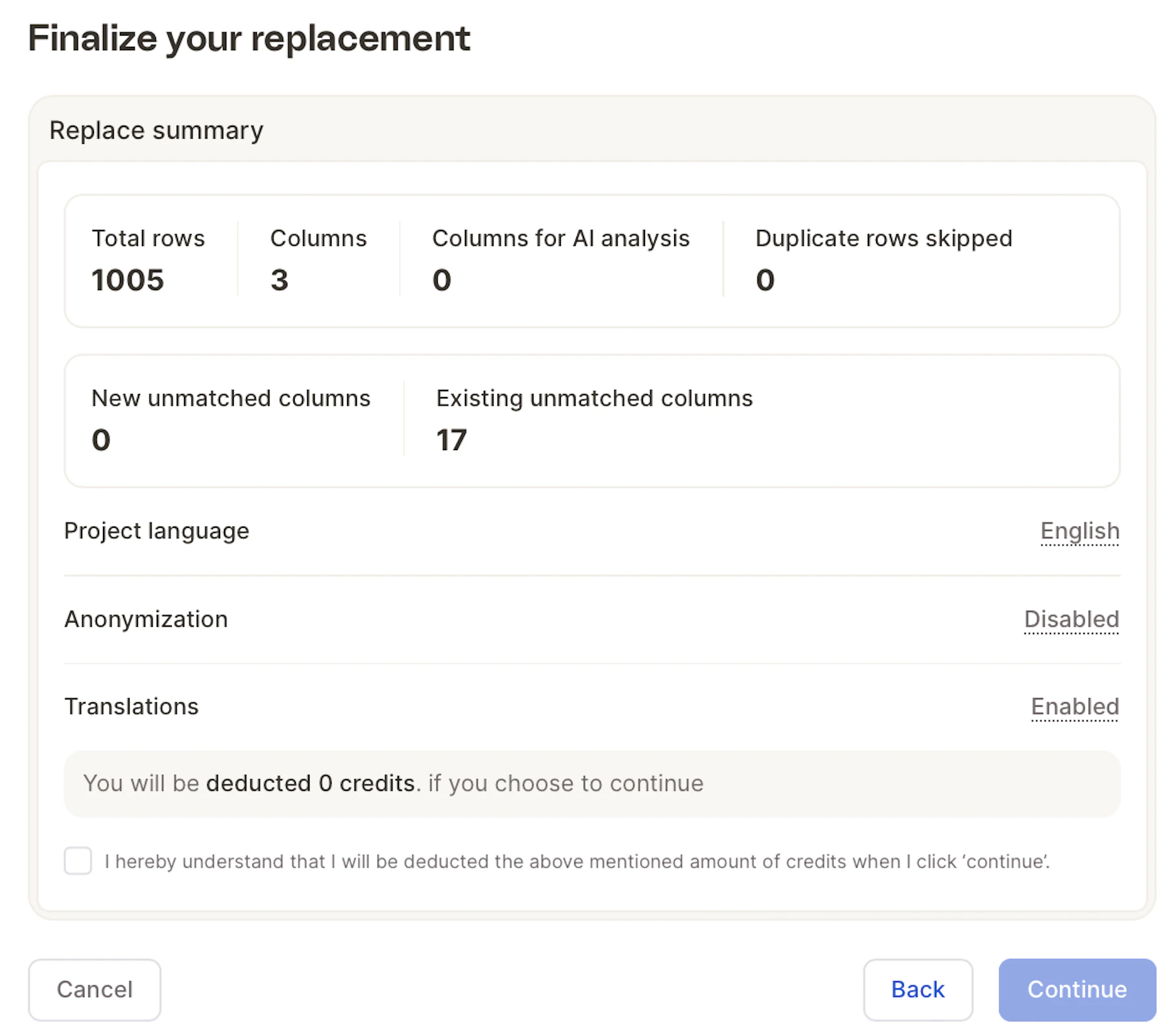 Done! Your dataset is now updated while all existing work (coding, topics, etc.) remains intact.