> ## Documentation Index
> Fetch the complete documentation index at: https://docs.caplena.com/llms.txt
> Use this file to discover all available pages before exploring further.
# How to Combine Likes & Dislikes for Joint Analysis
> Easily merge multiple columns (e.g., likes & dislikes) using Smart Columns, no extra tools needed.
Want to analyze *likes and dislikes* together in one go without any manual copying or external tools? With **Smart Columns** in Caplena, you can now merge multiple open-ended responses, like positive and negative feedback, and analyze them together in just a few clicks.
Here’s how to do it step by step:
When merging **Likes** and **Dislikes** into a single column, please note the following to avoid unnecessary credit consumption:
* **Likes and Dislikes must be imported as *Text* columns**, not as TTA (Text-to-Analyze).
* If Likes and Dislikes are uploaded as separate TTA columns and then merged, the system will count **three TTA columns in total** (Likes + Dislikes + Merged), and credits will be charged accordingly.
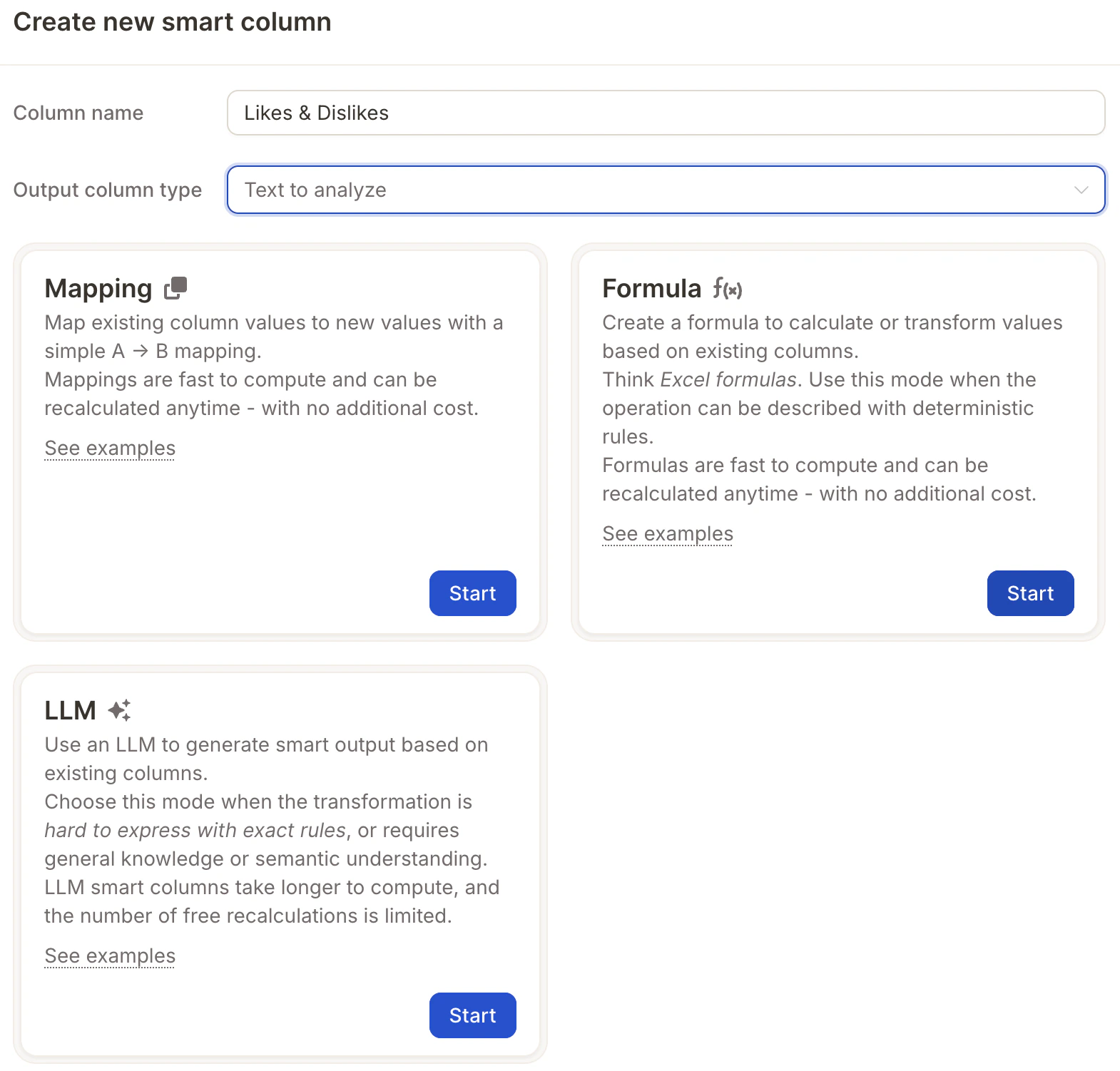
## Step 1: Create a New Smart Column
Go to your **Data** page.
Click on **"Create New Smart Column."**
Give your new column a name, for example:\
`All Feedback Combined` or `Likes & Dislikes`.
Under **Column Type**, choose:\
`Text-to-analyze` – this will ensure the column is available for AI topic analysis.
 ## Step 2: Choose the Smart Column Mode
Select the **Formula** mode.\
This allows you to merge the content from multiple columns.
Use the **"Likes & Dislikes" template** — it's specifically designed for this type of task and will automatically generate a helpful formula.
## Step 2: Choose the Smart Column Mode
Select the **Formula** mode.\
This allows you to merge the content from multiple columns.
Use the **"Likes & Dislikes" template** — it's specifically designed for this type of task and will automatically generate a helpful formula.
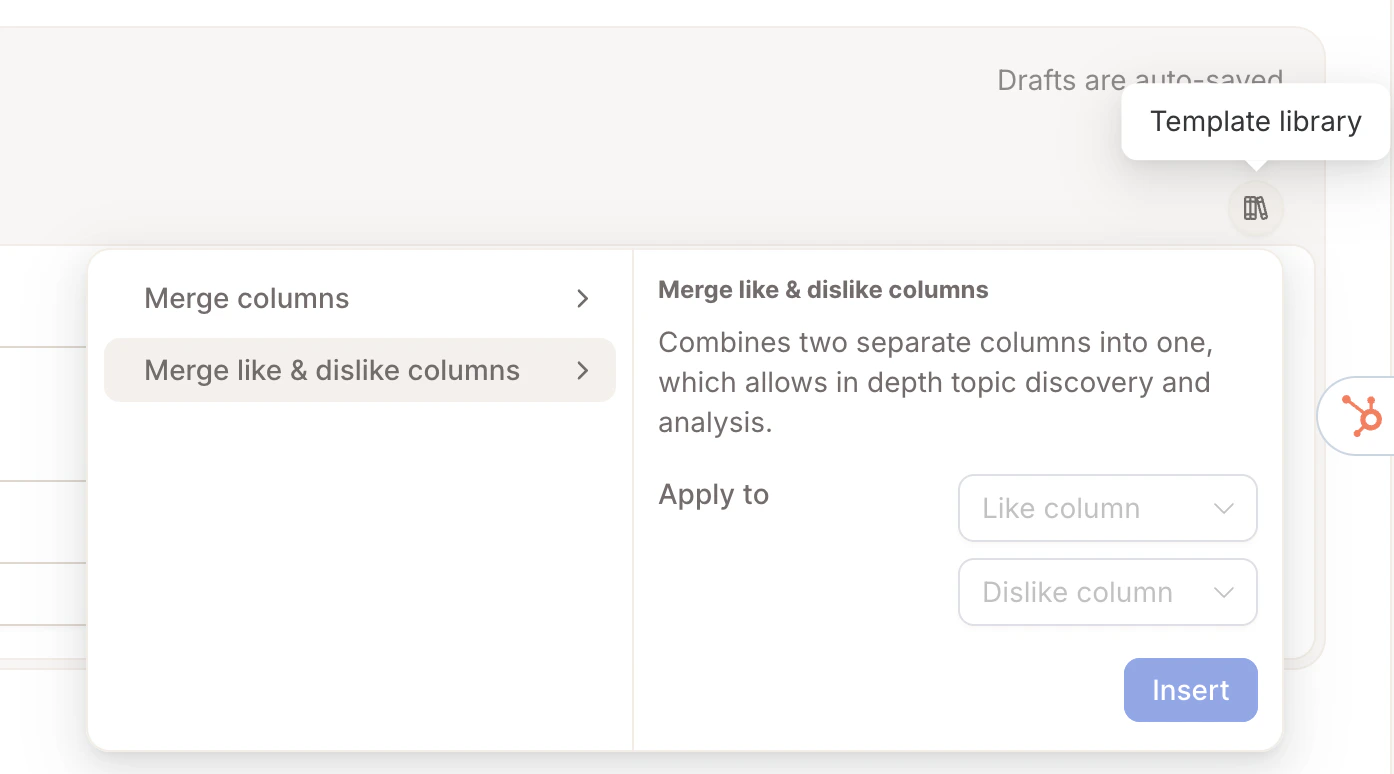 ## Step 3: Select Columns to Merge
* Choose the two columns you want to combine, e.g.:
* `What did you like?`
* `What didn’t you like?`
* Optionally, add labels like:
* `"Positive: "` and `"Negative: "`\
This helps you (and the AI) better understand the source of each text.
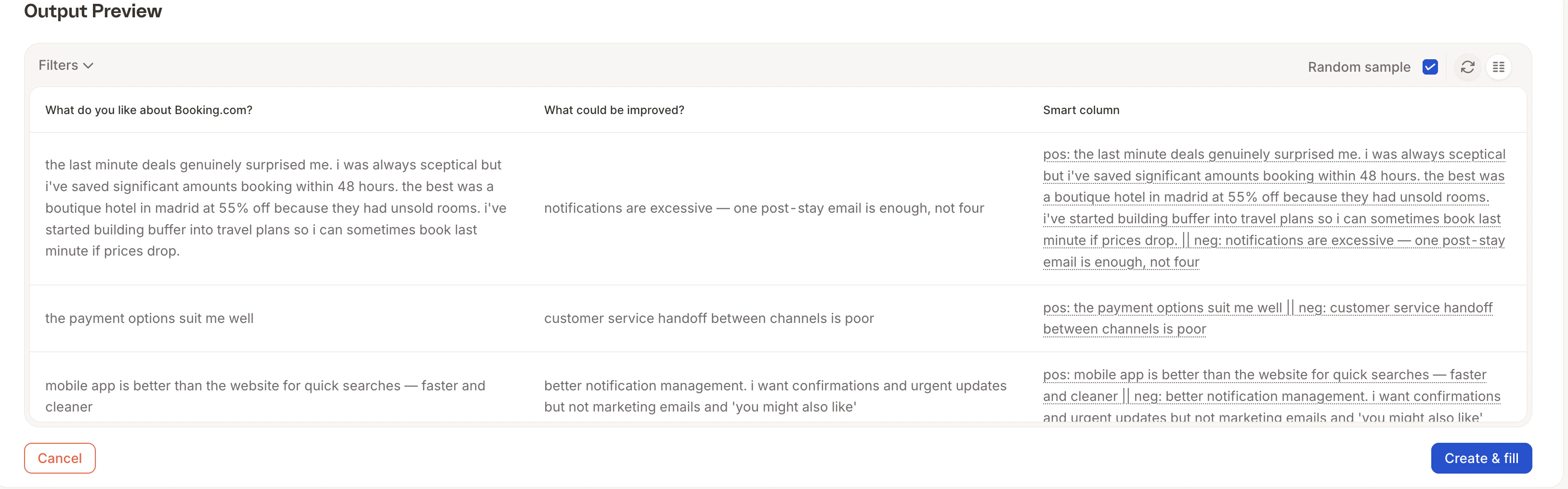
## Step 4: Preview & Create
Click **"Generate Sample"** to preview the result.
If everything looks good, click **"Create & Fill"**.
Done! 🎉\
Your new column will now be populated and ready to use
## Step 3: Select Columns to Merge
* Choose the two columns you want to combine, e.g.:
* `What did you like?`
* `What didn’t you like?`
* Optionally, add labels like:
* `"Positive: "` and `"Negative: "`\
This helps you (and the AI) better understand the source of each text.
## Step 4: Preview & Create
Click **"Generate Sample"** to preview the result.
If everything looks good, click **"Create & Fill"**.
Done! 🎉\
Your new column will now be populated and ready to use