> ## Documentation Index
> Fetch the complete documentation index at: https://docs.caplena.com/llms.txt
> Use this file to discover all available pages before exploring further.
# How to Combine Multiple Columns for Joint Analysis
> Analyze all your questions in one place, even if they live in different columns.
Sometimes your open-ended feedback ends up spread across several different text columns, for example *Likes*, *Dislikes*, *Improvements*, or *Additional comments*.\
If you want a clearer, stronger picture of what your customers are saying, it often makes sense to **bring these fields together** and analyze them as one.
With **Smart Columns** in Caplena, you can merge any text fields in just a few clicks and run a **single, unified AI analysis**. No Excel formulas, no manual work, just clean, streamlined insights.
**Tip to Save Credits:**
To merge efficiently:
* Import the original columns as **Text**
* Create **one** Smart Column as **Text-to-analyze (TTA)**
If the originals are imported as TTA, each one counts toward credit usage.
The best setup is:
**Text → merge → one TTA Smart Column.**
## Quick option: Merge via smart columns
If the columns you want to combine already exist in your project, you can create the merged smart column in two clicks straight from the **Data** tab.
On the **Data** tab, select the checkboxes next to **two or more** text columns you want to merge.
Open the **Add / Replace** dropdown in the top-right and choose **Merge via smart columns**.
Caplena creates a new **Text-to-analyze** smart column in **Formula** mode, pre-filled with a template that joins the selected columns. You're taken straight to the smart column detail page to review the name, tweak the formula if needed, and click **Create & Fill**.
This shortcut is only available when at least two columns are selected, and when your project still has TTA smart column capacity left. If you've hit the TTA column limit, free up an existing TTA column or contact support before retrying.
If you'd rather build the merge step by step, or you want to combine columns with more advanced rules, follow the manual flow below.
## Step 1: Create a New Smart Column
Go to your **Data** page.
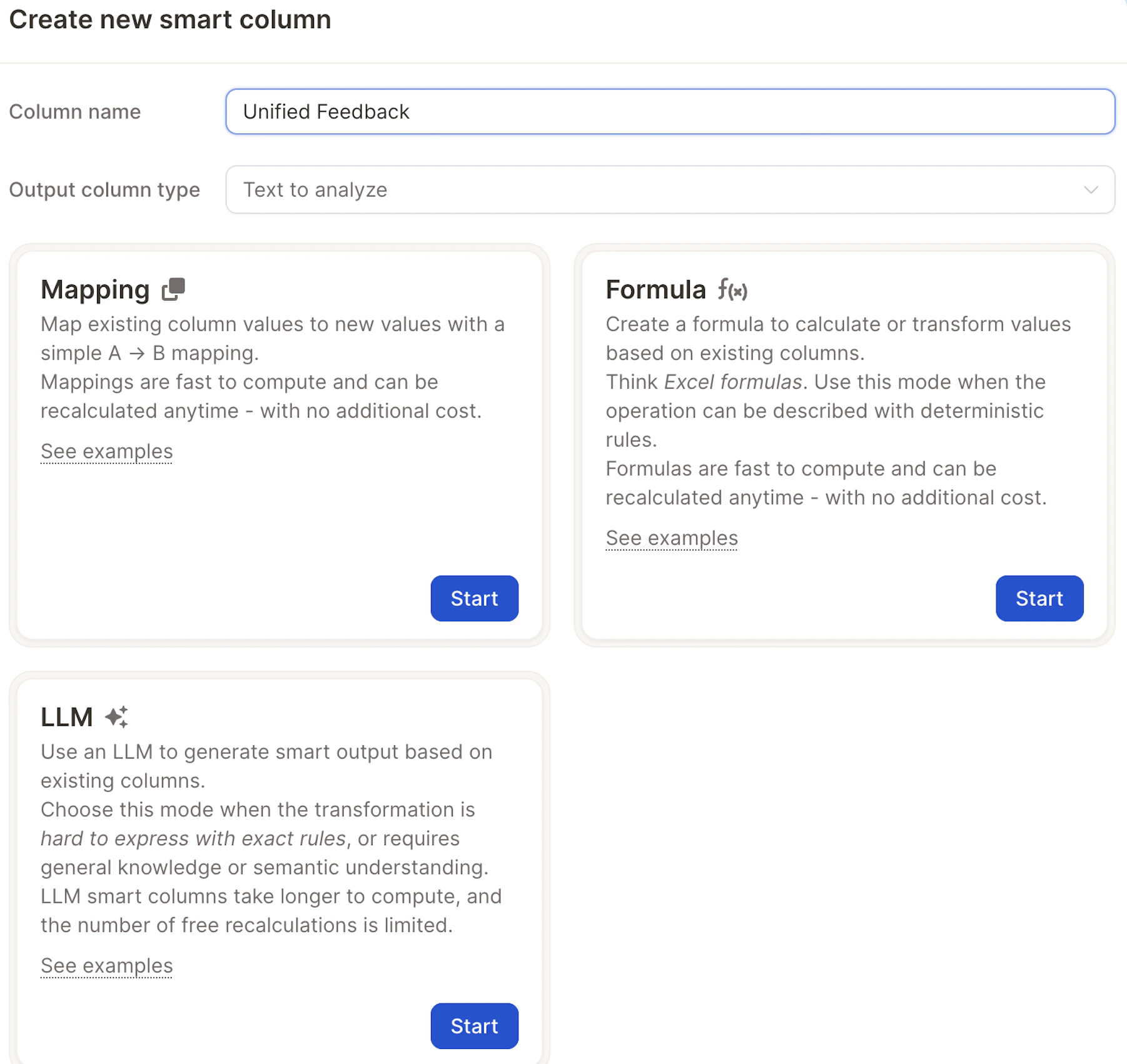
Click on **"Create New Smart Column."**
Give your new column a name, for example:\
`All Feedback Combined` or Unified Feedback.
Under **Column Type**, choose:\
`Text-to-analyze` – this will ensure the column is available for AI topic analysis.
 ## Step 2: Select Formula Mode
Choose **Formula** as the Smart Column mode.
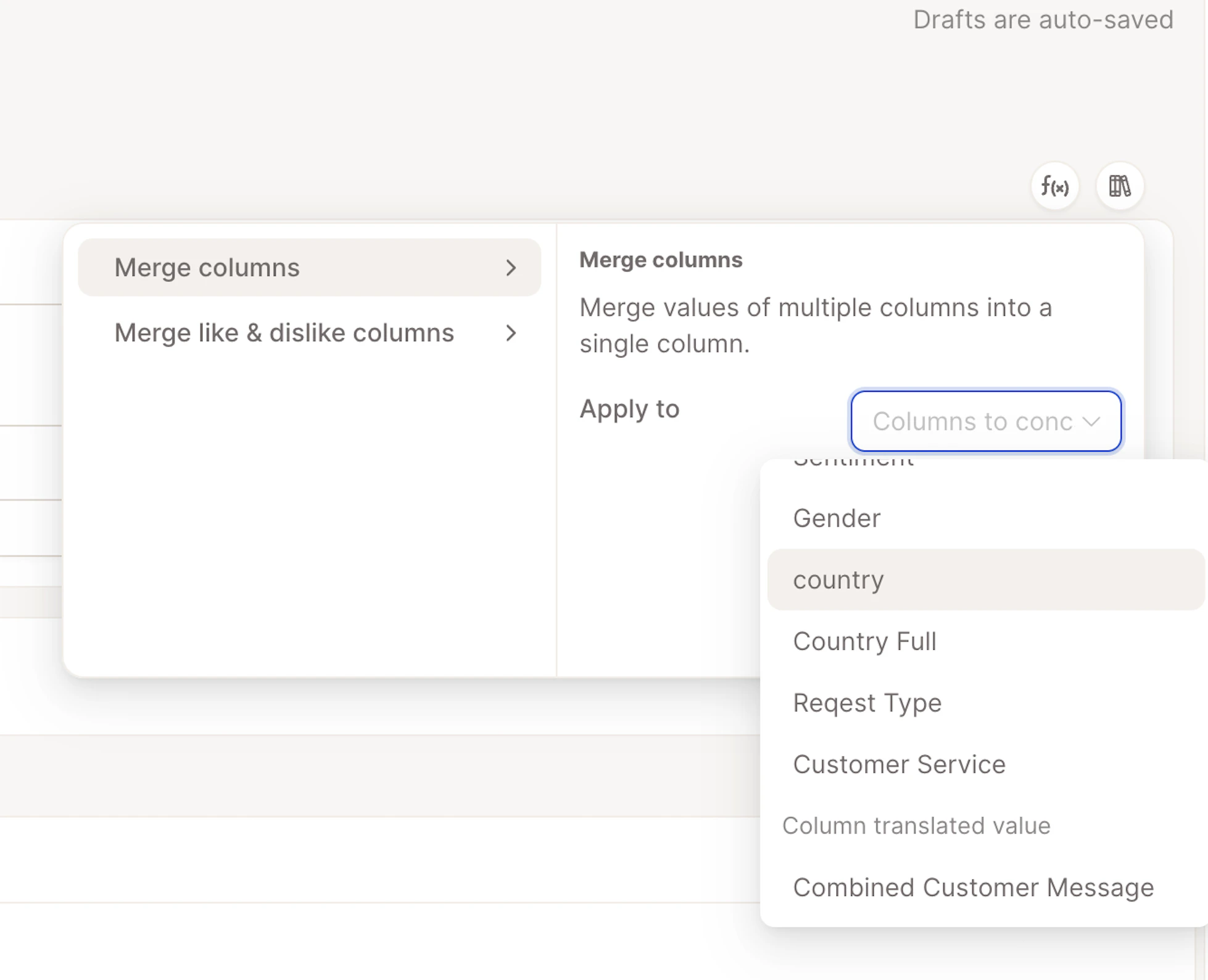
You can use the **Merge Columns template** as a starting point, it’s flexible and can be adapted for any fields you want to merge.
## \\
Step 3: Pick the Columns You Want to Combine
Choose any text fields you want to analyze together, such as:
This is especially useful when your survey includes **multiple comment fields that touch on the same topic** (e.g., satisfaction, experience, feature requests), and you want to understand the full picture without jumping between columns.
## Step 2: Select Formula Mode
Choose **Formula** as the Smart Column mode.
You can use the **Merge Columns template** as a starting point, it’s flexible and can be adapted for any fields you want to merge.
## \\
Step 3: Pick the Columns You Want to Combine
Choose any text fields you want to analyze together, such as:
This is especially useful when your survey includes **multiple comment fields that touch on the same topic** (e.g., satisfaction, experience, feature requests), and you want to understand the full picture without jumping between columns.
 ## Step 4: Preview & Create
Click **Generate Sample** to check if the merged text looks right.
If everything looks good, click **Create & Fill**.
## Step 4: Preview & Create
Click **Generate Sample** to check if the merged text looks right.
If everything looks good, click **Create & Fill**.
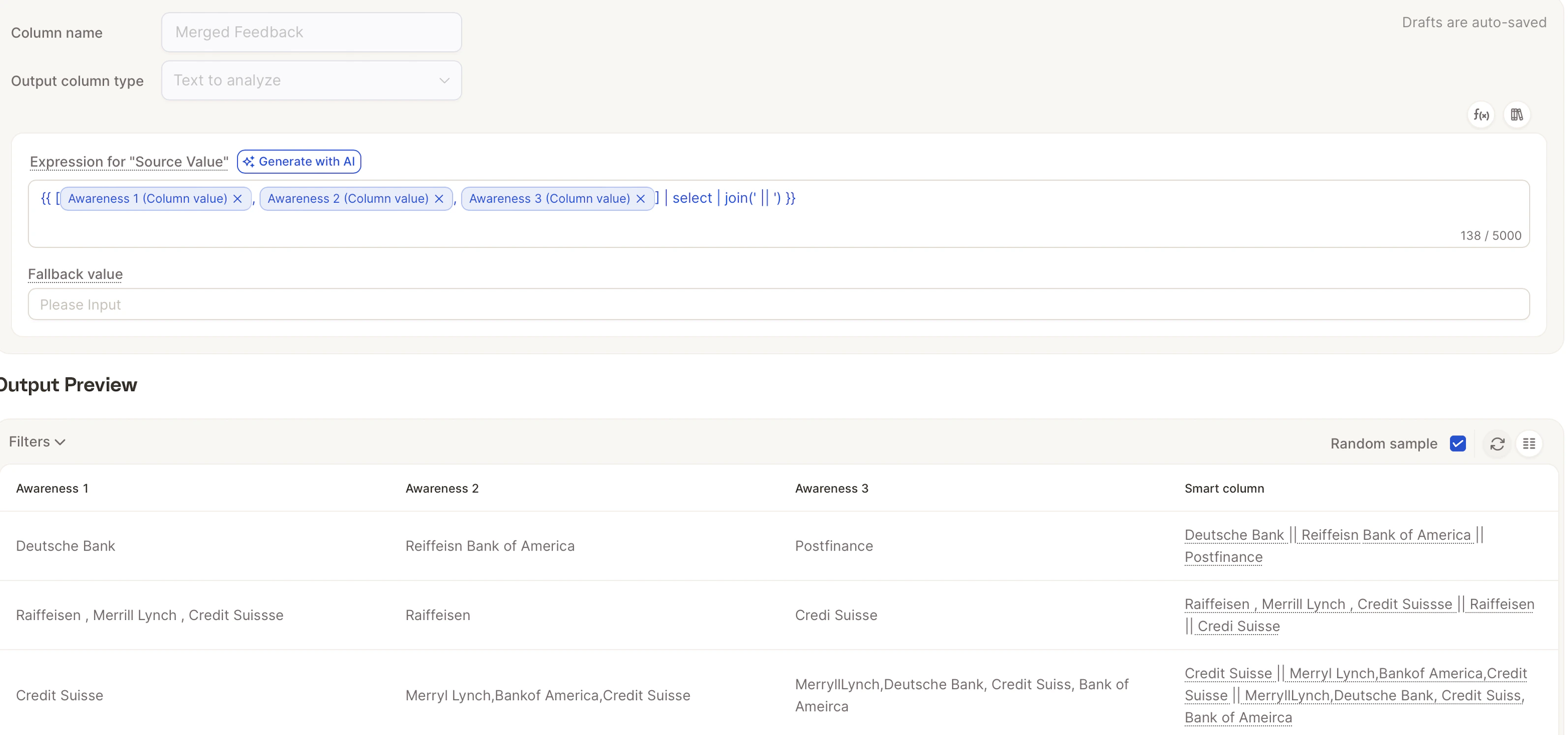 Caplena will instantly populate your new combined column for all rows.