> ## Documentation Index
> Fetch the complete documentation index at: https://docs.caplena.com/llms.txt
> Use this file to discover all available pages before exploring further.
# Exporting Your Data
> Export your project data in the format that fits you best
Caplena makes it easy to export your coded data so you can analyze, share, or report outside the platform. Whether you want a detailed row-by-row file or a high-level summary, you're just a few clicks away.
## Where to export from
You have two main options:
* **From the Topic Assignment view** → export one open-ended question at a time.
* **From the Data page** → export the entire dataset with multiple questions at once.
The steps and options are basically the same wherever you export from. The only difference is how much data you get. When exporting from the Topics view, only the current text-to-analyze column will be included. To export all TTA columns, trigger the export from the Data page.
## How to export
.gif?s=9e952eed82dcb6328b4efcb8bf01c8ff) Open your project and go to the **Topics view**. Click **Export** (top right).
Select your preferred **File type** (Excel, CSV, etc.).
Choose one of the following formats:
* **Tabular format with a column per topic** — For each record, topics are marked with their sentiment value (if enabled) in the corresponding column based on the occurrence of a given topic in the text.
Open your project and go to the **Topics view**. Click **Export** (top right).
Select your preferred **File type** (Excel, CSV, etc.).
Choose one of the following formats:
* **Tabular format with a column per topic** — For each record, topics are marked with their sentiment value (if enabled) in the corresponding column based on the occurrence of a given topic in the text.
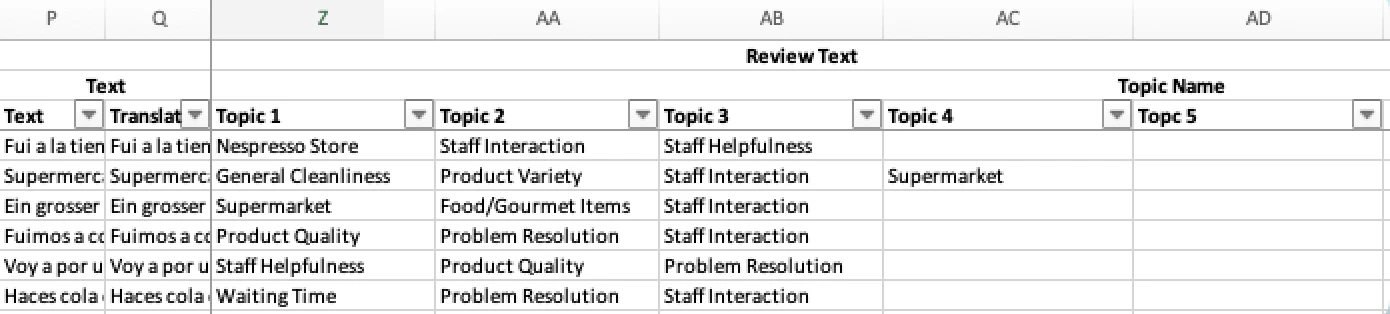
 * **Topics in order of assignment** — Topics are listed one after another in column placeholders in the order they were assigned in the topic view.
 * **Long format (easy-to-use for BI tools)** — Each topic assignment gets its own row. Each row also includes:
* *AI Reasoning* — why this topic was assigned to this response
* *AI Representative Phrases* — the exact text span(s) from the response that triggered the assignment
* **Long format (easy-to-use for BI tools)** — Each topic assignment gets its own row. Each row also includes:
* *AI Reasoning* — why this topic was assigned to this response
* *AI Representative Phrases* — the exact text span(s) from the response that triggered the assignment
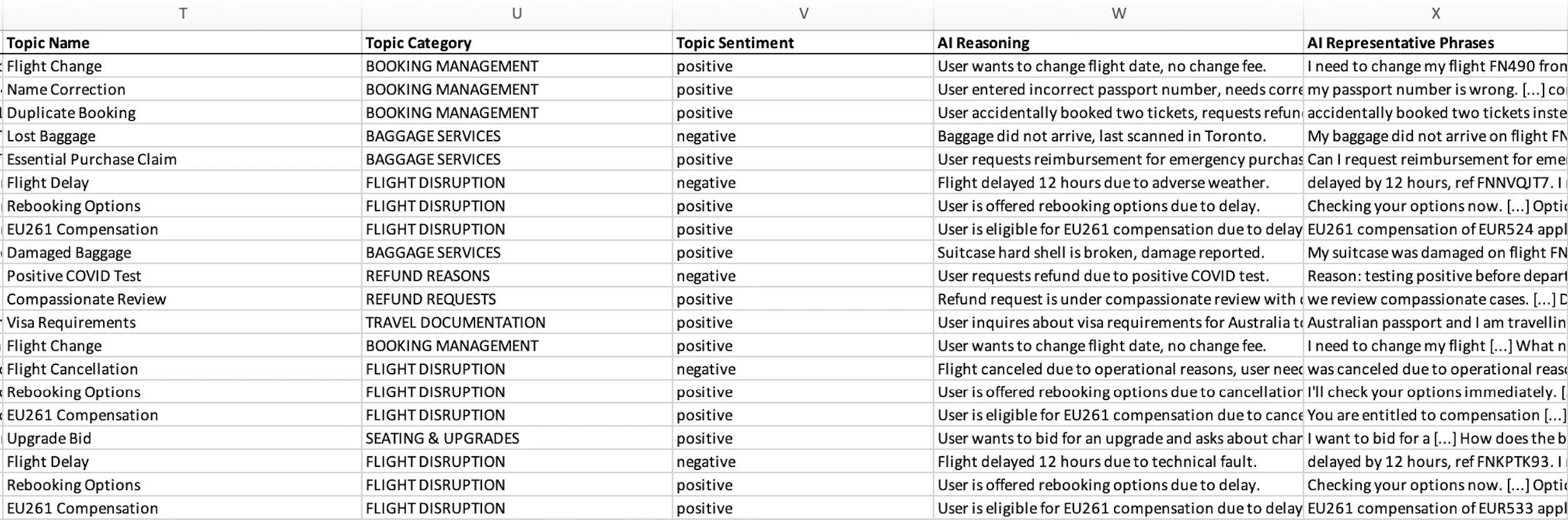 Use the long format when you need topic-level granularity — for BI tools, deeper analysis, or when you want to see the specific phrases that drove each topic assignment.
Under **Data to download**, pick what you need:
* Additional columns (metadata you uploaded)
* Text (original responses)
* Translated text (if enabled)
* Topics
* Metadata (such as review status or highlighted in Caplena, etc.)
Select **Topic attributes** like Category or Topic label.
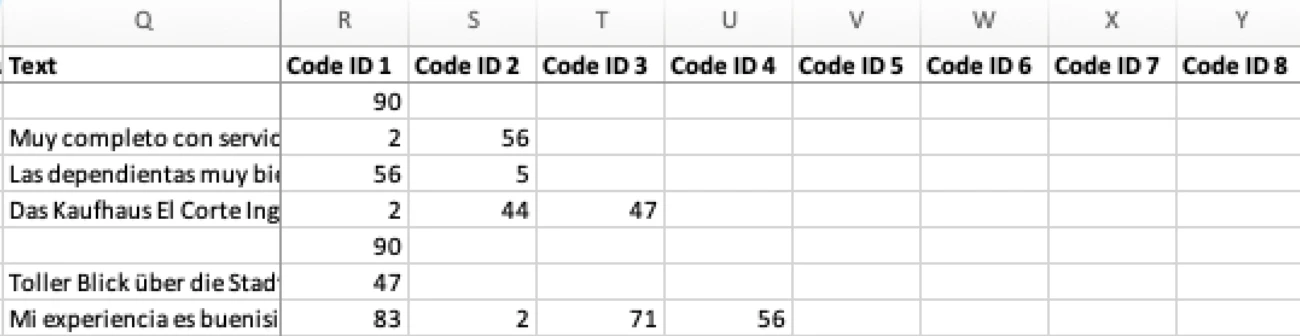
* **Legacy format** — Single header row; originally an older format for compatibility, but also allows you to export data with the numerical code so you can process it based on the unique numerical code with the topic collection.
Use the long format when you need topic-level granularity — for BI tools, deeper analysis, or when you want to see the specific phrases that drove each topic assignment.
Under **Data to download**, pick what you need:
* Additional columns (metadata you uploaded)
* Text (original responses)
* Translated text (if enabled)
* Topics
* Metadata (such as review status or highlighted in Caplena, etc.)
Select **Topic attributes** like Category or Topic label.
* **Legacy format** — Single header row; originally an older format for compatibility, but also allows you to export data with the numerical code so you can process it based on the unique numerical code with the topic collection.
 * **Add category columns** — Adds a column for each category, showing whether a topic from that category is present.
Click **Export**, and your file will be ready to go. 🎉
## Exporting your Topic Collection summary
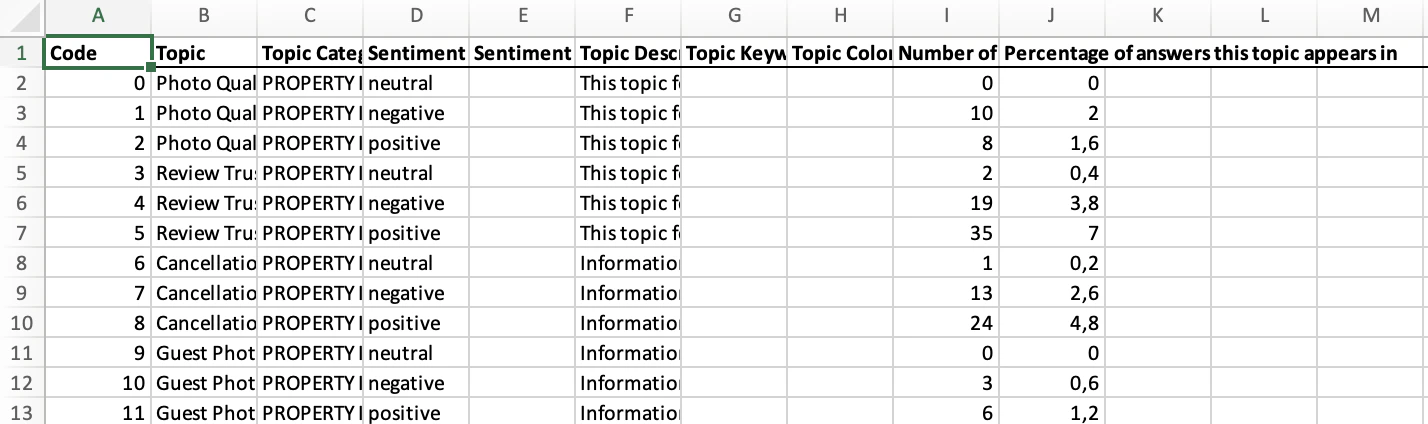
In addition to the row-level export, you can also export a **Topic summary** — a high-level overview of your topic collection.
From the export dialog, click the **Topic summary** tab, select your preferred **File type** (e.g. Excel), and click **Export**.
* **Add category columns** — Adds a column for each category, showing whether a topic from that category is present.
Click **Export**, and your file will be ready to go. 🎉
## Exporting your Topic Collection summary
In addition to the row-level export, you can also export a **Topic summary** — a high-level overview of your topic collection.
From the export dialog, click the **Topic summary** tab, select your preferred **File type** (e.g. Excel), and click **Export**.
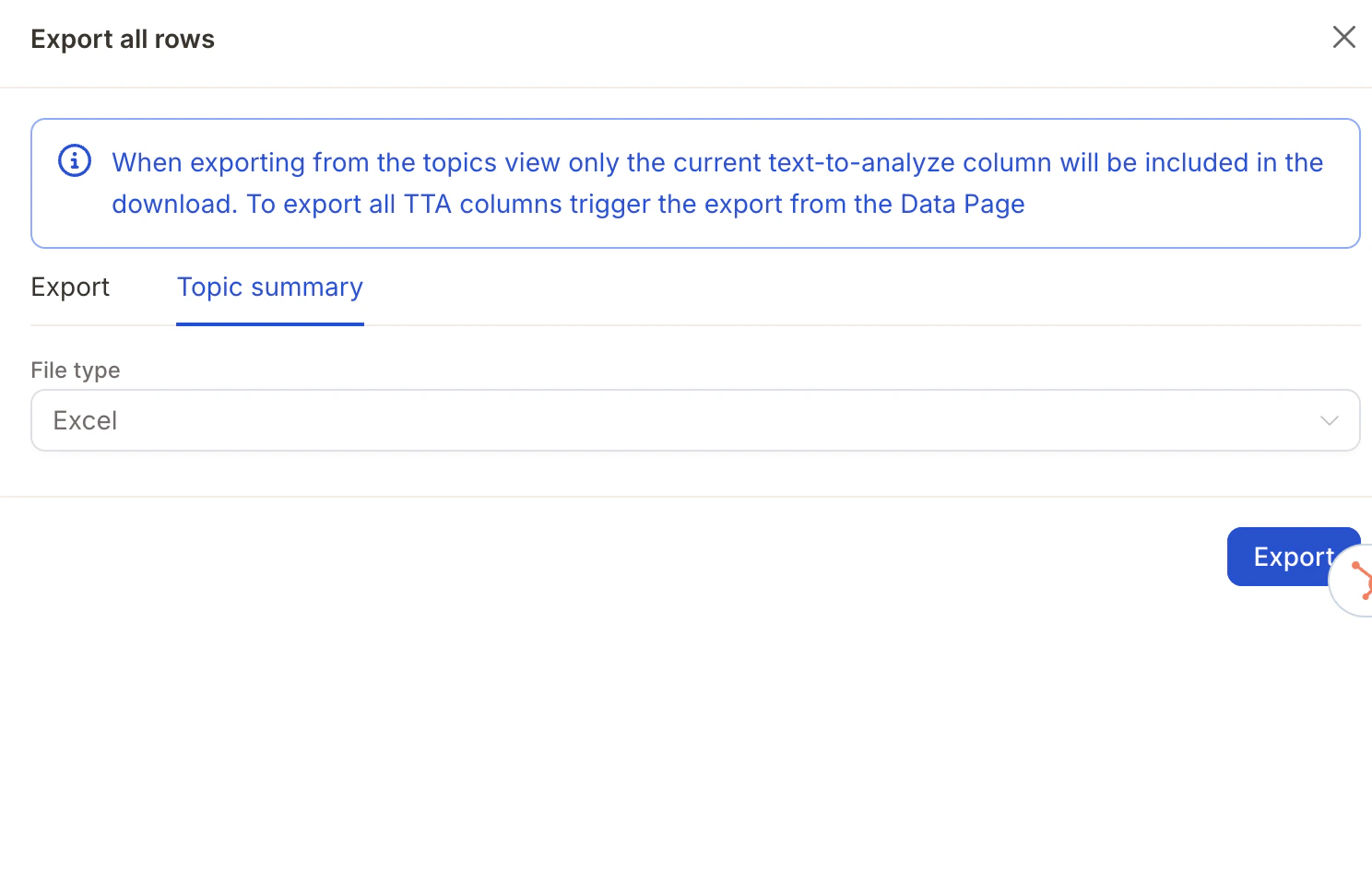 This gives you an aggregated view of your topics rather than a row-by-row breakdown — useful for quickly sharing top-level results.
 ## Exporting with filters
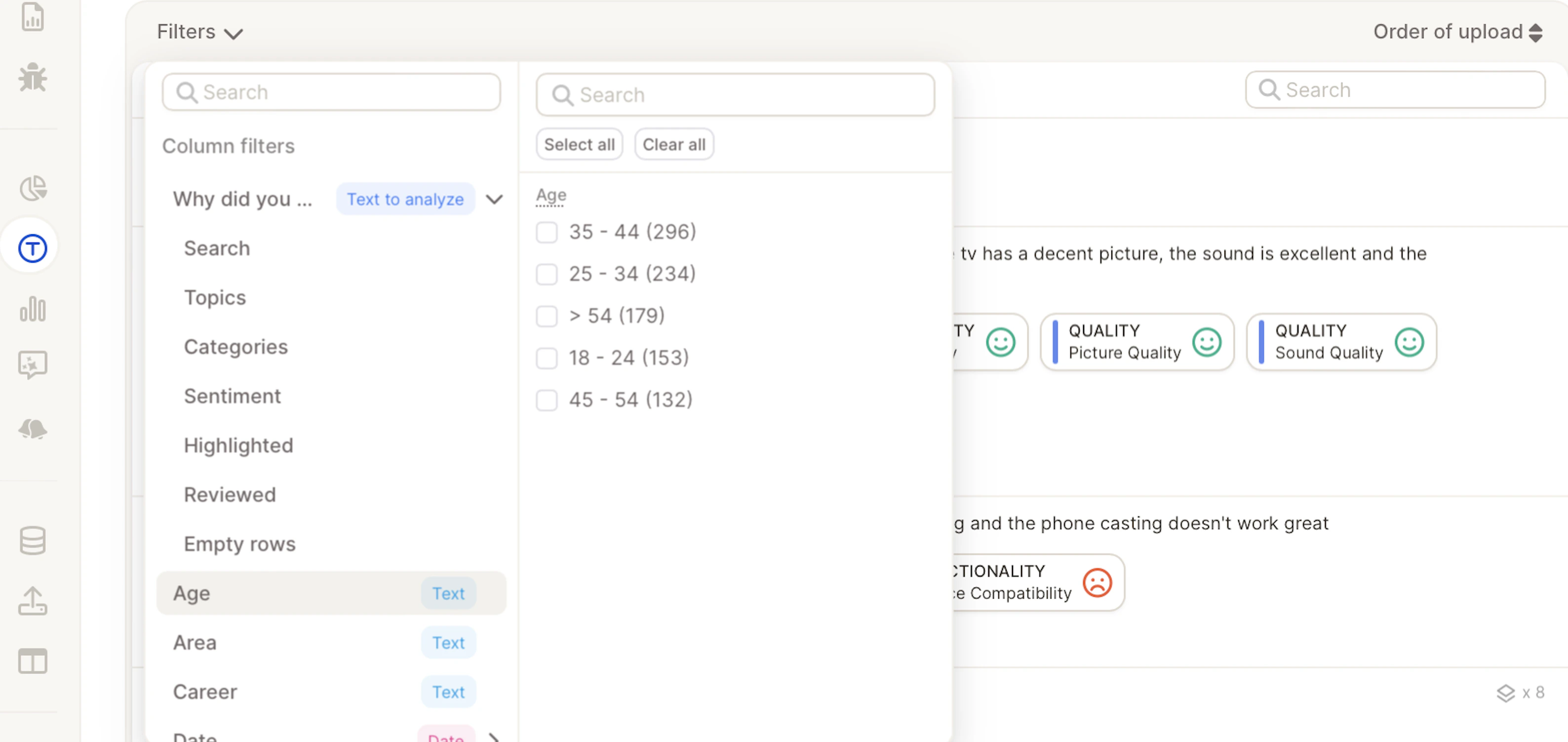 Exports respect any filters you apply in the Topics view, so you can download just a subset of your data instead of the full dataset. You can filter by:
* Topics & Categories
* Sentiment
* Reviewed / Highlighted
* Demographics & other variables (Age, Gender, Area, etc.)
Apply filters first, then export — perfect for sharing targeted subsets, like only negative responses or a specific customer group.
## Topics in order of assignment
This is the most commonly used format and the one you'll see by default. Each response is represented by a single row. Topics are placed in **Topic 1, Topic 2, Topic 3…** columns in the order they were assigned (manually or by AI). If a response has fewer topics, later columns will remain empty — that's normal.\\
Exports respect any filters you apply in the Topics view, so you can download just a subset of your data instead of the full dataset. You can filter by:
* Topics & Categories
* Sentiment
* Reviewed / Highlighted
* Demographics & other variables (Age, Gender, Area, etc.)
Apply filters first, then export — perfect for sharing targeted subsets, like only negative responses or a specific customer group.
## Topics in order of assignment
This is the most commonly used format and the one you'll see by default. Each response is represented by a single row. Topics are placed in **Topic 1, Topic 2, Topic 3…** columns in the order they were assigned (manually or by AI). If a response has fewer topics, later columns will remain empty — that's normal.\\
 It's different from order of appearance: instead of reflecting how topics were phrased in the verbatim, it prioritizes clarity for analysis.
Use this format when you want clean, structured data for reporting or deeper analysis.
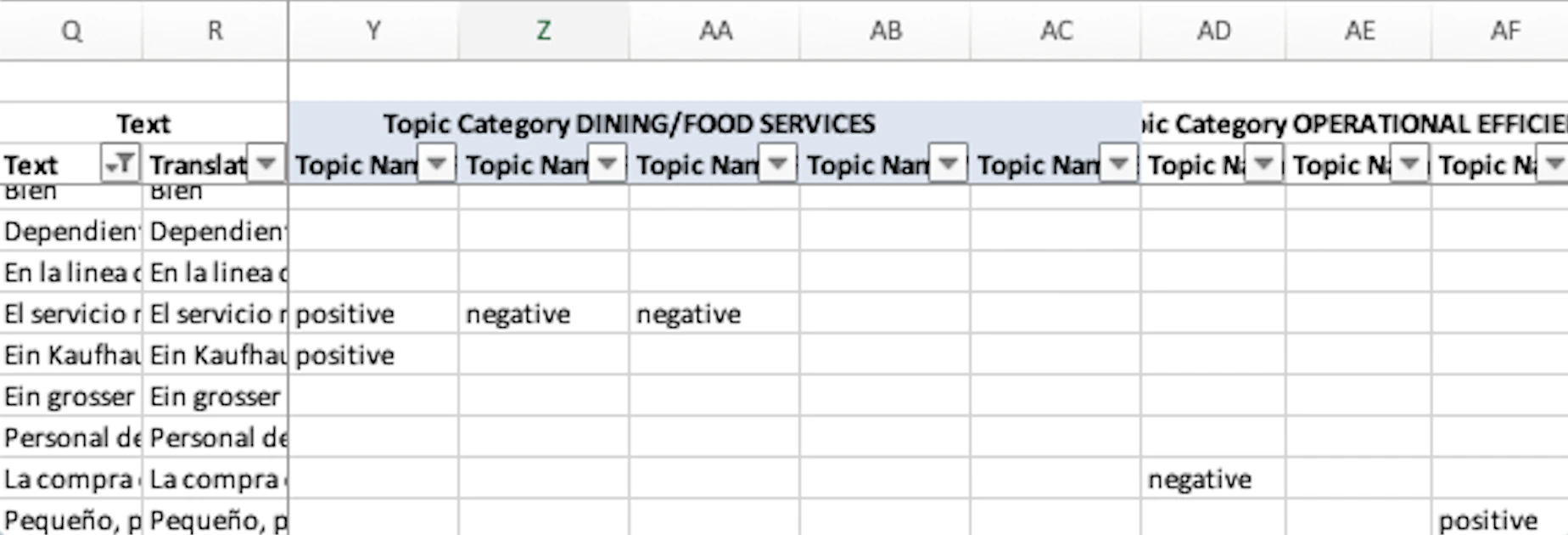
## Topics in order of appearance
This format mirrors how respondents expressed themselves. Topics are shown in the exact sequence they appeared in the original text. Each topic is exported as a pair: **Topic Category + Topic Name**. If a verbatim contains many topics, they'll stretch across multiple column pairs.
It's different from order of appearance: instead of reflecting how topics were phrased in the verbatim, it prioritizes clarity for analysis.
Use this format when you want clean, structured data for reporting or deeper analysis.
## Topics in order of appearance
This format mirrors how respondents expressed themselves. Topics are shown in the exact sequence they appeared in the original text. Each topic is exported as a pair: **Topic Category + Topic Name**. If a verbatim contains many topics, they'll stretch across multiple column pairs.
 Choose this format if you want to analyze response flow or phrasing, or keep context for linguistic/narrative analysis.
## BI Tool export
Caplena allows you to seamlessly connect and analyze your data in your preferred BI tools like Power BI, Looker, and Tableau. This guide explains how to export your Caplena data and connect it to those platforms using BigQuery.
### Step 1: Choose your data format
You'll be asked to choose between two formats:
Choose this format if you want to analyze response flow or phrasing, or keep context for linguistic/narrative analysis.
## BI Tool export
Caplena allows you to seamlessly connect and analyze your data in your preferred BI tools like Power BI, Looker, and Tableau. This guide explains how to export your Caplena data and connect it to those platforms using BigQuery.
### Step 1: Choose your data format
You'll be asked to choose between two formats:
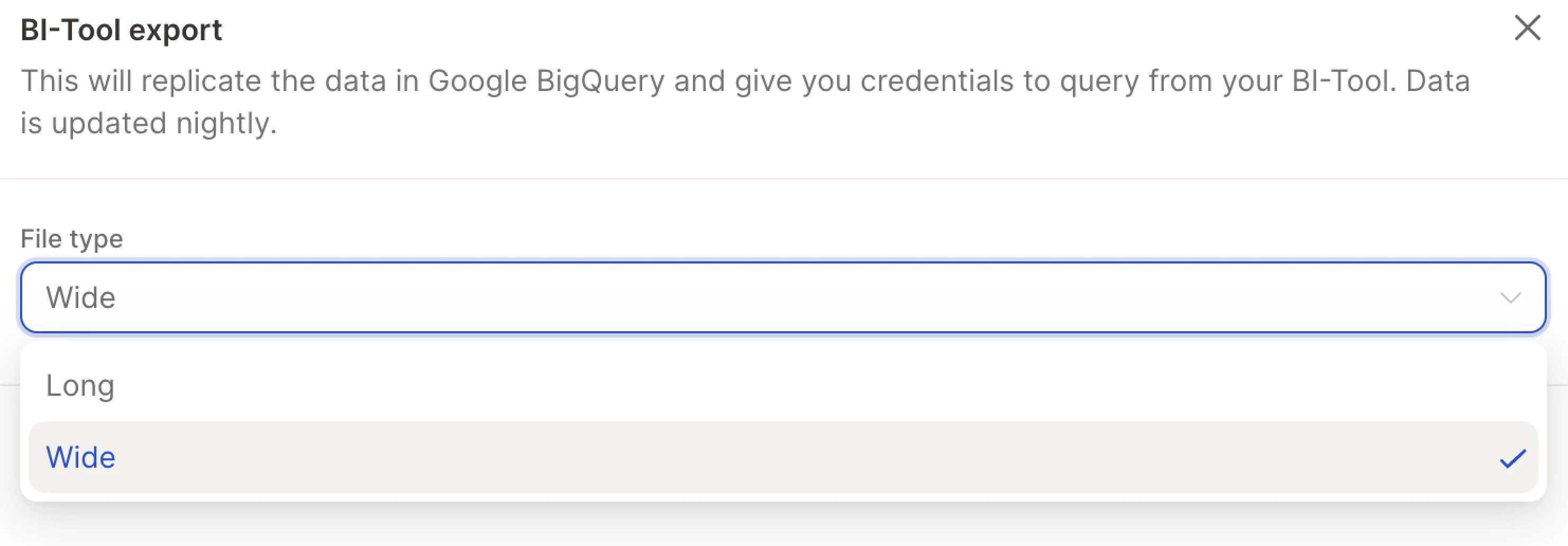 * **Long Format** — Ideal for working with open-ended text and topic analysis. Each row represents a single topic assignment per response.
* **Wide Format** — More suitable if you're comfortable using Power Query or SQL. All topics are returned in a single row with multiple columns or as arrays.
If your focus is on qualitative feedback (open-ends and topic sentiment), the long format is generally easier to work with.
The exported data is updated nightly, so if you make changes in Caplena (e.g., assign new topics), those updates will be reflected the next day.
### Step 2: Access your export credentials
Once the export is ready, you'll be provided with:
* **Long Format** — Ideal for working with open-ended text and topic analysis. Each row represents a single topic assignment per response.
* **Wide Format** — More suitable if you're comfortable using Power Query or SQL. All topics are returned in a single row with multiple columns or as arrays.
If your focus is on qualitative feedback (open-ends and topic sentiment), the long format is generally easier to work with.
The exported data is updated nightly, so if you make changes in Caplena (e.g., assign new topics), those updates will be reflected the next day.
### Step 2: Access your export credentials
Once the export is ready, you'll be provided with:
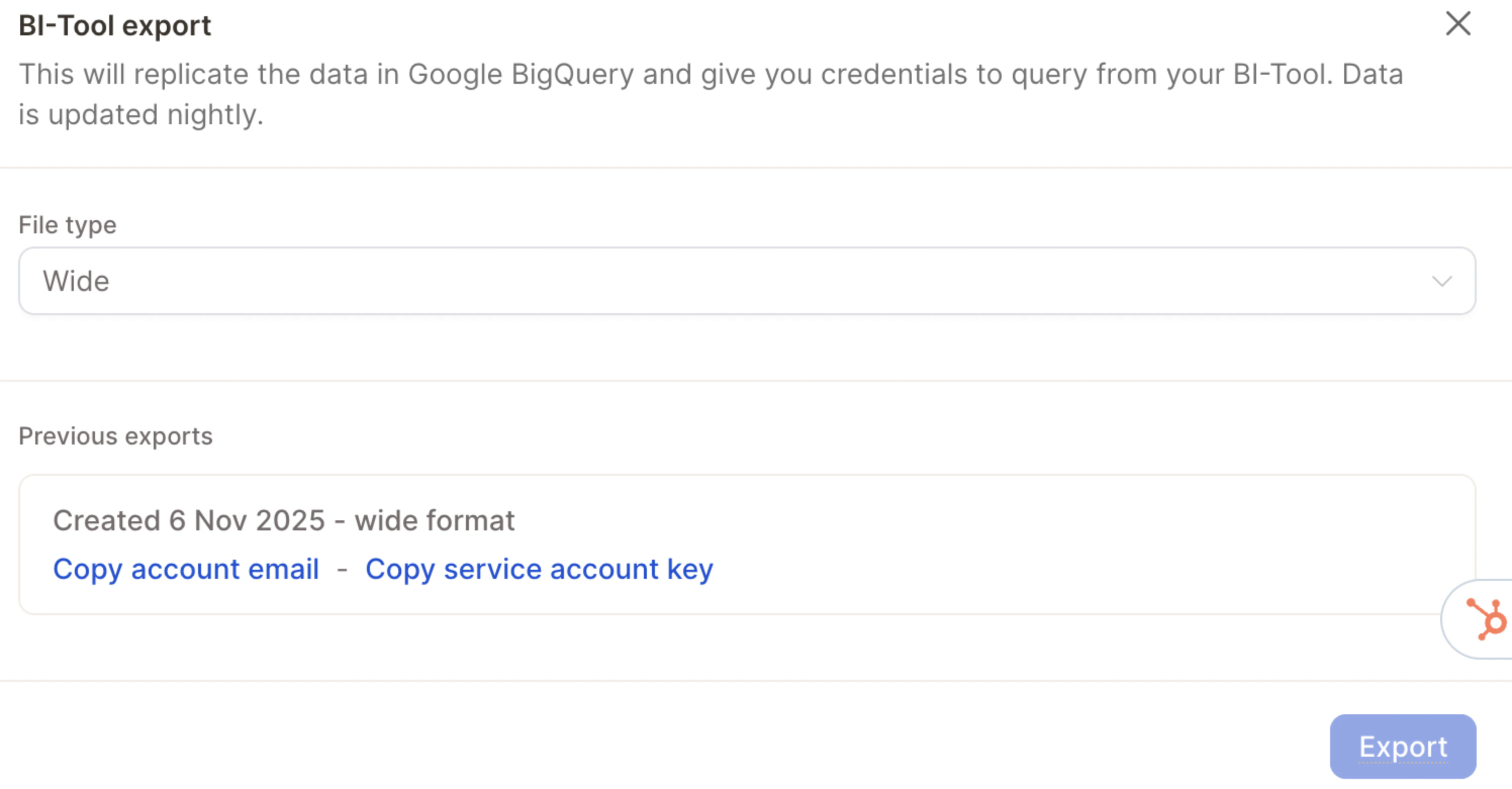 * **Account Email**
* **Service Account Key**
You'll use these credentials to connect to the data via **Google BigQuery**, which is Caplena's hosting and data warehouse provider.
### Step 3: Connect your BI tool
**Power BI**
* **Account Email**
* **Service Account Key**
You'll use these credentials to connect to the data via **Google BigQuery**, which is Caplena's hosting and data warehouse provider.
### Step 3: Connect your BI tool
**Power BI**
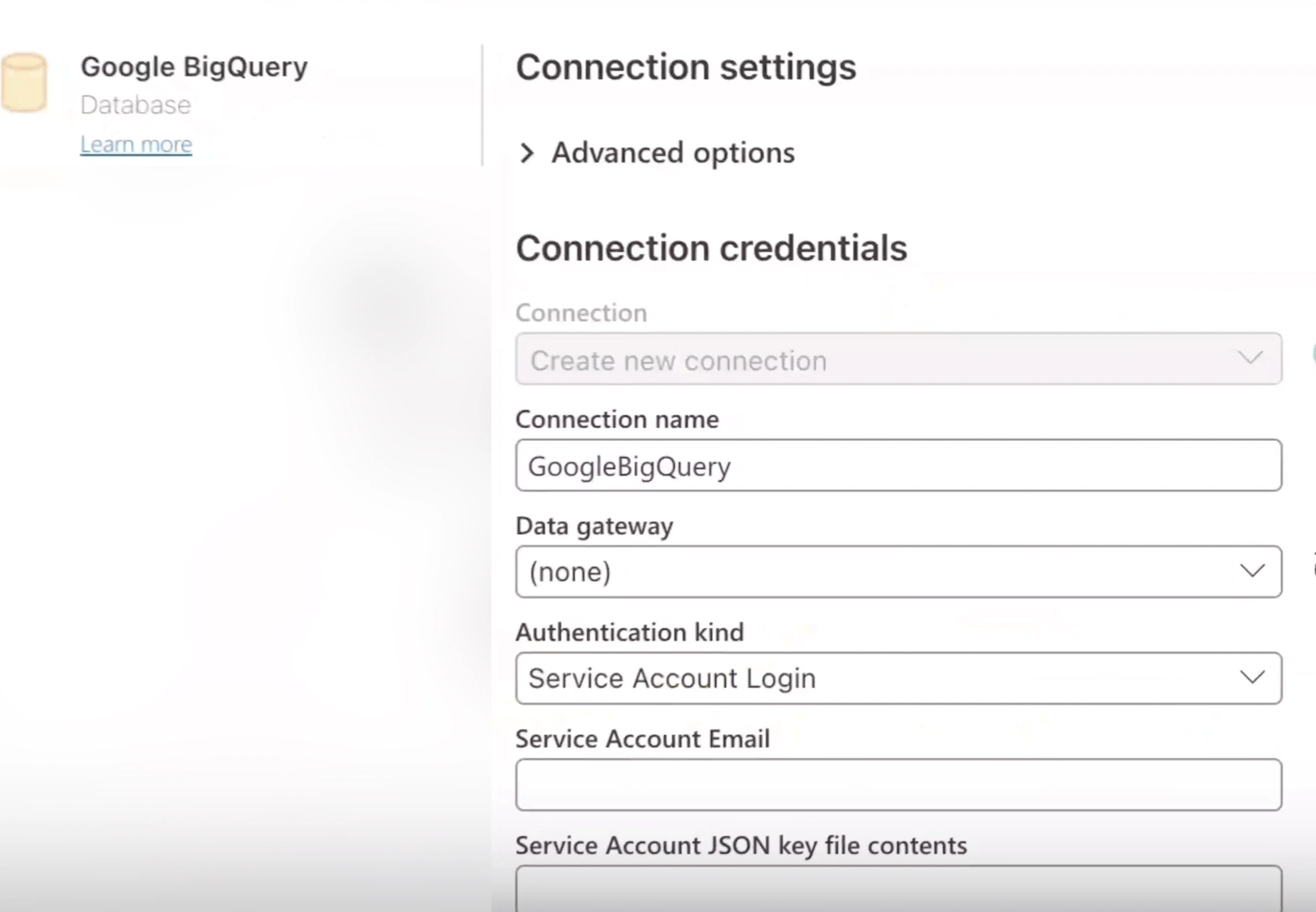 1. Open Power BI and go to **Power Query** (via Dataflows or the Desktop App).
2. Click **Add data source** and search for **BigQuery**.
3. Create a new connection using the Account Email and Service Account Key from Caplena.
4. After authentication, navigate to your dataset. It will appear with a name such as `project_960_long_format` (or similar).
**Tableau**
1. Open Power BI and go to **Power Query** (via Dataflows or the Desktop App).
2. Click **Add data source** and search for **BigQuery**.
3. Create a new connection using the Account Email and Service Account Key from Caplena.
4. After authentication, navigate to your dataset. It will appear with a name such as `project_960_long_format` (or similar).
**Tableau**
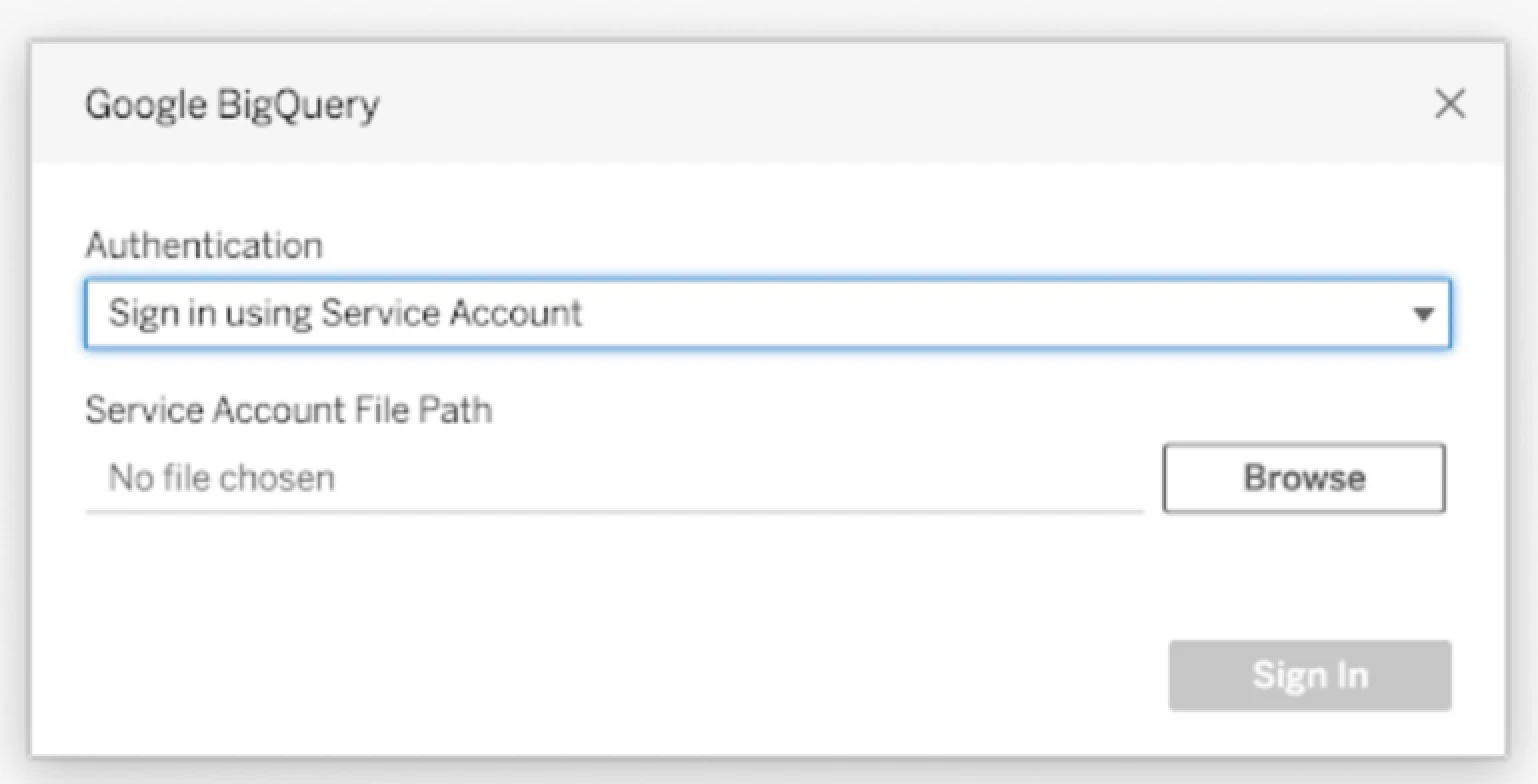 1. In **Authentication**, choose **Sign in using Service Account (JSON)**.
2. Upload the `.json` key file.
3. Click **Sign In** and authenticate.
4. Click **Accept** to grant access.
If you're using Tableau Server or Tableau Cloud, make sure to first log in to the Tableau product and then add your saved BigQuery credentials in account settings. This avoids the common "Invalid credentials" error. [Full guide from Tableau](https://help.tableau.com)
**Looker**
Follow this official guide to configure your connection: [Connecting Looker to BigQuery](https://cloud.google.com/looker/docs/db-config-google-bigquery)
### Step 4: Understand the long format structure
In long format:
* Each response may appear in **multiple rows**, one for each topic assigned.
* Repeated columns (like respondent ID, submission date, or other variables) will remain the same across rows.
* Each row includes:
* A topic label
* The sentiment assigned
* The full response text (if included)
* Any other quantitative variables (e.g. brand, date, source)
**Example:** One response assigned two topics results in two rows:
| Topic | Sentiment |
| -------- | --------- |
| Price | Negative |
| Coverage | Negative |
### Step 5: Build your visualizations
Now that the data is available in your BI tool, you can start building visualizations:
* Bar charts of top topics by volume
* Sentiment trends over time
* Filtering by brand, wave, or product line
In long format, duplicate rows for multiple topics may affect calculations like averages or NPS scores. If needed, use de-duplication logic or switch to wide format to avoid duplication.
1. In **Authentication**, choose **Sign in using Service Account (JSON)**.
2. Upload the `.json` key file.
3. Click **Sign In** and authenticate.
4. Click **Accept** to grant access.
If you're using Tableau Server or Tableau Cloud, make sure to first log in to the Tableau product and then add your saved BigQuery credentials in account settings. This avoids the common "Invalid credentials" error. [Full guide from Tableau](https://help.tableau.com)
**Looker**
Follow this official guide to configure your connection: [Connecting Looker to BigQuery](https://cloud.google.com/looker/docs/db-config-google-bigquery)
### Step 4: Understand the long format structure
In long format:
* Each response may appear in **multiple rows**, one for each topic assigned.
* Repeated columns (like respondent ID, submission date, or other variables) will remain the same across rows.
* Each row includes:
* A topic label
* The sentiment assigned
* The full response text (if included)
* Any other quantitative variables (e.g. brand, date, source)
**Example:** One response assigned two topics results in two rows:
| Topic | Sentiment |
| -------- | --------- |
| Price | Negative |
| Coverage | Negative |
### Step 5: Build your visualizations
Now that the data is available in your BI tool, you can start building visualizations:
* Bar charts of top topics by volume
* Sentiment trends over time
* Filtering by brand, wave, or product line
In long format, duplicate rows for multiple topics may affect calculations like averages or NPS scores. If needed, use de-duplication logic or switch to wide format to avoid duplication.