> ## Documentation Index
> Fetch the complete documentation index at: https://docs.caplena.com/llms.txt
> Use this file to discover all available pages before exploring further.
# Managing an Existing Project: Settings & Permissions
> Everything you need to manage your project's privacy, access, and setup, all in one place.
Already created your project? Here's how to adjust permissions, privacy limits, and more, all from one place.
This guide is for managing settings **after** a project has been created.\
If you're looking for help setting up a new project (e.g. with translation or anonymization), [check out this article →](/get-started/project-settings/project-settings-overview)
## How to Access Project Settings
To open your settings:

Open your project in Caplena
Click the **gear icon** (⚙️) in the left-hand menu
Switch between **General**, **Permissions**, and **Anonymization** **Permissions**, and **Anonymization** tabs at the top
 ## General Tab
Here you can adjust basic project-level behavior related to appearance and privacy.
## General Tab
Here you can adjust basic project-level behavior related to appearance and privacy.
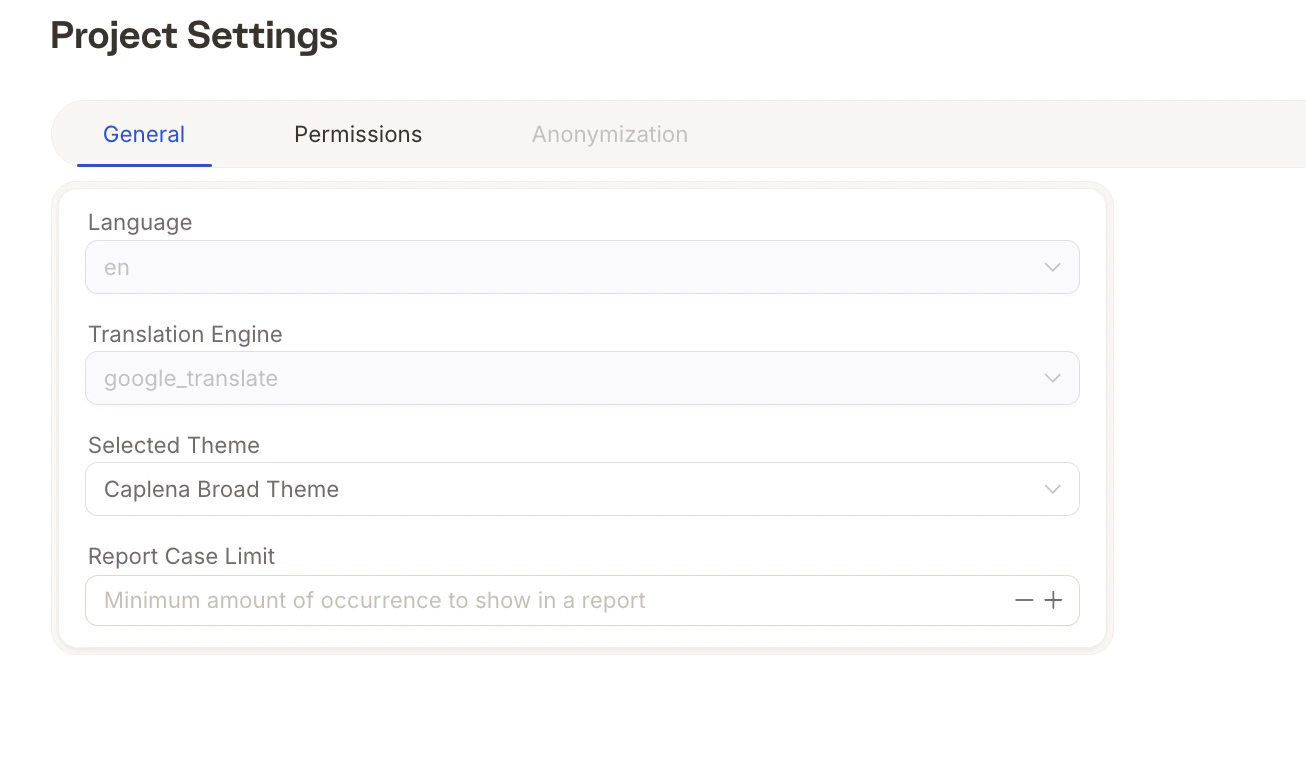 * **Language & Translation Engine**\
The language and translation engine are selected during project setup. For more information, please [follow this link](/get-started/project-settings/languages-and-translations).
These **cannot be changed** after the project is created.
* **Selected Theme**\
Choose the visual theme for your reports. For more information, please [follow this link](/insight-and-reports/creating-and-customizing-reports/custom-theme).
* **Report Case Limit** \
A privacy feature that hides insights if there are too few responses for a segment. For more information, please [follow this link](/insight-and-reports/creating-and-customizing-reports/case-limit).
#### **Project Permissions**
These determine what a user can do with the **project data** and its structure (e.g., topics, coding, imports). For more information, please [follow this link](/settings-administration/understanding-access/introduction-permission-types).
#### Anonymization Tab
* **Language & Translation Engine**\
The language and translation engine are selected during project setup. For more information, please [follow this link](/get-started/project-settings/languages-and-translations).
These **cannot be changed** after the project is created.
* **Selected Theme**\
Choose the visual theme for your reports. For more information, please [follow this link](/insight-and-reports/creating-and-customizing-reports/custom-theme).
* **Report Case Limit** \
A privacy feature that hides insights if there are too few responses for a segment. For more information, please [follow this link](/insight-and-reports/creating-and-customizing-reports/case-limit).
#### **Project Permissions**
These determine what a user can do with the **project data** and its structure (e.g., topics, coding, imports). For more information, please [follow this link](/settings-administration/understanding-access/introduction-permission-types).
#### Anonymization Tab
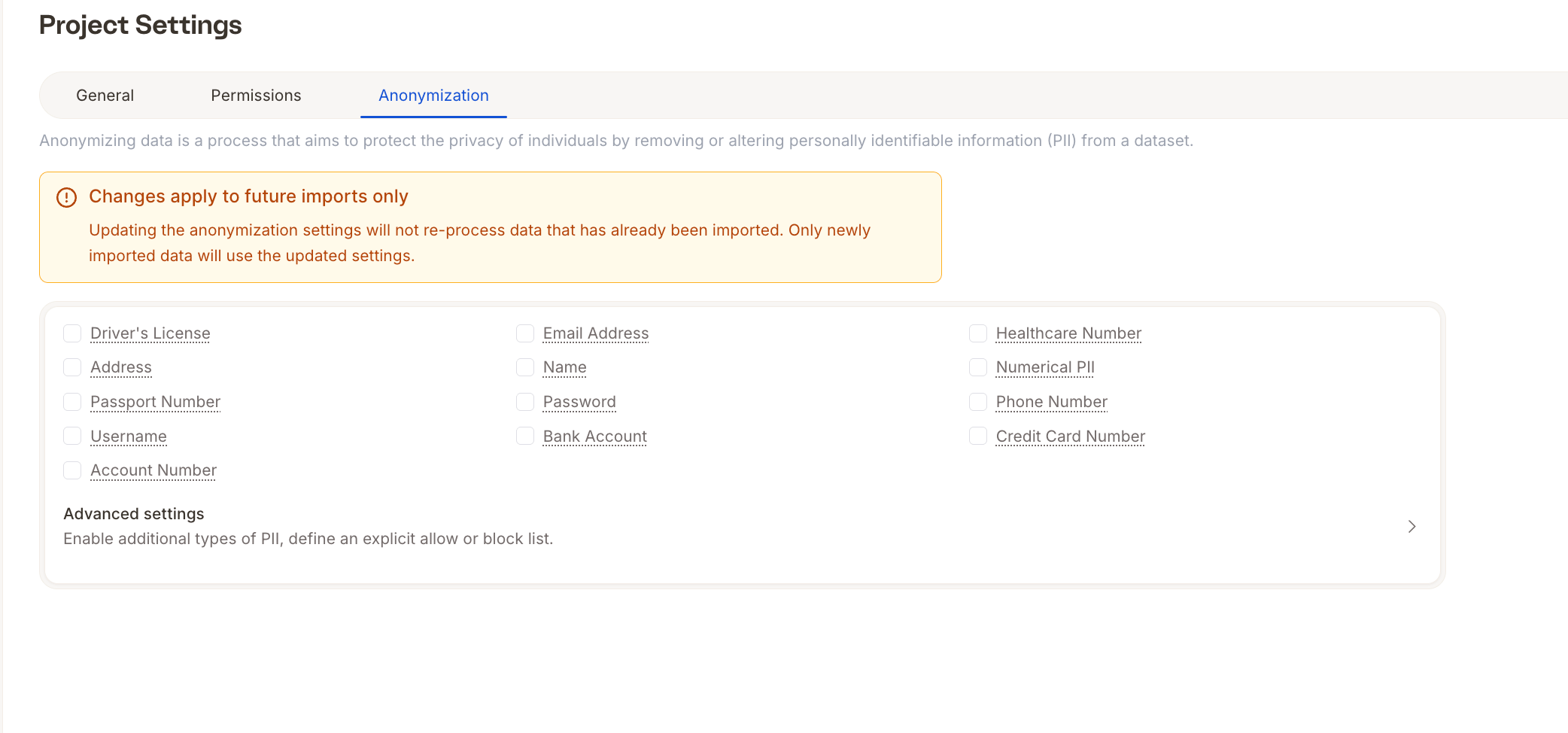 Update which PII types are anonymized, along with your allow-list and block-list, at any point after the project is created. Changes are saved automatically and apply to **future imports only** — data that has already been imported is not re-processed, and anonymization on existing data cannot be undone.
Editing anonymization requires the **Edit** project permission and a subscription plan that includes anonymization. For details on classes, allow-lists, and block-lists, see the [Anonymization guide](/get-started/project-settings/anonymization).
##
Update which PII types are anonymized, along with your allow-list and block-list, at any point after the project is created. Changes are saved automatically and apply to **future imports only** — data that has already been imported is not re-processed, and anonymization on existing data cannot be undone.
Editing anonymization requires the **Edit** project permission and a subscription plan that includes anonymization. For details on classes, allow-lists, and block-lists, see the [Anonymization guide](/get-started/project-settings/anonymization).
##