> ## Documentation Index
> Fetch the complete documentation index at: https://docs.caplena.com/llms.txt
> Use this file to discover all available pages before exploring further.
# Semi-Open Mode: Quick Guide
> Analyze list-based responses quickly and consistently.
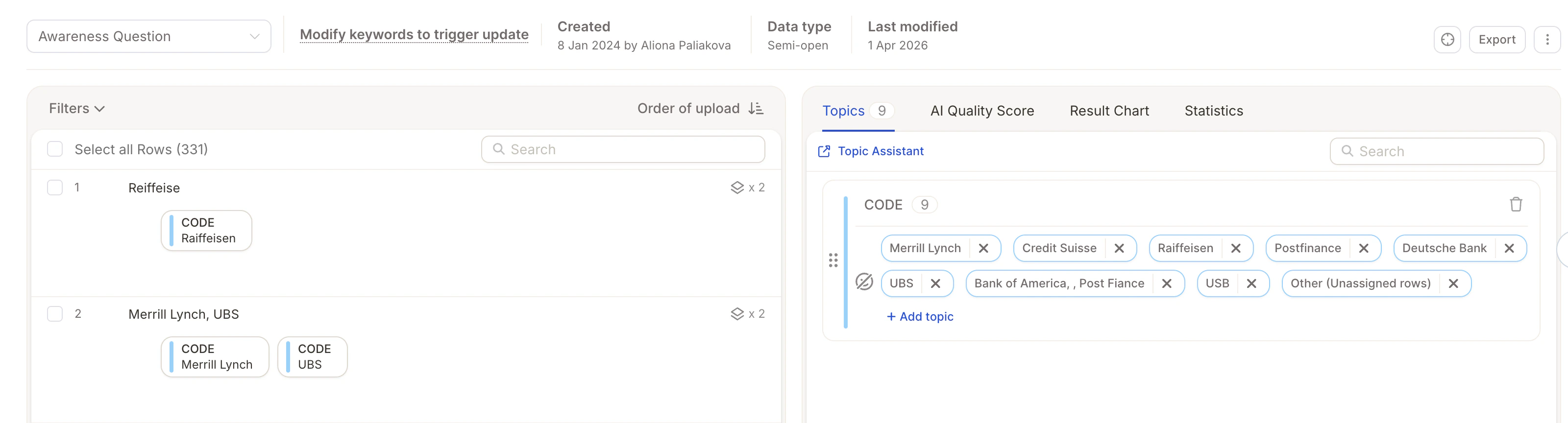
Semi-open mode is designed for **structured open-text questions** where responses follow a **limited and repeatable pattern** — think brand awareness surveys, competitor lists, or short 1–3 word answers.
Rather than exploring themes, Semi-Open mode focuses on standardizing similar answers, grouping variations of the same term, and creating clean, consistent categories.
**Typical use cases:**
* Brand awareness ("Which brands do you know?")
* List-based answers (products, competitors, sources)
* Short, repetitive responses
***
## Step 1: Select Your Text Columns
Before starting the analysis, decide how to handle your columns:
Select each column as **Text-to-Analyze (TTA)**. Use this when you want to **compare results across questions**.
Each TTA column is analyzed separately and consumes credits.
Use **Smart Columns** to merge multiple columns into one unified analysis. Best when columns contain the **same or very similar question**.
[Smart Columns guide →](/data-project-management/common-smart-columns-intro/how-to-combine-multiple-columns-for-joint-analysis)
***
## Step 2: Start the Analysis
Choose how to build your topic structure:
* **Start from scratch** – AI generates initial topics and categories automatically
* **Reuse existing structure** – Import a topic collection or reuse categories from another project
***
## Step 3: Configure Key Settings
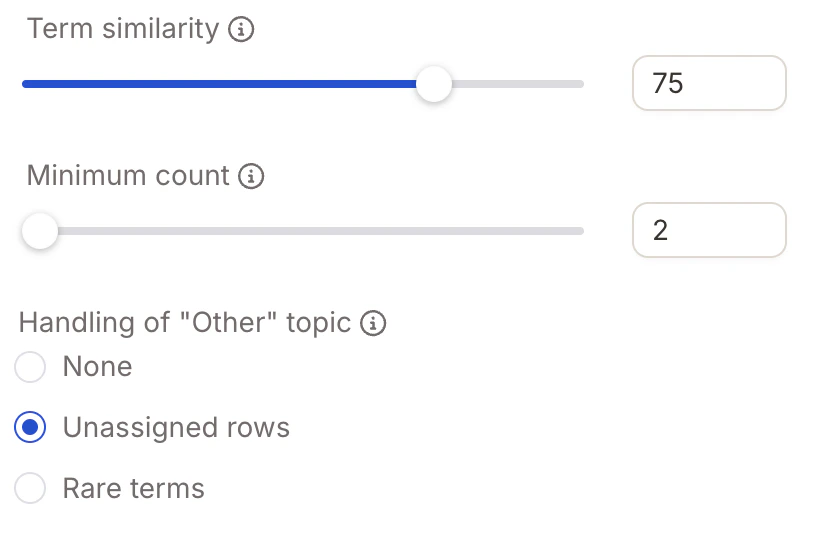
**Term Similarity**
Controls how strictly terms are grouped together.
| Value | Behavior |
| ----- | ----------------------------------------------------- |
| 100% | Exact matches only |
| \~75% | Groups similar variations (e.g. spelling differences) |
**Minimum Count**
Defines how often a term must appear to become its own topic. For example, setting this to `2` means only terms mentioned at least twice will appear as separate topics.
**"Other" Topic**
Controls how low-frequency responses are handled:
| Option | Description |
| --------------- | ---------------------------------------- |
| None | No "Other" topic created |
| Unassigned Rows | Only responses without any topic |
| Rare Terms | Low-frequency terms grouped into "Other" |
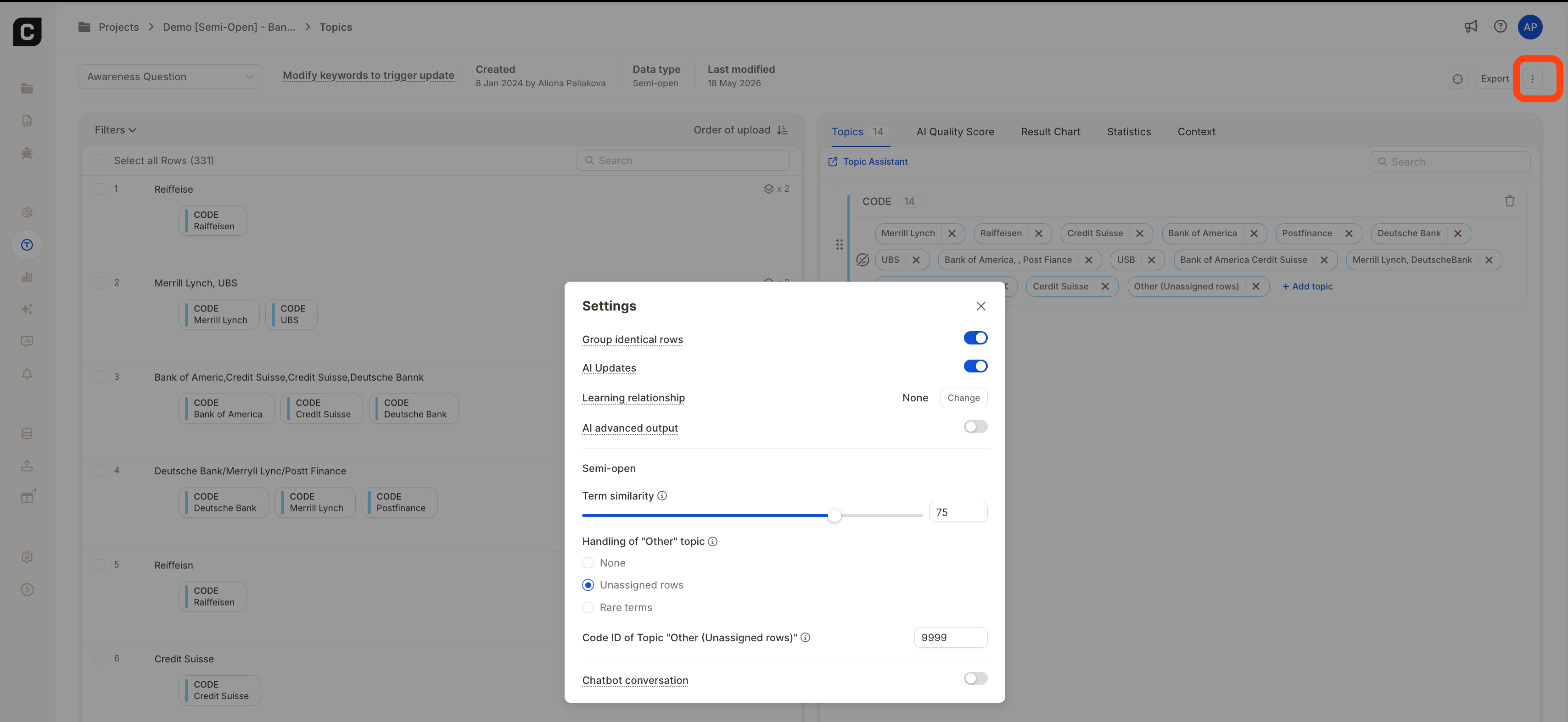
When **Unassigned Rows** or **Rare Terms** is selected, you can assign a custom **code ID** (any integer ≥ 0) to the "Other" topic — useful when exporting results and aligning topic codes with an existing coding scheme.
You can modify the **Term Similarity**, **"Other" topic handling**, and the **"Other" code ID** at any time from the question’s **Settings** menu in the topic assignment view.
Changes are saved automatically and will take effect during the next topic assignment run.
## Step 4: Review Topics & Keywords
Before finalizing, review and fine-tune your topics and keywords to ensure accurate results.
**Review Topics**
* Confirm each topic represents a **distinct answer or concept**
* Rename topics to improve clarity
* Merge duplicates and remove irrelevant topics
**Adjust Keywords**
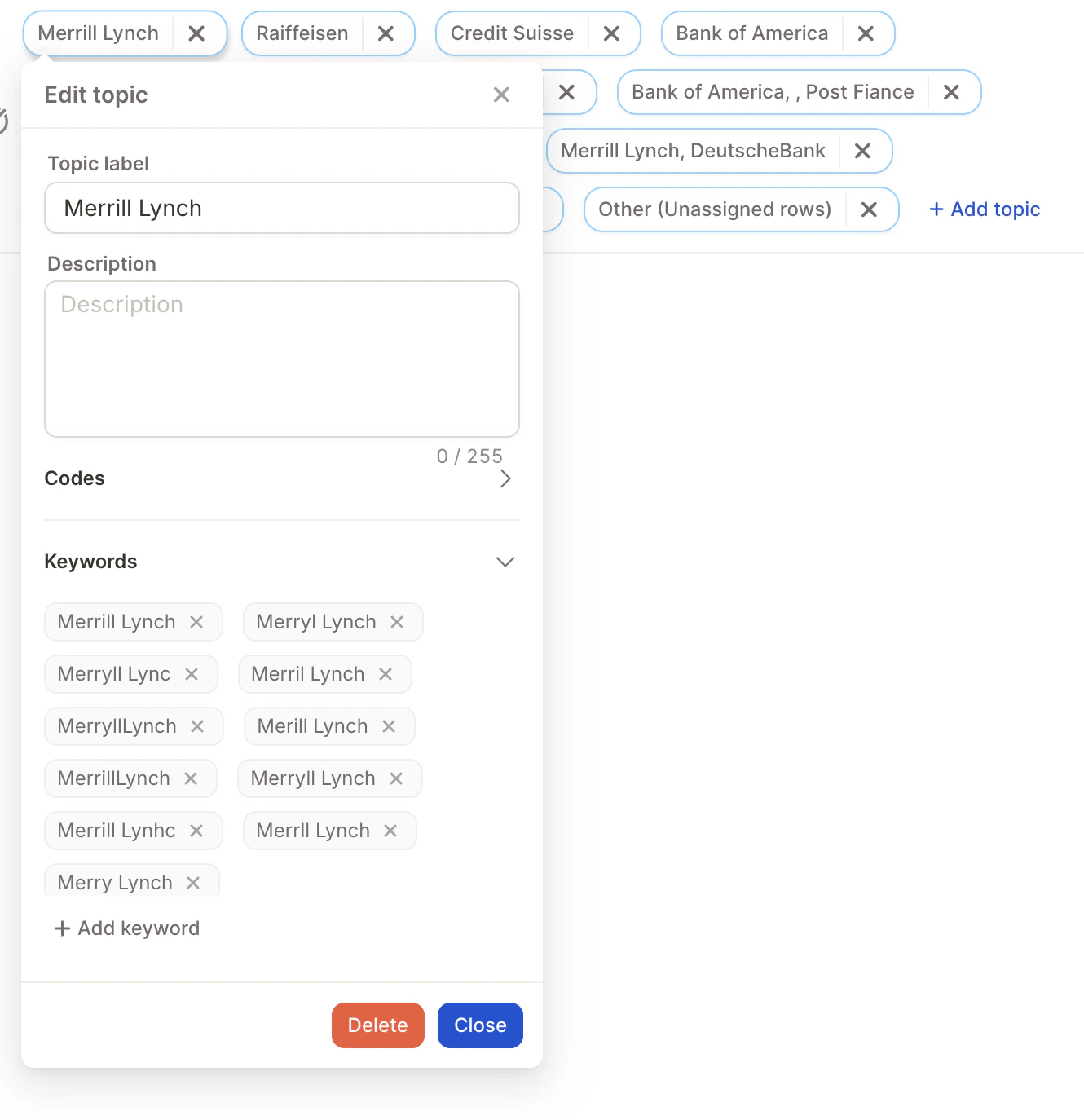
Each topic uses keywords to assign responses correctly. To edit them, click on a topic and open the keyword list.
Best practices for keywords:
* **Include abbreviations** – e.g. "FB" for Facebook
* **Add spelling variations** – e.g. "McDonalds", "Mc Donald's"
* **Include common phrasing** – different ways users might refer to the same concept
* **Be specific** – especially for similar or overlapping topics
Keywords have a maximum length of 30 characters including spaces. If a keyword exceeds this limit, it will not trigger assignments — shorten it or split it into a shorter variation.
Punctuation doesn't matter — "Iqos, TEREA, Plum" works the same as "Iqos TEREA Plum". Only `||` is treated as a separator.
**How keyword matching works**
The system always matches the **most specific keyword** in the text. If two keywords overlap, the longer one wins.
> **Example:** Keywords are `Tesla` and `Tesla Model 3`. For the text *"I like my Tesla Model 3"*, the system matches **Tesla Model 3 ✅** and ignores `Tesla` since the longer keyword already covers it.
## How Semi-Open Learns from Your Input
Semi-Open mode updates assignments automatically as you refine your codebook. Two things trigger reassignment:
* **Keyword changes** — adding or editing keywords on a topic causes Caplena to re-evaluate all rows against the updated keyword list within a few minutes.
* **Manual reviews** — when you manually assign a topic to a row and mark it as reviewed, the system learns from that correction and applies the same logic to similar unreviewed rows.
After making changes, assignments update automatically in the background — you don't need to trigger a manual run. If you don't see the changes reflected immediately, refresh the page.
Keywords are the most efficient way to control assignments at scale. Manual reviews are useful for edge cases and exceptions that keywords alone can't reliably capture.
## Video Walkthrough
***
 **Typical use cases:**
* Brand awareness ("Which brands do you know?")
* List-based answers (products, competitors, sources)
* Short, repetitive responses
***
## Step 1: Select Your Text Columns
Before starting the analysis, decide how to handle your columns:
**Typical use cases:**
* Brand awareness ("Which brands do you know?")
* List-based answers (products, competitors, sources)
* Short, repetitive responses
***
## Step 1: Select Your Text Columns
Before starting the analysis, decide how to handle your columns:
.gif?s=1ecc784c873394534233421c78966fd9) Choose how to build your topic structure:
* **Start from scratch** – AI generates initial topics and categories automatically
* **Reuse existing structure** – Import a topic collection or reuse categories from another project
***
## Step 3: Configure Key Settings
Choose how to build your topic structure:
* **Start from scratch** – AI generates initial topics and categories automatically
* **Reuse existing structure** – Import a topic collection or reuse categories from another project
***
## Step 3: Configure Key Settings
 **Term Similarity**
Controls how strictly terms are grouped together.
| Value | Behavior |
| ----- | ----------------------------------------------------- |
| 100% | Exact matches only |
| \~75% | Groups similar variations (e.g. spelling differences) |
**Minimum Count**
Defines how often a term must appear to become its own topic. For example, setting this to `2` means only terms mentioned at least twice will appear as separate topics.
**"Other" Topic**
Controls how low-frequency responses are handled:
| Option | Description |
| --------------- | ---------------------------------------- |
| None | No "Other" topic created |
| Unassigned Rows | Only responses without any topic |
| Rare Terms | Low-frequency terms grouped into "Other" |
When **Unassigned Rows** or **Rare Terms** is selected, you can assign a custom **code ID** (any integer ≥ 0) to the "Other" topic — useful when exporting results and aligning topic codes with an existing coding scheme.
**Term Similarity**
Controls how strictly terms are grouped together.
| Value | Behavior |
| ----- | ----------------------------------------------------- |
| 100% | Exact matches only |
| \~75% | Groups similar variations (e.g. spelling differences) |
**Minimum Count**
Defines how often a term must appear to become its own topic. For example, setting this to `2` means only terms mentioned at least twice will appear as separate topics.
**"Other" Topic**
Controls how low-frequency responses are handled:
| Option | Description |
| --------------- | ---------------------------------------- |
| None | No "Other" topic created |
| Unassigned Rows | Only responses without any topic |
| Rare Terms | Low-frequency terms grouped into "Other" |
When **Unassigned Rows** or **Rare Terms** is selected, you can assign a custom **code ID** (any integer ≥ 0) to the "Other" topic — useful when exporting results and aligning topic codes with an existing coding scheme.
 ## Step 4: Review Topics & Keywords
Before finalizing, review and fine-tune your topics and keywords to ensure accurate results.
**Review Topics**
* Confirm each topic represents a **distinct answer or concept**
* Rename topics to improve clarity
* Merge duplicates and remove irrelevant topics
**Adjust Keywords**
Each topic uses keywords to assign responses correctly. To edit them, click on a topic and open the keyword list.
## Step 4: Review Topics & Keywords
Before finalizing, review and fine-tune your topics and keywords to ensure accurate results.
**Review Topics**
* Confirm each topic represents a **distinct answer or concept**
* Rename topics to improve clarity
* Merge duplicates and remove irrelevant topics
**Adjust Keywords**
Each topic uses keywords to assign responses correctly. To edit them, click on a topic and open the keyword list.
 Best practices for keywords:
* **Include abbreviations** – e.g. "FB" for Facebook
* **Add spelling variations** – e.g. "McDonalds", "Mc Donald's"
* **Include common phrasing** – different ways users might refer to the same concept
* **Be specific** – especially for similar or overlapping topics
Best practices for keywords:
* **Include abbreviations** – e.g. "FB" for Facebook
* **Add spelling variations** – e.g. "McDonalds", "Mc Donald's"
* **Include common phrasing** – different ways users might refer to the same concept
* **Be specific** – especially for similar or overlapping topics