> ## Documentation Index
> Fetch the complete documentation index at: https://docs.caplena.com/llms.txt
> Use this file to discover all available pages before exploring further.
# Setting Up Alerts
> Learn how to set up alerts to track topic trends and discover new issues automatically.
The **Alerts** feature in Caplena helps you stay on top of emerging trends, spikes in feedback, and important changes in sentiment or topic frequency
## Types of Alerts
When you click **Create new alert**, you’ll be prompted to choose one of three options:
**Agent Prompt** *(featured)* Get AI-generated reports delivered on a schedule or on demand. Write a plain-language prompt describing what you want to know and how often, Caplena's agent will analyze your data and send you a report.
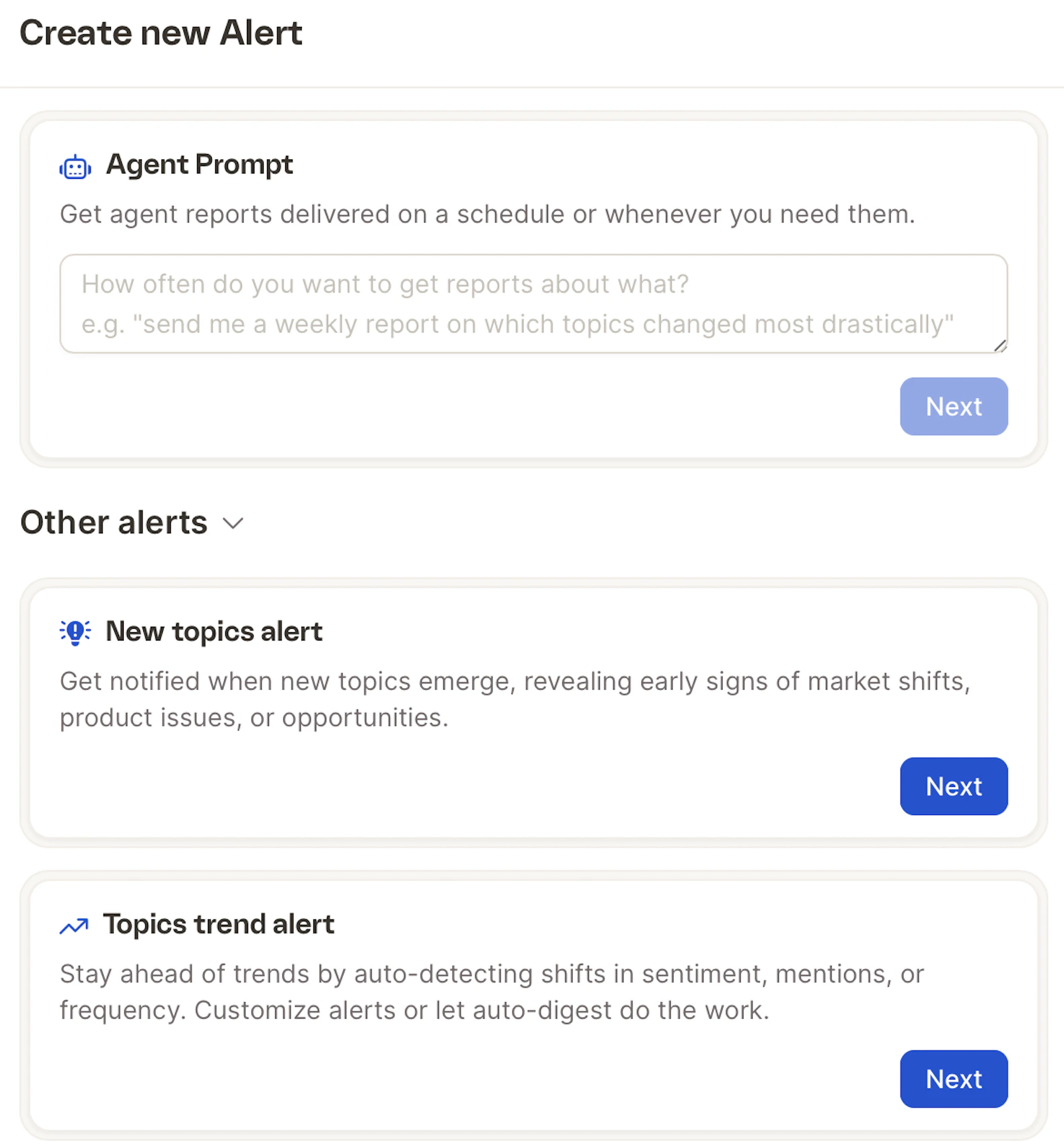 *Example prompt:* "Send me a weekly report on which topics changed most drastically."
**New Topics Alert** Get notified when brand-new topics emerge in your feedback, revealing early signs of market shifts, product issues, or opportunities.
**Topics Trend Alert** Stay ahead of trends by auto-detecting shifts in sentiment, mentions, or frequency. Customize thresholds or let auto-digest do the work.
## How to Set Up an Alert
* Go to your project and open the **Alerts** tab.
* Click **Create new alert**.
* Choose your alert type and click **Next**.
* Fill in the details and configure your schedule.
## Agent Prompt Alerts
This is the most flexible alert type. You write a custom prompt telling Caplena what to analyze and report on.
*Example prompt:* "Send me a weekly report on which topics changed most drastically."
**New Topics Alert** Get notified when brand-new topics emerge in your feedback, revealing early signs of market shifts, product issues, or opportunities.
**Topics Trend Alert** Stay ahead of trends by auto-detecting shifts in sentiment, mentions, or frequency. Customize thresholds or let auto-digest do the work.
## How to Set Up an Alert
* Go to your project and open the **Alerts** tab.
* Click **Create new alert**.
* Choose your alert type and click **Next**.
* Fill in the details and configure your schedule.
## Agent Prompt Alerts
This is the most flexible alert type. You write a custom prompt telling Caplena what to analyze and report on.
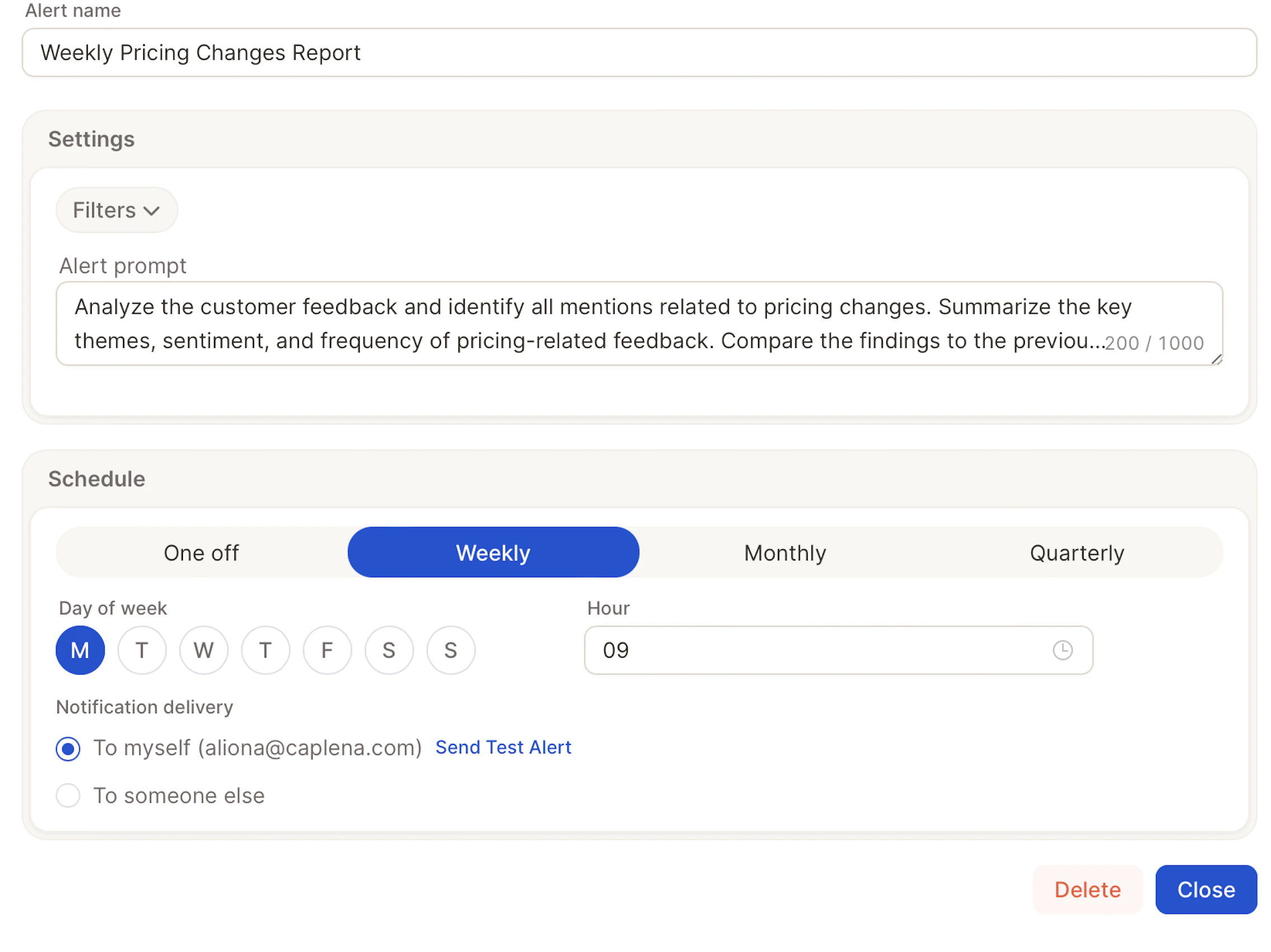 **Configuration options:**
* **Alert name** — Give your alert a descriptive name (e.g. "Weekly Pricing Changes Report").
* **Filters** — Scope the alert to specific segments of your data.
* **Alert prompt** — Write your instruction in plain language (up to 1,000 characters). Describe what to analyze, what to summarize, and any comparisons to make.
* **Schedule** — Choose *One off*, *Weekly*, *Monthly*, or *Quarterly*. For recurring schedules, set the day of week and hour.
* **Notification delivery** — Send to yourself or to someone else. The recipient becomes the alert owner if they're a member of your organization (see [Alert ownership](#alert-ownership)).
*Example prompt:* "Analyze the customer feedback and identify all mentions related to pricing changes. Summarize the key themes, sentiment, and frequency of pricing-related feedback. Compare the findings to the previous period."
**What You'll Receive**
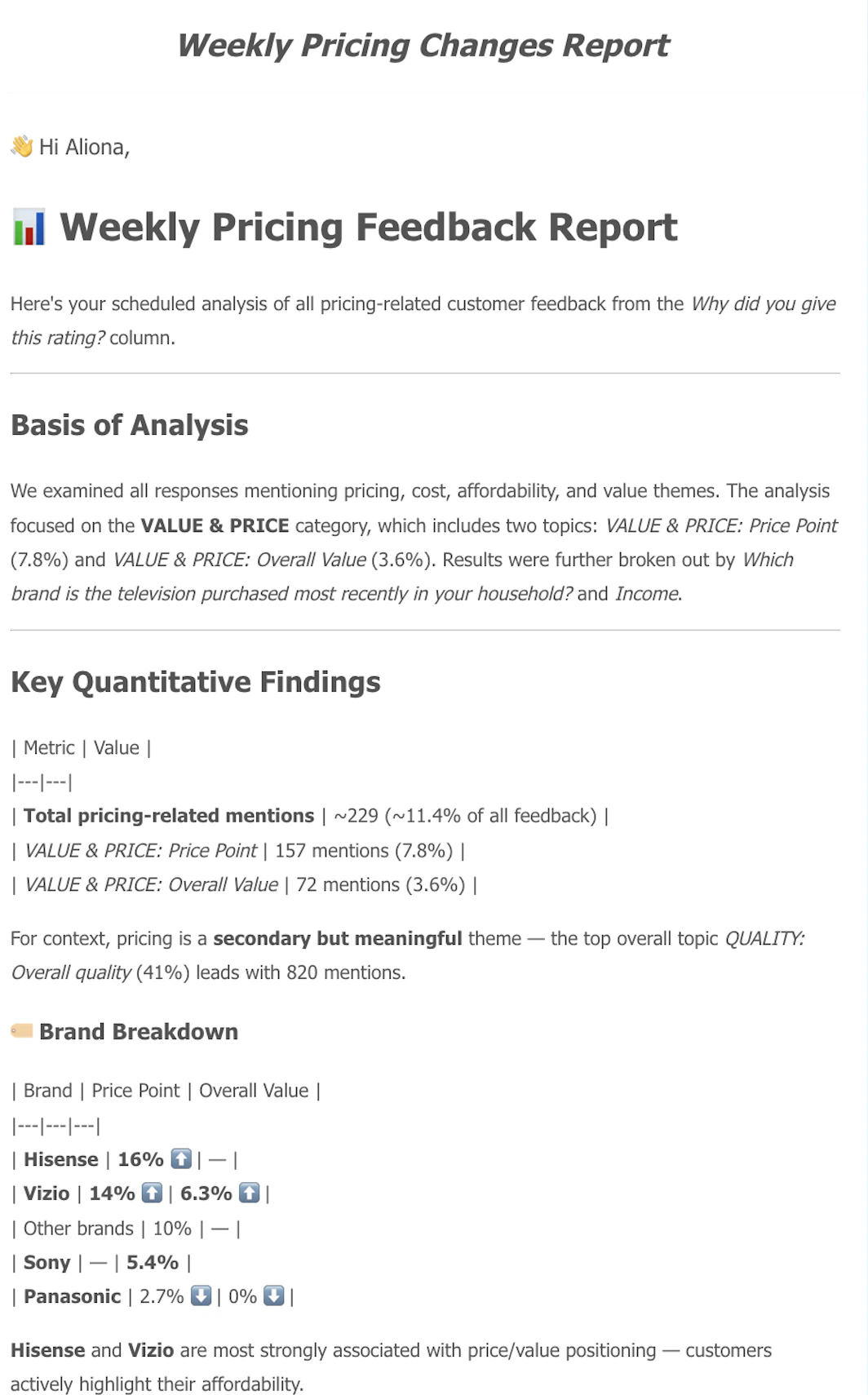
Once your Agent Prompt alert runs, Caplena will send you a formatted email report tailored to your prompt. The agent decides the best way to present the findings — this could include narrative summaries, tables, breakdowns by segment, or a mix, depending on what makes most sense for the question you asked.
**Configuration options:**
* **Alert name** — Give your alert a descriptive name (e.g. "Weekly Pricing Changes Report").
* **Filters** — Scope the alert to specific segments of your data.
* **Alert prompt** — Write your instruction in plain language (up to 1,000 characters). Describe what to analyze, what to summarize, and any comparisons to make.
* **Schedule** — Choose *One off*, *Weekly*, *Monthly*, or *Quarterly*. For recurring schedules, set the day of week and hour.
* **Notification delivery** — Send to yourself or to someone else. The recipient becomes the alert owner if they're a member of your organization (see [Alert ownership](#alert-ownership)).
*Example prompt:* "Analyze the customer feedback and identify all mentions related to pricing changes. Summarize the key themes, sentiment, and frequency of pricing-related feedback. Compare the findings to the previous period."
**What You'll Receive**
Once your Agent Prompt alert runs, Caplena will send you a formatted email report tailored to your prompt. The agent decides the best way to present the findings — this could include narrative summaries, tables, breakdowns by segment, or a mix, depending on what makes most sense for the question you asked.
 ## New Topics Alert
Get notified as soon as brand-new topics appear in your feedback. This is useful for catching emerging issues, product bugs, or shifts in customer language before they show up in trend data.
**Configuration options:**
* **Alert name** — A descriptive name (e.g. "New Topics – Support Feedback").
* **Filters** — Scope the alert to a segment of your data (e.g. a specific channel, product, or time window).
* **Column** — Choose which text column to monitor for new topics.
* **Minimum mentions** — Set how many times a topic must appear before it's flagged as "new". Higher thresholds reduce noise; lower thresholds surface issues earlier.
* **Schedule** — Choose *Weekly*, *Monthly*, or *Quarterly*. For recurring schedules, set the day of week and hour the alert should run.
* **Notification delivery** — Send to yourself or to another user. If the recipient is a member of your organization, they become the alert owner (see [Alert ownership](#alert-ownership)).
**What you'll receive**
An email listing each newly detected topic, the number of mentions, and sample verbatims so you can quickly assess whether it warrants action.
Pair a New Topics Alert with a broad filter (e.g. all support tickets) to act as an early-warning system for issues you haven't defined categories for yet.
## Topics Trend Alert
Stay ahead of shifts in your data by monitoring how existing topics change over time. Use it to spot spikes in complaints, drops in praise, or sentiment swings on specific themes.
**Configuration options:**
* **Alert name** — A descriptive name (e.g. "Pricing Sentiment Drop").
* **Filters** — Scope the alert to a specific segment (channel, region, product line, etc.).
* **Topics to monitor** — Select one or more topics, or use **auto-digest** to let Caplena surface the topics that changed most.
* **Metric** — Choose what to track: mention count, share of feedback, or sentiment.
* **Threshold** — Define the change that should trigger the alert (e.g. sentiment drops by more than 10%, or mentions increase by more than 25%). Leave blank when using auto-digest.
* **Comparison period** — Compare against the previous period, the same period last year, or a custom baseline.
* **Schedule** — Choose *Weekly*, *Monthly*, or *Quarterly*.
* **Notification delivery** — Send to yourself or another user.
**What you'll receive**
An email highlighting each topic that crossed your threshold, the direction and size of the change, and a comparison against the baseline period.
Use auto-digest when you want a broad "what changed this week" summary. Use explicit thresholds when you're monitoring a specific KPI or known risk area.
## Alert ownership
Each alert has an owner — by default, the user who created it. Ownership controls who can edit or delete an alert and where it appears.
**Visibility**
* **Project Alerts tab** — shows every alert configured on the project, regardless of owner. Use the **Owner** filter to narrow the list to a specific teammate.
* **Report Alerts tab** — shows only the alerts you own.
**Editing and deleting**
You can only edit or delete alerts you own. Alerts owned by other users are read-only for you. Ask the owner to make changes, or have them transfer ownership.
**Transferring ownership**
To hand an alert over to a teammate, edit it and set **Notification delivery** to their email address. If the recipient is a member of your organization, they automatically become the new owner and the alert moves to their Report Alerts tab.
## New Topics Alert
Get notified as soon as brand-new topics appear in your feedback. This is useful for catching emerging issues, product bugs, or shifts in customer language before they show up in trend data.
**Configuration options:**
* **Alert name** — A descriptive name (e.g. "New Topics – Support Feedback").
* **Filters** — Scope the alert to a segment of your data (e.g. a specific channel, product, or time window).
* **Column** — Choose which text column to monitor for new topics.
* **Minimum mentions** — Set how many times a topic must appear before it's flagged as "new". Higher thresholds reduce noise; lower thresholds surface issues earlier.
* **Schedule** — Choose *Weekly*, *Monthly*, or *Quarterly*. For recurring schedules, set the day of week and hour the alert should run.
* **Notification delivery** — Send to yourself or to another user. If the recipient is a member of your organization, they become the alert owner (see [Alert ownership](#alert-ownership)).
**What you'll receive**
An email listing each newly detected topic, the number of mentions, and sample verbatims so you can quickly assess whether it warrants action.
Pair a New Topics Alert with a broad filter (e.g. all support tickets) to act as an early-warning system for issues you haven't defined categories for yet.
## Topics Trend Alert
Stay ahead of shifts in your data by monitoring how existing topics change over time. Use it to spot spikes in complaints, drops in praise, or sentiment swings on specific themes.
**Configuration options:**
* **Alert name** — A descriptive name (e.g. "Pricing Sentiment Drop").
* **Filters** — Scope the alert to a specific segment (channel, region, product line, etc.).
* **Topics to monitor** — Select one or more topics, or use **auto-digest** to let Caplena surface the topics that changed most.
* **Metric** — Choose what to track: mention count, share of feedback, or sentiment.
* **Threshold** — Define the change that should trigger the alert (e.g. sentiment drops by more than 10%, or mentions increase by more than 25%). Leave blank when using auto-digest.
* **Comparison period** — Compare against the previous period, the same period last year, or a custom baseline.
* **Schedule** — Choose *Weekly*, *Monthly*, or *Quarterly*.
* **Notification delivery** — Send to yourself or another user.
**What you'll receive**
An email highlighting each topic that crossed your threshold, the direction and size of the change, and a comparison against the baseline period.
Use auto-digest when you want a broad "what changed this week" summary. Use explicit thresholds when you're monitoring a specific KPI or known risk area.
## Alert ownership
Each alert has an owner — by default, the user who created it. Ownership controls who can edit or delete an alert and where it appears.
**Visibility**
* **Project Alerts tab** — shows every alert configured on the project, regardless of owner. Use the **Owner** filter to narrow the list to a specific teammate.
* **Report Alerts tab** — shows only the alerts you own.
**Editing and deleting**
You can only edit or delete alerts you own. Alerts owned by other users are read-only for you. Ask the owner to make changes, or have them transfer ownership.
**Transferring ownership**
To hand an alert over to a teammate, edit it and set **Notification delivery** to their email address. If the recipient is a member of your organization, they automatically become the new owner and the alert moves to their Report Alerts tab.