> ## Documentation Index
> Fetch the complete documentation index at: https://docs.caplena.com/llms.txt
> Use this file to discover all available pages before exploring further.
# Custom Theme
> Tailor your visuals to match your brand
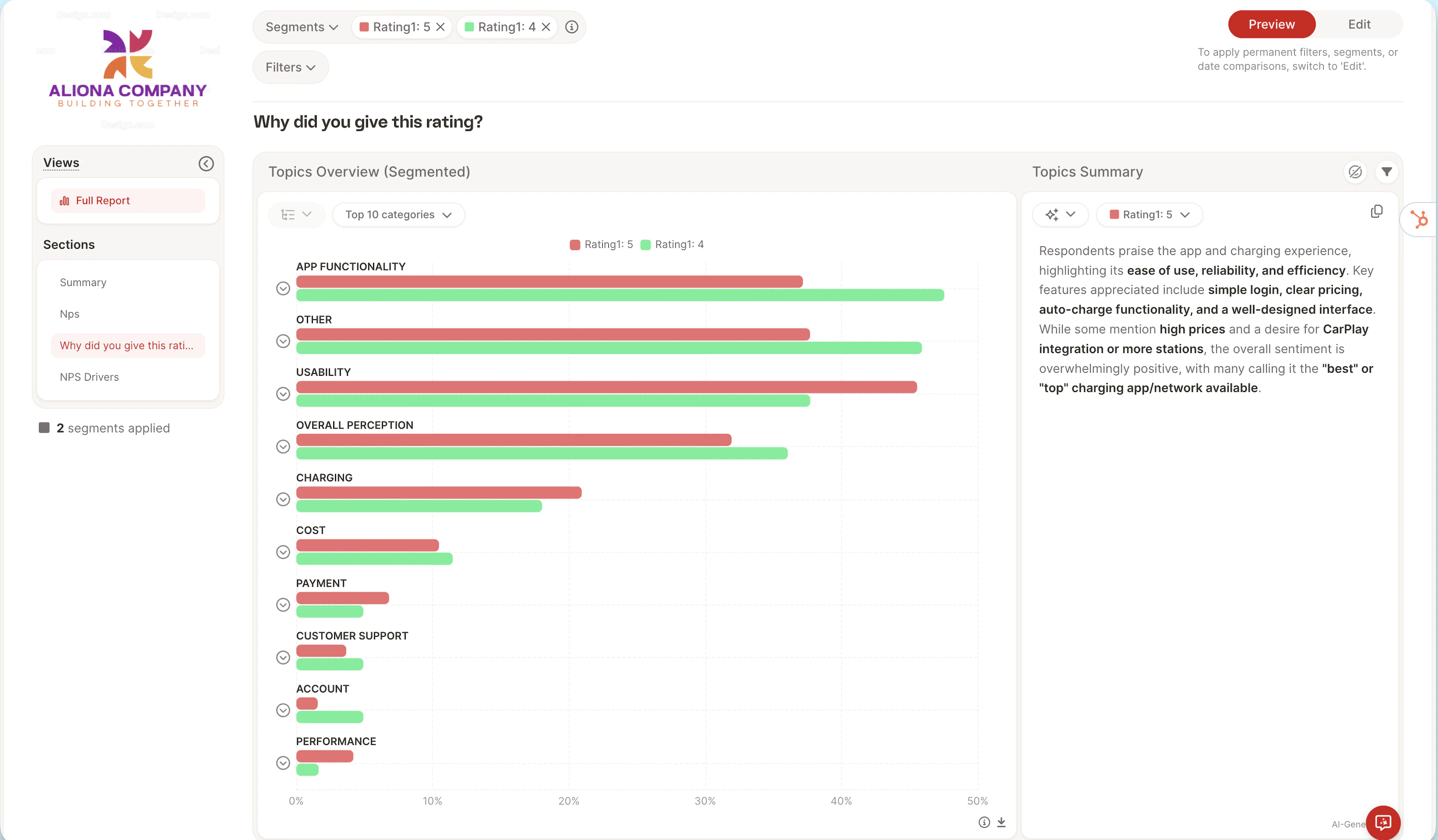
Caplena allows you to personalize your reports with a **Custom Theme** that reflects your brand identity. Whether you want to match your company's color palette, align visuals across projects, or impress stakeholders with a polished look, custom themes are the way to go.
You can create and manage your theme in your **Project Settings → Theme** tab.
## How It Works
* **Primary Color** – used mainly for buttons and key interface elements
* **Gradient Colors 1–8** – used for data visualizations like charts and segments,
* **Additional Colors** – up to 11 total colors to shape your visual story
It’s **not currently possible to manually assign specific colors to specific topics, or brands**. In other words:
* You can set the palette
* But you cannot say: “Brand A should always be blue”