> ## Documentation Index
> Fetch the complete documentation index at: https://docs.caplena.com/llms.txt
> Use this file to discover all available pages before exploring further.
# Row-level weights
> Applying weights in Caplena Reports
If you are using weighting to balance your sample, you can apply a weight variable directly in Caplena's reporting. Once applied, all results displayed in the report will automatically reflect the specified weighting.
## Applying weights to a report
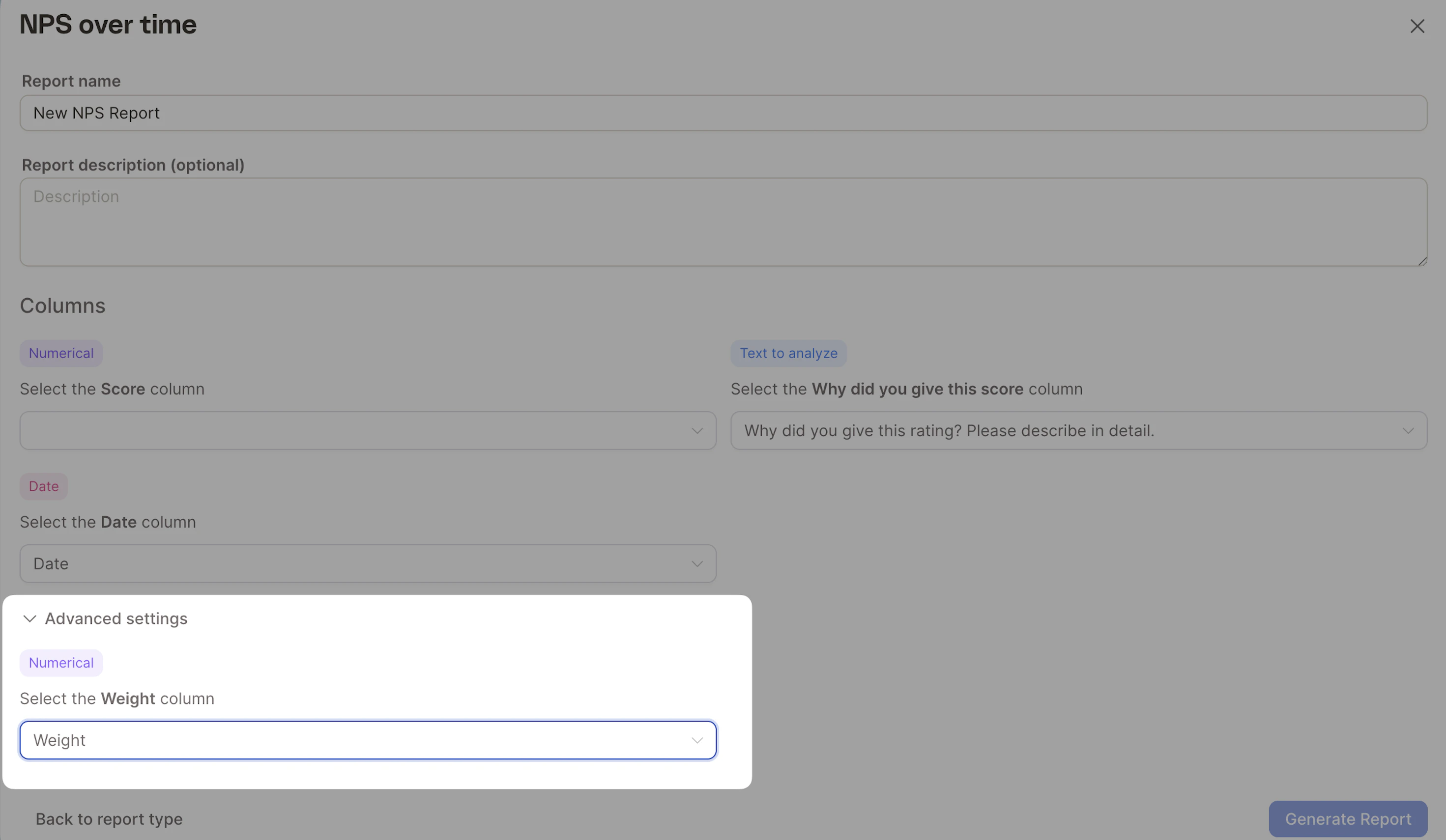
You can apply weights during the report creation process via **Advanced settings**.
 Go to **Reports → Create new report**
Select the template you want to use
Expand **Advanced settings**
Under **Select the Weight column**, choose the column containing your numeric weights
Create the report
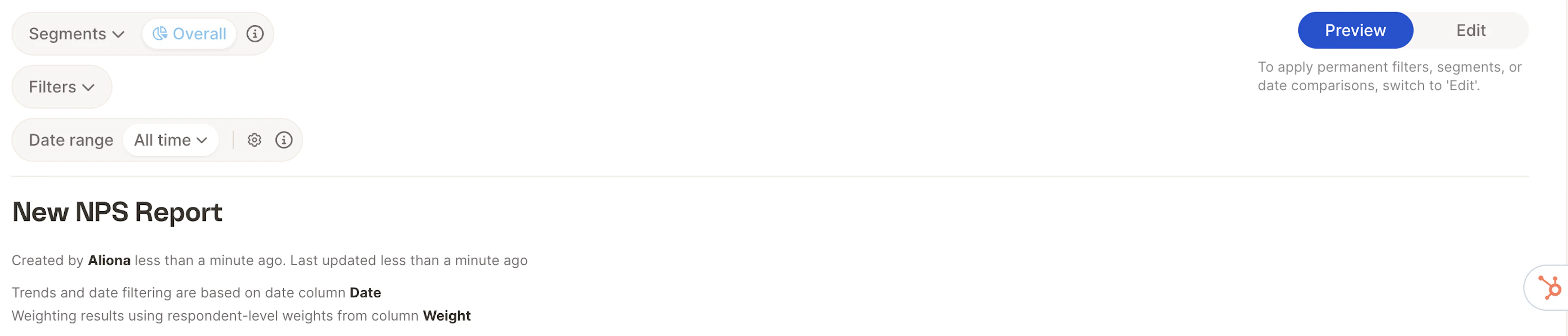
After the report is created, Caplena automatically incorporates the chosen weights into all displayed metrics and shows a confirmation banner at the top of the report.
Go to **Reports → Create new report**
Select the template you want to use
Expand **Advanced settings**
Under **Select the Weight column**, choose the column containing your numeric weights
Create the report
After the report is created, Caplena automatically incorporates the chosen weights into all displayed metrics and shows a confirmation banner at the top of the report.
 Once a report is created, the weight column cannot be added or changed. If you need a version without weights, create a new report using the same setup but leave the weight column unselected.
## The weight variable must be numerical
Caplena requires the weight column to be numerical. When importing your data, make sure the column is set as a numerical type — this happens automatically if it contains only numerical values.
Additional weighting-related features and improvements may be introduced in future updates.
## How rounding works when weighting is applied
When weighting is applied, each respondent receives a weight value — often a decimal (e.g., 0.7, 1.2, 2.3), which means counts can naturally include decimal numbers. Caplena handles this in two ways:
**Displayed counts are rounded**
All counts shown in the UI (charts, tooltips, key figures) are rounded to whole numbers to avoid confusing values like 0.4 or 7.8 respondents.
**Calculations use full precision**
Behind the scenes, all analytics use the full precise weighted decimals, including for frequencies, percentages, category and topic totals, correlations, drivers, and significance tests.
Once a report is created, the weight column cannot be added or changed. If you need a version without weights, create a new report using the same setup but leave the weight column unselected.
## The weight variable must be numerical
Caplena requires the weight column to be numerical. When importing your data, make sure the column is set as a numerical type — this happens automatically if it contains only numerical values.
Additional weighting-related features and improvements may be introduced in future updates.
## How rounding works when weighting is applied
When weighting is applied, each respondent receives a weight value — often a decimal (e.g., 0.7, 1.2, 2.3), which means counts can naturally include decimal numbers. Caplena handles this in two ways:
**Displayed counts are rounded**
All counts shown in the UI (charts, tooltips, key figures) are rounded to whole numbers to avoid confusing values like 0.4 or 7.8 respondents.
**Calculations use full precision**
Behind the scenes, all analytics use the full precise weighted decimals, including for frequencies, percentages, category and topic totals, correlations, drivers, and significance tests.