> ## Documentation Index
> Fetch the complete documentation index at: https://docs.caplena.com/llms.txt
> Use this file to discover all available pages before exploring further.
# Copying Agent results
> How to copy Agent output and keep the formatting when you paste it elsewhere.
When you click the **copy icon** on an Agent response, the text is copied in **Markdown**. Markdown is a standard formatting syntax. Symbols like `**`, `#`, and `-` stand for bold text, headings, and bullet points.
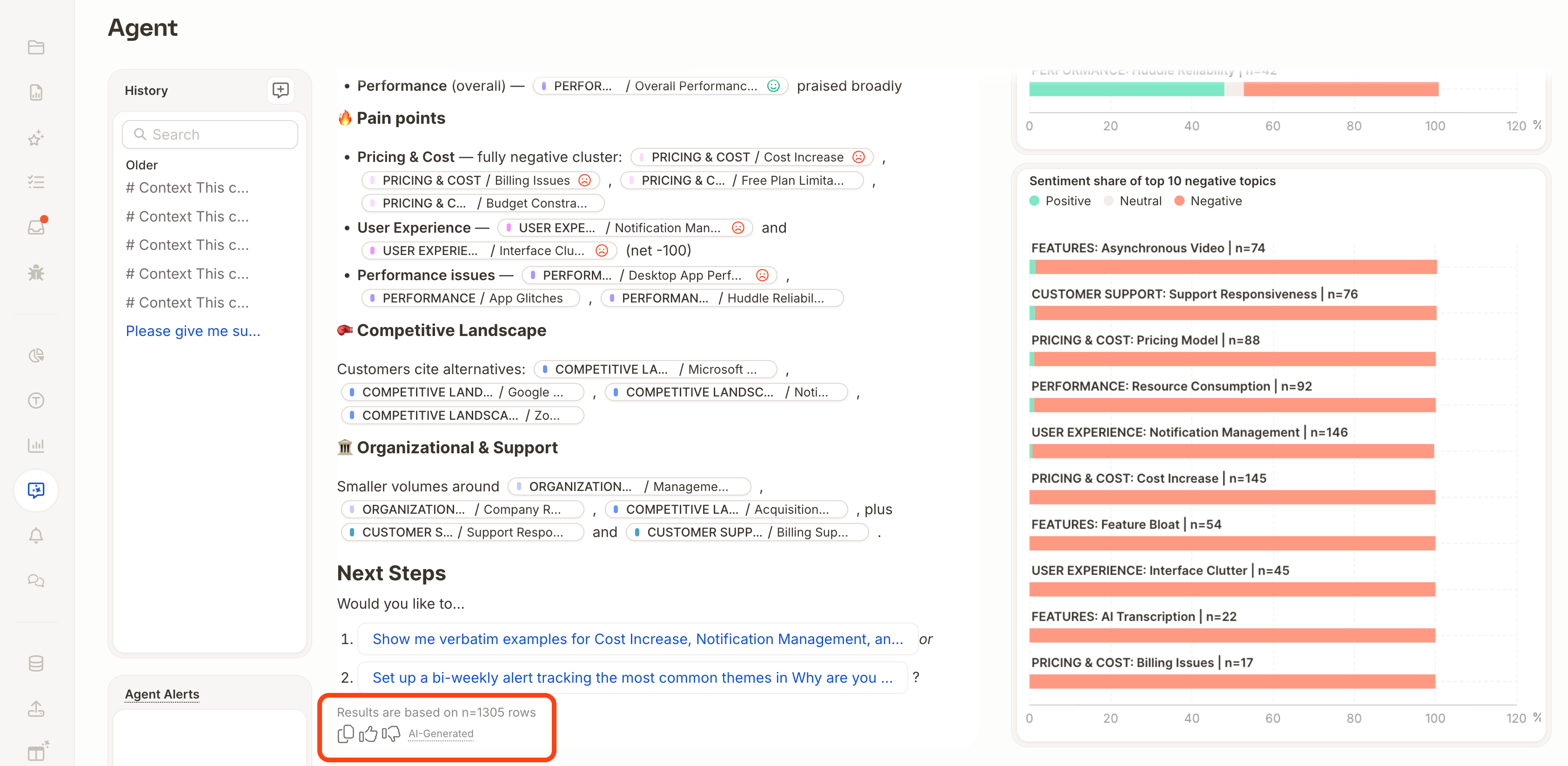 Many tools render Markdown automatically, so the formatting appears as soon as you paste. In tools that don't support it, such as Word or Outlook, you see the raw symbols instead.
## Paste with formatting
| Where you paste | Formatting works automatically? | What to do |
| ------------------------------- | ------------------------------- | -------------------------------------------------------------------------------------------------------------------------------------------------------------------- |
| Notion, Confluence, Slack | Yes | Paste directly. |
| ChatGPT, Claude, and other LLMs | Yes | Paste directly. |
| Google Docs | After a one-time setting | Go to **Tools → Preferences** and enable **Markdown**. Then right-click in your document and select **Paste from Markdown**. |
| Word, Outlook, and others | No | Paste the text into the [Markdown Formatter](https://markdownlivepreview.dev/tools/markdown-formatter), copy the formatted result, then paste it into your document. |
## Tips
* **Need only specific comments?** Ask the Agent for a list of the relevant comments, then copy that response. List output is short and easy to reuse.
* **Sharing results with stakeholders?** Consider sharing a report instead, either as a live link or a [PDF export](/insight-and-reports/sharing-reports/sharing-reports#export-as-pdf). Both keep the layout and formatting intact.
Many tools render Markdown automatically, so the formatting appears as soon as you paste. In tools that don't support it, such as Word or Outlook, you see the raw symbols instead.
## Paste with formatting
| Where you paste | Formatting works automatically? | What to do |
| ------------------------------- | ------------------------------- | -------------------------------------------------------------------------------------------------------------------------------------------------------------------- |
| Notion, Confluence, Slack | Yes | Paste directly. |
| ChatGPT, Claude, and other LLMs | Yes | Paste directly. |
| Google Docs | After a one-time setting | Go to **Tools → Preferences** and enable **Markdown**. Then right-click in your document and select **Paste from Markdown**. |
| Word, Outlook, and others | No | Paste the text into the [Markdown Formatter](https://markdownlivepreview.dev/tools/markdown-formatter), copy the formatted result, then paste it into your document. |
## Tips
* **Need only specific comments?** Ask the Agent for a list of the relevant comments, then copy that response. List output is short and easy to reuse.
* **Sharing results with stakeholders?** Consider sharing a report instead, either as a live link or a [PDF export](/insight-and-reports/sharing-reports/sharing-reports#export-as-pdf). Both keep the layout and formatting intact.