> ## Documentation Index
> Fetch the complete documentation index at: https://docs.caplena.com/llms.txt
> Use this file to discover all available pages before exploring further.
# Markdown Block
> Learn how to format text, add images, and create multi-column layouts in your reports.
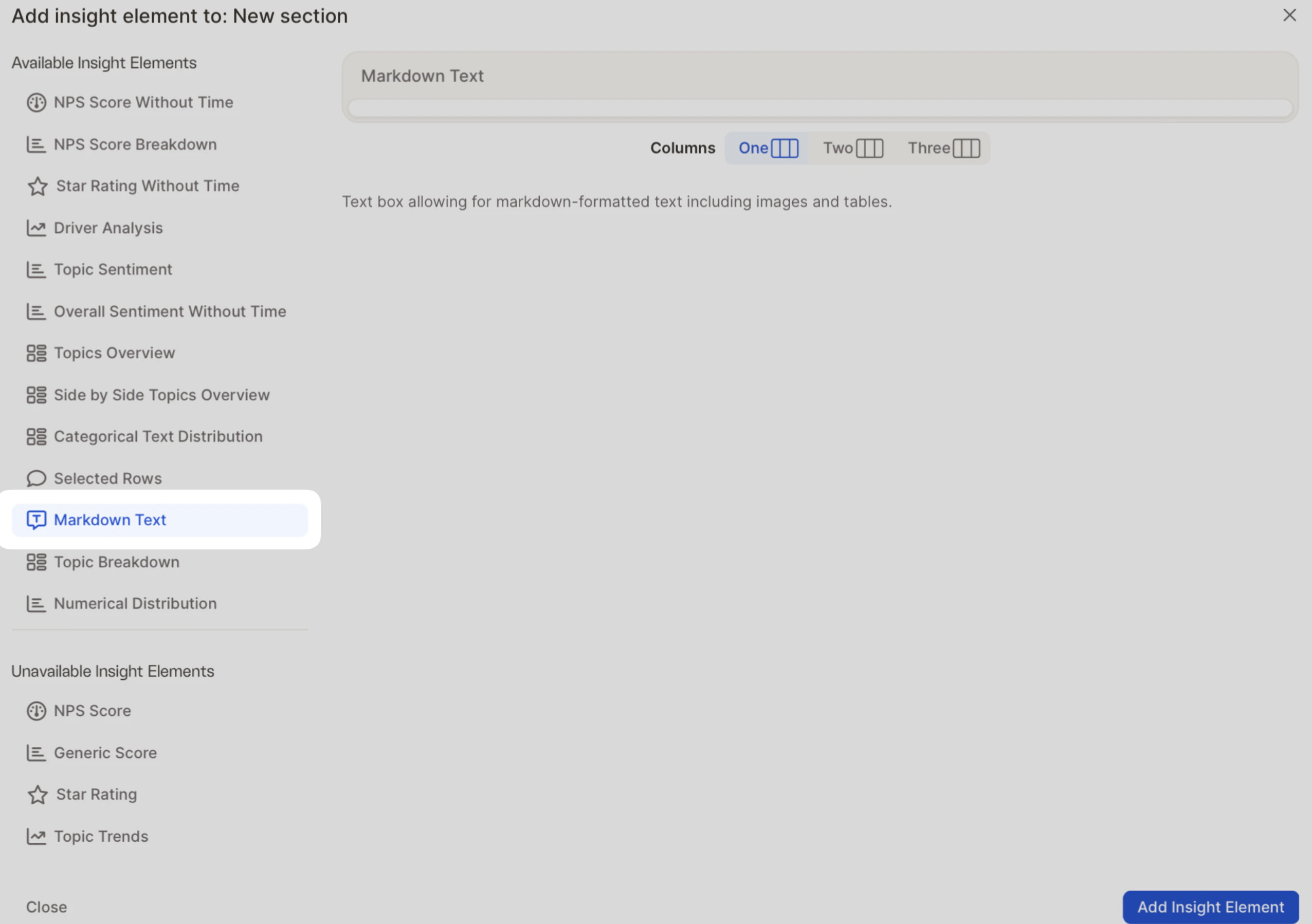
The **Markdown Block** is a versatile tool in your reporting toolkit that lets you add formatted text, visuals, and tables to make reports more informative and engaging.
 ## Why use the Markdown Block?
Markdown supports lightweight formatting syntax that helps you:
* Structure content with **headers**, **lists**, and **emphasis**
* Embed **images** using simple syntax
* Create **tables and columns** to organize information
## Creating a multi-column layout
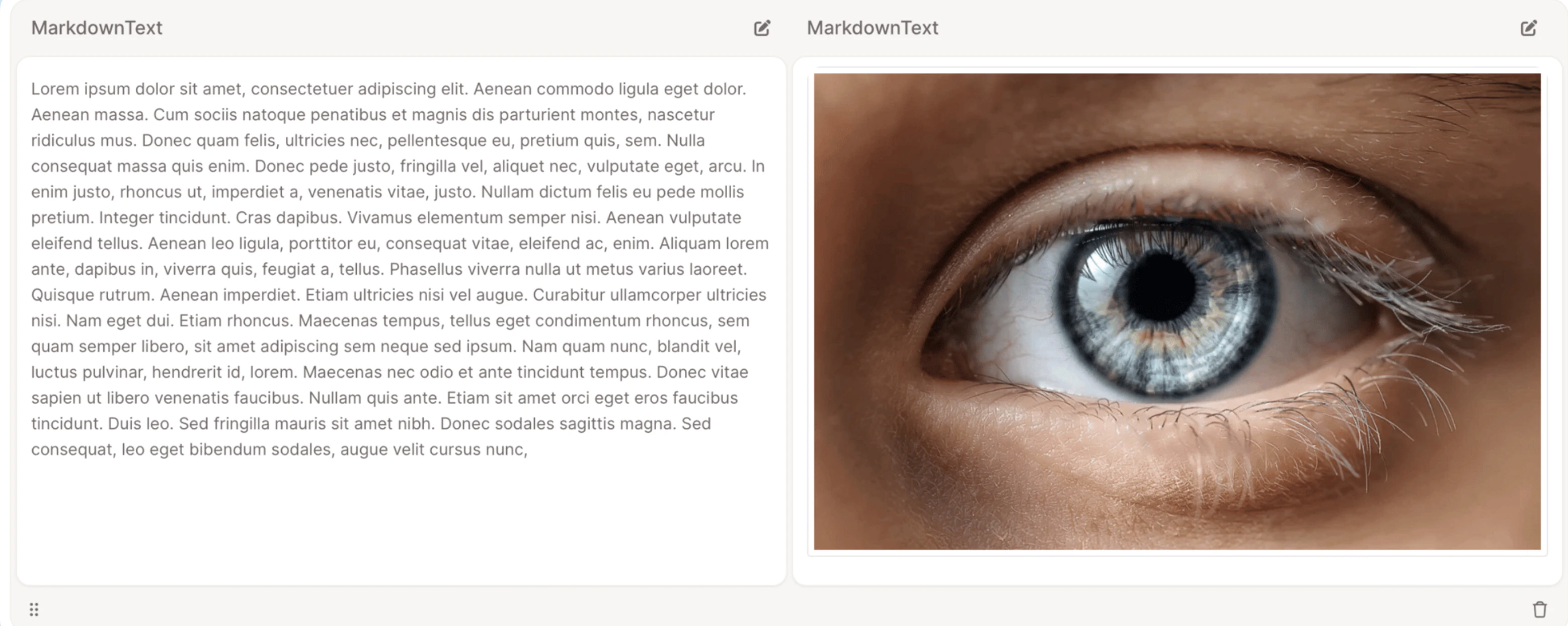
One of the Markdown block's most powerful features is multi-column formatting, perfect for side-by-side comparisons or content grouping.
## Why use the Markdown Block?
Markdown supports lightweight formatting syntax that helps you:
* Structure content with **headers**, **lists**, and **emphasis**
* Embed **images** using simple syntax
* Create **tables and columns** to organize information
## Creating a multi-column layout
One of the Markdown block's most powerful features is multi-column formatting, perfect for side-by-side comparisons or content grouping.
 Choose the number of columns (1, 2, or 3).
Use Markdown tables to define the structure.
Add your text or images inside each column cell.
Ideal for presenting product features, pros & cons, or visual + text combinations.
## Prefer visual editing? Use the Rich Text Editor
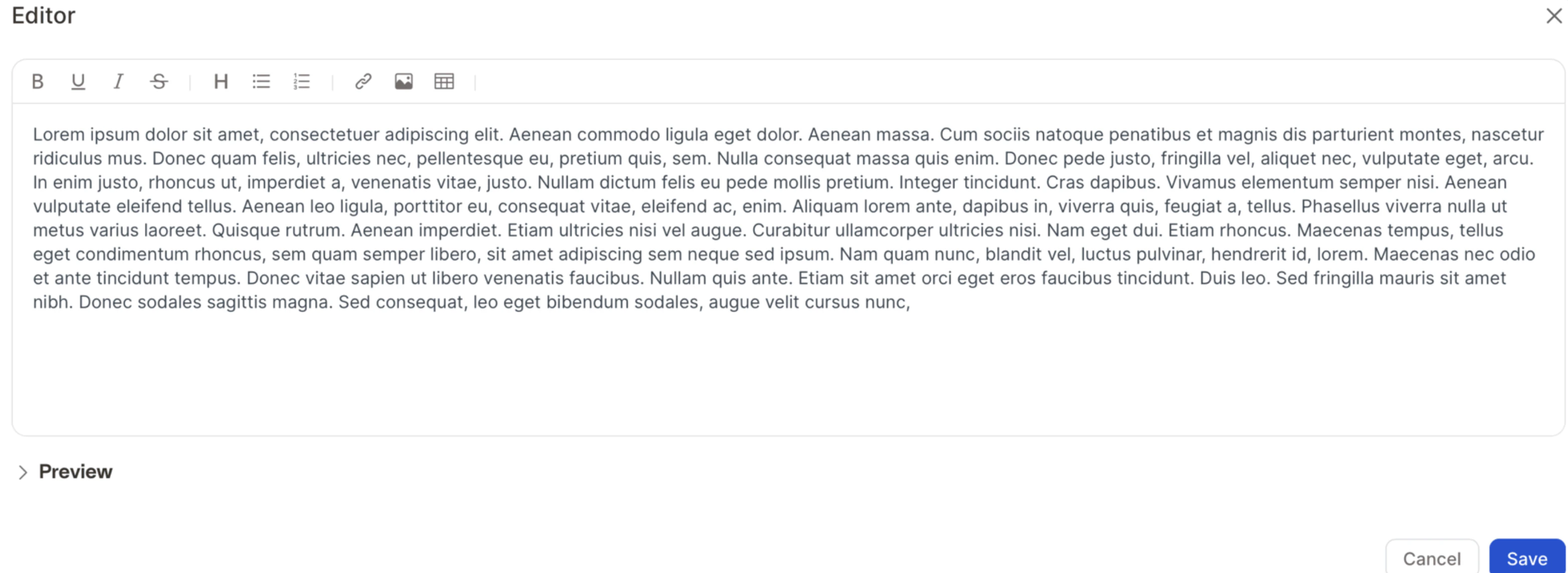
If you're not familiar with Markdown, the **Rich Text Editor** offers an intuitive formatting experience with:
* **Text formatting** — bold, italic, headers, lists, and links
* **Images** — easily upload and place them in context
* **Tables** — create structured layouts visually
* **Live preview** — see changes instantly as you edit
Choose the number of columns (1, 2, or 3).
Use Markdown tables to define the structure.
Add your text or images inside each column cell.
Ideal for presenting product features, pros & cons, or visual + text combinations.
## Prefer visual editing? Use the Rich Text Editor
If you're not familiar with Markdown, the **Rich Text Editor** offers an intuitive formatting experience with:
* **Text formatting** — bold, italic, headers, lists, and links
* **Images** — easily upload and place them in context
* **Tables** — create structured layouts visually
* **Live preview** — see changes instantly as you edit
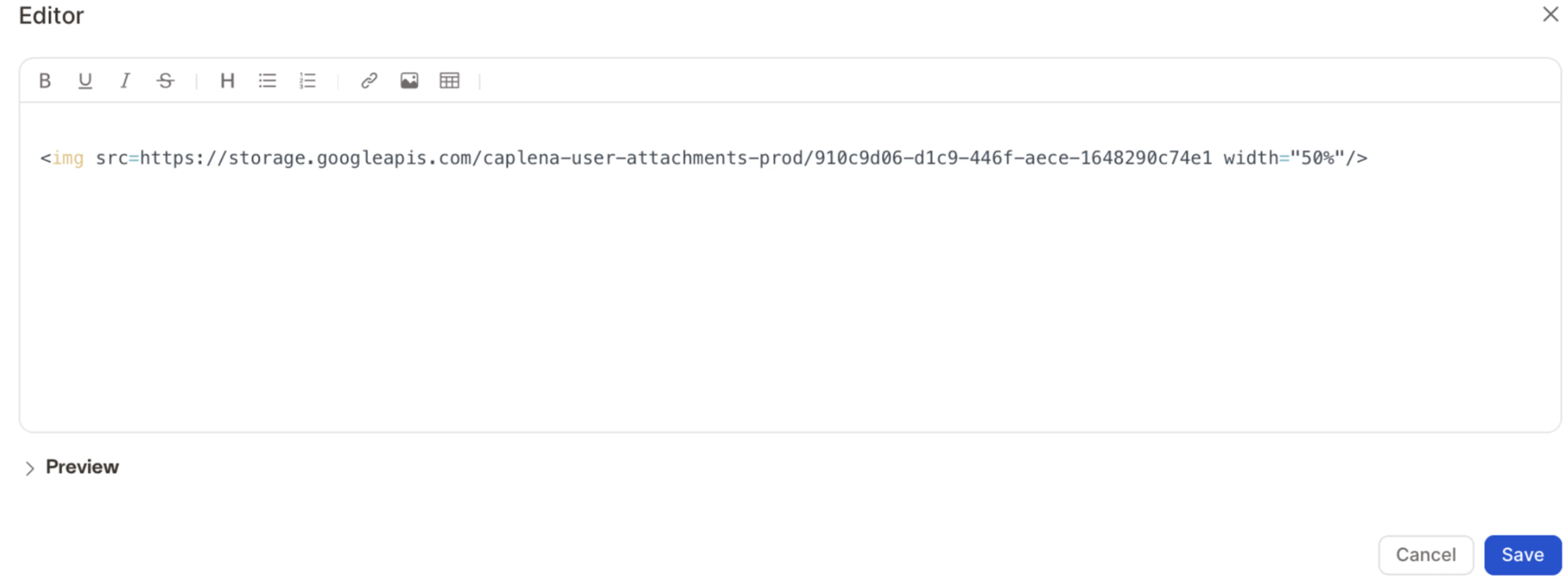
 ## Image sizing and alignment
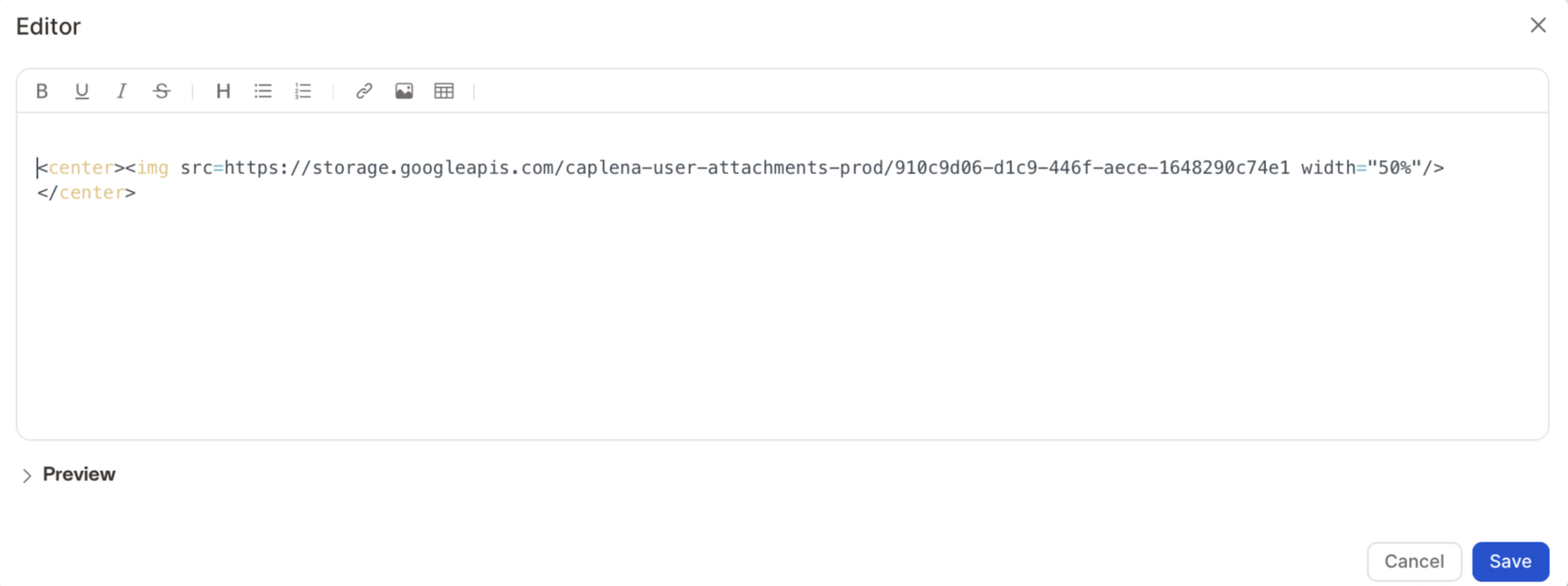
Markdown offers flexibility in image placement and custom sizing through HTML.
### Resize an image
Click **Edit** on your Markdown block, paste the following, replace `IMAGE_URL_HERE` with your image's URL, and save:
```html theme={null}
## Image sizing and alignment
Markdown offers flexibility in image placement and custom sizing through HTML.
### Resize an image
Click **Edit** on your Markdown block, paste the following, replace `IMAGE_URL_HERE` with your image's URL, and save:
```html theme={null}
 ```
```
 ### Resize and center an image
Click **Edit** on your Markdown block, paste the following, replace `IMAGE_URL_HERE` with your image's URL, and save:
```html theme={null}
```
### Resize and center an image
Click **Edit** on your Markdown block, paste the following, replace `IMAGE_URL_HERE` with your image's URL, and save:
```html theme={null}
```