> ## Documentation Index
> Fetch the complete documentation index at: https://docs.caplena.com/llms.txt
> Use this file to discover all available pages before exploring further.
# Understanding Scores
> Understand and visualize your key metrics: from NPS to Star Ratings
Caplena provides several ready-to-use **Score / Rating** elements that help you evaluate and visualize how your customers feel about your products, services, or experiences.\
This article explains each score type and how to interpret them in your reports.
## Where to Find Scores
All score-related insights are located under **Score / Rating** in the report editor.\
You’ll find the following elements:
* [Key Metrics Overview](#key-metrics-overview)
* [NPS Score](#nps-score)
* [Generic Score](#generic-score)
* [Star Rating](#star-rating)
* [Multi Score](#multi-score)
Each can be added to your report and customized to display your chosen numerical column.
 ## Key Metrics Overview
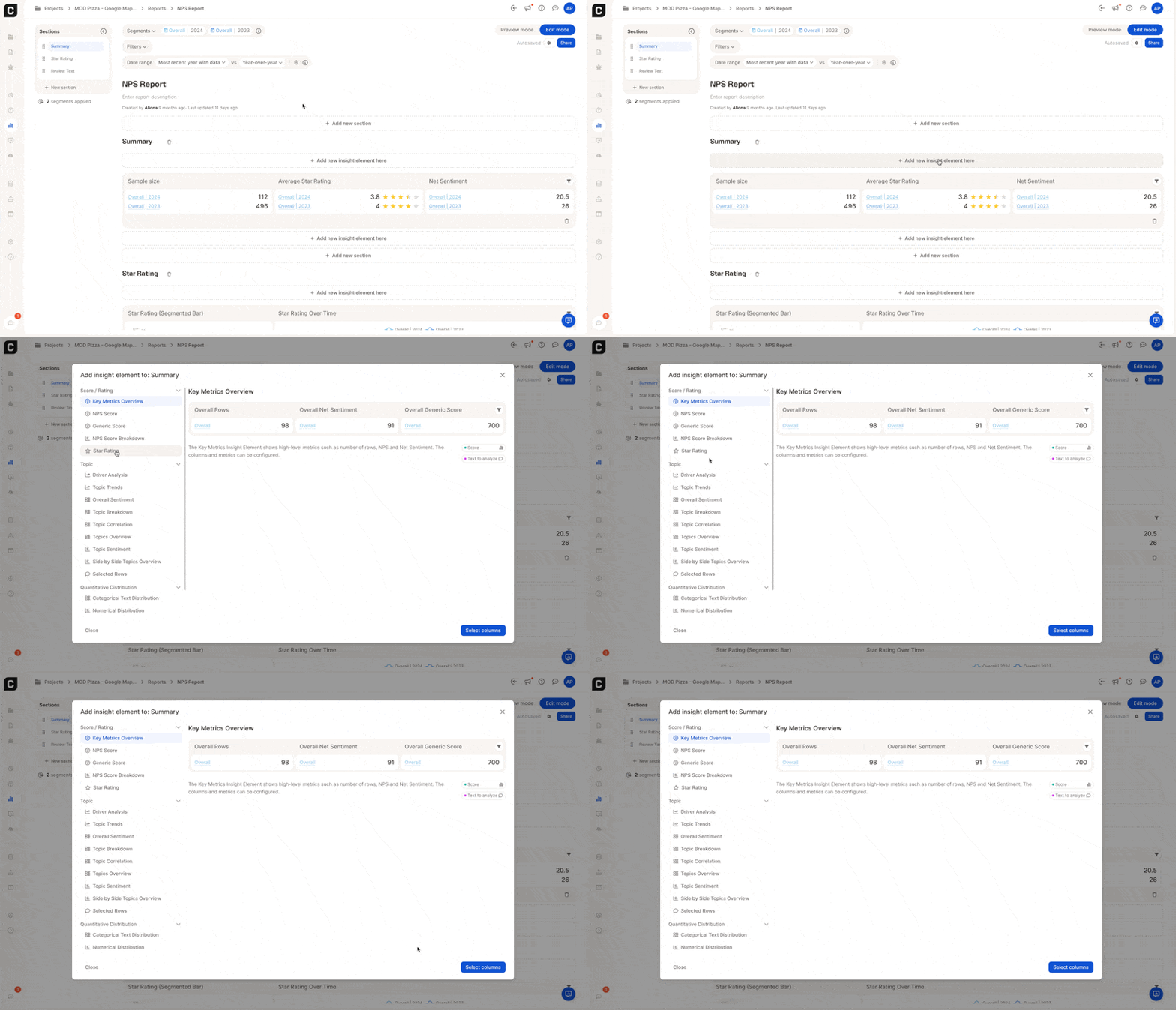
The **Key Metrics Overview** provides a quick snapshot of your project’s main metrics. You can use it to get an instant understanding of overall trends without diving into detailed charts.
## Key Metrics Overview
The **Key Metrics Overview** provides a quick snapshot of your project’s main metrics. You can use it to get an instant understanding of overall trends without diving into detailed charts.
 This example shows:
* **Sample size** – total number of responses included (e.g., 112)
* **Average Star Rating** – average of all star ratings in your dataset (e.g., 3.8 ⭐)
* **Net Sentiment** – percentage balance of positive versus negative feedback (e.g., +20.5)
When adding the **Key Metrics Overview** element, you can select which **numerical metric** to display (e.g., *Star Rating*, *NPS Score*).\
You can also choose a **Text to analyze** column,this determines which responses the metrics are based on.
> **Tip:** If you leave *Text to analyze* blank, **Net Sentiment** won’t be shown.\
> This is ideal for **non-sentiment projects.**
## NPS Score
The **Net Promoter Score (NPS)** helps you measure customer loyalty by grouping respondents into:
* **Promoters (9–10)**
* **Passives (7–8)**
* **Detractors (0–6)**
This example shows:
* **Sample size** – total number of responses included (e.g., 112)
* **Average Star Rating** – average of all star ratings in your dataset (e.g., 3.8 ⭐)
* **Net Sentiment** – percentage balance of positive versus negative feedback (e.g., +20.5)
When adding the **Key Metrics Overview** element, you can select which **numerical metric** to display (e.g., *Star Rating*, *NPS Score*).\
You can also choose a **Text to analyze** column,this determines which responses the metrics are based on.
> **Tip:** If you leave *Text to analyze* blank, **Net Sentiment** won’t be shown.\
> This is ideal for **non-sentiment projects.**
## NPS Score
The **Net Promoter Score (NPS)** helps you measure customer loyalty by grouping respondents into:
* **Promoters (9–10)**
* **Passives (7–8)**
* **Detractors (0–6)**
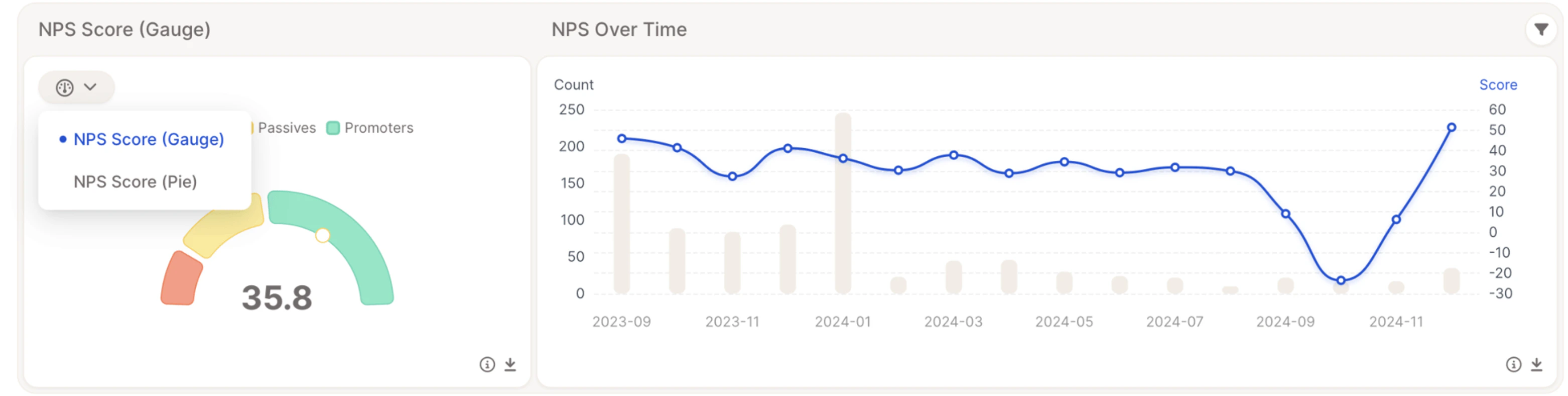 You can visualize:
* **NPS Score Gauge** – your overall score
* **NPS Over Time** – trends across months or quarters
Formula:
> NPS = % Promoters − % Detractors
## Generic Score
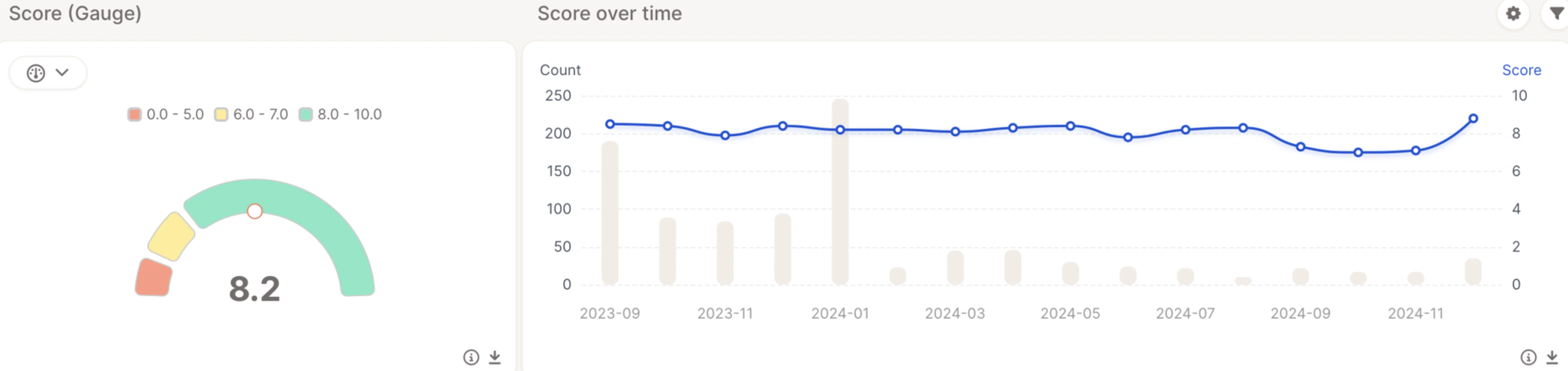
The **Generic Score** element lets you visualize any numeric rating in your dataset, for example, satisfaction, quality, or agreement levels, even if your question isn’t a classic NPS one.
You can visualize:
* **NPS Score Gauge** – your overall score
* **NPS Over Time** – trends across months or quarters
Formula:
> NPS = % Promoters − % Detractors
## Generic Score
The **Generic Score** element lets you visualize any numeric rating in your dataset, for example, satisfaction, quality, or agreement levels, even if your question isn’t a classic NPS one.
 ### How to customize it
Click the ⚙️ icon in the top-right corner of the element to tailor how your score is calculated and displayed.
### How to customize it
Click the ⚙️ icon in the top-right corner of the element to tailor how your score is calculated and displayed.
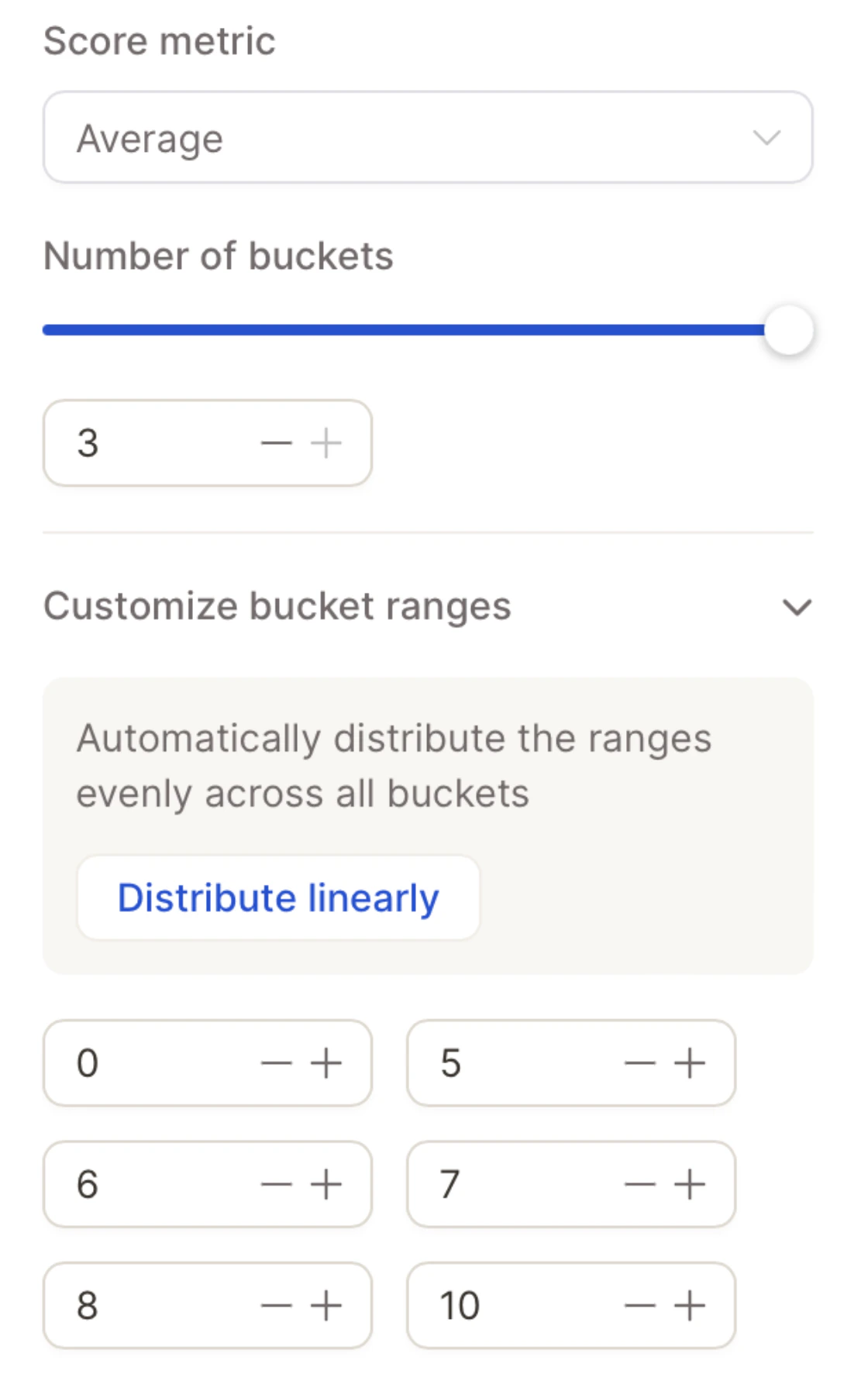 Here’s what you can adjust:
* **Score metric** – choose how you want Caplena to calculate the score:
* *Average* → shows the average of all numeric values
* *NPS* → calculates Net Promoter Score from 0–10 ratings
* *Top 1 / Top 2 Buckets* → percentage of responses in the top rating groups
* *Bottom 1 / Bottom 2 Buckets* → percentage of responses in the lowest rating groups
* **Number of buckets** – define how many segments you want on the gauge (for example, 3 for red, yellow, green).
* **Bucket ranges** – adjust the numeric ranges for each segment manually, or click **Distribute linearly** to let Caplena space them evenly.
* **Displayed timeframe** – choose whether the gauge value reflects the **most recent period** (default) or the **entire period** in the report's date range. The companion trend chart always shows every period. See [Insight Elements – General Overview & Settings](/insight-and-reports/getting-started-with-insight-elements/insight-elements-general-overview-settings) for details.
### Understanding “Buckets”
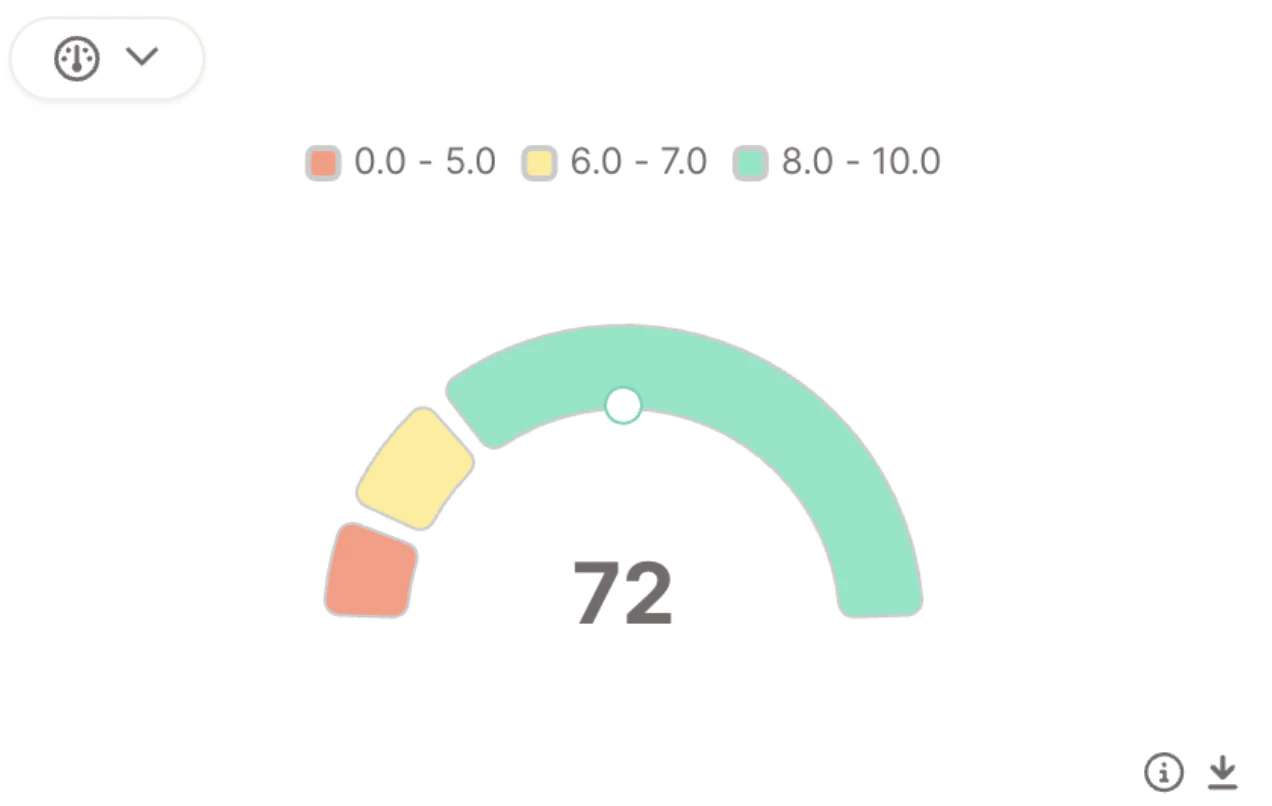
Buckets divide your rating scale into colored segments, such as:
* **0–5 → red**
* **6–7 → yellow**
* **8–10 → green**
Each bucket represents a group of responses within that range.\
When you select metrics like **Top 1 Bucket**, Caplena shows the share of responses in the highest range (e.g., 72% rated 8–10).
Here’s what you can adjust:
* **Score metric** – choose how you want Caplena to calculate the score:
* *Average* → shows the average of all numeric values
* *NPS* → calculates Net Promoter Score from 0–10 ratings
* *Top 1 / Top 2 Buckets* → percentage of responses in the top rating groups
* *Bottom 1 / Bottom 2 Buckets* → percentage of responses in the lowest rating groups
* **Number of buckets** – define how many segments you want on the gauge (for example, 3 for red, yellow, green).
* **Bucket ranges** – adjust the numeric ranges for each segment manually, or click **Distribute linearly** to let Caplena space them evenly.
* **Displayed timeframe** – choose whether the gauge value reflects the **most recent period** (default) or the **entire period** in the report's date range. The companion trend chart always shows every period. See [Insight Elements – General Overview & Settings](/insight-and-reports/getting-started-with-insight-elements/insight-elements-general-overview-settings) for details.
### Understanding “Buckets”
Buckets divide your rating scale into colored segments, such as:
* **0–5 → red**
* **6–7 → yellow**
* **8–10 → green**
Each bucket represents a group of responses within that range.\
When you select metrics like **Top 1 Bucket**, Caplena shows the share of responses in the highest range (e.g., 72% rated 8–10).
 ## Star Rating
The **Star Rating** element visualizes ratings on a 1–5 scale, often used for:
* App reviews
* Product ratings
* Service feedback
## Star Rating
The **Star Rating** element visualizes ratings on a 1–5 scale, often used for:
* App reviews
* Product ratings
* Service feedback
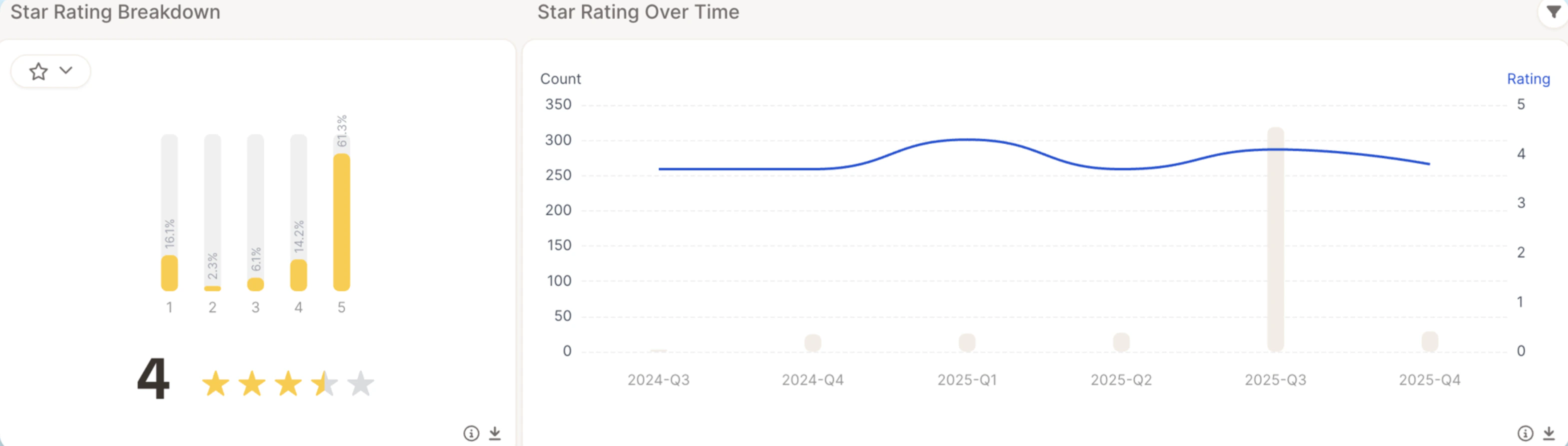 The element includes two parts:
* **Star Rating Breakdown** — shows how ratings are distributed (e.g., how many 1⭐, 2⭐, 3⭐, etc.)
* **Star Rating Over Time** — tracks how the average star rating changes across months or quarters
Together, they help you quickly spot shifts in customer satisfaction and identify periods of improvement or decline.
## Multi Score
The **Multi Score** element allows you to display up to three score gauges side-by-side , helping stakeholders instantly understand performance across key experience metrics.
Instead of switching between dashboards, you can compare KPIs in a single, executive-ready view.
The element includes two parts:
* **Star Rating Breakdown** — shows how ratings are distributed (e.g., how many 1⭐, 2⭐, 3⭐, etc.)
* **Star Rating Over Time** — tracks how the average star rating changes across months or quarters
Together, they help you quickly spot shifts in customer satisfaction and identify periods of improvement or decline.
## Multi Score
The **Multi Score** element allows you to display up to three score gauges side-by-side , helping stakeholders instantly understand performance across key experience metrics.
Instead of switching between dashboards, you can compare KPIs in a single, executive-ready view.
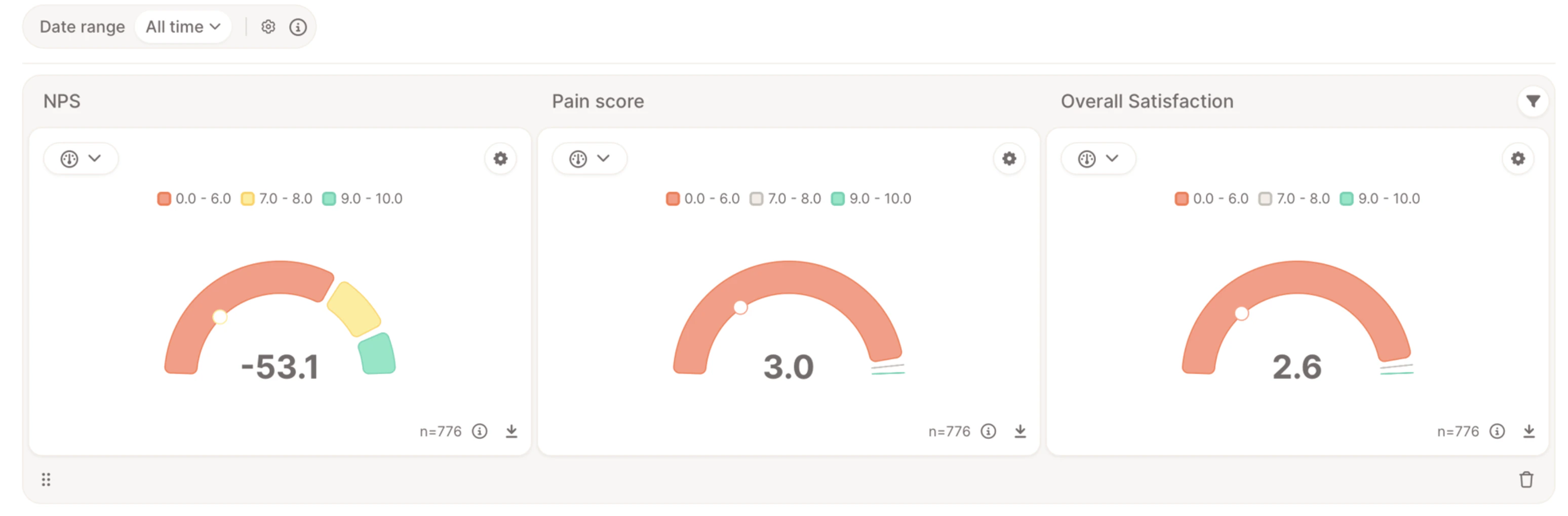 Each gauge in a Multi Score also supports the **Displayed timeframe** option, so you can show either the most recent period or the entire period for every KPI side-by-side.
## Best Practice
* Combine loyalty + satisfaction + pain for a full CX view
* Use bucket metrics when monitoring risk
* Use averages for operational tracking
Each gauge in a Multi Score also supports the **Displayed timeframe** option, so you can show either the most recent period or the entire period for every KPI side-by-side.
## Best Practice
* Combine loyalty + satisfaction + pain for a full CX view
* Use bucket metrics when monitoring risk
* Use averages for operational tracking