> ## Documentation Index
> Fetch the complete documentation index at: https://docs.caplena.com/llms.txt
> Use this file to discover all available pages before exploring further.
# Proactive Insights
> Surface AI-generated findings automatically inside your reports and review them all in one project-level list.
**Proactive Insights** are findings that Caplena generates automatically from your report views and surfaces in a side rail next to your report. Use them to spot shifts, drivers, and noteworthy patterns without having to ask the Insight Agent each time you open a report. You can also add your own insights manually to capture observations alongside the AI-generated ones.
Proactive Insights and [Tasks](/insight-and-reports/insights-and-tasks/tasks) are closely connected: an insight surfaces a finding, and a task turns it into assigned, trackable follow-up work. See [How Insights and Tasks work together](/insight-and-reports/insights-and-tasks/tasks#how-insights-and-tasks-work-together) for the full picture.
## Where you see Proactive Insights
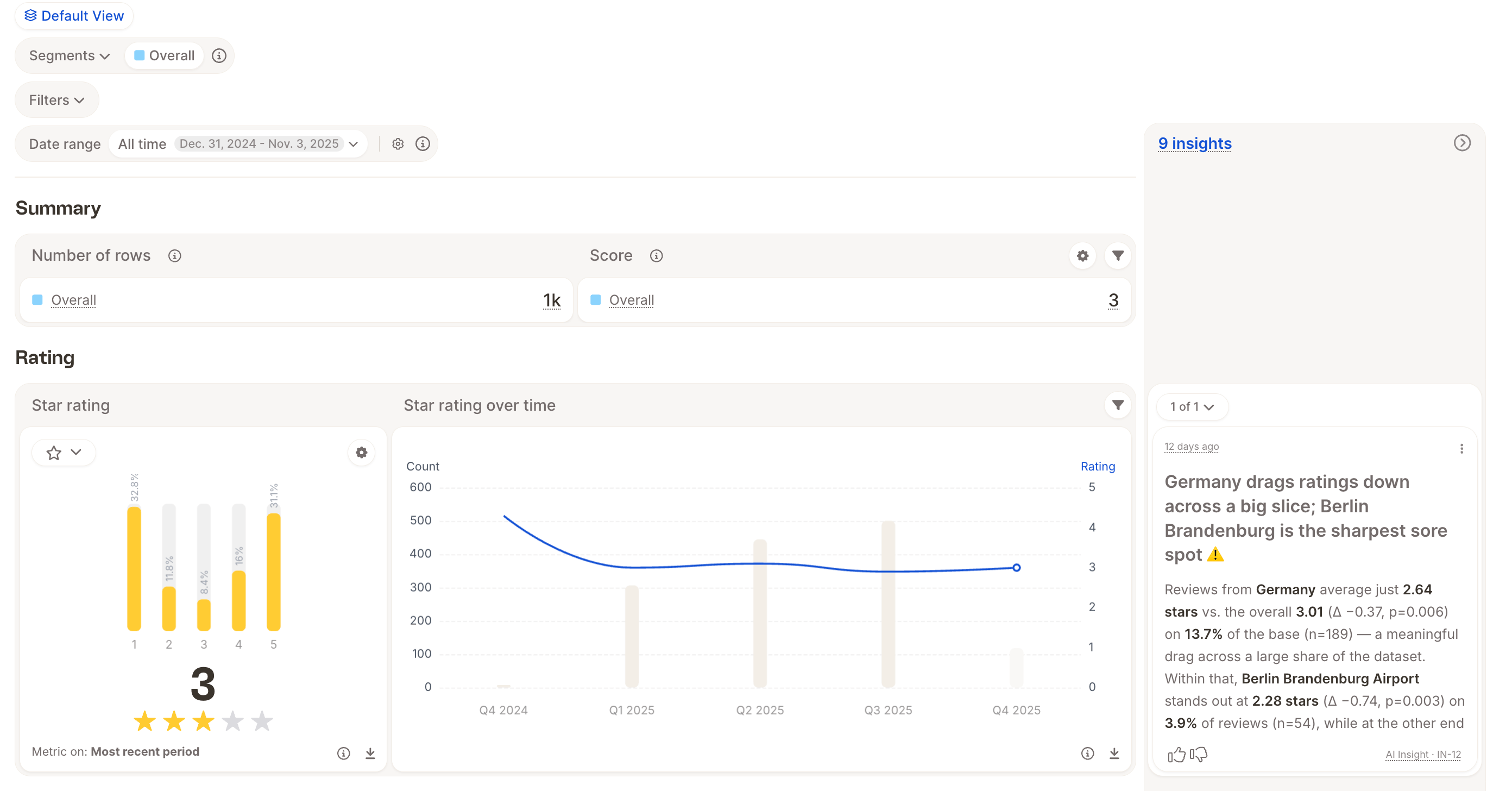
* **Report side rail** — a collapsible panel on the right of any report view, shown as collapsed badges or expanded card stacks. The rail header shows the total insight count and the date of the most recent activity.
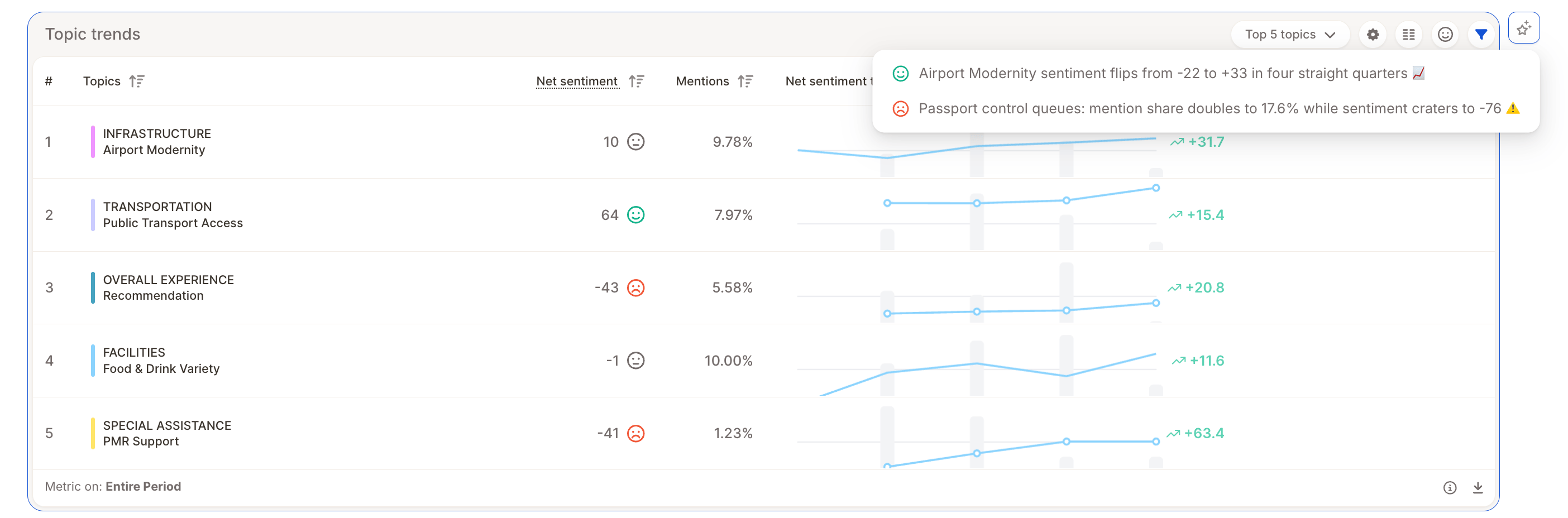
 * **Per insight element** — each insight element can have multiple insights, accessible via the chip on its upper-right side. When an element has related proactive insights, a small sparkles button appears; hover or click it to see those insights in a popover, then open one to expand the rail directly to that card.
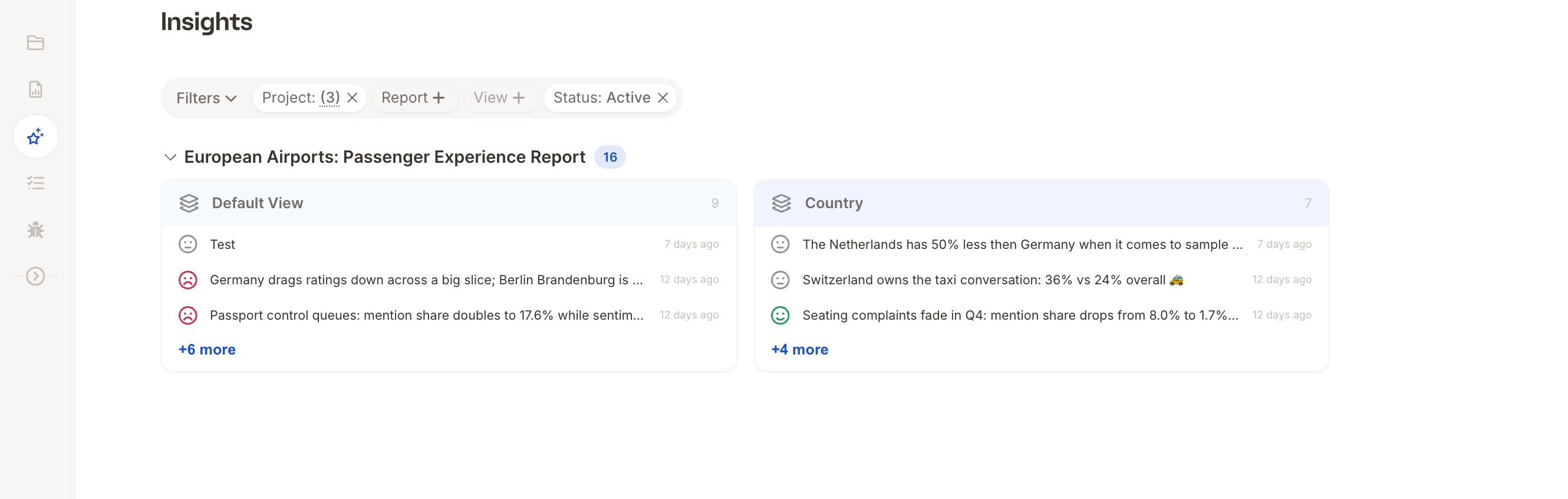
 * **Insights board** — a dedicated project-level page where you can browse every insight across all report views, grouped by view or by project.
 Proactive Insights are scoped to a saved report view. If you change filters or segments away from the view's saved configuration, the rail is disabled until you reset back to the saved view.
## The Insight lifecycle
Every insight goes through three stages:
1. **Discovery** — on a regular interval (for example, weekly), the Insight Agent looks for interesting findings across your reports. If it finds something worth showing, an insight is created and shown in the report. If it doesn't find anything noteworthy, nothing is shown.
2. **Updates** — on the same regular interval, live insights are rechecked and refreshed with the latest data, so the numbers stay current for as long as they remain relevant.
3. **Retirement** — once an insight is no longer relevant, it's retired and removed from the view. A new insight can spawn later if the underlying data starts shifting again.
For example, in an NPS report: for as long as the score stays relatively constant, no insight is shown. If the NPS moves, an insight is created highlighting the change and its likely drivers. It keeps refreshing on the regular schedule as long as the shift remains meaningful. Once the score stabilizes, the insight is retired.
You can also dismiss an insight yourself at any time, regardless of where it is in its lifecycle. If a task is linked to an insight and **auto-close** is enabled on that task, the task closes automatically when the insight is dismissed or retired — see [Auto-close](/insight-and-reports/insights-and-tasks/tasks#the-task-detail-page).
## Reading an insight card
Each Proactive Insight card includes:
Proactive Insights are scoped to a saved report view. If you change filters or segments away from the view's saved configuration, the rail is disabled until you reset back to the saved view.
## The Insight lifecycle
Every insight goes through three stages:
1. **Discovery** — on a regular interval (for example, weekly), the Insight Agent looks for interesting findings across your reports. If it finds something worth showing, an insight is created and shown in the report. If it doesn't find anything noteworthy, nothing is shown.
2. **Updates** — on the same regular interval, live insights are rechecked and refreshed with the latest data, so the numbers stay current for as long as they remain relevant.
3. **Retirement** — once an insight is no longer relevant, it's retired and removed from the view. A new insight can spawn later if the underlying data starts shifting again.
For example, in an NPS report: for as long as the score stays relatively constant, no insight is shown. If the NPS moves, an insight is created highlighting the change and its likely drivers. It keeps refreshing on the regular schedule as long as the shift remains meaningful. Once the score stabilizes, the insight is retired.
You can also dismiss an insight yourself at any time, regardless of where it is in its lifecycle. If a task is linked to an insight and **auto-close** is enabled on that task, the task closes automatically when the insight is dismissed or retired — see [Auto-close](/insight-and-reports/insights-and-tasks/tasks#the-task-detail-page).
## Reading an insight card
Each Proactive Insight card includes:
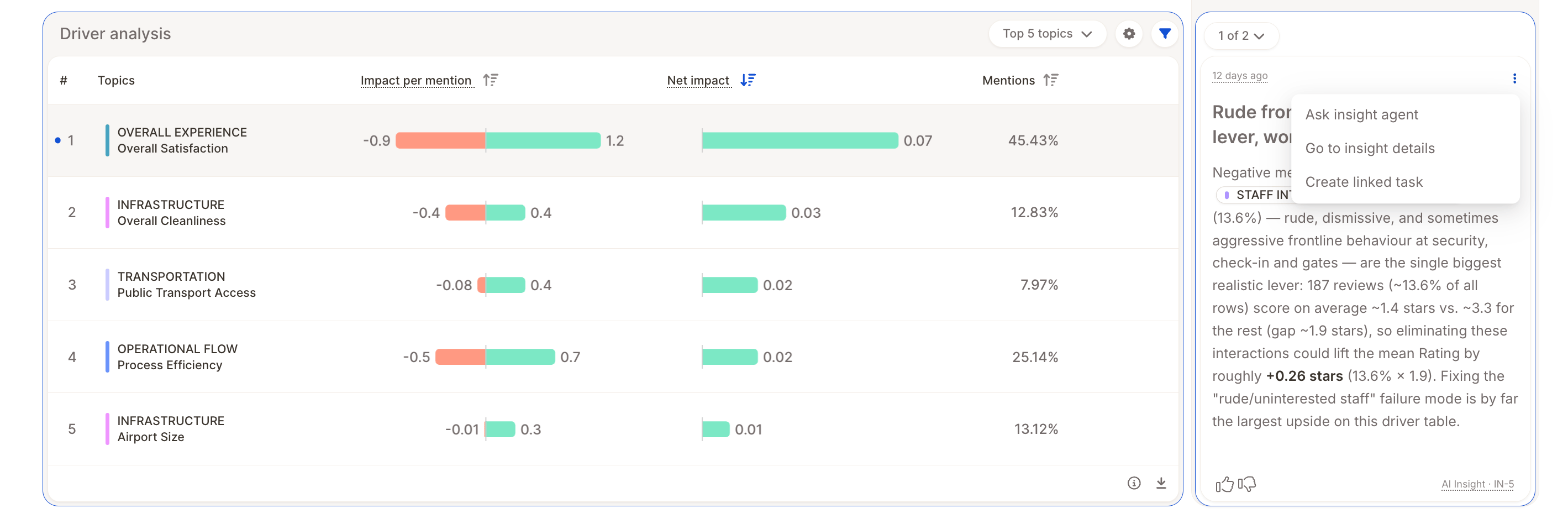 * **Title** — short summary of what was found.
* **Body** — markdown-formatted explanation, often with supporting numbers or topic references.
* **Chips** — metadata tags such as the source insight element, the public ID, whether the insight is outdated, and whether it was created by a user or by Caplena.
* **Actions menu** (burger icon, top-right of the card) — ask the Insight Agent a follow-up question about this insight, open the insight's detail page, [create a task from it](/insight-and-reports/insights-and-tasks/tasks#creating-a-task-from-an-insight), archive it, or dismiss it.
Dismissed insights are hidden from the rail and the count, but remain available in the project-level list if you filter for them.
## Resizing and persisting the rail
Drag the left edge of the expanded rail to resize it. Caplena remembers your preferred width across reloads, so the rail opens at the same size next time you visit the report.
## Adding a manual insight
Insights aren't only created automatically — you can add your own:
* **Title** — short summary of what was found.
* **Body** — markdown-formatted explanation, often with supporting numbers or topic references.
* **Chips** — metadata tags such as the source insight element, the public ID, whether the insight is outdated, and whether it was created by a user or by Caplena.
* **Actions menu** (burger icon, top-right of the card) — ask the Insight Agent a follow-up question about this insight, open the insight's detail page, [create a task from it](/insight-and-reports/insights-and-tasks/tasks#creating-a-task-from-an-insight), archive it, or dismiss it.
Dismissed insights are hidden from the rail and the count, but remain available in the project-level list if you filter for them.
## Resizing and persisting the rail
Drag the left edge of the expanded rail to resize it. Caplena remembers your preferred width across reloads, so the rail opens at the same size next time you visit the report.
## Adding a manual insight
Insights aren't only created automatically — you can add your own:
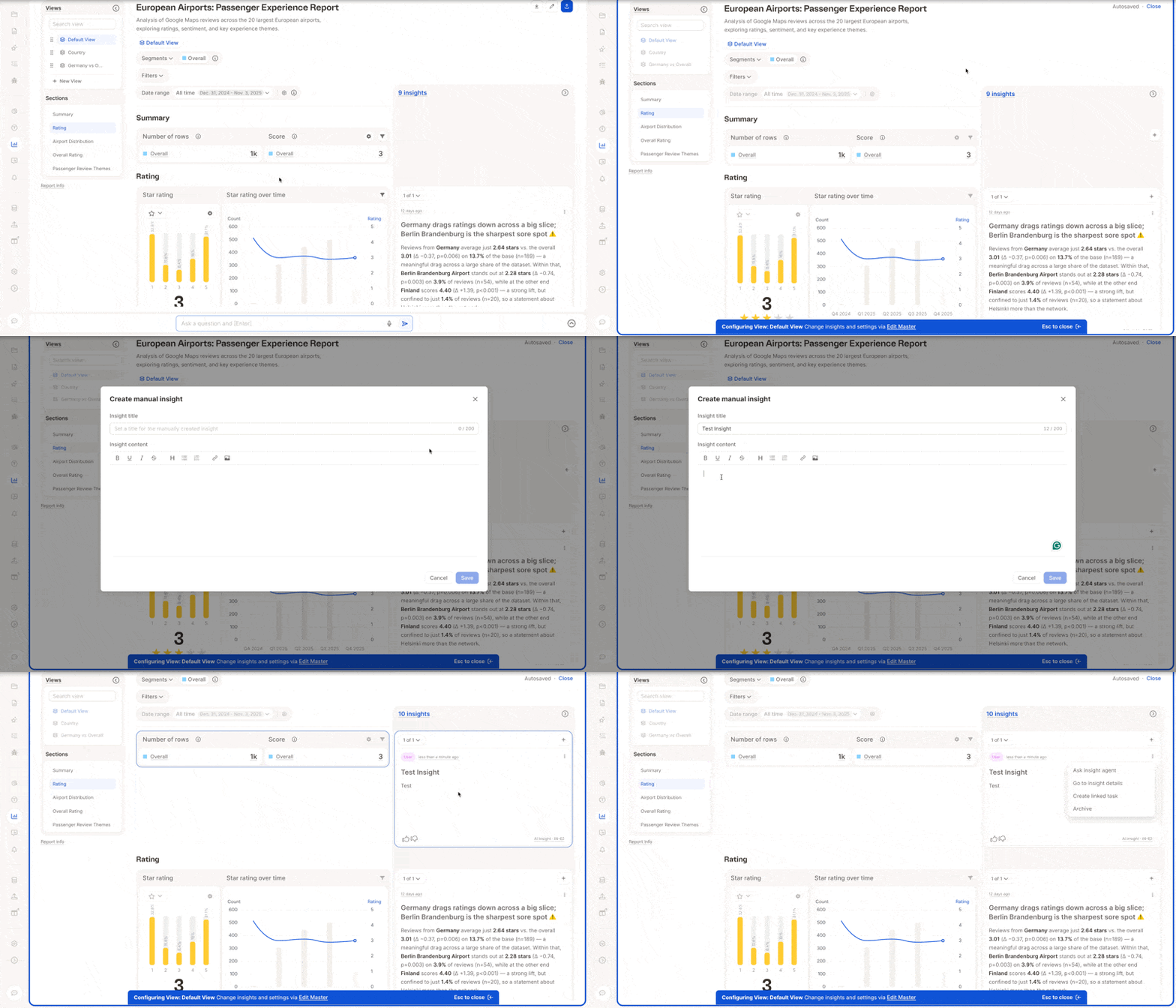 1. Open the report and go into **Configure View** mode.
2. Click **Add Insight**.
3. Choose **Manual**, give it a title and a description.
4. Save it.
Your insight appears in the rail alongside AI-generated ones, marked as user-created so it's clear who authored it.
Manual insights are useful for pinning analyst commentary, decisions made in review meetings, or context that the AI doesn't have access to (for example, a known data quality caveat).
## Archiving an insight
From **Configure View** mode, open the burger menu on an insight and select **Archive**. Archived insights are removed from the active rail but aren't deleted — you can find and unarchive them later from the Insights board by filtering for **Archive status**.
## Disabled state: filters or segments diverge from the view
Proactive Insights are tied to the saved configuration of a report view. When you change the report's filters or segments so that they no longer match the saved view, the rail is disabled and the button shows a popover explaining why. Click **Reset** in the popover to restore the view's saved filters and segments and re-enable the rail.
## Related
* [Tasks](/insight-and-reports/insights-and-tasks/tasks) — turn an insight into assigned, trackable follow-up work.
1. Open the report and go into **Configure View** mode.
2. Click **Add Insight**.
3. Choose **Manual**, give it a title and a description.
4. Save it.
Your insight appears in the rail alongside AI-generated ones, marked as user-created so it's clear who authored it.
Manual insights are useful for pinning analyst commentary, decisions made in review meetings, or context that the AI doesn't have access to (for example, a known data quality caveat).
## Archiving an insight
From **Configure View** mode, open the burger menu on an insight and select **Archive**. Archived insights are removed from the active rail but aren't deleted — you can find and unarchive them later from the Insights board by filtering for **Archive status**.
## Disabled state: filters or segments diverge from the view
Proactive Insights are tied to the saved configuration of a report view. When you change the report's filters or segments so that they no longer match the saved view, the rail is disabled and the button shows a popover explaining why. Click **Reset** in the popover to restore the view's saved filters and segments and re-enable the rail.
## Related
* [Tasks](/insight-and-reports/insights-and-tasks/tasks) — turn an insight into assigned, trackable follow-up work.