> ## Documentation Index
> Fetch the complete documentation index at: https://docs.caplena.com/llms.txt
> Use this file to discover all available pages before exploring further.
# Tasks
> Assign and track follow-up work against a Proactive Insight, or against anything else you want to act on in a report.
**Tasks** let you assign and track follow-up work. A task can be created **from an insight** (to act on a specific finding) or **from scratch** (for anything else you want to track against a report view).
## Creating a task from an insight
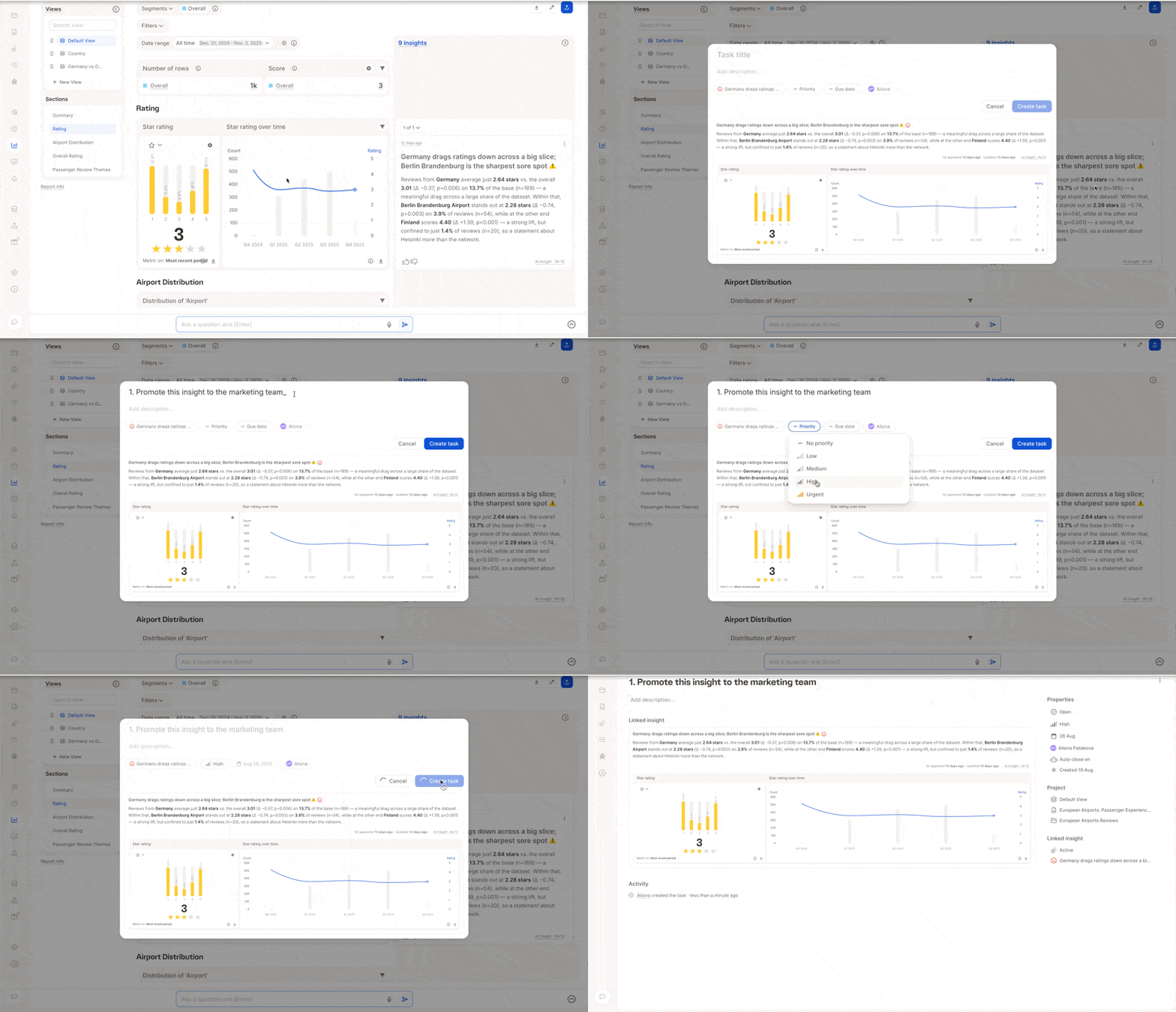 1. Open an insight's burger menu and choose to open its **detail page**, or create a task directly from the menu.
2. On the insight detail page, use the **linked tasks** sidebar to create a new task — give it a title (for example, *"Promote this insight to the marketing team"*).
3. Set a **priority**, optionally a **due date**, and an **owner** (defaults to you, or reassign to someone else).
4. Click **Create**.
The task is now directly linked to that insight, and appears in the insight's linked-tasks sidebar and on the task's own detail page. See [Proactive Insights](/insight-and-reports/insights-and-tasks/proactive-insights) for more on the insight side of this flow.
## The task detail page
Opening a task shows:
1. Open an insight's burger menu and choose to open its **detail page**, or create a task directly from the menu.
2. On the insight detail page, use the **linked tasks** sidebar to create a new task — give it a title (for example, *"Promote this insight to the marketing team"*).
3. Set a **priority**, optionally a **due date**, and an **owner** (defaults to you, or reassign to someone else).
4. Click **Create**.
The task is now directly linked to that insight, and appears in the insight's linked-tasks sidebar and on the task's own detail page. See [Proactive Insights](/insight-and-reports/insights-and-tasks/proactive-insights) for more on the insight side of this flow.
## The task detail page
Opening a task shows:
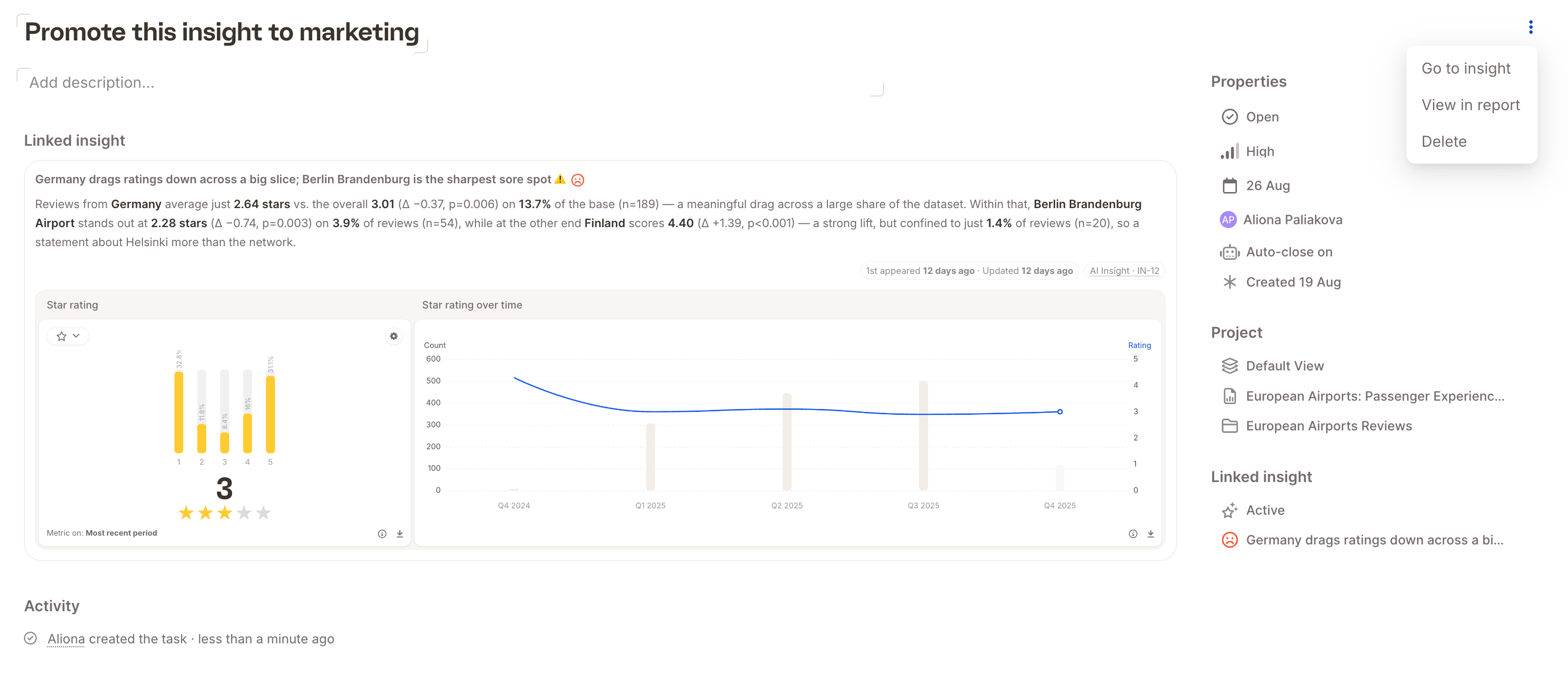 * An **inline-editable title and description**.
* A **linked insight** section (if the task was created from one) with a link back to the insight's detail page. If the task wasn't created from an insight, this section is empty.
* An **activity section** — when the task was created, and any changes since.
* **Properties**, on the right-hand side:
* **Status** — open or closed; you can close and reopen a task at any point.
* **Priority**.
* **Due date**.
* **Owner** — reassign to any teammate.
* **Auto-close** toggle — when **on**, the task closes automatically once its linked insight is retired or dismissed. When **off**, you have to close the task yourself. Tasks with no linked insight don't use this setting.
* **Project info** — which view, report, and project the task belongs to.
Closed tasks move into a **Completed** section, which you can expand to reopen them if needed. You can also delete a task entirely from its burger menu (**Delete task**).
Both insights and tasks live at the **report view level**. If you reassign a task to someone who doesn't yet have access to that view, you'll be prompted to grant them access — either to the specific view or to the full report — before the reassignment takes effect.
## Creating a task from scratch
You don't need an insight to create a task:
* An **inline-editable title and description**.
* A **linked insight** section (if the task was created from one) with a link back to the insight's detail page. If the task wasn't created from an insight, this section is empty.
* An **activity section** — when the task was created, and any changes since.
* **Properties**, on the right-hand side:
* **Status** — open or closed; you can close and reopen a task at any point.
* **Priority**.
* **Due date**.
* **Owner** — reassign to any teammate.
* **Auto-close** toggle — when **on**, the task closes automatically once its linked insight is retired or dismissed. When **off**, you have to close the task yourself. Tasks with no linked insight don't use this setting.
* **Project info** — which view, report, and project the task belongs to.
Closed tasks move into a **Completed** section, which you can expand to reopen them if needed. You can also delete a task entirely from its burger menu (**Delete task**).
Both insights and tasks live at the **report view level**. If you reassign a task to someone who doesn't yet have access to that view, you'll be prompted to grant them access — either to the specific view or to the full report — before the reassignment takes effect.
## Creating a task from scratch
You don't need an insight to create a task:
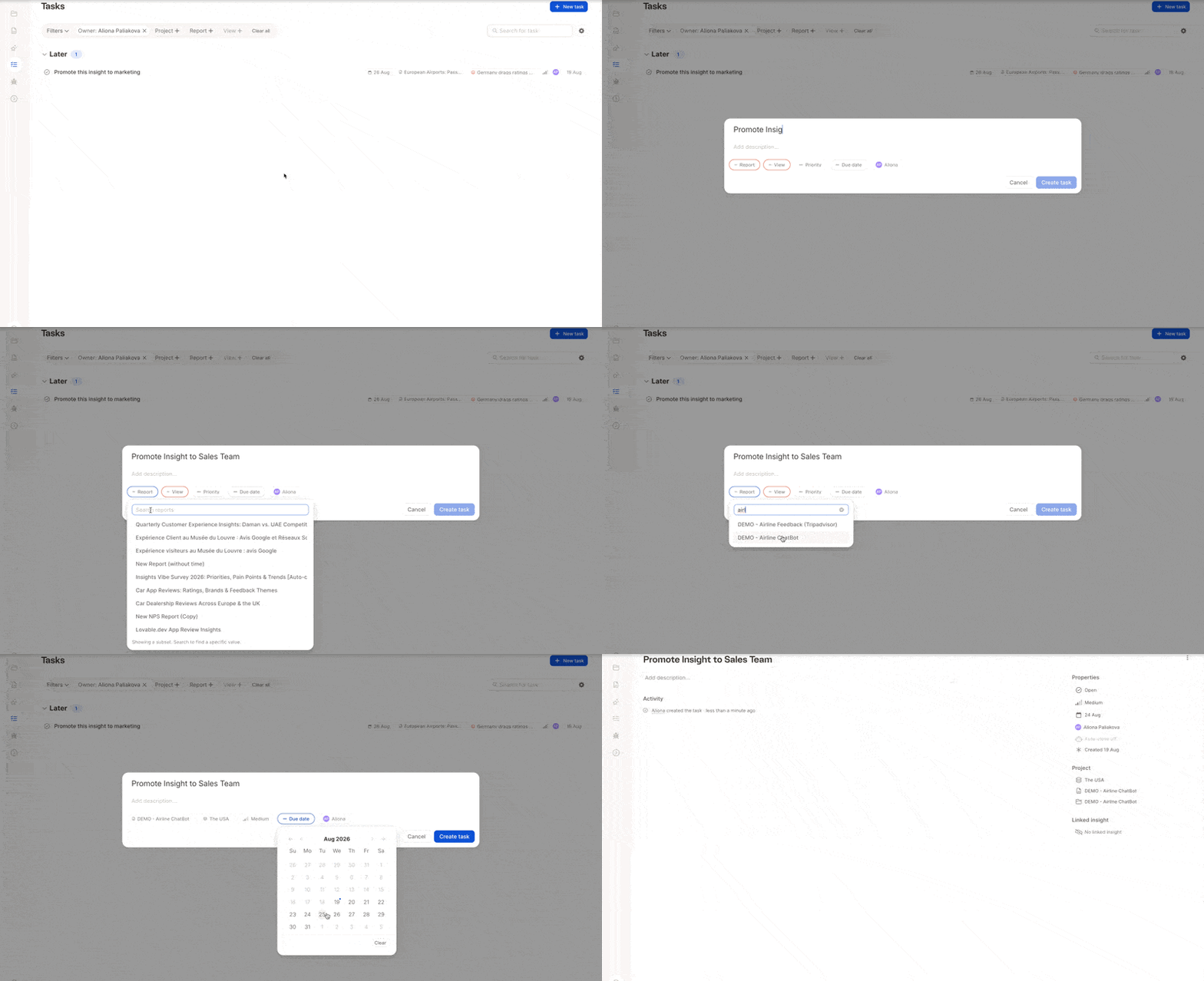 1. Open the **Tasks** list (left-hand top navigation).
2. Click the **create task** button in the top-right.
3. Give it a title and description.
4. Select the **report** and then the **view** you want to tie the task to (required, since tasks live at the view level).
5. Click **Create**.
The task starts with no linked insight, so its auto-close setting has no effect — you'll need to close it manually when the work is done.
## The Tasks list
1. Open the **Tasks** list (left-hand top navigation).
2. Click the **create task** button in the top-right.
3. Give it a title and description.
4. Select the **report** and then the **view** you want to tie the task to (required, since tasks live at the view level).
5. Click **Create**.
The task starts with no linked insight, so its auto-close setting has no effect — you'll need to close it manually when the work is done.
## The Tasks list
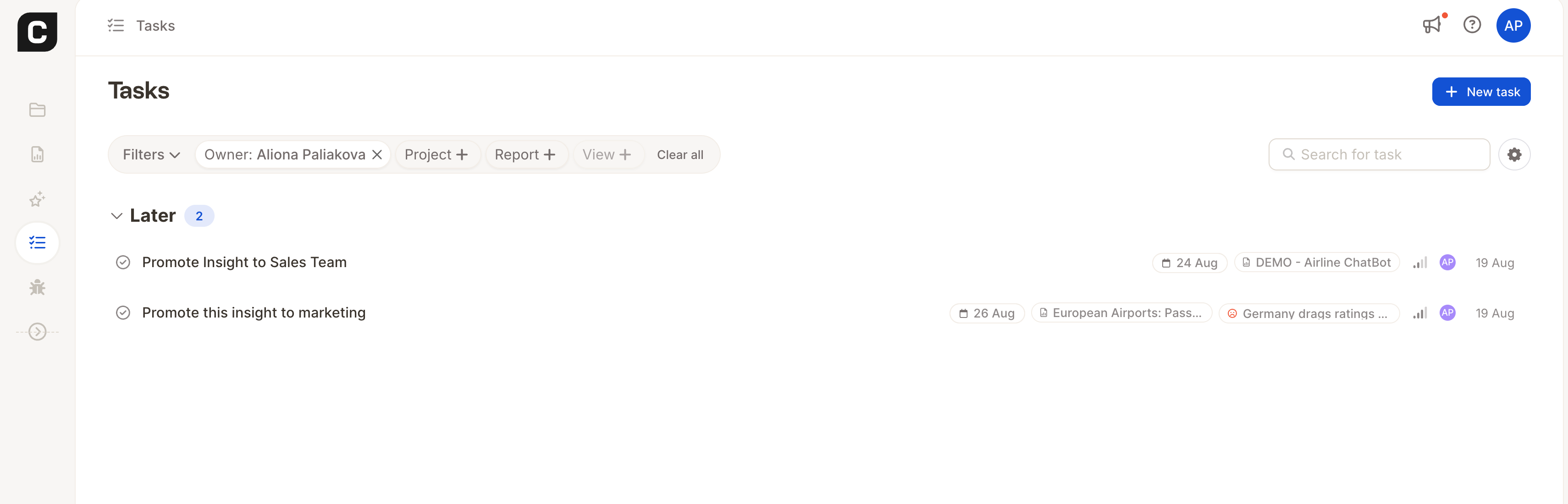 The **Tasks** list shows every task, with tools to manage them at scale:
* **Filter by owner** (for example, to see only tasks assigned to you) — and other filters via the search field.
* **Group by** priority, due date, or project.
* **Sort** within groups.
* **Show/hide completed tasks** based on a time frame, or hide them entirely (they then move to the bottom of the list).
* **Tick off** a task directly from the list to close it (and undo if needed).
Use the Tasks list when you want a cross-cutting view of what's outstanding — for example, triaging what's assigned to you at the start of the week.
## How Insights and Tasks work together
[Proactive Insights](/insight-and-reports/insights-and-tasks/proactive-insights) and Tasks bridge the gap between **exploring** your data and **acting** on it: an insight surfaces something worth knowing, and a task turns that into assigned, trackable follow-up work. They're closely interconnected:
* An insight can spawn one or more tasks.
* A task can (optionally) **auto-close** when its linked insight is no longer relevant (retired or dismissed).
* Both live at the same **report-view level**, so permissions stay consistent between them — reassigning a task may require granting the new owner access to that view.
## Related
* [Proactive Insights](/insight-and-reports/insights-and-tasks/proactive-insights) — how findings are surfaced automatically, and how the insight lifecycle works.
The **Tasks** list shows every task, with tools to manage them at scale:
* **Filter by owner** (for example, to see only tasks assigned to you) — and other filters via the search field.
* **Group by** priority, due date, or project.
* **Sort** within groups.
* **Show/hide completed tasks** based on a time frame, or hide them entirely (they then move to the bottom of the list).
* **Tick off** a task directly from the list to close it (and undo if needed).
Use the Tasks list when you want a cross-cutting view of what's outstanding — for example, triaging what's assigned to you at the start of the week.
## How Insights and Tasks work together
[Proactive Insights](/insight-and-reports/insights-and-tasks/proactive-insights) and Tasks bridge the gap between **exploring** your data and **acting** on it: an insight surfaces something worth knowing, and a task turns that into assigned, trackable follow-up work. They're closely interconnected:
* An insight can spawn one or more tasks.
* A task can (optionally) **auto-close** when its linked insight is no longer relevant (retired or dismissed).
* Both live at the same **report-view level**, so permissions stay consistent between them — reassigning a task may require granting the new owner access to that view.
## Related
* [Proactive Insights](/insight-and-reports/insights-and-tasks/proactive-insights) — how findings are surfaced automatically, and how the insight lifecycle works.