> ## Documentation Index
> Fetch the complete documentation index at: https://docs.caplena.com/llms.txt
> Use this file to discover all available pages before exploring further.
# Sharing Reports
> Share insights with your team and external stakeholders.
Once your report is built, it's time to share your insights — whether with internal teams or external stakeholders. Caplena makes it easy to collaborate while maintaining control over who sees what and how they interact with your report.
## How to access sharing options
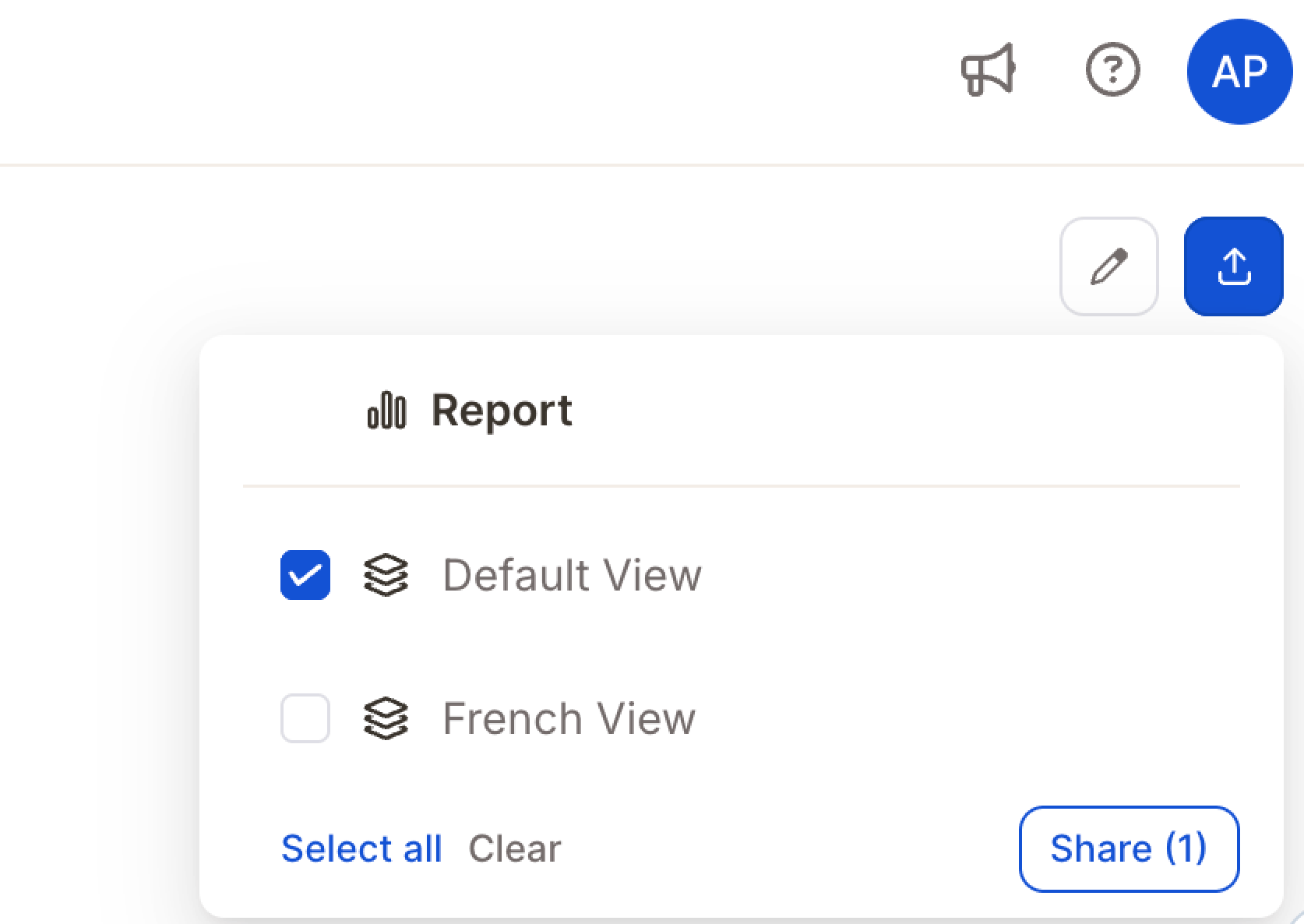
Open the report you want to share and click the blue **Share** button in the top-right corner. A pop-up window will appear with internal and external sharing options.
## Control which columns recipients can see
When sharing a specific view, you can choose which data columns are visible to recipients. This lets you share a report with stakeholders while hiding columns that aren't relevant to them — or that contain sensitive information.
In the sharing modal, scroll to **Visible columns** and uncheck any columns you want to hide. By default, all columns are visible. Recipients will only see the columns you've enabled — they cannot unhide them.
The column used as the date axis and any column used as a row weight stay visible, they're required for the report to render correctly and can't be hidden.
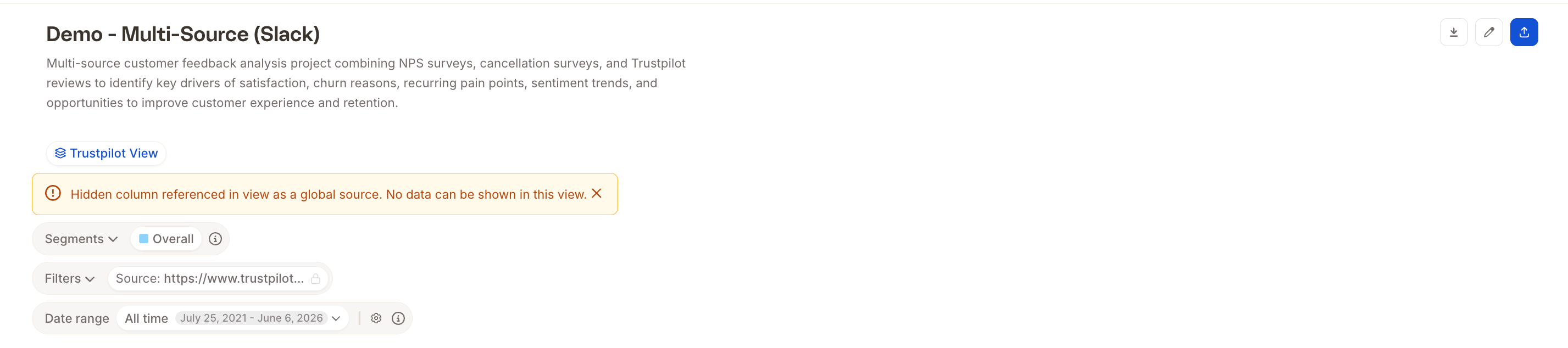
If a hidden column is used as a **global source** (e.g. for segments or filters across the report), the view will show the following message:
Recipients also can't see the configured values behind filters, segments, or widget buckets that reference a hidden column. The filter or bucket still applies to the report, but its values — for example the keywords in a text-contains filter or the categories in a bucket — are redacted in the view. This keeps sensitive setup details (such as PII used in a saved filter) private even when a filtered view is shared.
Recipients also can't see the configured values behind filters, segments, or widget buckets that reference a hidden column. The filter or bucket still applies to the report, but its values — for example the keywords in a text-contains filter or the categories in a bucket — are redacted in the view. This keeps sensitive setup details (such as PII used in a saved filter) private even when a filtered view is shared.
Use this together with locked filters to create fully tailored views for different audiences — the right data, filtered to the right segment, with only the relevant columns showing.
## Share with team members
Share your report with other Caplena users by granting them access to the full report or a specific view.
Click the **Share** button in the top right corner of your report.
Select a specific view (e.g. "French View") or the full report.
Enter teammates' email addresses in the **People with access** section and choose their access level — **View** for read-only, **Edit** for full access.
Click **Done**.
Use "View" access for stakeholders who just need to read, and "Edit" for collaborators who help build or update reports.
## Share externally (public link)
Generate a shareable public link to your selected views for people outside your organization.
Open your report and click **Share** on the right-hand side.
Select **This view only** or **All views**.
Optionally set a link name, password, or expiration date.
Click **Copy link** and send it to your stakeholders.
## Share filtered report views
When you share a report view, you can predefine which filters apply — sending personalized links to different stakeholders:
* A **marketing team** sees only feedback from their region
* A **product team** sees only comments about specific features
* A **country manager** sees only data from their market
Open your report and click **+ New View** on the left sidebar.
Apply the filters you want and give the view a clear name (e.g. "Report for Marketing Department").
Lock the filters — this ensures recipients cannot remove or change them.
Click **Share report & views** → choose the filtered view → copy the share link or embed code. Optionally add a password or expiration date.
If you enable **Insight Agent**, recipients can ask AI-based questions about their filtered data only — helping them explore insights safely without accessing the full dataset.
## Embed a report in other platforms
Create and configure a **View** and enable **Shareable Link**.
Click **Copy embed code** and paste it into any HTML-supported platform.
The embedded version always stays up to date with the latest edits in Caplena. No Caplena account is required for external viewers. You can still set passwords or expiration dates for access control.
## Embed in Power BI
 ## Control which columns recipients can see
When sharing a specific view, you can choose which data columns are visible to recipients. This lets you share a report with stakeholders while hiding columns that aren't relevant to them — or that contain sensitive information.
In the sharing modal, scroll to **Visible columns** and uncheck any columns you want to hide. By default, all columns are visible. Recipients will only see the columns you've enabled — they cannot unhide them.
## Control which columns recipients can see
When sharing a specific view, you can choose which data columns are visible to recipients. This lets you share a report with stakeholders while hiding columns that aren't relevant to them — or that contain sensitive information.
In the sharing modal, scroll to **Visible columns** and uncheck any columns you want to hide. By default, all columns are visible. Recipients will only see the columns you've enabled — they cannot unhide them.
 Recipients also can't see the configured values behind filters, segments, or widget buckets that reference a hidden column. The filter or bucket still applies to the report, but its values — for example the keywords in a text-contains filter or the categories in a bucket — are redacted in the view. This keeps sensitive setup details (such as PII used in a saved filter) private even when a filtered view is shared.
Recipients also can't see the configured values behind filters, segments, or widget buckets that reference a hidden column. The filter or bucket still applies to the report, but its values — for example the keywords in a text-contains filter or the categories in a bucket — are redacted in the view. This keeps sensitive setup details (such as PII used in a saved filter) private even when a filtered view is shared.
Recipients also can't see the configured values behind filters, segments, or widget buckets that reference a hidden column. The filter or bucket still applies to the report, but its values — for example the keywords in a text-contains filter or the categories in a bucket — are redacted in the view. This keeps sensitive setup details (such as PII used in a saved filter) private even when a filtered view is shared.
-1.gif?s=33cc472cdd33425c8b4a986748d5d287)