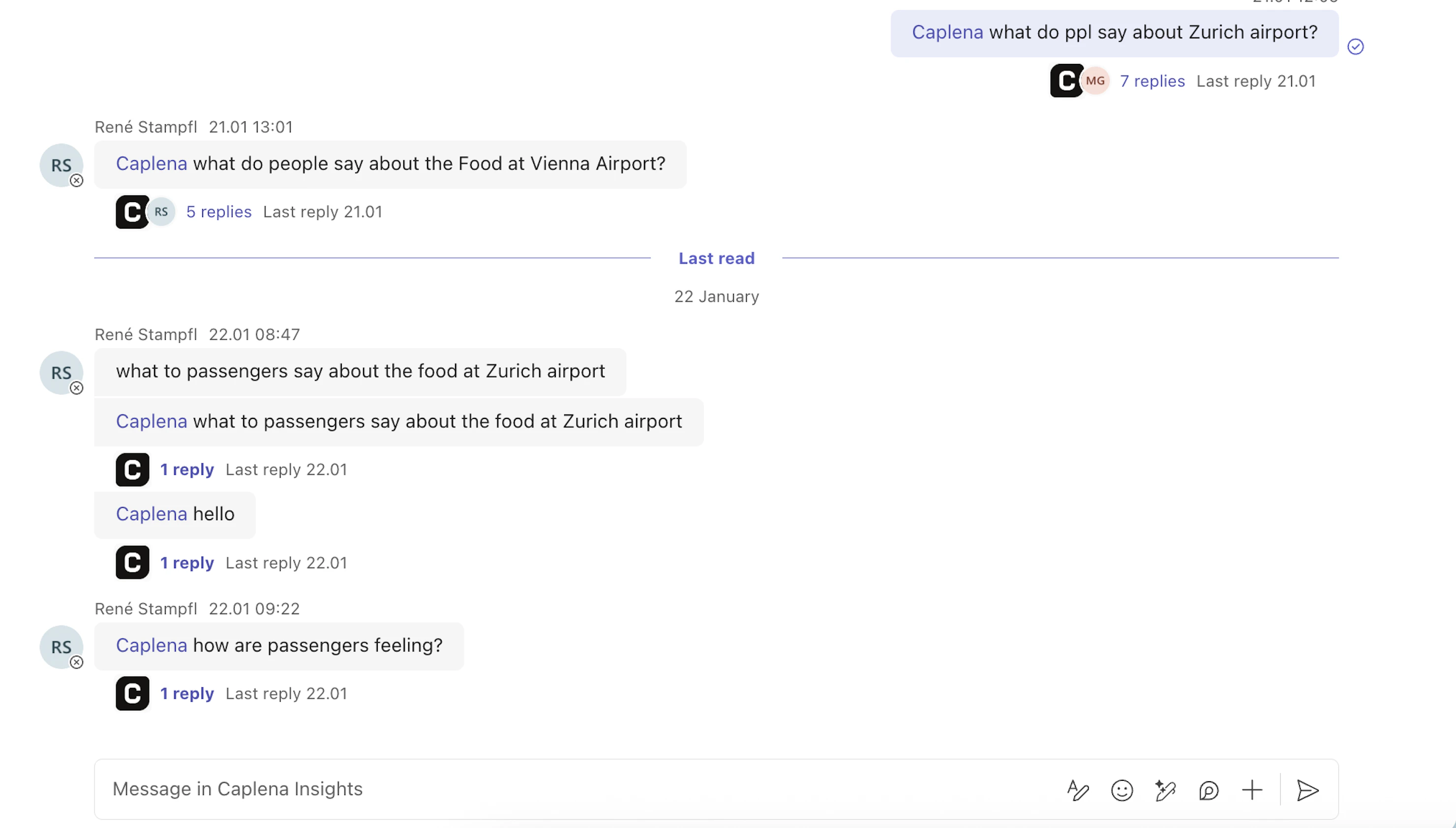
The bot can only query projects that have been set to Live. Learn how to set a project to Live →
Microsoft Teams
1
Enable the Integration
Before the bot can answer questions in Teams, set the project to Live. Learn how →Go to your global Integrations page and click Connect under the Microsoft Teams section.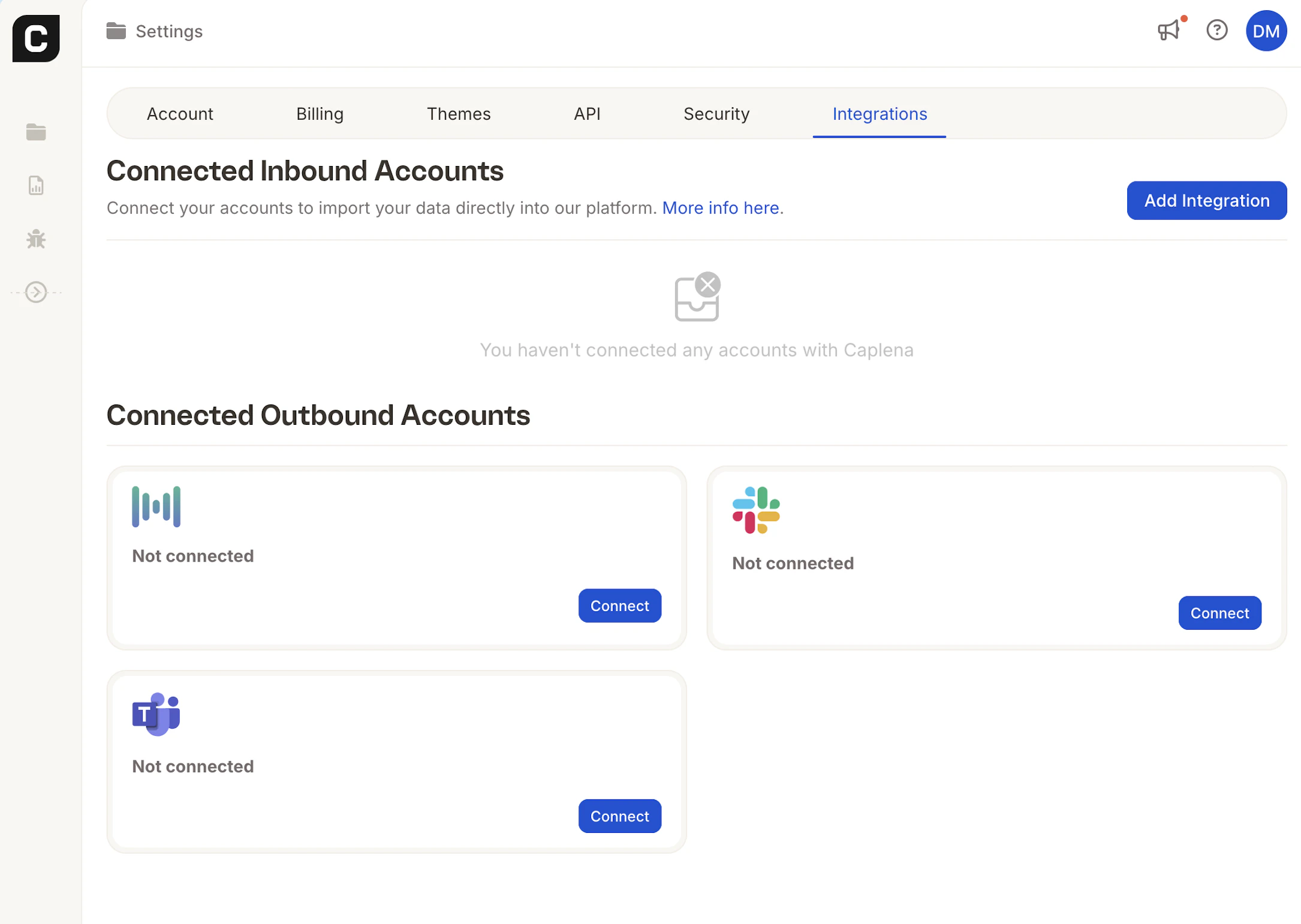
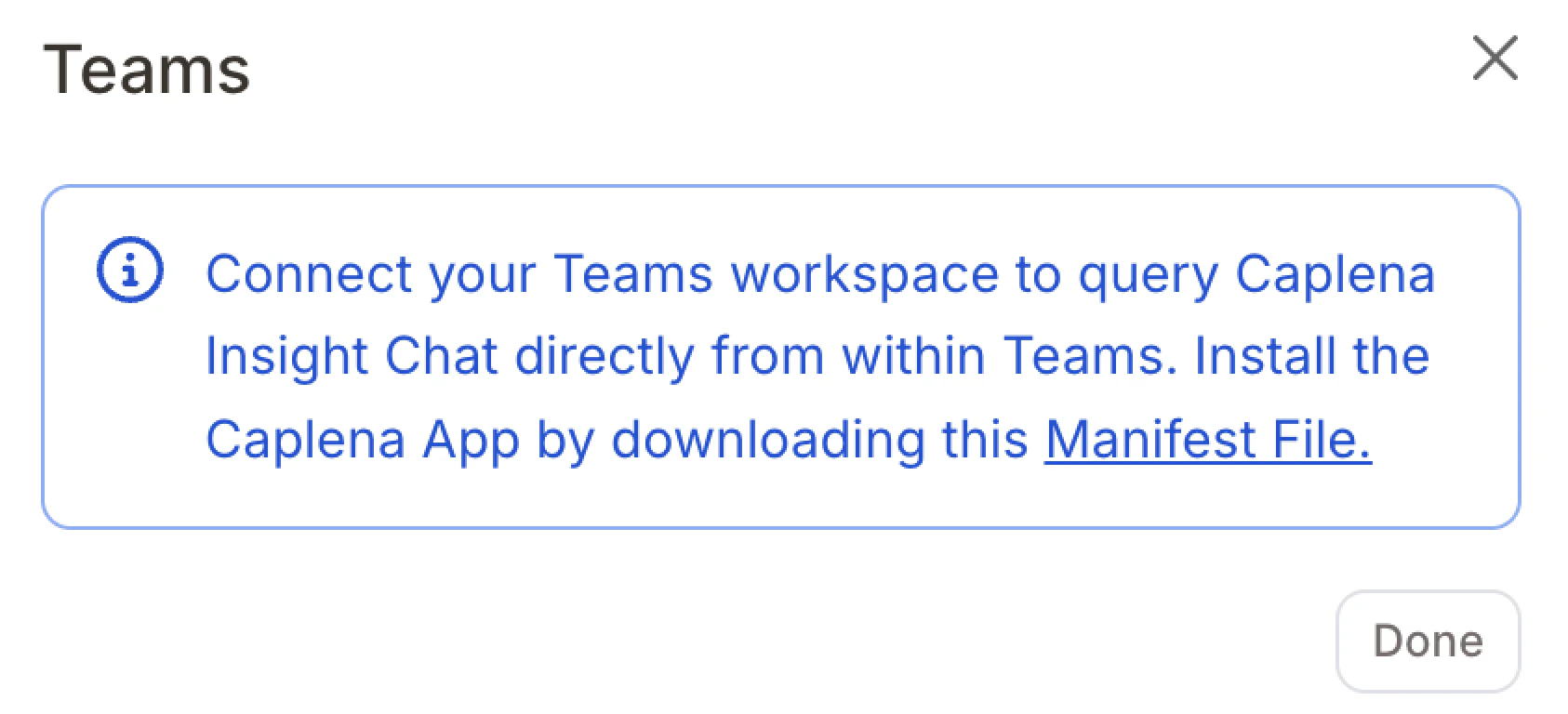
2
Install the Caplena App in Microsoft Teams
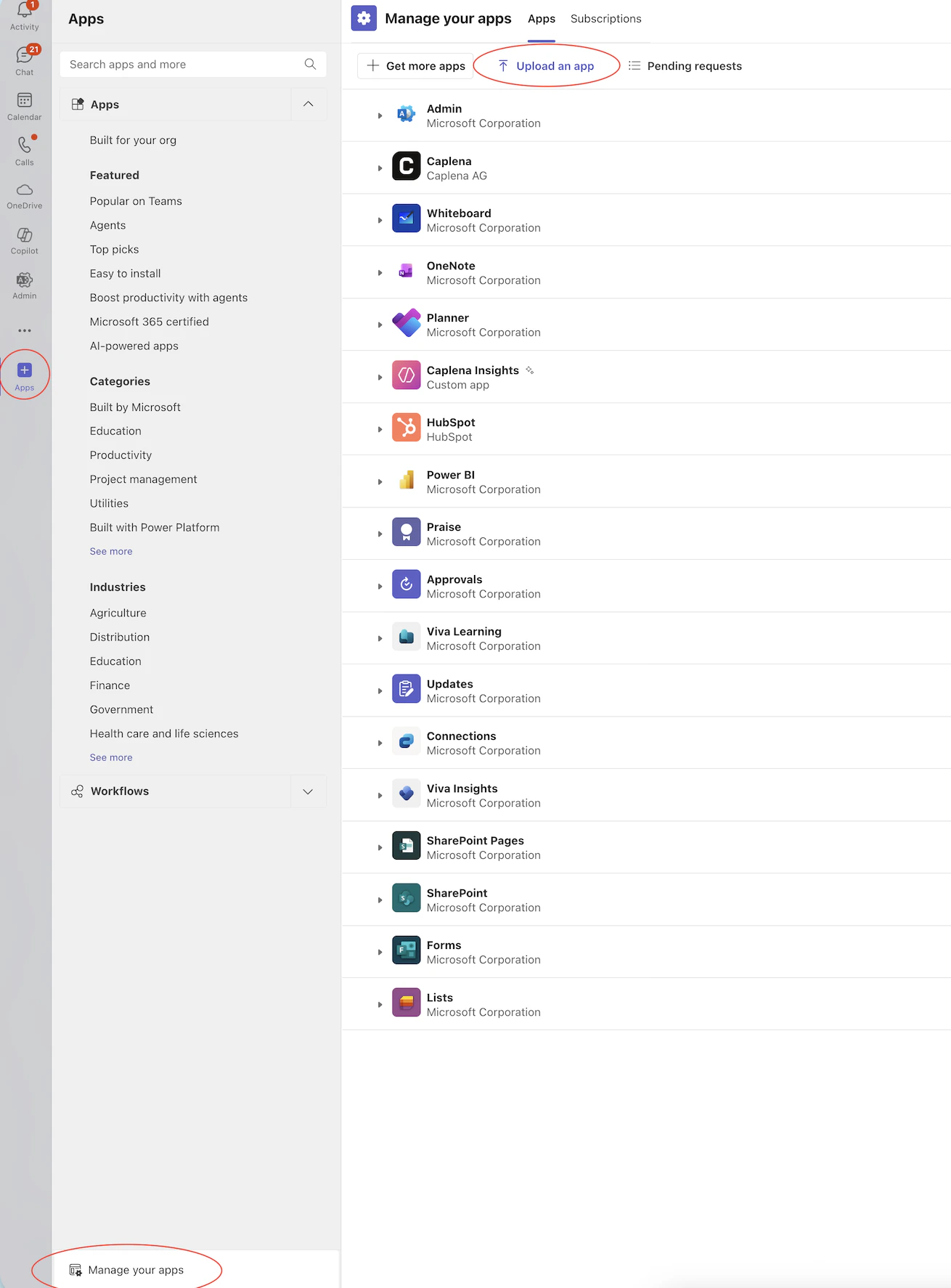
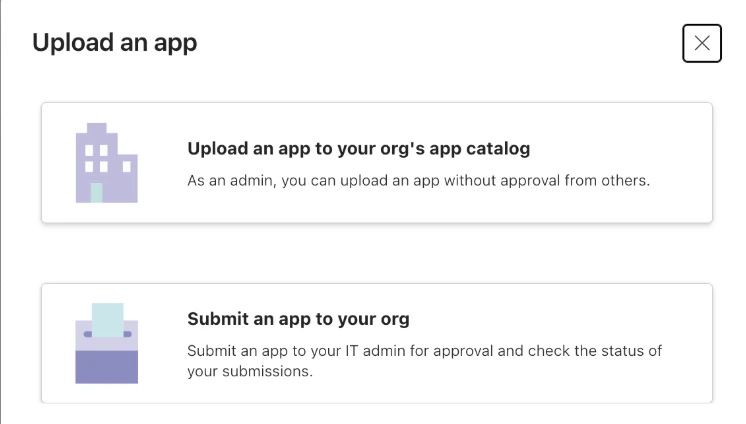
3
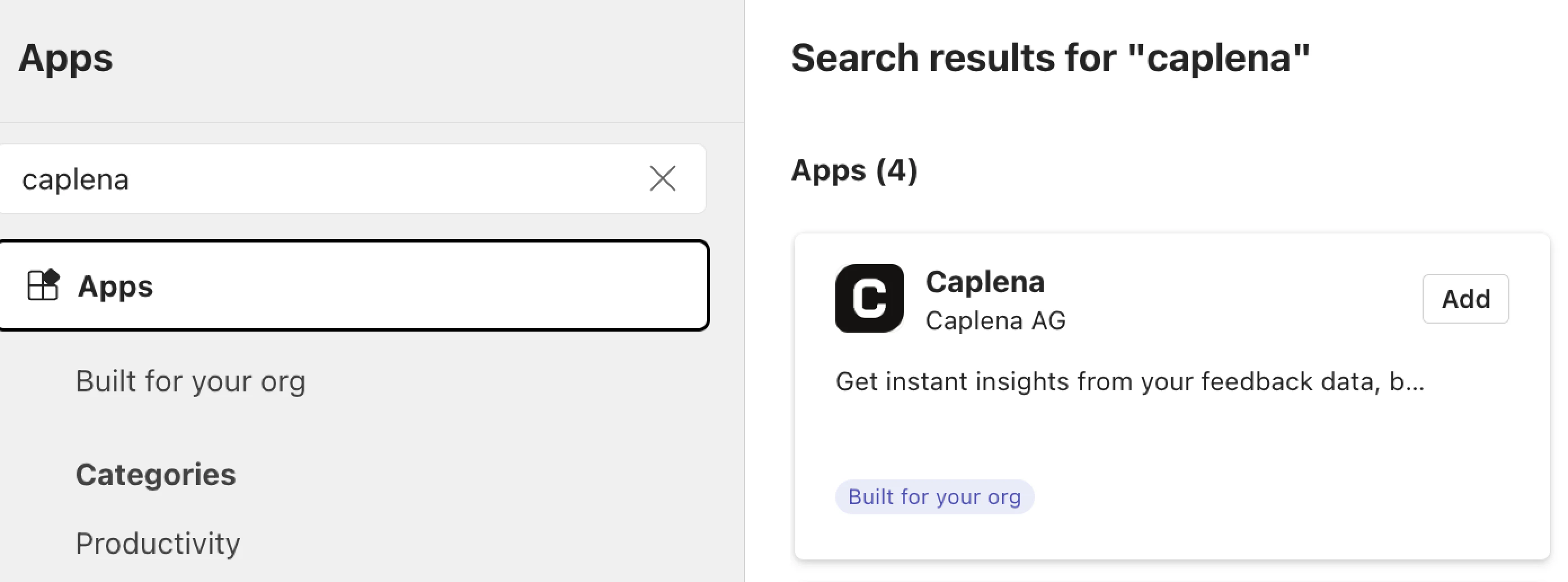
Link Your Teams Account to Caplena
Once the app is approved, go to Apps in Microsoft Teams and search for Caplena.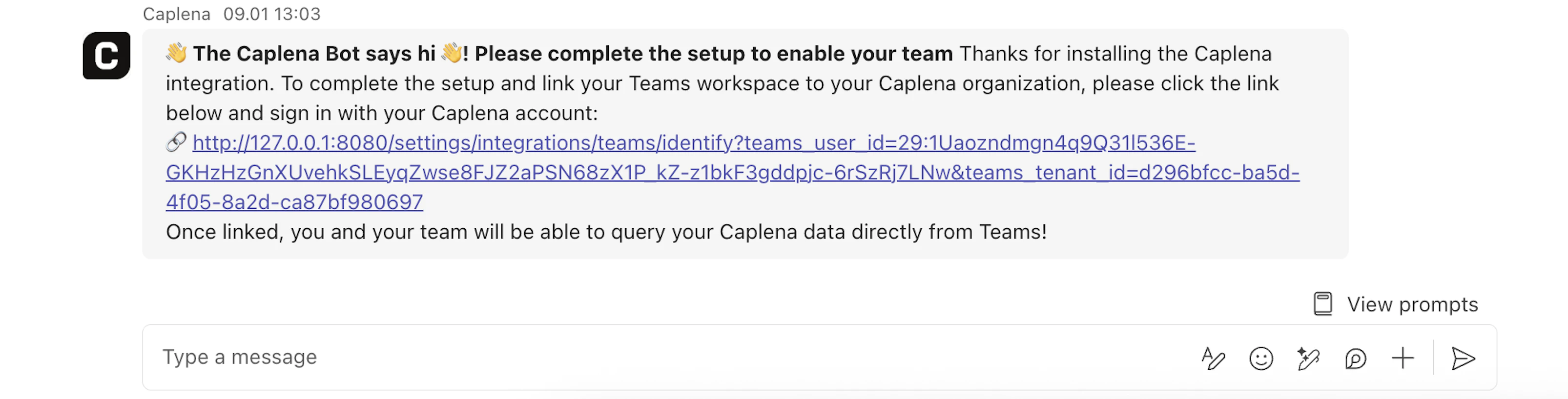
- If you see Add → click it.
- If you see Open → you’re already good to go.
Slack
1
Connect Your Slack Workspace
Open Caplena and navigate to Settings → Integrations. Find the Slack integration and click Connect.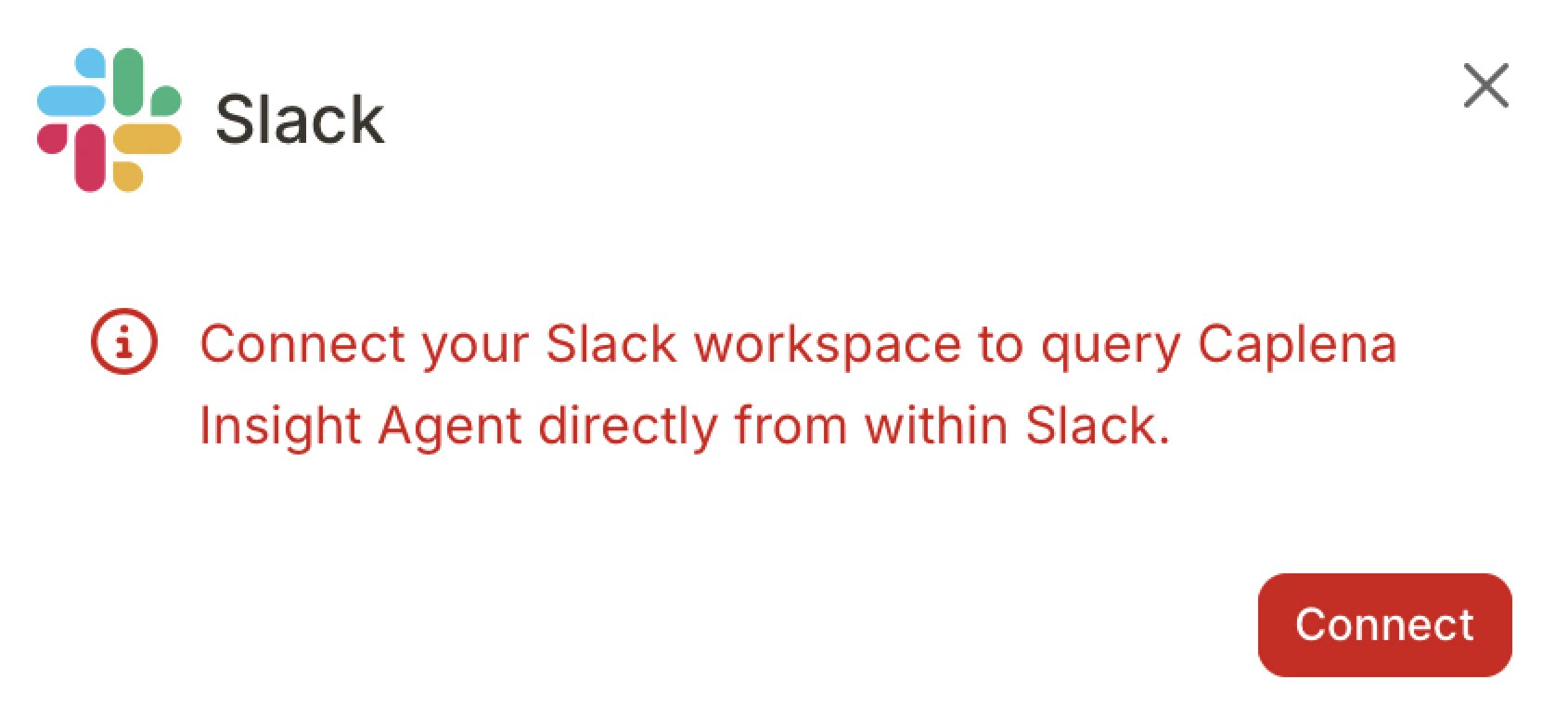
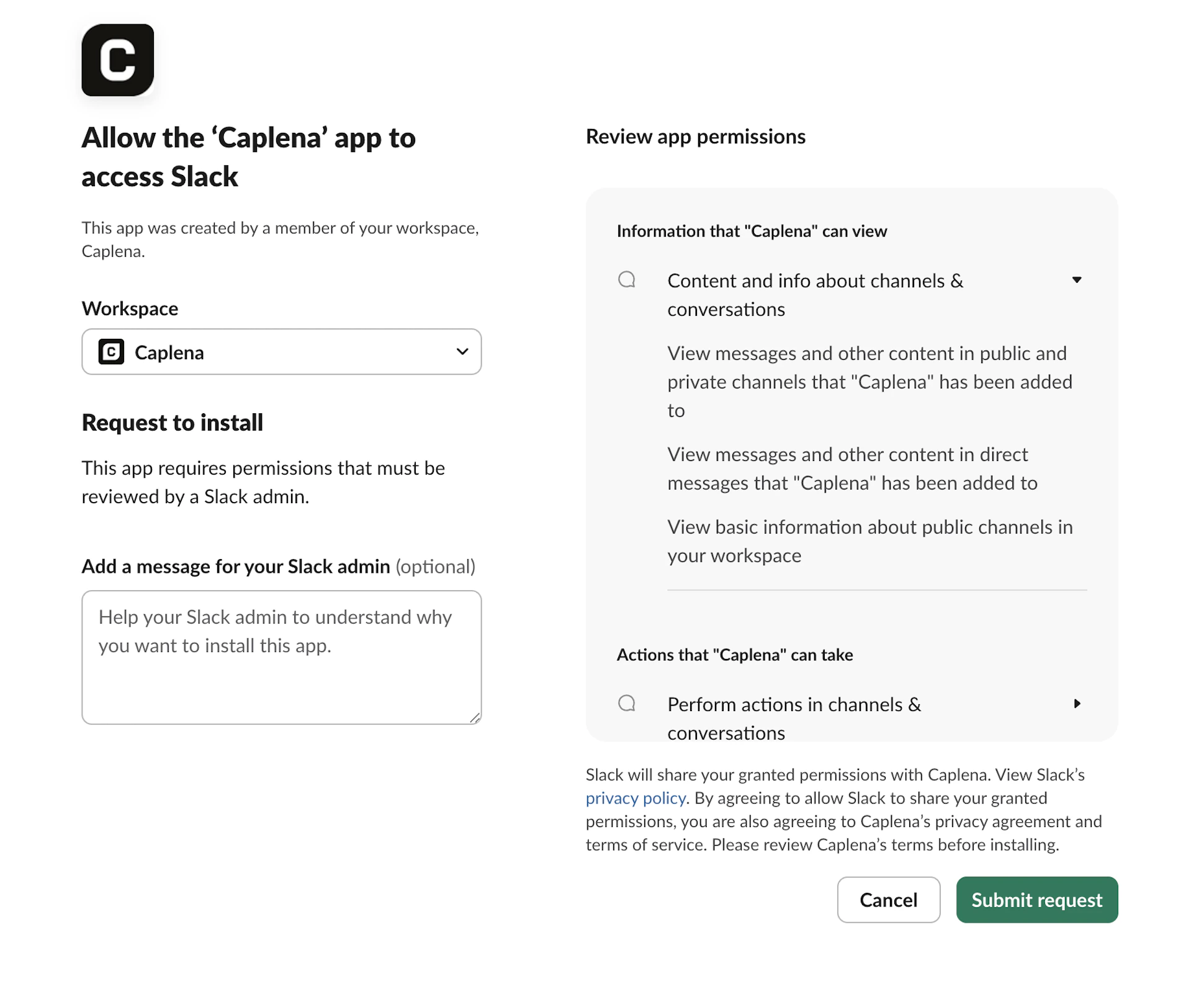
If you see a “Request to install” button, it means your Slack admin must approve Caplena before you can use it. You can optionally leave a message explaining why you want to install the app.
2
Wait for Admin Approval (if required)
If your Slack workspace restricts app installations, your admin will need to review your request. Once approved, the Caplena app will appear in Slack under Apps. If apps are not restricted, Slack will install the app automatically after permission confirmation.
3
Link Your Slack User to Your Caplena Account
After the app is installed, open Slack → Apps → Caplena and go to the Messages tab. The first time you open the Messages tab, Caplena posts a one-time welcome message with a link to connect your Slack user to your Caplena account.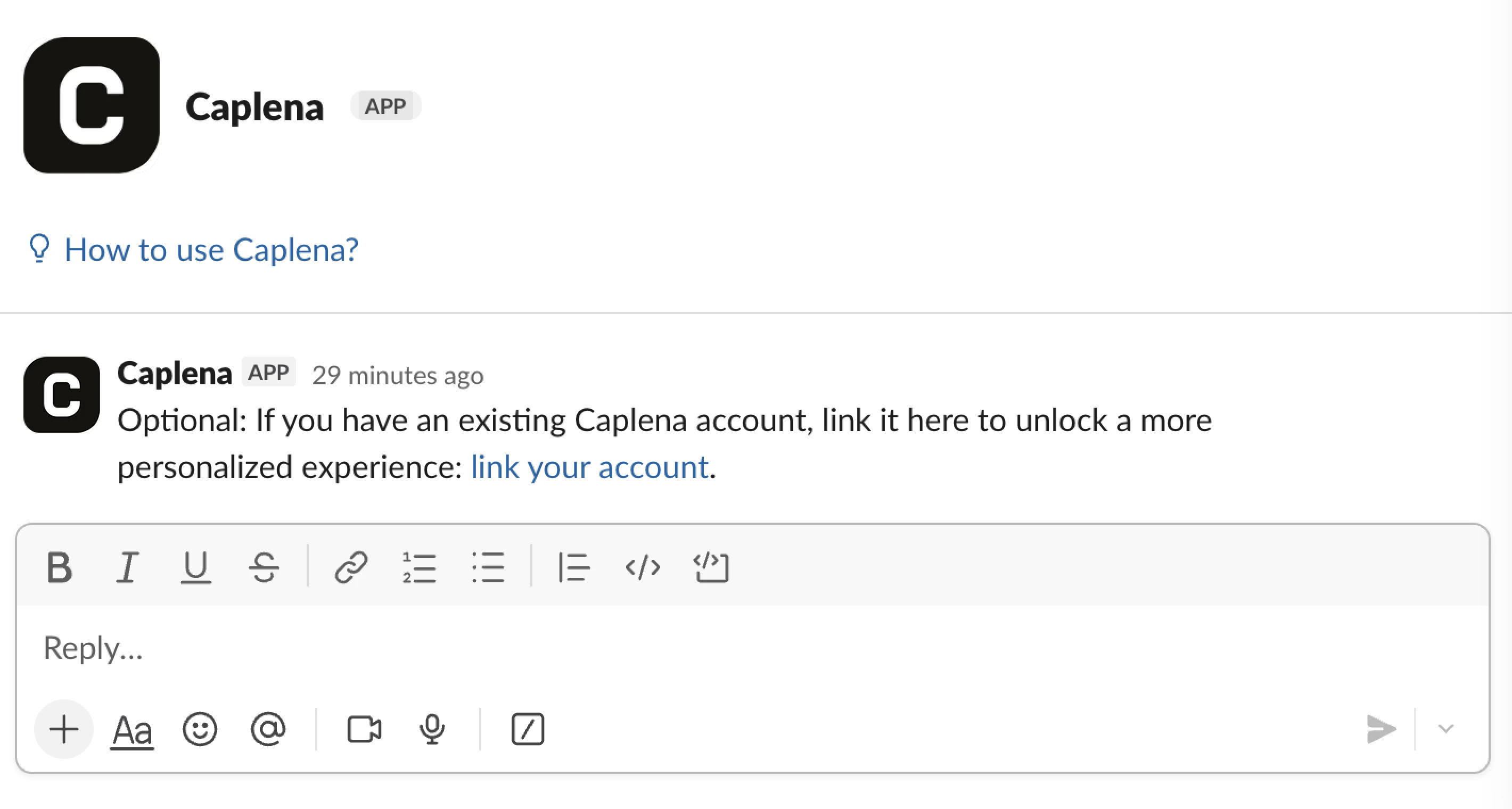
- With Per-user Access, linking your account is required before you can ask questions.
- With Global Access, linking is optional. It gives you a more personalized experience.
identify to the Caplena app.You’re now ready to use Agent directly from Slack.4
Enable Project Access in Caplena
Slack can only query insights from projects that have been explicitly approved. Learn how to set a project to Live →
Using Agent in Slack
Chat with Agent in the Messages tab of the Caplena app.- Each new message starts a separate conversation. Every top-level message you send creates its own thread, and Agent replies in that thread.
- Reply in the thread to follow up. Agent keeps the context of the conversation within the thread. Send a new top-level message to start fresh or ask about a different project.
- Track progress and stop answers. While Agent works on your question, Slack shows a processing status in the thread. Click Stop to cancel the answer. Agent then confirms that the answer was stopped instead of posting a partial response.
- Ask in channels. Mention @Caplena to ask a question in a channel.
Troubleshooting
- The Messages tab, threads, or Stop button don’t appear. Hard-refresh Slack (for example,
Ctrl+Shift+RorCmd+Shift+Rin the desktop app or browser) to load the latest version of the Caplena app. - The “link your Caplena account” link has expired. Open the link anyway. Caplena automatically sends a new link to your Slack DMs. Alternatively, send
identifyto the Caplena app.
Configuring Access Mode (Slack & Teams)
After connecting your workspace, you’ll be guided to the Access Mode setting automatically. You can also return to it at any time from Settings → Integrations by clicking on the integration.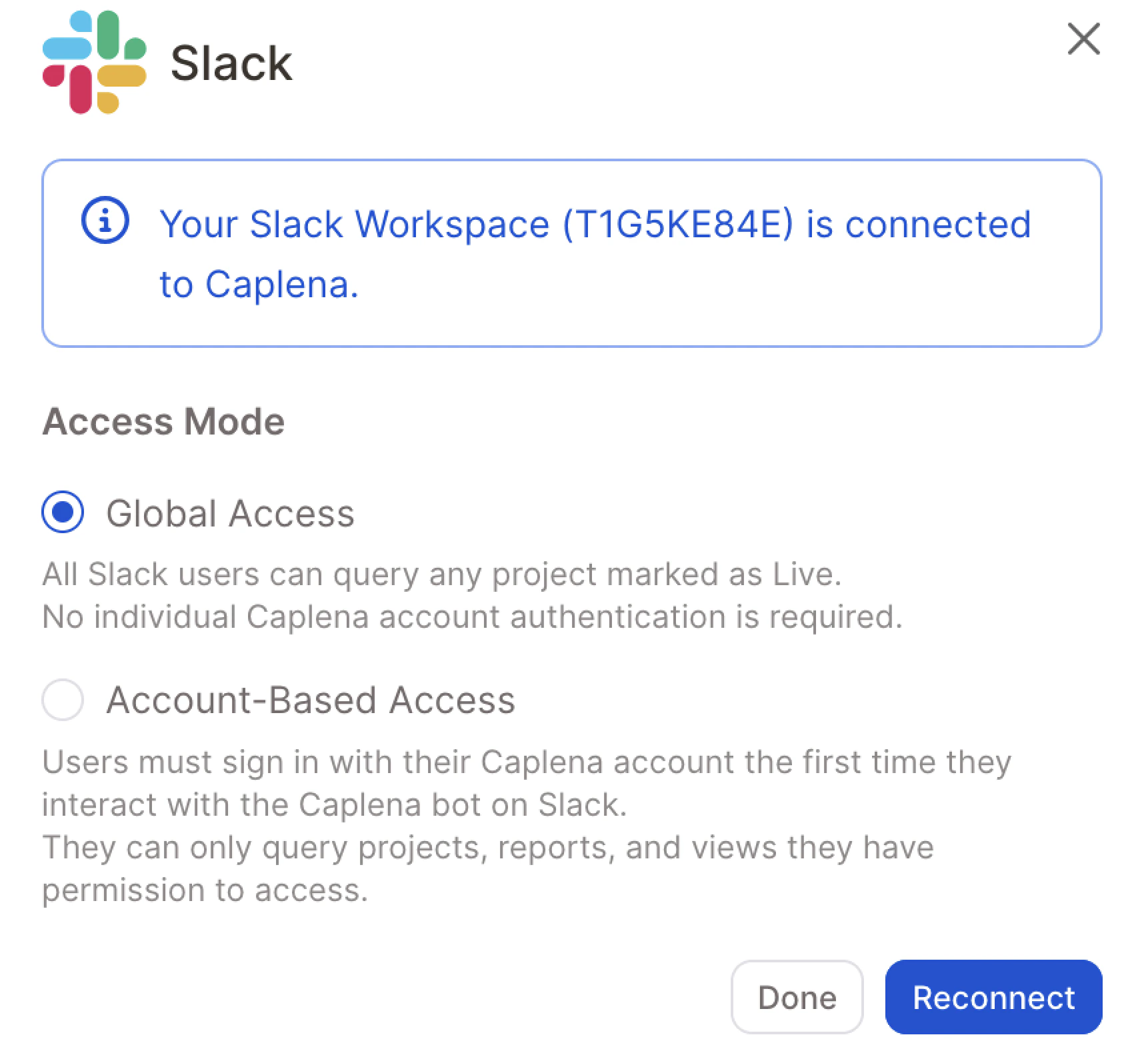
Live. No individual Caplena account authentication is required.
Per-user Access — Users must sign in with their Caplena account the first time they interact with the Caplena bot. From then on, they can only query projects, reports, and views they have permission to access.
Best Practices for Microsoft Teams & Slack
Create a public #insights channel Set up a shared “Insights” channel where team members can query Caplena for findings. This helps everyone discover what the bot can do, learn from each other’s use cases, discuss insights together, and keep knowledge accessible across the team.