
Before a project can be queried through any outbound connector, such as Slack, Microsoft Teams, Claude Desktop, it needs to be set to Live. This is a deliberate step that gives you control over which projects are accessible externally.
💡 Note: Setting a project to Live does not change anything about how the project works inside Caplena. It only makes it available for querying through connected outbound tools.
How to Set a Project to Live
- Open the project in Caplena.
- Go to Overview.
- Find the Live Project toggle and switch it on.
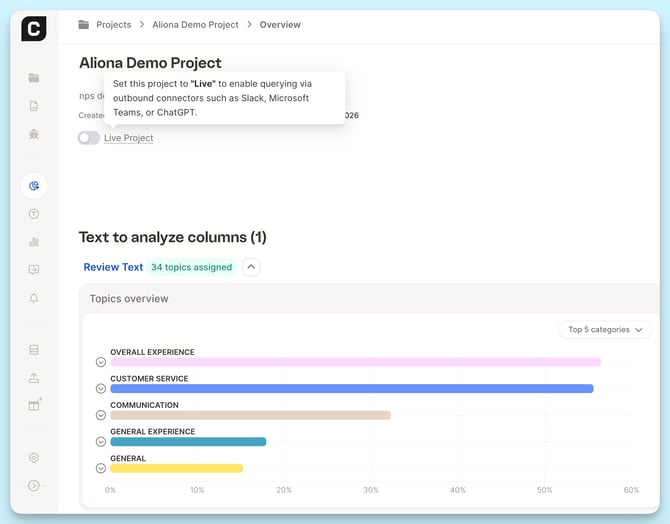
Once enabled, the project becomes immediately available to any outbound connectors you have set up.
Where This Setting Is Required
You’ll need to set a project to Live before using it with any of the following integrations:
|
Integration |
What it enables |
|
Slack |
Query your feedback data directly from a Slack channel. |
|
Microsoft Teams |
Ask the Caplena bot questions about your projects inside Teams. |
|
Claude Desktop (MCP) |
Query projects using natural language through Claude. |
Turning Live Off
You can disable Live at any time by switching the toggle back off. The project will immediately stop being accessible through outbound connectors, nothing inside Caplena is affected.