> ## Documentation Index
> Fetch the complete documentation index at: https://docs.caplena.com/llms.txt
> Use this file to discover all available pages before exploring further.
# General Settings
> Manage your account, organization, and platform preferences
The **Settings** page lets you manage your account, personalize the platform experience, and control preferences. Here’s a breakdown of what you can configure:
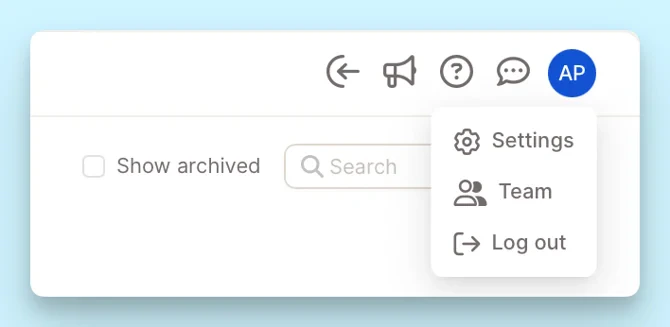
To access settings, click your profile icon in the top-right corner of the screen.
 ### 1. **Account Settings**
Manage your personal profile and application preferences.
### 1. **Account Settings**
Manage your personal profile and application preferences.
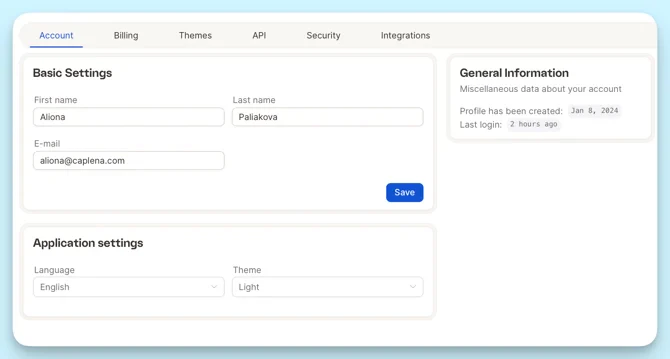 **Basic Settings:**
* **First & Last Name**: Edit how your name appears in Caplena.
* **Email Address**: Used for notifications, password resets, and communication.
**General Information:**
* **Profile Created**: See when your account was created.
* **Last Login**: Monitor your recent login activity.
**Application Preferences:**
* **Language**: Choose between English and German.
* **Theme**: Switch between Light and Dark mode.
* **Timezone**: Control which timezone Caplena uses to display dates and times across the app (for example, in filters, exports, and report timelines).
* Leave **Auto-update timezone** enabled to follow your browser's current timezone automatically. This is the default and works well if you travel or change locations.
* Turn **Auto-update timezone** off to pick a specific IANA timezone (such as `Europe/Zurich` or `America/New_York`) from the searchable list. Use this when you want all dates to stay in a fixed timezone regardless of where you sign in from. Hover the toggle to see your currently active timezone.
### 2. Organization Settings
Configure company-wide preferences and billing details.
**Basic Settings:**
* **First & Last Name**: Edit how your name appears in Caplena.
* **Email Address**: Used for notifications, password resets, and communication.
**General Information:**
* **Profile Created**: See when your account was created.
* **Last Login**: Monitor your recent login activity.
**Application Preferences:**
* **Language**: Choose between English and German.
* **Theme**: Switch between Light and Dark mode.
* **Timezone**: Control which timezone Caplena uses to display dates and times across the app (for example, in filters, exports, and report timelines).
* Leave **Auto-update timezone** enabled to follow your browser's current timezone automatically. This is the default and works well if you travel or change locations.
* Turn **Auto-update timezone** off to pick a specific IANA timezone (such as `Europe/Zurich` or `America/New_York`) from the searchable list. Use this when you want all dates to stay in a fixed timezone regardless of where you sign in from. Hover the toggle to see your currently active timezone.
### 2. Organization Settings
Configure company-wide preferences and billing details.
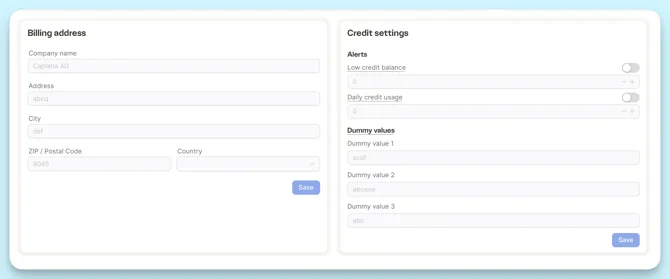 **Billing Information:**
* Add or update your **Company Name**, **Address**, **City**, **ZIP**, and **Country**.
* This info appears on all invoices.
* Don’t forget to click **Save** after making changes.
**Organization Preferences:**
* **Dummy Values**: Define up to 3 placeholders (e.g., -99, NULL) to exclude from billing.
* **Tracking**: Opt out of usage tracking for support/debugging.
**Note:**
> Dummy values only apply to newly uploaded data.
> Only Admins can define dummy values, and these settings apply across the entire organization.
You can also view your **Credit Usage** on this page, and export it if needed.
**Billing Information:**
* Add or update your **Company Name**, **Address**, **City**, **ZIP**, and **Country**.
* This info appears on all invoices.
* Don’t forget to click **Save** after making changes.
**Organization Preferences:**
* **Dummy Values**: Define up to 3 placeholders (e.g., -99, NULL) to exclude from billing.
* **Tracking**: Opt out of usage tracking for support/debugging.
**Note:**
> Dummy values only apply to newly uploaded data.
> Only Admins can define dummy values, and these settings apply across the entire organization.
You can also view your **Credit Usage** on this page, and export it if needed.
 ### 3. **Theme Settings**
Customize your Caplena branding.
### 3. **Theme Settings**
Customize your Caplena branding.
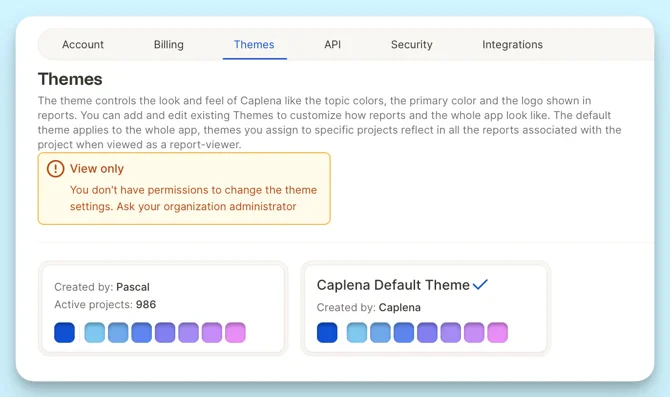 **Visual Identity:**
* **Default Logo**: Upload your company logo (.JPG, .PNG, or .WEBP).
* **Global Color**: Set your primary platform color.
* **Gradient Colors**: Choose styling for reports
* **Sentiment Colors**: Customize colors for sentiment views.
### 4. API Settings
Generate and manage API keys for external integrations.
**Visual Identity:**
* **Default Logo**: Upload your company logo (.JPG, .PNG, or .WEBP).
* **Global Color**: Set your primary platform color.
* **Gradient Colors**: Choose styling for reports
* **Sentiment Colors**: Customize colors for sentiment views.
### 4. API Settings
Generate and manage API keys for external integrations.
 **To create an API key:**
Go to **Settings → API** tab
Click **Generate New API Key**
Copy & store it securely — you won’t see it again
### 5. Security Settings
Keep your account secure with password management and 2FA.
**To create an API key:**
Go to **Settings → API** tab
Click **Generate New API Key**
Copy & store it securely — you won’t see it again
### 5. Security Settings
Keep your account secure with password management and 2FA.
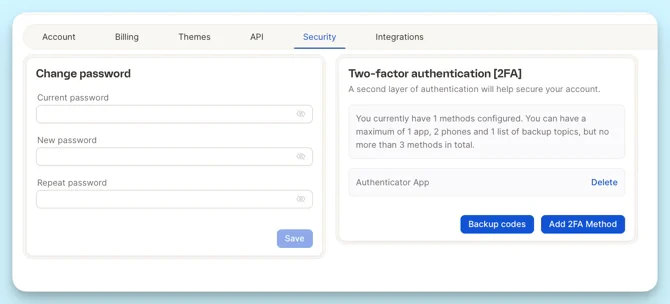 **Change Password:**
* Enter your current and new password → click **Save**
**Two-Factor Authentication (2FA):**
* Add protection via:
* Authenticator App
* Phone Number
* Backup Codes
* You can set up to **3 active methods**
### 6. Integrations
Connect external platforms for smoother data import.
**Change Password:**
* Enter your current and new password → click **Save**
**Two-Factor Authentication (2FA):**
* Add protection via:
* Authenticator App
* Phone Number
* Backup Codes
* You can set up to **3 active methods**
### 6. Integrations
Connect external platforms for smoother data import.
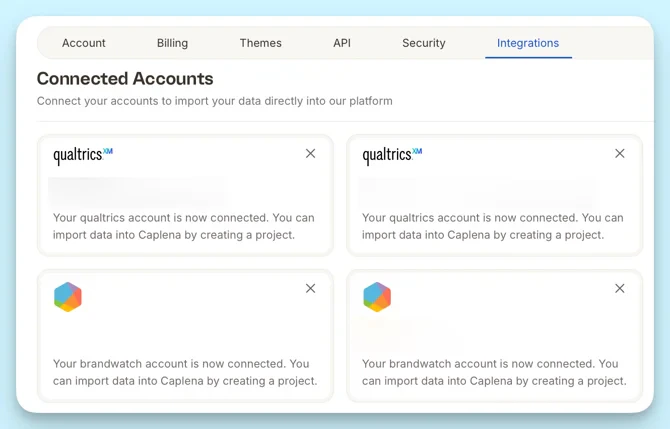 View and manage all connected platforms under the **Integrations** tab.