

How to access sharing options
Open the report you want to share and click the blue Share button in the top-right corner. A pop-up window will appear with internal and external sharing options.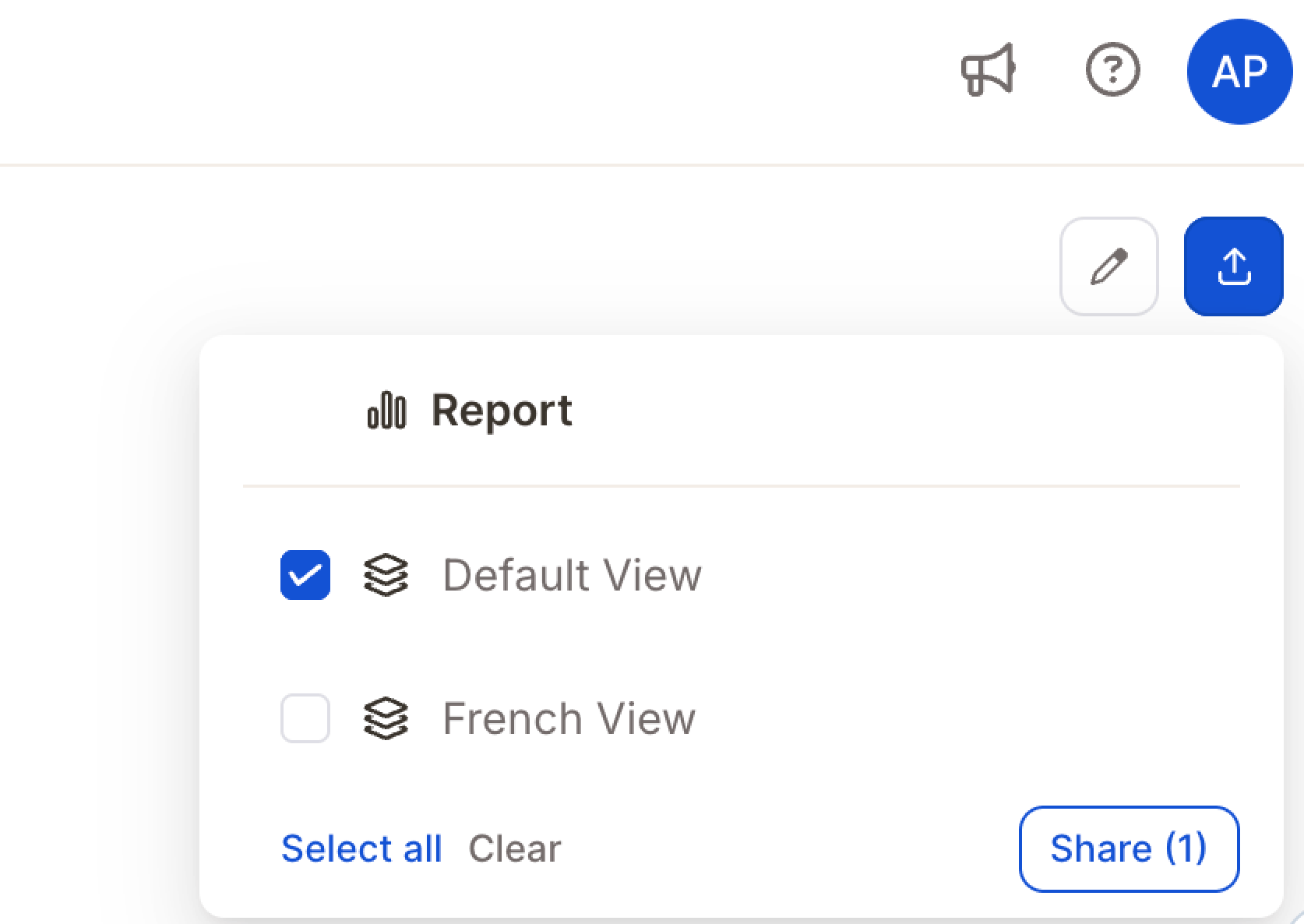
Export as PDF
In addition to sharing a live link, you can export a static PDF snapshot of the report.1
Open the report
Open the report (or the specific View) you want to export.
2
Click the download icon
Click the download icon in the top-right corner, next to Save as new View.
3
Choose Export as PDF
Select Export as PDF from the menu.
A PDF export is a static snapshot of the visual report (charts, scores, summaries) — it does not include the underlying row-level data. To export the raw dataset (responses, topics, sentiment, metadata), use the export options on the Topics view or Data page instead.
Control which columns recipients can see
When sharing a specific view, you can choose which data columns are visible to recipients. This lets you share a report with stakeholders while hiding columns that aren’t relevant to them — or that contain sensitive information. In the sharing modal, scroll to Visible columns and uncheck any columns you want to hide. By default, all columns are visible. Recipients will only see the columns you’ve enabled — they cannot unhide them.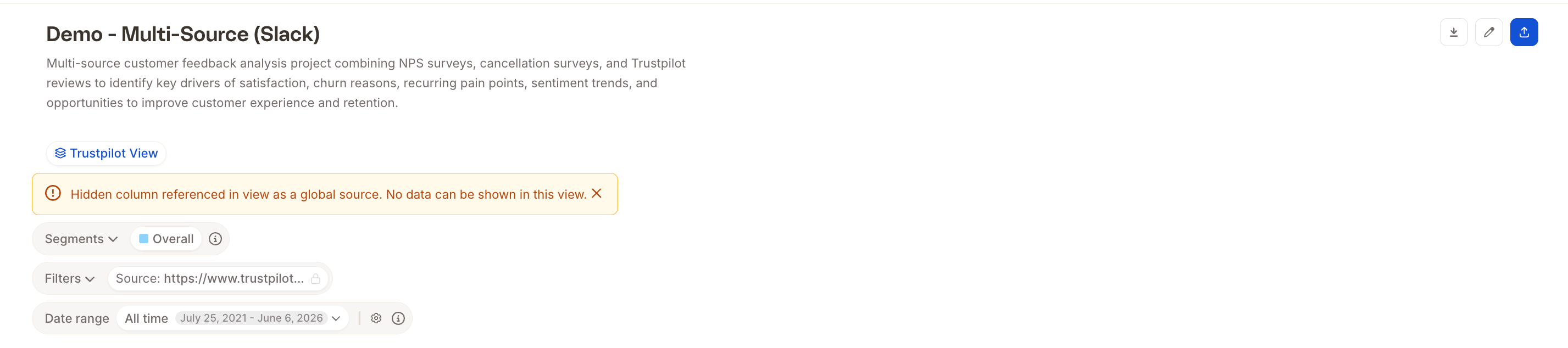
Share with team members
Share your report with other Caplena users by granting them access to the full report or a specific view.-1.gif?s=33cc472cdd33425c8b4a986748d5d287)
1
Open sharing
Click the Share button in the top right corner of your report.
2
Choose what to share
Select a specific view (e.g. “French View”) or the full report.
3
Add people
Enter teammates’ email addresses in the People with access section and choose their access level — View for read-only, Edit for full access.
4
Confirm
Click Done.
Share externally (public link)
Generate a shareable public link to your selected views for people outside your organization.1
Open sharing
Open your report and click Share on the right-hand side.
2
Choose scope
Select This view only or All views.
3
Configure the link
Optionally set a link name, password, or expiration date.
4
Copy and send
Click Copy link and send it to your stakeholders.
Share filtered report views
When you share a report view, you can predefine which filters apply — sending personalized links to different stakeholders:- A marketing team sees only feedback from their region
- A product team sees only comments about specific features
- A country manager sees only data from their market
1
Create a new view
Open your report and click + New View on the left sidebar.
2
Apply filters
Apply the filters you want and give the view a clear name (e.g. “Report for Marketing Department”).
3
Lock your filters
Lock the filters — this ensures recipients cannot remove or change them.
4
Share
Click Share report & views → choose the filtered view → copy the share link or embed code. Optionally add a password or expiration date.
Embed a report in other platforms
1
Create a view
Create and configure a View and enable Shareable Link.
2
Copy embed code
Click Copy embed code and paste it into any HTML-supported platform.