

- Recode or convert values — clean up inconsistent categories, or convert one scale into another (e.g. a 1–5 rating rescaled to 1–10, or a text label like “Very Satisfied” turned into a numeric score)
- Apply formulas — reshape dates, calculate derived numbers, geocode addresses, and more
- Extract new attributes with AI — pull out sentiment, emotion, brand mentions, or any other detail hiding in free text
Mappings
Formulas
LLMs
Agent
Quick start
Regardless of the mode you choose, creating your first Smart Column follows the same flow:- Pick your source column → the data you want to transform (e.g.
Language,Text to analyze, orCountry). - Choose a mode → Mapping, Formula, or LLM, depending on your goal — or skip this step entirely and describe the task to Agent instead.
- Configure the transformation → add logic, mappings, prompts, or formulas.
- Preview & refine → filter the preview to specific rows, check the output, and adjust until you’re happy — then activate.
Step 1: Select your source column
Before anything can be transformed, you need to tell Caplena which column to use. This step is the same no matter which mode you pick below.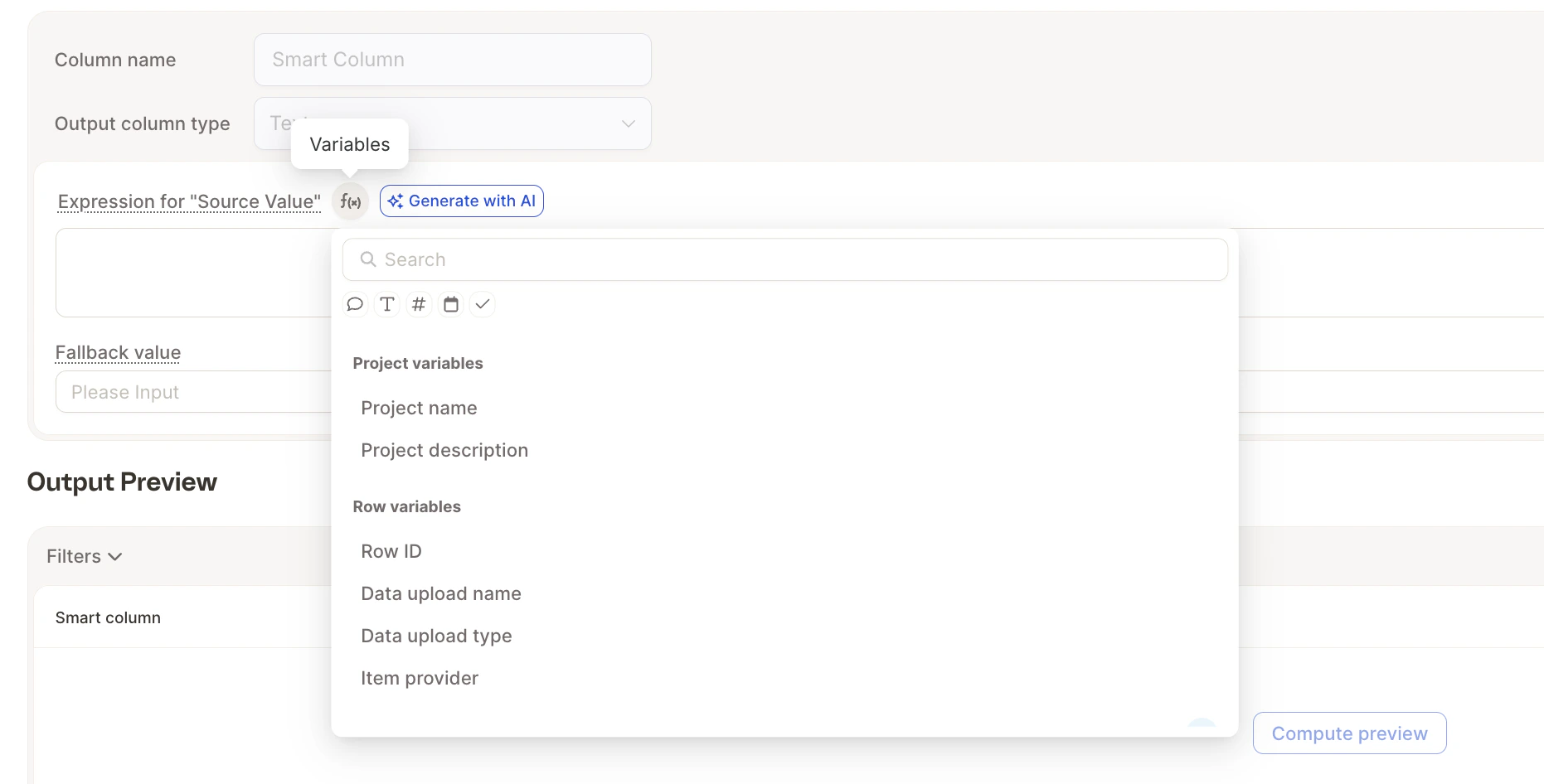
1
Click into the Expression for “Source Value” field.
2
Click the
{ƒx} icon to the right — this opens the variable selector.3
Choose from available project variables (like
Text to analyze, Country, etc.).4
Caplena will insert the correct variable syntax automatically.
Step 2: Choose and configure a mode
With your source column selected, pick the mode that fits your goal — each is covered in detail below:- Mapping — standardize categories or convert a scale
- Formula — reshape dates, calculate values, or run custom logic
- LLM — extract sentiment, brand mentions, or other detail from free text
Mapping mode
Got inconsistent values that need standardizing, or a scale that needs converting? Mapping mode is your best friend. You define a source value and map it to a desired output — that covers cleaning up categories just as well as rescaling numbers or turning text labels into numeric scores.Example: Standardizing categories
- LV → Latvian
- ❓ Anything else → becomes your fallback value (e.g., “Other”)
Example: Converting a scale
- 1 → 2, 2 → 4, 3 → 6, 4 → 8, 5 → 10 (rescale a 1–5 rating onto a 1–10 scale)
- “Very Dissatisfied” → 1, “Dissatisfied” → 2, “Neutral” → 3, “Satisfied” → 4, “Very Satisfied” → 5 (turn a text-based scale into a number you can chart, filter, or correlate)
Formula mode
Want to reverse a string, calculate something, or clean up a date? Use Formula mode, powered by Jinja syntax.Example: Reverse a string
To reverse the content of a column (e.g.,Text to analyze), use:
- Converts the string into a list of characters
- Reverses that list
- Joins it back into a string
Caplena is awesome → emosewa si anelpaC
Good to know
A few practical things that affect how your formulas behave — worth a skim even if AI wrote the formula for you:- Missing values don’t break anything. If a row has no value for a variable you reference, it’s just treated as empty/false rather than throwing an error — your formula still runs.
- Output always gets converted to match the column type. Whatever your formula produces is turned into text first, then parsed into the column’s actual type (Text, Number, Boolean, Date) — so a formula that outputs
"42"still lands correctly in a Number column. - An empty result means an empty cell. If a formula produces nothing for a row, that row’s cell is just left blank, not an error.
Technical details: Jinja flavor and sandboxing
Technical details: Jinja flavor and sandboxing
Formula mode runs on Jinja2 inside a sandboxed environment (
SandboxedEnvironment). All standard Jinja2 features are available — conditionals, loops, filters, string/number/date manipulation — while unsafe operations (arbitrary Python execution, file access, etc.) are blocked for security.LLM mode
This mode applies AI models (LLMs) to process free-text inputs, enabling more advanced use cases like summarization or classification. Common use cases:- Extracting brand names
- Detecting emotion or sentiment
- Removing slurs or sensitive content
- Creating summaries
Example: Sentiment classification
Prompt: “Classify the sentiment of the feedback as Positive, Neutral, or Negative. Only classify as Negative if dissatisfaction is clearly stated, not just implied.” Output: a cleanPositive / Neutral / Negative label per row — ready to filter, segment, or chart immediately, no further cleanup needed.
LLM Smart Columns consume credits per row processed — see LLM Smart Columns for how usage is calculated. Use the Filters dropdown in the preview to check output quality on a specific slice of your data before activating on the full dataset.
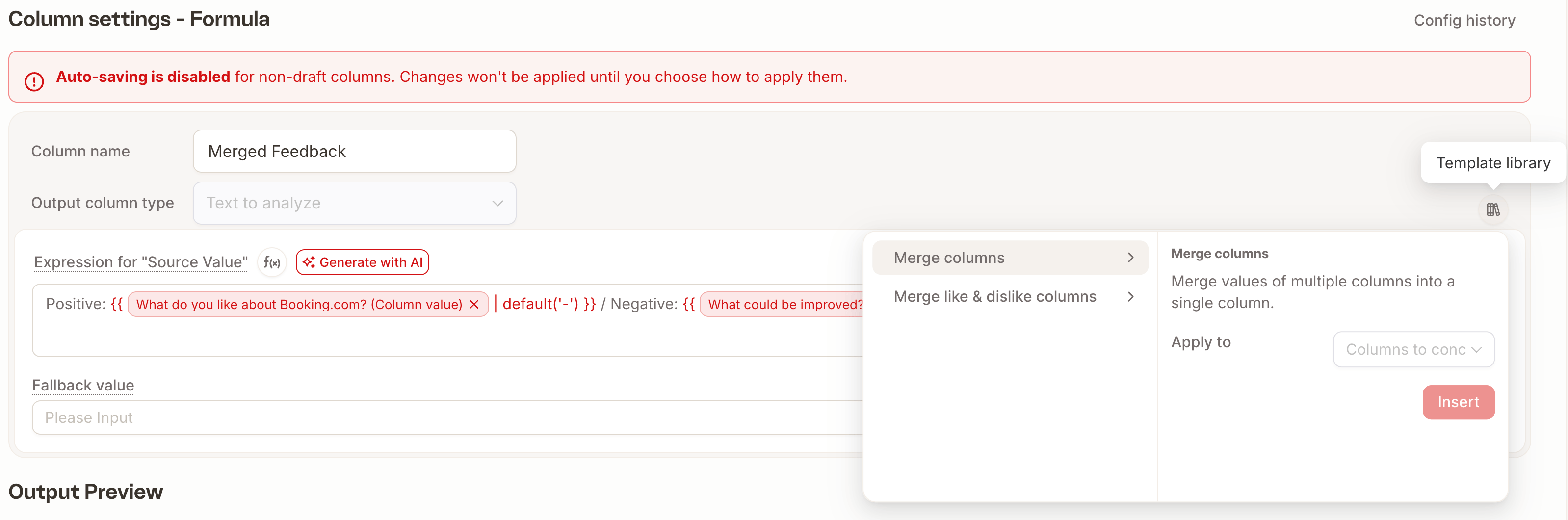
Templates Available
Caplena provides a growing template library with ready-to-use prompts for common use cases. These templates help you:- Get started quic
- Ensure consistent and high-quality results
- Customize further if needed
Drafts and live columns
Every Smart Column starts as a draft. A draft lets you experiment freely — preview results, iterate on the configuration, and tweak prompts or mappings — without using up a Smart Column slot from your plan. Drafts don’t compute values for your full dataset and don’t appear alongside your live columns in analyses. Nothing runs on your full data until you decide the preview looks right and activate it — there’s no rush, and no risk of burning a slot or credits on a configuration you’re still testing. While previewing, use the Filters dropdown above the preview table to scope it to specific rows — pick any column and value (e.g.Star Rating: 5) to check exactly how the configuration behaves on that slice, rather than hoping to spot it in a random sample. Random sample is on by default so the preview rotates through your data; toggle it off if you’d rather keep previewing the same rows while you tweak the configuration.


Once a Smart Column is live, it cannot be reverted back to a draft. You can still edit a live column’s configuration — just keep in mind the change applies immediately. If you no longer need a live column, delete it instead.
Config history
Every time you change a Smart Column’s configuration, Caplena keeps the previous version. Config history lets you browse those past versions, compare them with your current setup, and roll back if needed.Where to Find It
Open a Smart Column’s detail page. A Config history button appears in the header once the column has at least one earlier version — for a brand-new column with no changes yet, the button stays hidden.Compare Versions
Config history shows a timeline that runs from when the column was created through to the Current version. Use the Compare with selector (or the timeline) to pick any earlier version, then read the two panels side by side: the selected historical configuration on the left and your current configuration on the right. This works for all three modes — Mapping, Formula, and LLM — so you can see exactly what changed (timestamps are shown in your local timezone).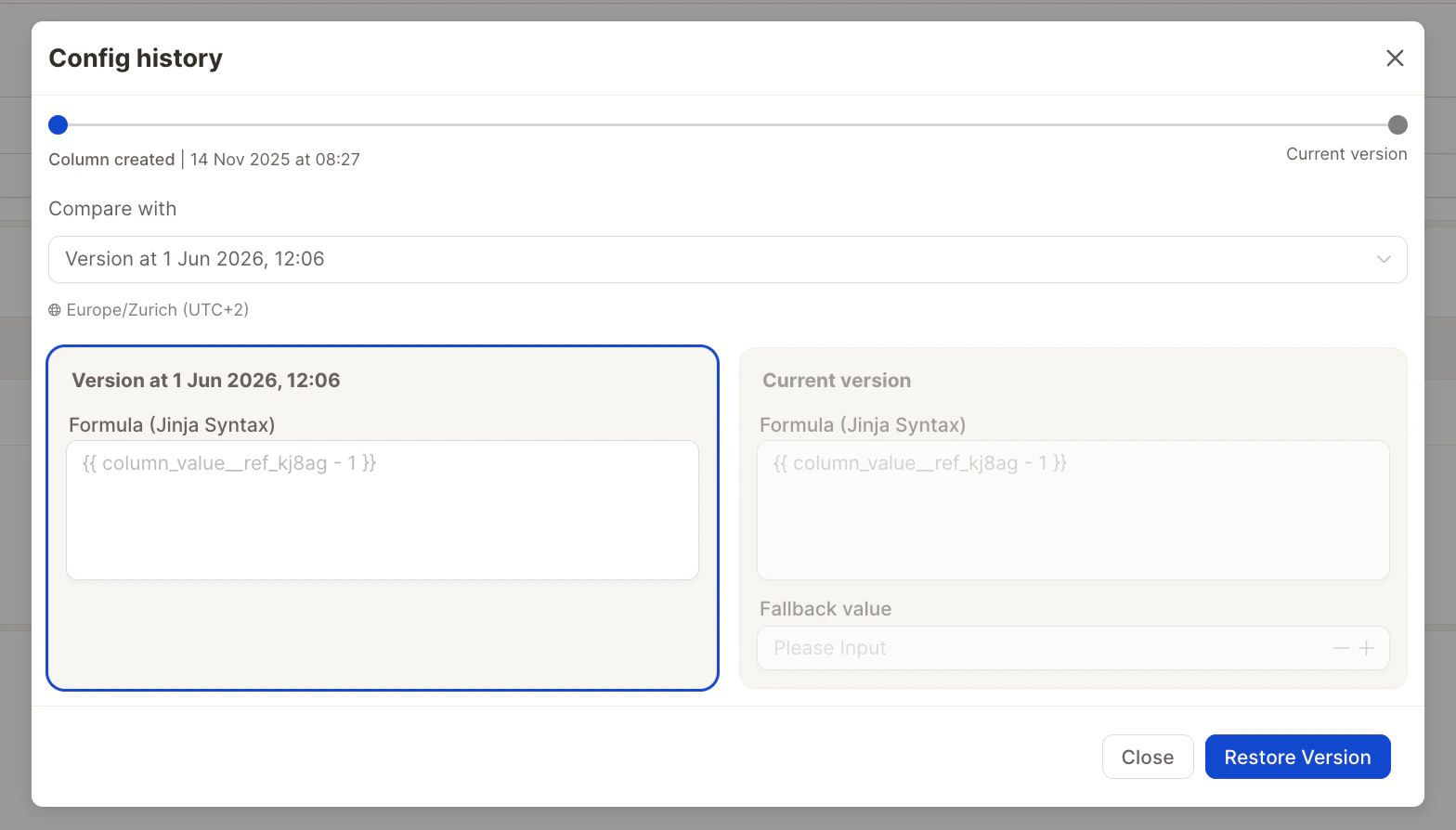
Restore a Version
To roll back, select the version you want and click Restore Version. Caplena applies that historical configuration and recomputes the column for new rows.Restoring is disabled while the column is still computing. Wait for the current run to finish before rolling back.
Delete a smart column
When you no longer need a smart column, you can delete it from the Smart Columns tab (row actions) or from the column’s detail modal. Caplena gives you two options in the confirmation dialog: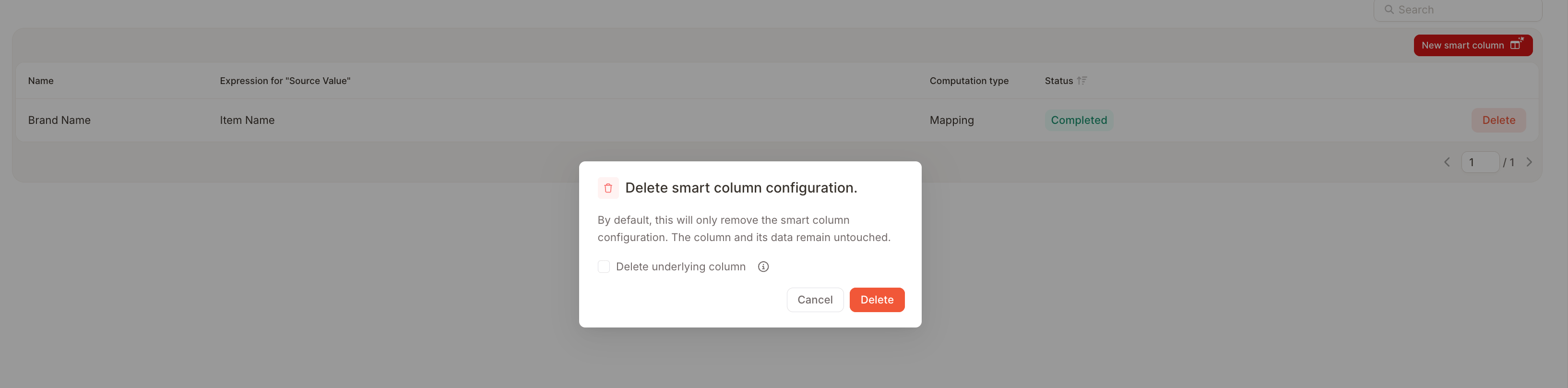
- Delete the smart column only (default): removes the smart column configuration but keeps the resulting column and its values in your dataset. The column becomes a regular, static column on the Data tab. Use this when you want to “freeze” the computed values — for example, after using a smart column to generate a row ID.
- Delete the underlying column too: removes both the configuration and the resulting column, including all of its values. Use this when the column is no longer needed anywhere in the project.
Deleting the underlying column
Tick Delete underlying column in the confirmation dialog to also remove the column itself. Because this affects more than just the smart column configuration, Caplena runs a few extra checks:1
Impact preview. Caplena lists any reports, alerts, or other computed columns that depend on the column. If a report or alert blocks deletion, you’ll see a warning and the Delete button stays disabled until you resolve the dependency.
2
Typed confirmation. Type
Delete into the confirmation field to enable the Delete button. This guard prevents accidental removal of data that is referenced elsewhere.3
Confirm. Click Delete. Caplena removes the smart column configuration and the underlying column, then refreshes the table.
Best practices
- Start small: Test your logic on a small dataset or with a few rows using the preview.
- Use templates: Especially for LLM tasks, templates can save time and provide a solid base.
- Use fallback values: Always define a fallback in mappings to handle unexpected inputs.
- Name your columns clearly: This helps when chaining multiple Smart Columns together.
- Chain columns: You can use the output of one Smart Column as the input for another (e.g., extract brand → map to numeric code).
- Keep prompts concise: For LLMs, simpler prompts tend to yield more consistent results.
Related guides
Common Smart Column recipes, worked through step by step:AI-Generated Smart Columns
Generate a formula or mapping from a plain-language description, right in the editor.
Creating a Unique ID
Give every row a stable identifier.
Combining Columns for Joint Analysis
Merge likes, dislikes, or any related text fields into one unified analysis.
Extracting Numeric Values from Feedback
Turn free-text feedback into measurable numbers.
Specific Topic Deep-Dive
Precisely classify or extract feedback about one topic.
Creating a Helper Column (e.g. Wave or Year)
Add a column to filter or segment results per upload.