> ## Documentation Index
> Fetch the complete documentation index at: https://docs.caplena.com/llms.txt
> Use this file to discover all available pages before exploring further.
# AI Training (Legacy AI)
> Teach your AI to think like you.
When you first upload your data to Caplena, the AI takes a smart first stab at organizing it. It identifies common themes, assigns topics, and gives structure to your open-ended feedback.
**AI training** is where you come in — it's your chance to teach the AI to think like your team, understand your brand's voice, and reflect what actually matters to your business. Think of it as a collaboration: the AI does the heavy lifting, and you guide it with your unique context.
## Where Does AI Training Happen?
You'll train the AI directly inside your active project. Here's how to get started:
Navigate to your project in Caplena.
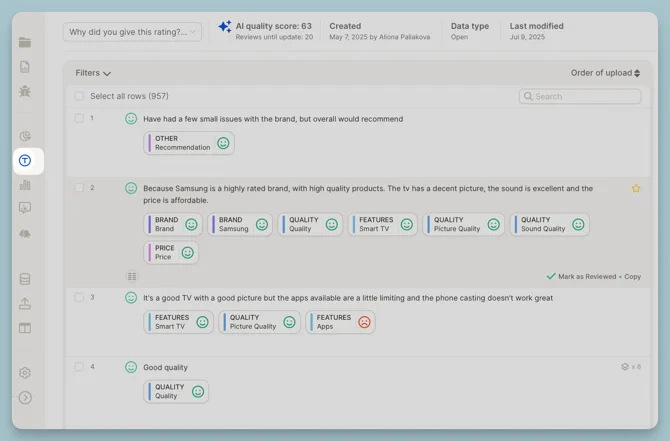
Select **Topics** in the left-hand menu.
Go through individual responses and confirm or correct the AI's topic assignments.
 ## Reviewing a Row
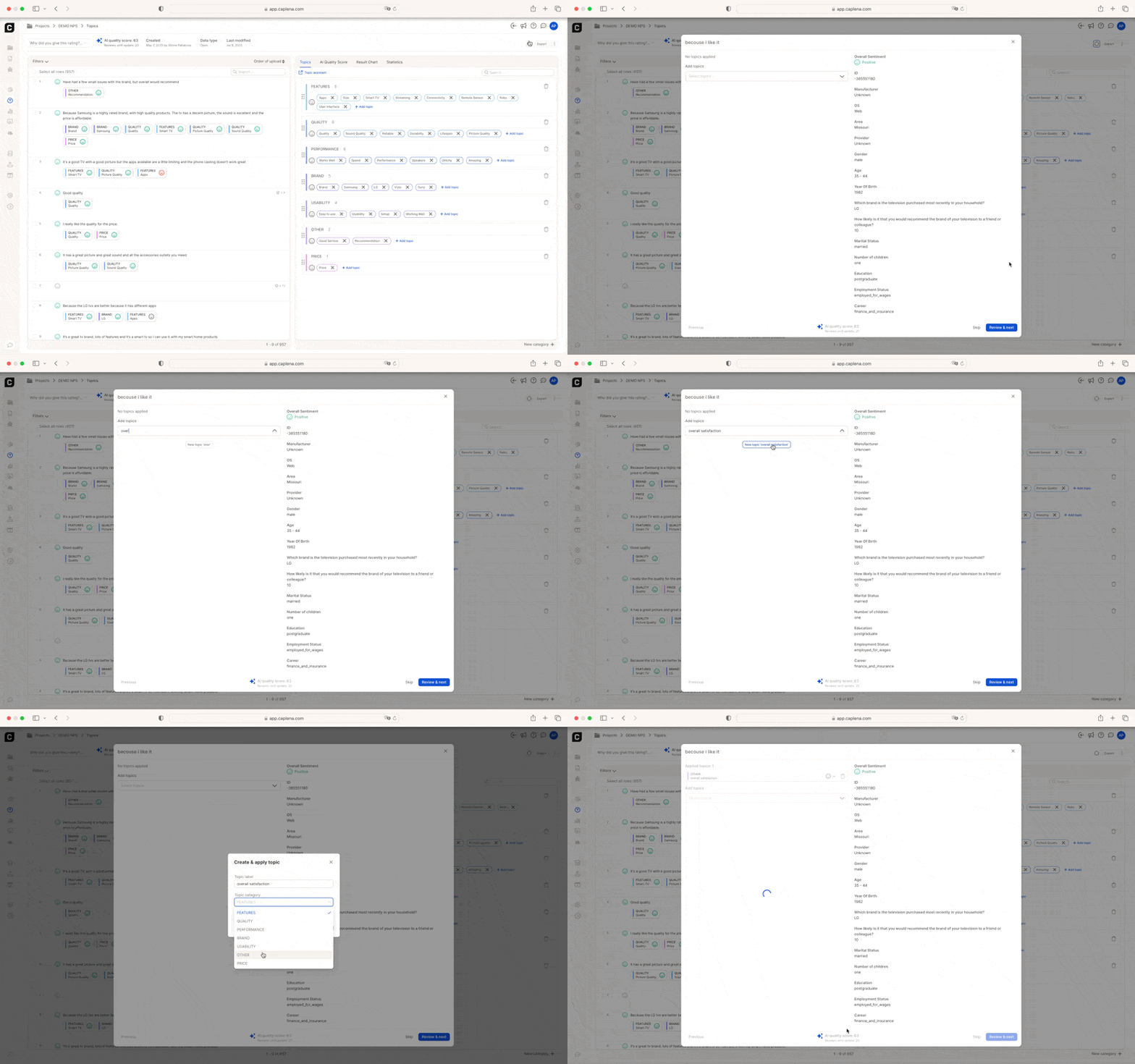
Reviewing means clicking into a specific row and either confirming or adjusting the topics the AI applied.
### How to Review
You can either:
* Click on a row to open the detailed view
* Or turn on **Focus Mode** (more on this below)
Once in the row, you can:
* Add or remove topics
* Adjust sentiment (if needed)
* Mark the row as reviewed ✅
Reviewed rows become learning examples for the AI — the more you review, the better it gets.
## Focus Mode: Smart Reviewing
Focus Mode brings the most uncertain rows to the front — the ones where the AI is unsure and your input matters most.
## Reviewing a Row
Reviewing means clicking into a specific row and either confirming or adjusting the topics the AI applied.
### How to Review
You can either:
* Click on a row to open the detailed view
* Or turn on **Focus Mode** (more on this below)
Once in the row, you can:
* Add or remove topics
* Adjust sentiment (if needed)
* Mark the row as reviewed ✅
Reviewed rows become learning examples for the AI — the more you review, the better it gets.
## Focus Mode: Smart Reviewing
Focus Mode brings the most uncertain rows to the front — the ones where the AI is unsure and your input matters most.
 ### What Focus Mode Does
* Sorts rows by lowest confidence
* Hides already-reviewed data
* Removes visual clutter so you can concentrate
To activate: click the **Focus Mode** icon in the top right corner of the fine-tuning view.
**Example:** If you're training your AI on a telecom survey, Focus Mode might prioritize ambiguous responses like "Reception could be better" — prompting you to clarify whether this refers to network coverage or device quality.
## Finalize and Refine Your Topic Collection
As part of the review process, it's a good time to put the finishing touches on your topic structure. You can:
* **Rename** topics to be clearer or more consistent (e.g., "App Usability" → "Mobile Experience")
* **Merge** redundant topics like "Delivery" and "Shipping"
* **Add** entirely new categories if needed
Every change in the Topic Editor prompts the AI to retrain — your topic structure directly influences how well the model performs.
### What Focus Mode Does
* Sorts rows by lowest confidence
* Hides already-reviewed data
* Removes visual clutter so you can concentrate
To activate: click the **Focus Mode** icon in the top right corner of the fine-tuning view.
**Example:** If you're training your AI on a telecom survey, Focus Mode might prioritize ambiguous responses like "Reception could be better" — prompting you to clarify whether this refers to network coverage or device quality.
## Finalize and Refine Your Topic Collection
As part of the review process, it's a good time to put the finishing touches on your topic structure. You can:
* **Rename** topics to be clearer or more consistent (e.g., "App Usability" → "Mobile Experience")
* **Merge** redundant topics like "Delivery" and "Shipping"
* **Add** entirely new categories if needed
Every change in the Topic Editor prompts the AI to retrain — your topic structure directly influences how well the model performs.