> ## Documentation Index
> Fetch the complete documentation index at: https://docs.caplena.com/llms.txt
> Use this file to discover all available pages before exploring further.
# Key concepts: Categories, topics & sentiment
> Understand the building blocks of analysis in Caplena before you start.
Caplena analyzes open-ended feedback by organizing it into categories, topics, and (optionally) sentiment. Getting familiar with these three concepts will make everything else click faster.
### Category
A **category** is a high-level theme that groups related topics together, for example `Customer Service`, `Product Quality`, or `Pricing`.
 Categories are taken into account by the AI when assigning topics.
### Topic
A **topic** is a specific idea or theme within a categorym what someone is actually talking about in their response. Topics are also referred to as codes, themes, or labels.
Examples within a Customer Service category:
* `Support Responsiveness`
* `Refund Process`
* `Property Communication`
#### Topic label
The **topic label** is the short name you give a topic. It appears on topic chips throughout Caplena and is what the AI uses to recognize and assign the topic.
The label directly affects AI accuracy, keep it clear and specific.
#### Topic description
A longer explanation of what the topic covers and when it should apply. Descriptions give the AI more context and are especially important for topics that might otherwise overlap.
Categories are taken into account by the AI when assigning topics.
### Topic
A **topic** is a specific idea or theme within a categorym what someone is actually talking about in their response. Topics are also referred to as codes, themes, or labels.
Examples within a Customer Service category:
* `Support Responsiveness`
* `Refund Process`
* `Property Communication`
#### Topic label
The **topic label** is the short name you give a topic. It appears on topic chips throughout Caplena and is what the AI uses to recognize and assign the topic.
The label directly affects AI accuracy, keep it clear and specific.
#### Topic description
A longer explanation of what the topic covers and when it should apply. Descriptions give the AI more context and are especially important for topics that might otherwise overlap.
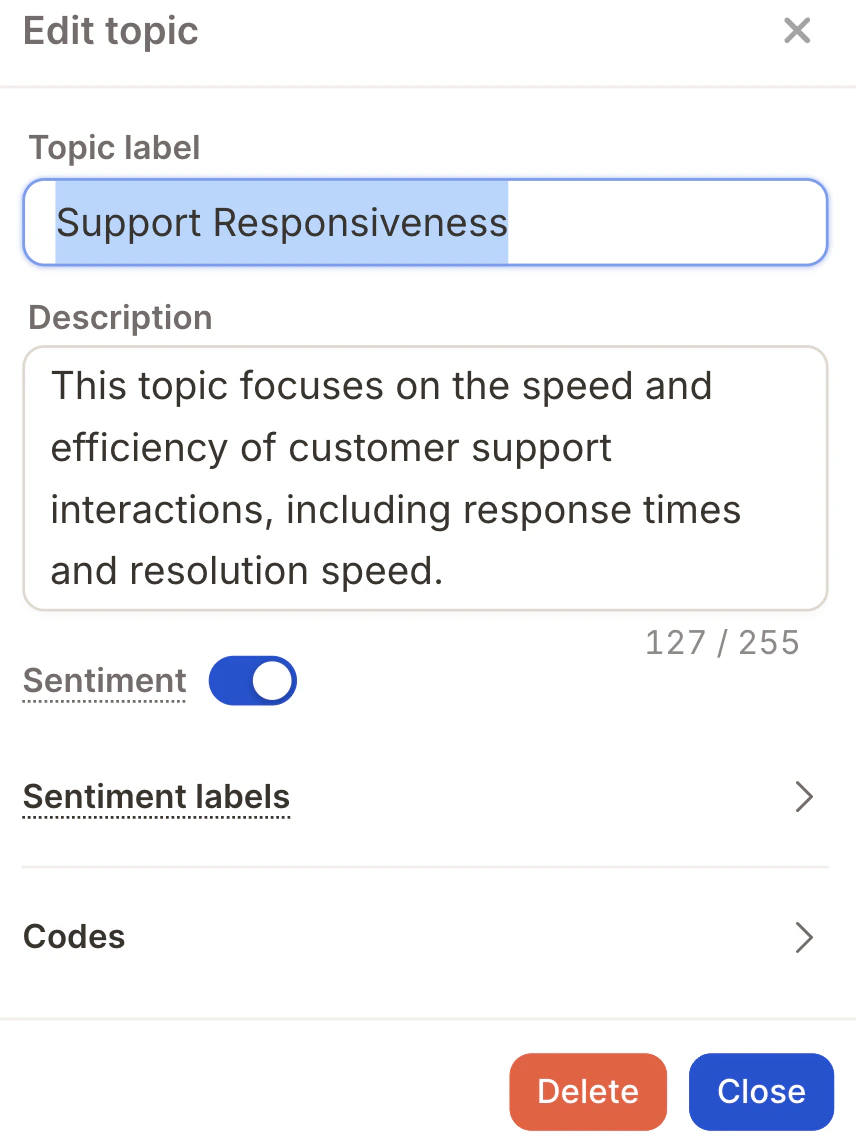 Topic descriptions are used by the AI when assigning topics, the more precise, the better the results.
#### Code
A **code** is a unique numerical ID assigned to each topic. Caplena assigns one automatically, but you can set it manually if you need to match an existing coding scheme.
Topic descriptions are used by the AI when assigning topics, the more precise, the better the results.
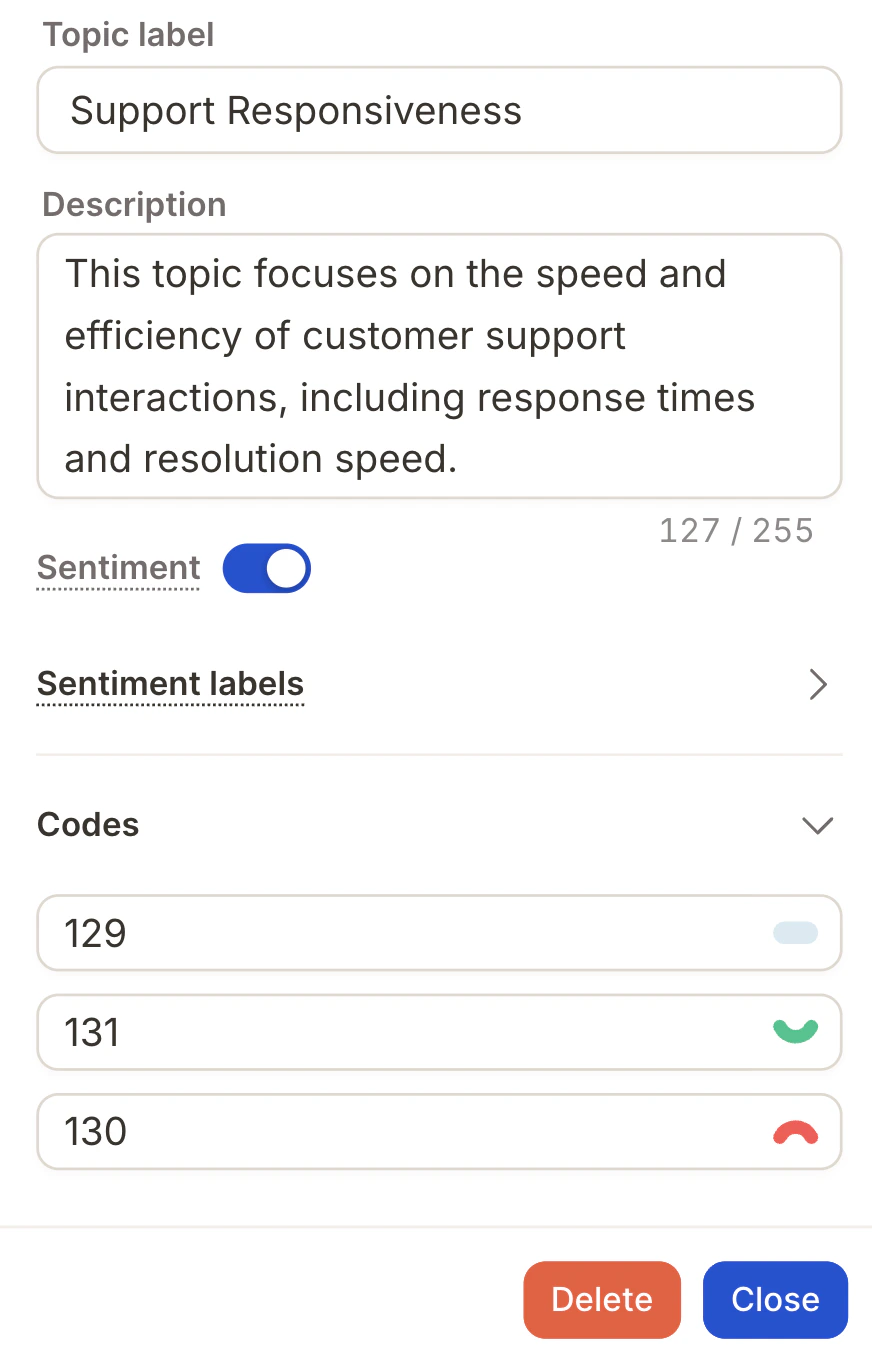
#### Code
A **code** is a unique numerical ID assigned to each topic. Caplena assigns one automatically, but you can set it manually if you need to match an existing coding scheme.
 ### Sentiment
**Sentiment** adds emotional context to topics, classifying each response as **positive**, **neutral**, or **negative**. Instead of just knowing what someone talked about, you also know how they felt about it.
### Sentiment
**Sentiment** adds emotional context to topics, classifying each response as **positive**, **neutral**, or **negative**. Instead of just knowing what someone talked about, you also know how they felt about it.
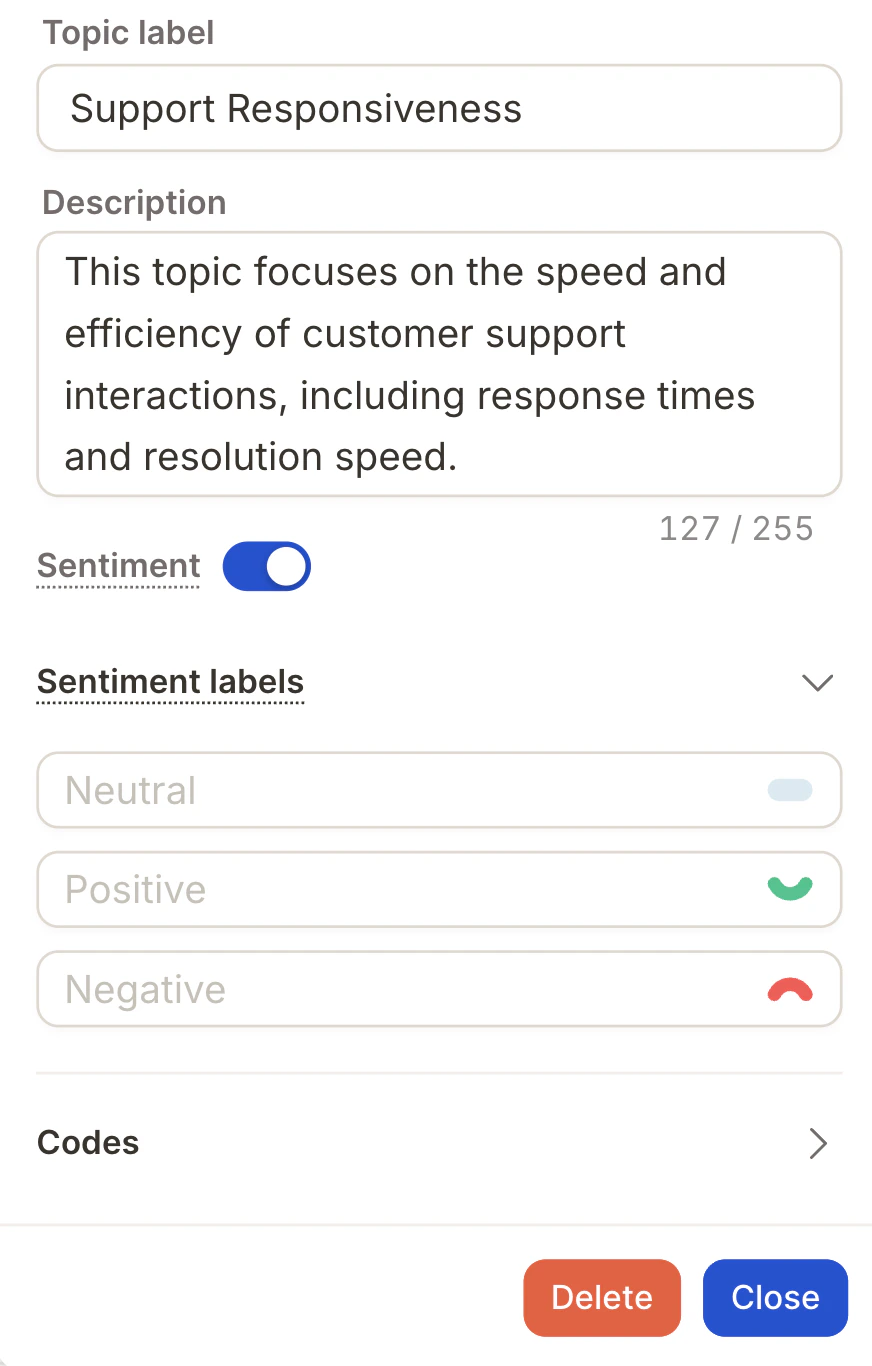 For example:
* `Support / Helpfulness – Positive` → "The team was incredibly helpful"
* `Support / Helpfulness – Negative` → "No one responded to my request"
You only need to create one topic (e.g. `Support`), the AI assigns the sentiment automatically.
**Sentiment is optional.** Turn it on for opinion-based data like NPS or CSAT. Skip it for factual data like feature requests or open suggestions.
#### Disabling sentiment
You can disable sentiment on a per-topic basis or across multiple topics at once.
**Single topic:** Open the topic's settings in the codebook editor and toggle sentiment off.
For example:
* `Support / Helpfulness – Positive` → "The team was incredibly helpful"
* `Support / Helpfulness – Negative` → "No one responded to my request"
You only need to create one topic (e.g. `Support`), the AI assigns the sentiment automatically.
**Sentiment is optional.** Turn it on for opinion-based data like NPS or CSAT. Skip it for factual data like feature requests or open suggestions.
#### Disabling sentiment
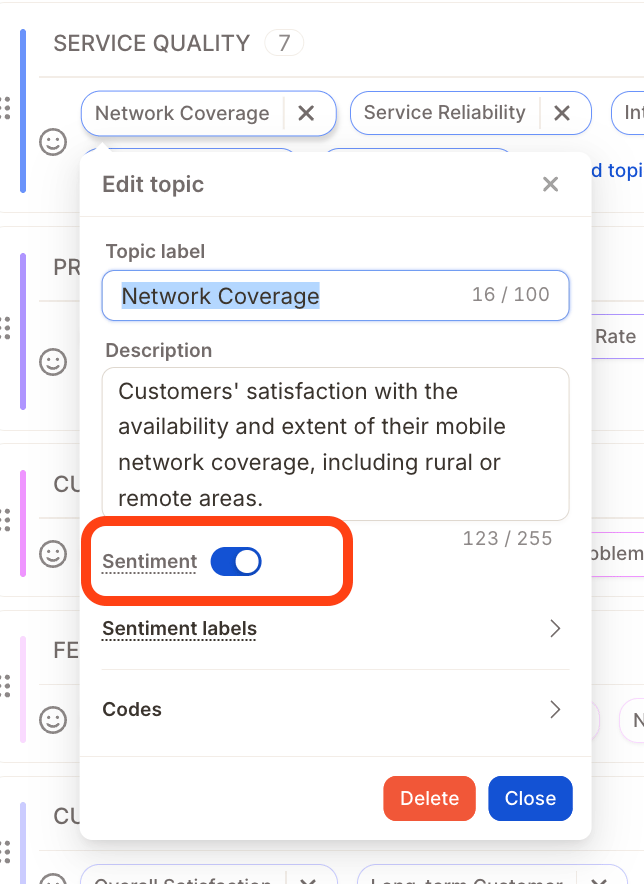
You can disable sentiment on a per-topic basis or across multiple topics at once.
**Single topic:** Open the topic's settings in the codebook editor and toggle sentiment off.
 **Multiple topics at once:** Use the Topic Assistant's bulk actions menu, select **Disable sentiment** to remove it from all selected topics in one step. See [Enable or disable sentiment in bulk](/topic-assignment/understanding-the-basics/using-the-topic-assistant#enable-or-disable-sentiment-in-bulk) for details.