> ## Documentation Index
> Fetch the complete documentation index at: https://docs.caplena.com/llms.txt
> Use this file to discover all available pages before exploring further.
# Starting the analysis
> Generate your first topic structure and start making sense of your data.
Once your data is in Caplena, uploaded manually or via integration (Google, Amazon, Qualtrics, API, etc.), you're ready to start your analysis.
### Overview panel
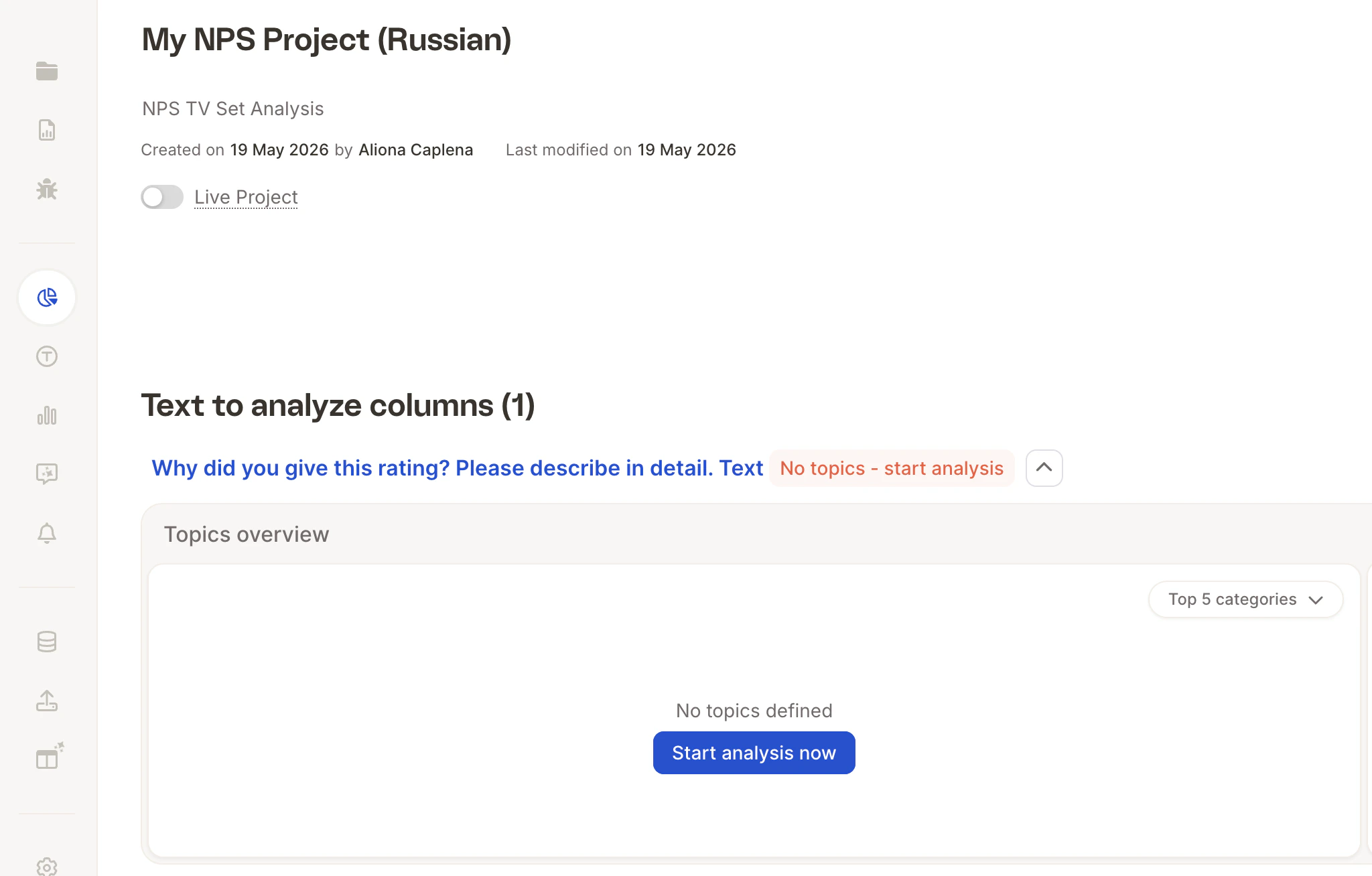
When you open your project, you'll land on the **Overview panel**, where you can see the question designated for analysis and an AI-generated summary of key themes.
Click **"Start analysis now"** to begin.
 ***
### Step 1: Choose how to start
***
### Step 1: Choose how to start
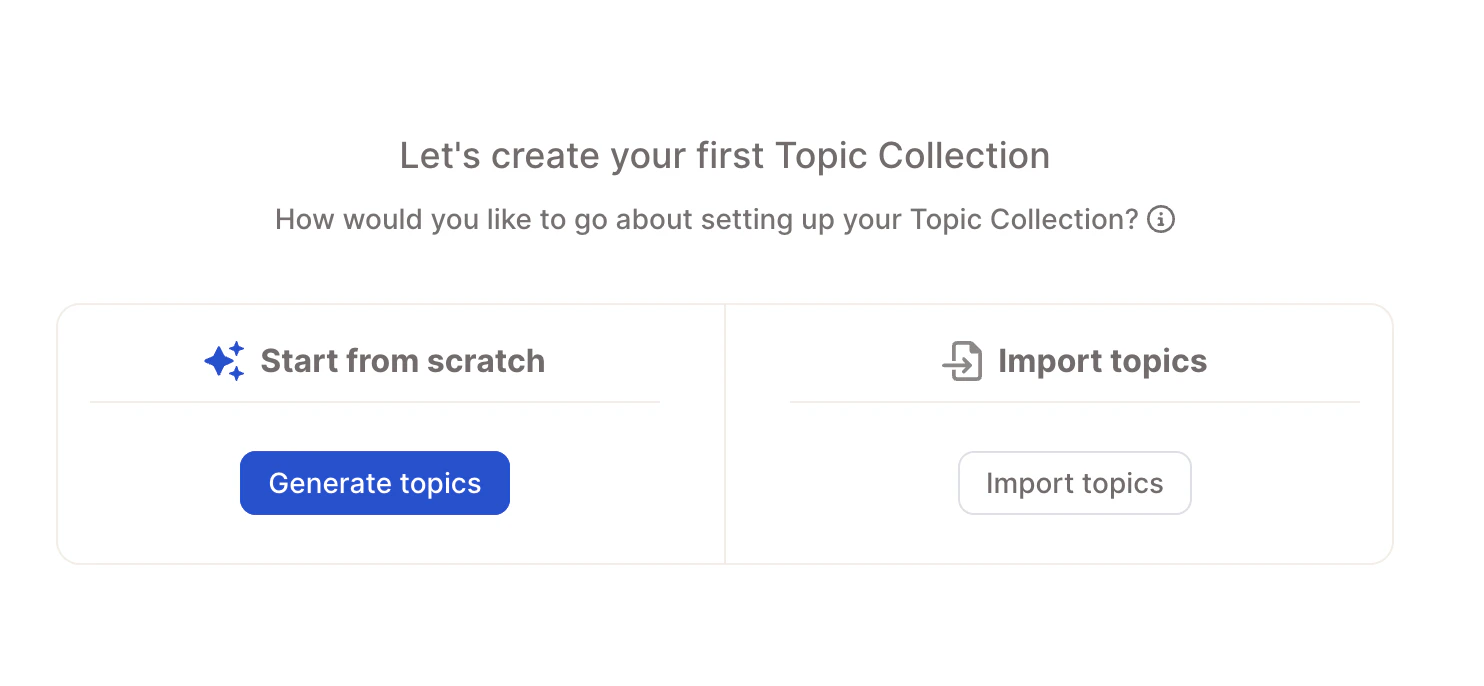 **Start from scratch**
The AI automatically generates a topic structure based on your data. Best if you're analyzing this type of feedback for the first time.
**Import existing topics**
**Start from scratch**
The AI automatically generates a topic structure based on your data. Best if you're analyzing this type of feedback for the first time.
**Import existing topics**
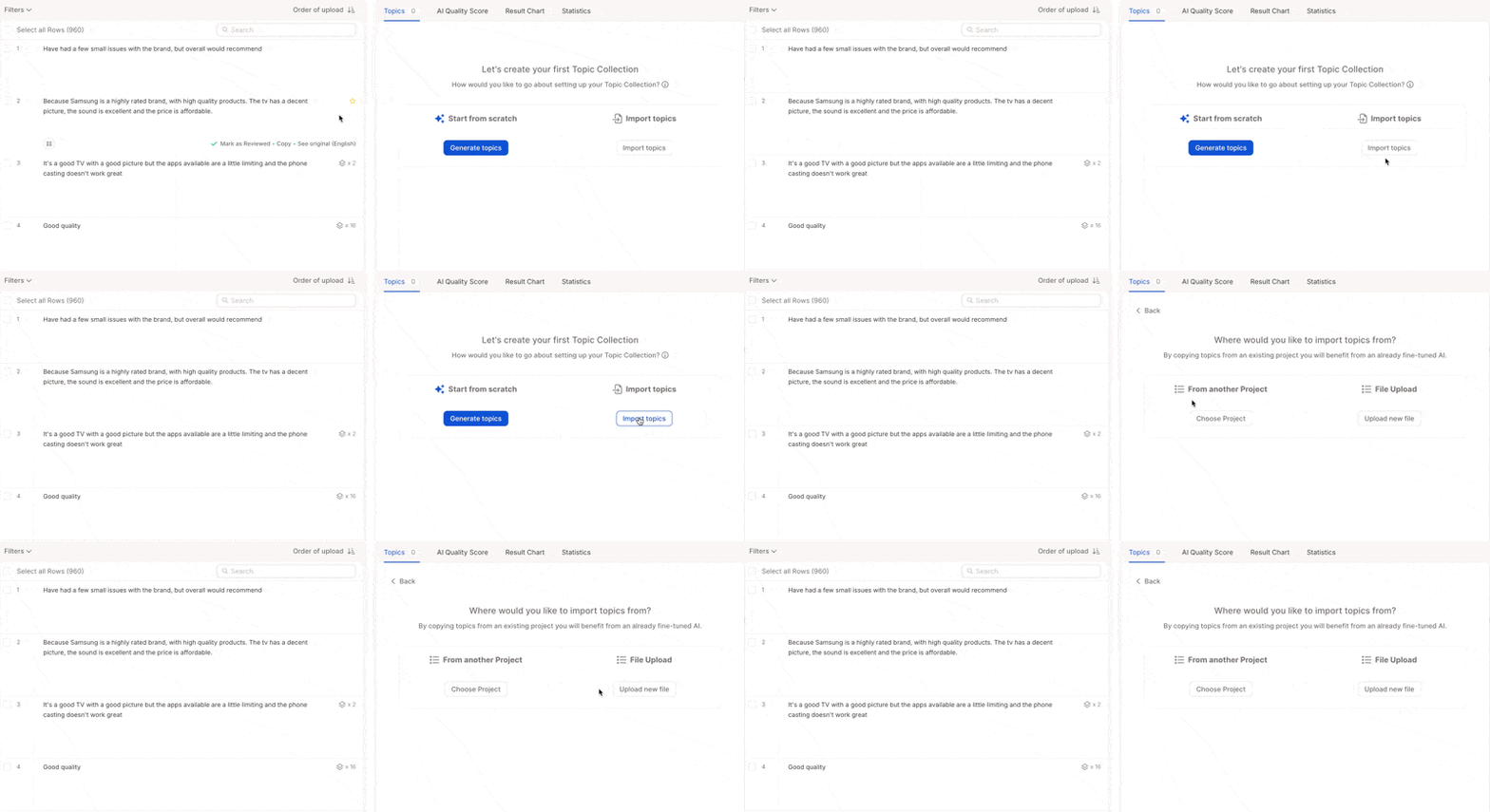 Reuse a topic collection you already have, either from a previous Caplena project or an Excel file.
* **Other project** - Choose a previous project, select the relevant text column, and click **"Inherit topic collection"**. Ideal for recurring surveys (e.g. quarterly NPS, monthly product feedback) where consistency across waves matters. For large-scale recurring projects, see [Tracker Setup: Best Practices →](/topic-assignment/new-ai/tracker-setup).
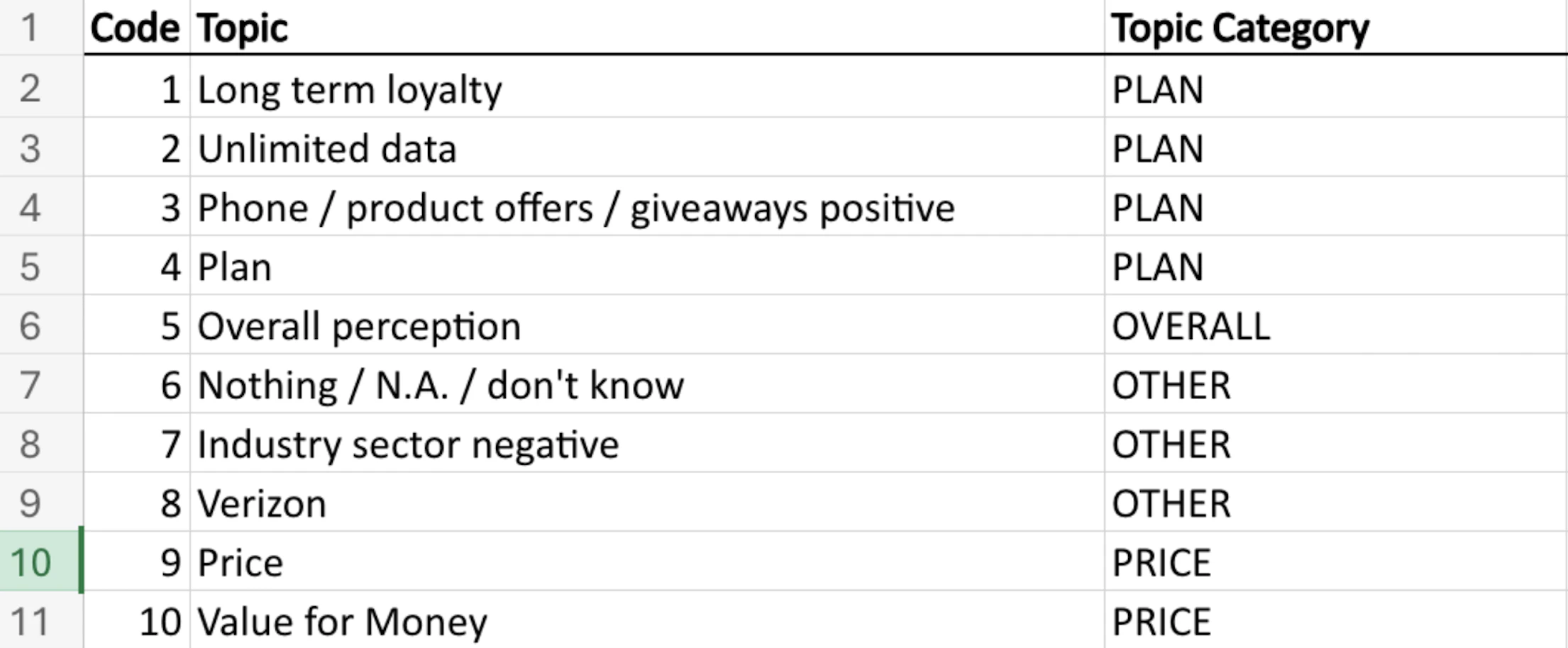
* **Upload File** - Import your own topic collection from a CSV or Excel file. Supported columns:
* `topic` (required) - The topic name.
* `category` (optional) - The category the topic belongs to.
* `code` (optional) - A unique numerical ID for the topic.
* `sentiment` (optional) - The sentiment setting for the topic.
* `description` (optional) - A longer explanation of when the topic applies. Used by the AI as a primary input when assigning topics, so clear descriptions noticeably improve assignment quality.
* `keywords` (optional) - Comma-separated keywords for the topic. Used in Semi-Open mode to match responses. Each keyword must be **30 characters or fewer** (including spaces) — imports with longer keywords are rejected with an error, so shorten or split them before uploading. Your file must match one of these formats. With sentiment:
Reuse a topic collection you already have, either from a previous Caplena project or an Excel file.
* **Other project** - Choose a previous project, select the relevant text column, and click **"Inherit topic collection"**. Ideal for recurring surveys (e.g. quarterly NPS, monthly product feedback) where consistency across waves matters. For large-scale recurring projects, see [Tracker Setup: Best Practices →](/topic-assignment/new-ai/tracker-setup).
* **Upload File** - Import your own topic collection from a CSV or Excel file. Supported columns:
* `topic` (required) - The topic name.
* `category` (optional) - The category the topic belongs to.
* `code` (optional) - A unique numerical ID for the topic.
* `sentiment` (optional) - The sentiment setting for the topic.
* `description` (optional) - A longer explanation of when the topic applies. Used by the AI as a primary input when assigning topics, so clear descriptions noticeably improve assignment quality.
* `keywords` (optional) - Comma-separated keywords for the topic. Used in Semi-Open mode to match responses. Each keyword must be **30 characters or fewer** (including spaces) — imports with longer keywords are rejected with an error, so shorten or split them before uploading. Your file must match one of these formats. With sentiment:
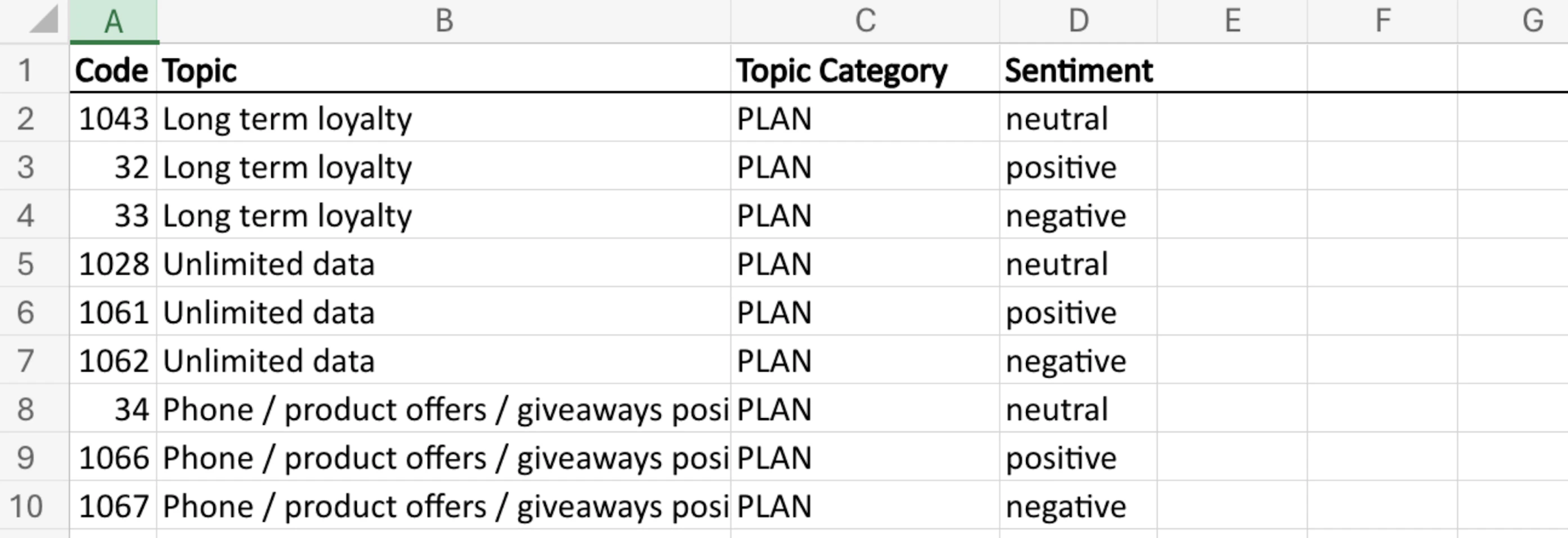 Without sentiment:
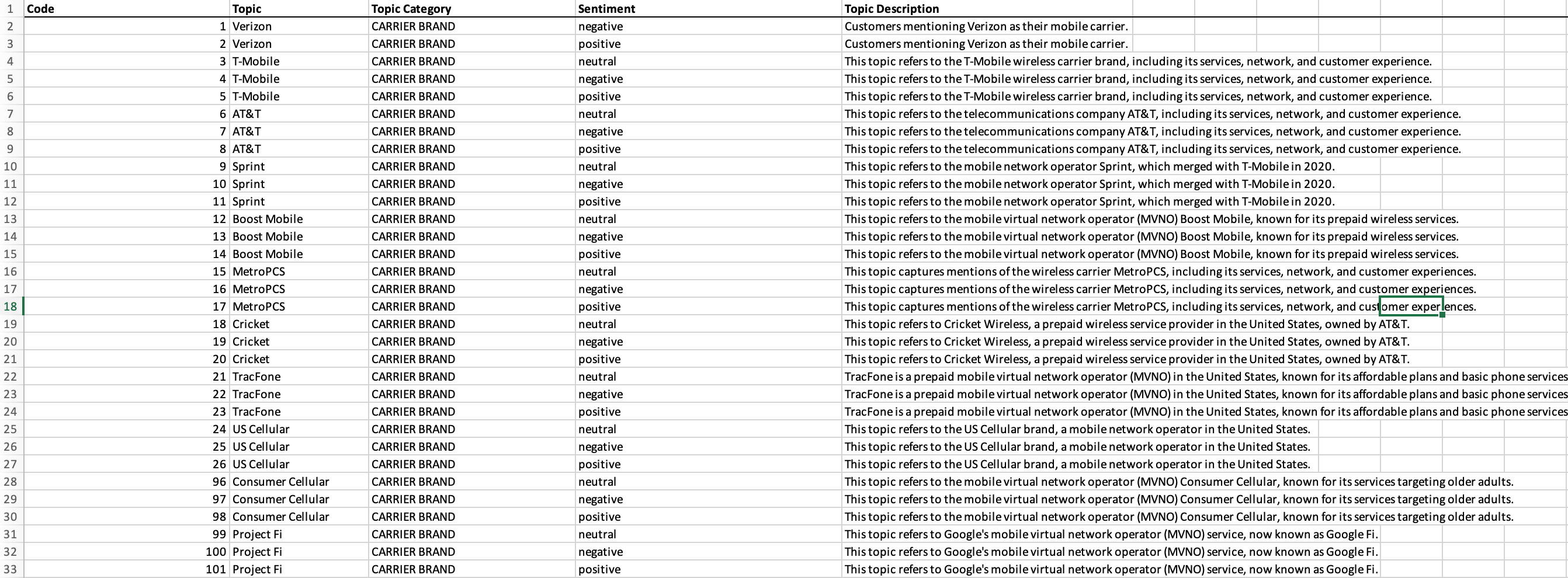
 **Include topic descriptions when uploading.** Descriptions tell the AI *when* a topic should apply, not just what it's called. A topic like `Pricing` becomes much more reliable when paired with a description such as *"Mentions of cost, price, fees, or value for money — including comments about discounts and subscription tiers."* If you leave the column empty, Caplena auto-generates descriptions on the first run, but uploading your own keeps assignments aligned with how your team defines each topic.
Example with descriptions:
**Include topic descriptions when uploading.** Descriptions tell the AI *when* a topic should apply, not just what it's called. A topic like `Pricing` becomes much more reliable when paired with a description such as *"Mentions of cost, price, fees, or value for money — including comments about discounts and subscription tiers."* If you leave the column empty, Caplena auto-generates descriptions on the first run, but uploading your own keeps assignments aligned with how your team defines each topic.
Example with descriptions:
 ### Step 2: Enable sentiment (optional)
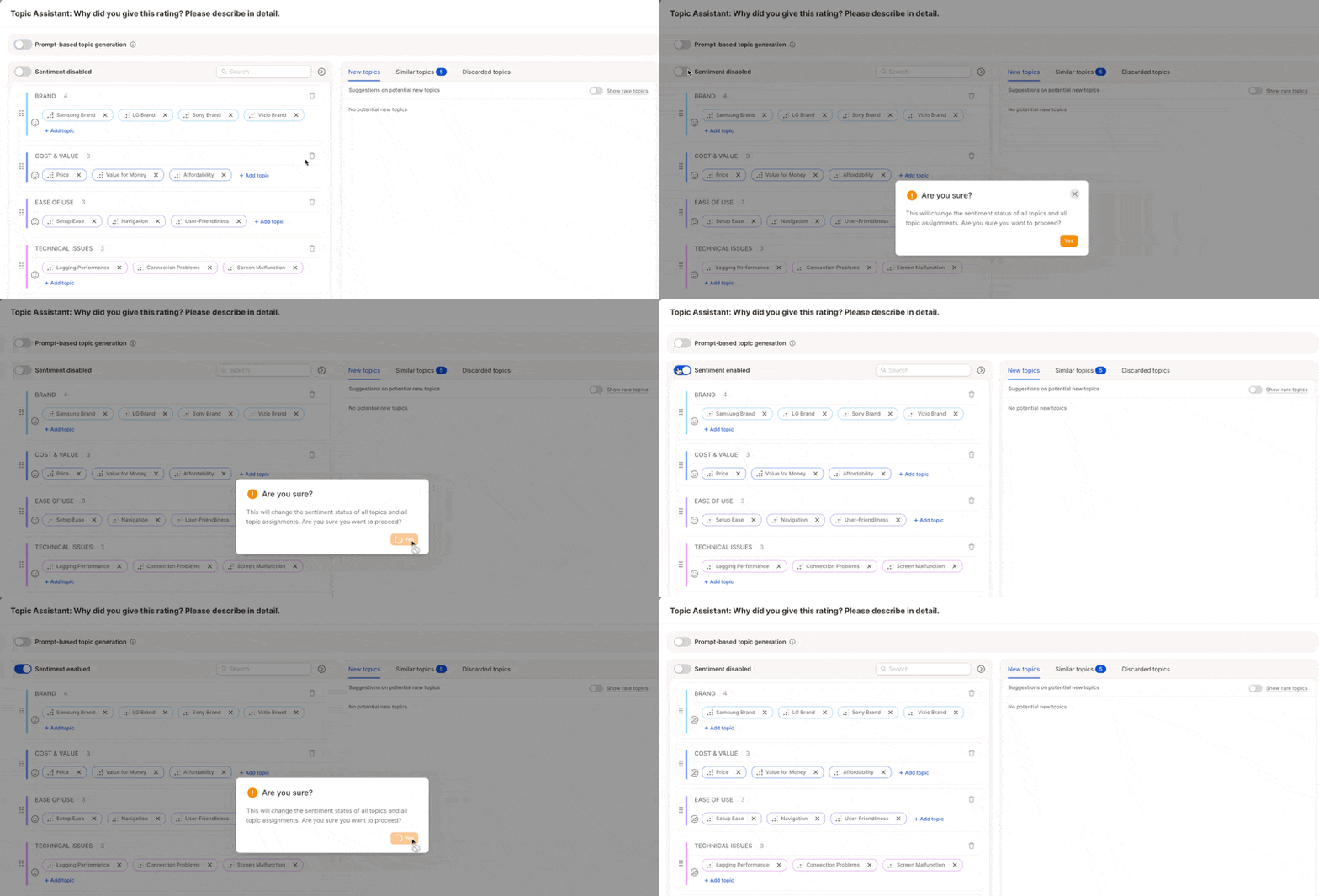
Sentiment detection classifies the emotional tone of each response as **positive**, **neutral**, or **negative**. When enabled, a topic like *Customer service* splits into *Customer service – positive* and *Customer service – negative*, so you can see not just what people mention but how they feel about it.
### Step 2: Enable sentiment (optional)
Sentiment detection classifies the emotional tone of each response as **positive**, **neutral**, or **negative**. When enabled, a topic like *Customer service* splits into *Customer service – positive* and *Customer service – negative*, so you can see not just what people mention but how they feel about it.
 **Turn it on** if your data contains opinions or emotional responses — NPS comments, CSAT surveys, employee feedback:
> "The support team was incredibly helpful." → *Customer Service – Positive*
>
> "Waiting times were terrible." → *Customer Service – Negative*
**Skip it** if your data is factual — feature requests, improvement suggestions, etc.:
> "Add a dark mode option." → No sentiment needed
>
> "Please include PDF export in the next update." → No sentiment needed
***
### Step 3: Generate topics
Caplena generates a **MECE** topic collection, mutually exclusive and collectively exhaustive, so topics cover all relevant feedback without overlap.
**Initial topic collection**
The AI generates a draft collection of **20–60 topics** grouped into categories, based on up to 20,000 rows of your data plus your project name, description, and question context. Each topic includes an auto-generated description you can edit.
**Turn it on** if your data contains opinions or emotional responses — NPS comments, CSAT surveys, employee feedback:
> "The support team was incredibly helpful." → *Customer Service – Positive*
>
> "Waiting times were terrible." → *Customer Service – Negative*
**Skip it** if your data is factual — feature requests, improvement suggestions, etc.:
> "Add a dark mode option." → No sentiment needed
>
> "Please include PDF export in the next update." → No sentiment needed
***
### Step 3: Generate topics
Caplena generates a **MECE** topic collection, mutually exclusive and collectively exhaustive, so topics cover all relevant feedback without overlap.
**Initial topic collection**
The AI generates a draft collection of **20–60 topics** grouped into categories, based on up to 20,000 rows of your data plus your project name, description, and question context. Each topic includes an auto-generated description you can edit.
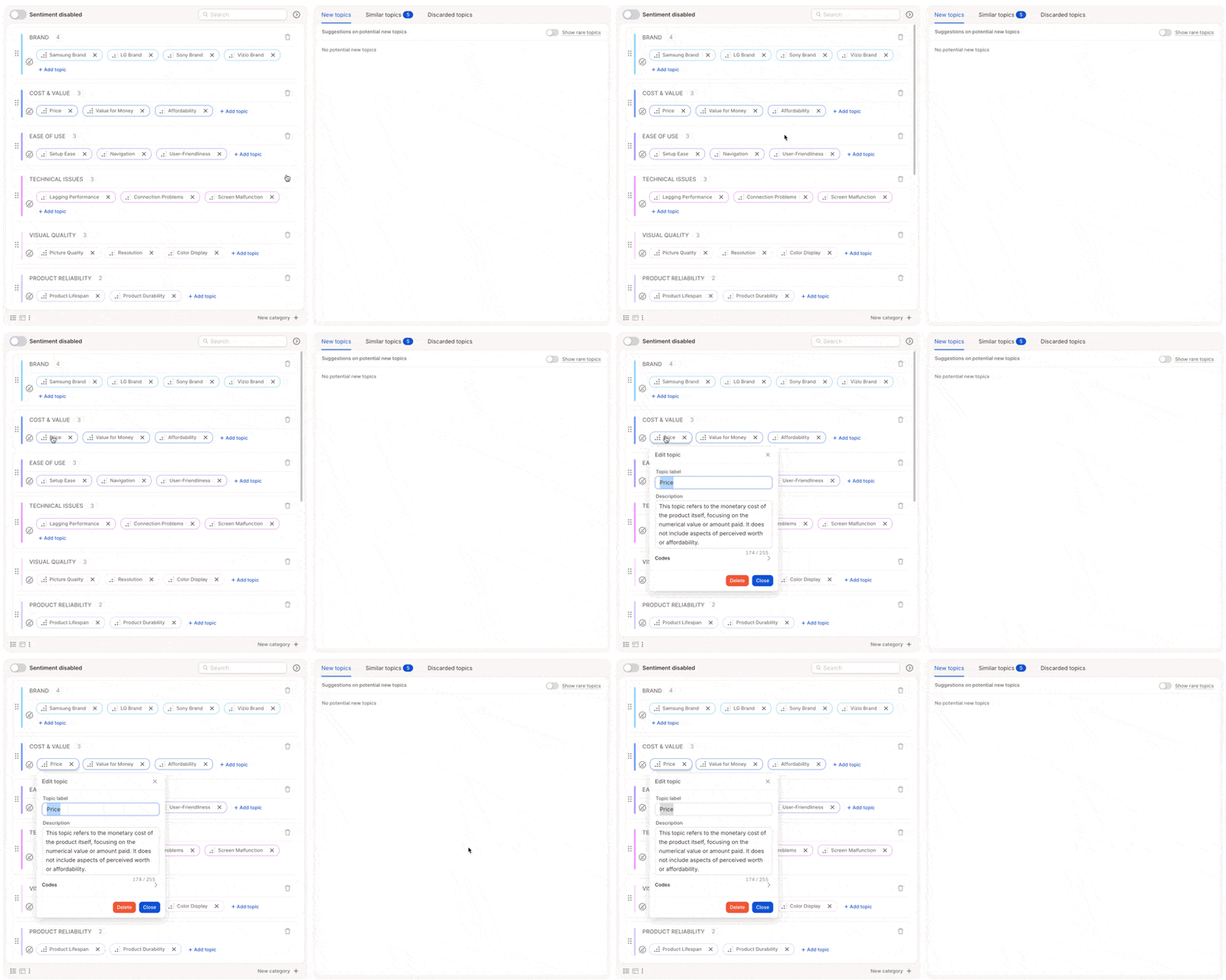 You'll also see:
* **Rare topics** - not included by default, but available to browse and add manually
* **Similar topics** - flagged for potential merging or removal
The AI tends to generate more topics than you need. Remove what's irrelevant early, a leaner topic structure leads to cleaner results.
**Prompt-based generation**
You can guide how topics are created using a custom prompt, useful when you want to focus on a specific theme or apply your own framework.
You'll also see:
* **Rare topics** - not included by default, but available to browse and add manually
* **Similar topics** - flagged for potential merging or removal
The AI tends to generate more topics than you need. Remove what's irrelevant early, a leaner topic structure leads to cleaner results.
**Prompt-based generation**
You can guide how topics are created using a custom prompt, useful when you want to focus on a specific theme or apply your own framework.
 | Mode | What it does |
| ------------------------------ | ---------------------------------------------------------------------------- |
| **Regenerate full collection** | Rewrites the entire topic collection from scratch based on your prompt. |
| **Generate new suggestions** | Adds new suggestions on top of your existing collection without changing it. |
Once you set a prompt it becomes your default, used when editing topics and when new rows are uploaded. You can override it anytime for a one-off run.
When you're happy with the topic collection, click **Done**. The AI will begin assigning topics within 1–2 minutes.
[Learn more about prompt-based generation →](/topic-assignment/new-ai/prompt-based-topic-generation)
***
### Step 4: Review and refine
How much manual tweaking you'll need depends on which AI model you're using:
**New AI** — typically delivers human-level quality after the first run; only light adjustments needed. [Learn more →](/topic-assignment/new-ai/how-the-new-llm-topic-assignment-works#workflow-overview)
**Legacy AI** — may require more hands-on review: merging overlaps, clarifying vague topics, adding missing ones. [Learn more →](/topic-assignment/legacy-ai/ai-training)
| Mode | What it does |
| ------------------------------ | ---------------------------------------------------------------------------- |
| **Regenerate full collection** | Rewrites the entire topic collection from scratch based on your prompt. |
| **Generate new suggestions** | Adds new suggestions on top of your existing collection without changing it. |
Once you set a prompt it becomes your default, used when editing topics and when new rows are uploaded. You can override it anytime for a one-off run.
When you're happy with the topic collection, click **Done**. The AI will begin assigning topics within 1–2 minutes.
[Learn more about prompt-based generation →](/topic-assignment/new-ai/prompt-based-topic-generation)
***
### Step 4: Review and refine
How much manual tweaking you'll need depends on which AI model you're using:
**New AI** — typically delivers human-level quality after the first run; only light adjustments needed. [Learn more →](/topic-assignment/new-ai/how-the-new-llm-topic-assignment-works#workflow-overview)
**Legacy AI** — may require more hands-on review: merging overlaps, clarifying vague topics, adding missing ones. [Learn more →](/topic-assignment/legacy-ai/ai-training)