

Connecting custom MCP servers requires a Microsoft 365 Copilot license.The free version of Microsoft Copilot does not support connecting custom MCP servers.
Before You Start
- You have a Caplena account.
- At least one project is set to Live.
- You have a Microsoft 365 Copilot license.
Step 1: Enable Agent in Caplena\
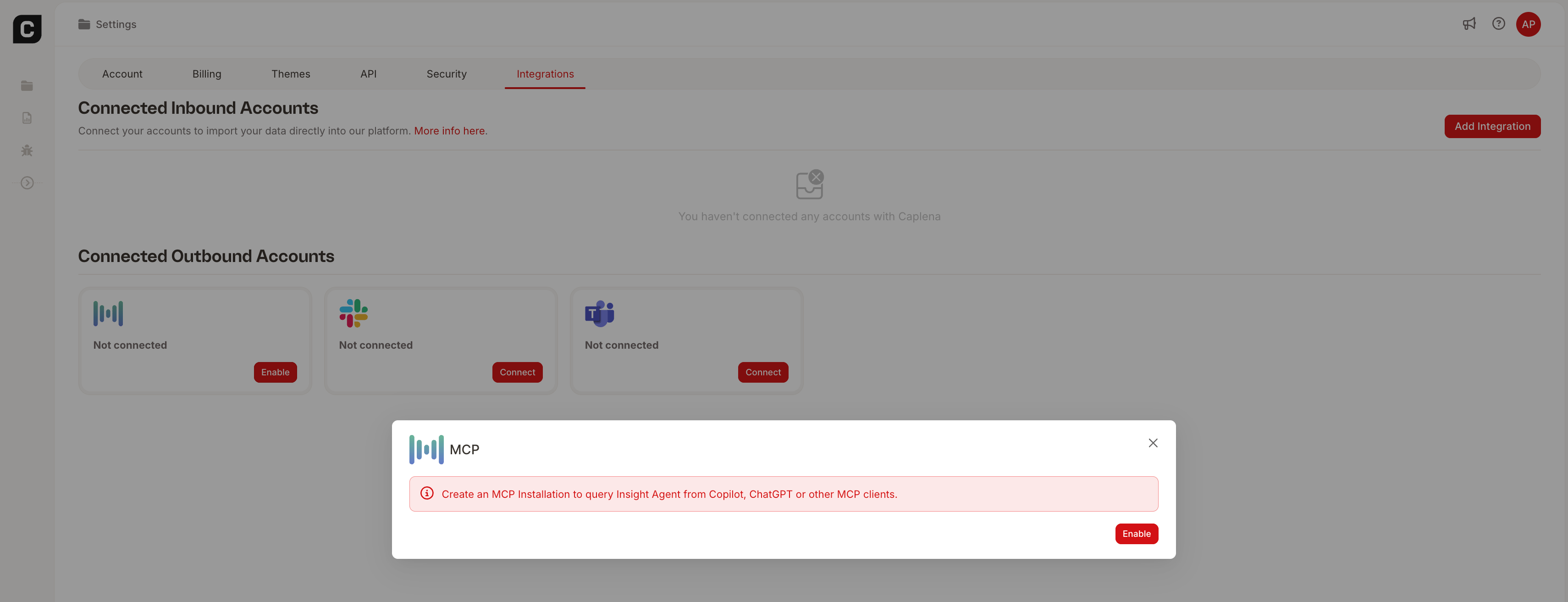
- Go to Settings → Integrations.
- Enable Agent (MCP).
- Copy the generated MCP URL
(e.g.,https://api.caplena.com/v2/outbound-connectors/mcp).
Step 2: Open Microsoft 365 Copilot
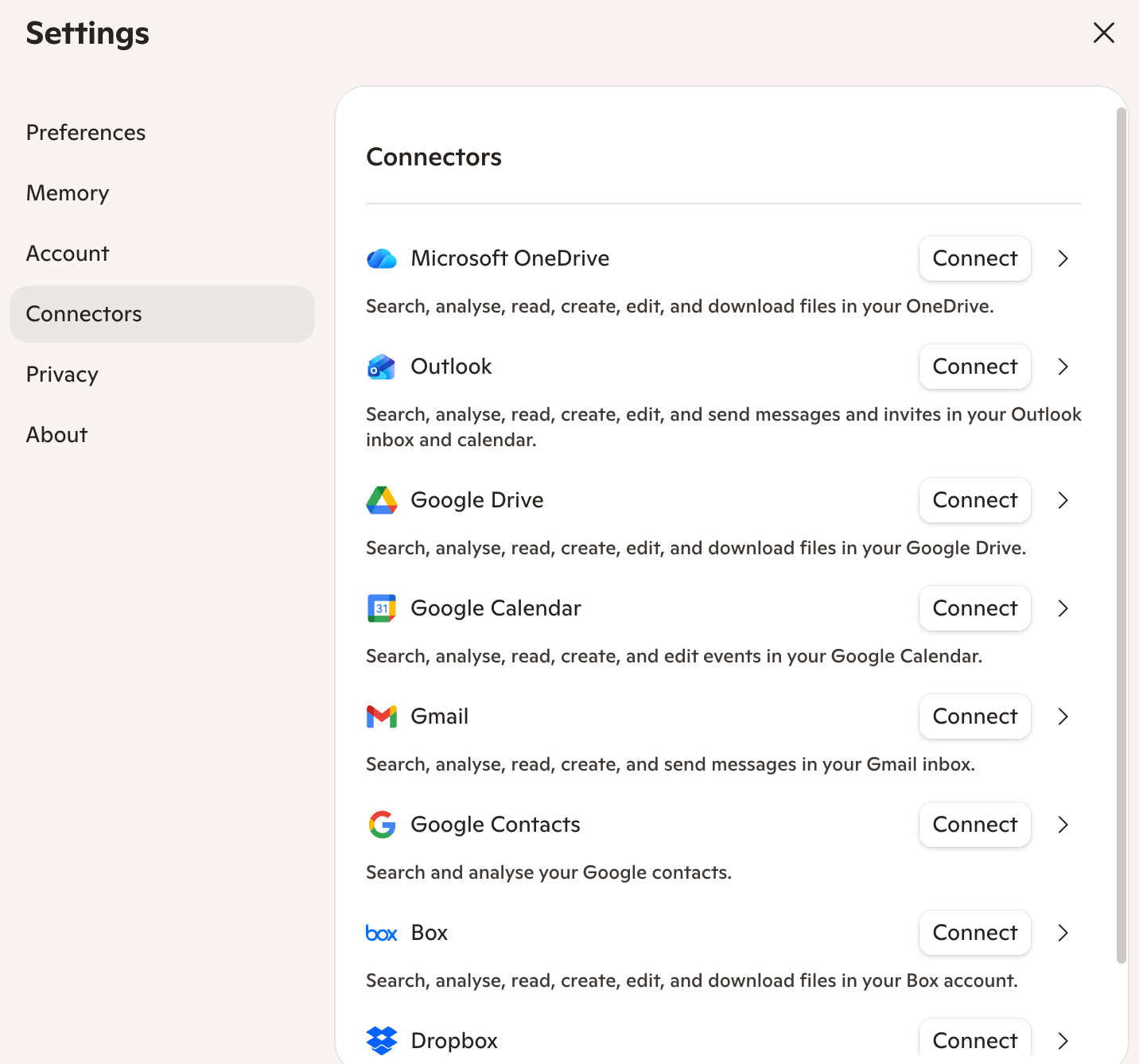
- Go to https://copilot.microsoft.com.
- Open Settings from your profile menu.
- Go to Apps (or Connected apps, depending on your organization).
- Select Add app or Add MCP server.
The exact label varies by tenant, but both options open the MCP configurat
Step 3: Connect Caplena
- Paste the MCP URL copied from Caplena.
- Microsoft Copilot will automatically discover:
- OAuth issuer
- Authorization endpoint
- Token endpoint
- Registration endpoint
- Supported scopes
- You will be redirected to Caplena.
- Sign in and Authorize access.
- You will return to Copilot with the connection active.
Step 4: Start Asking Questions
You can now ask Microsoft 365 Copilot:- List the Caplena projects I can access.
- Summarize the latest customer feedback.
- What are the most common themes in our survey?
- Compare the latest wave with the previous quarter.