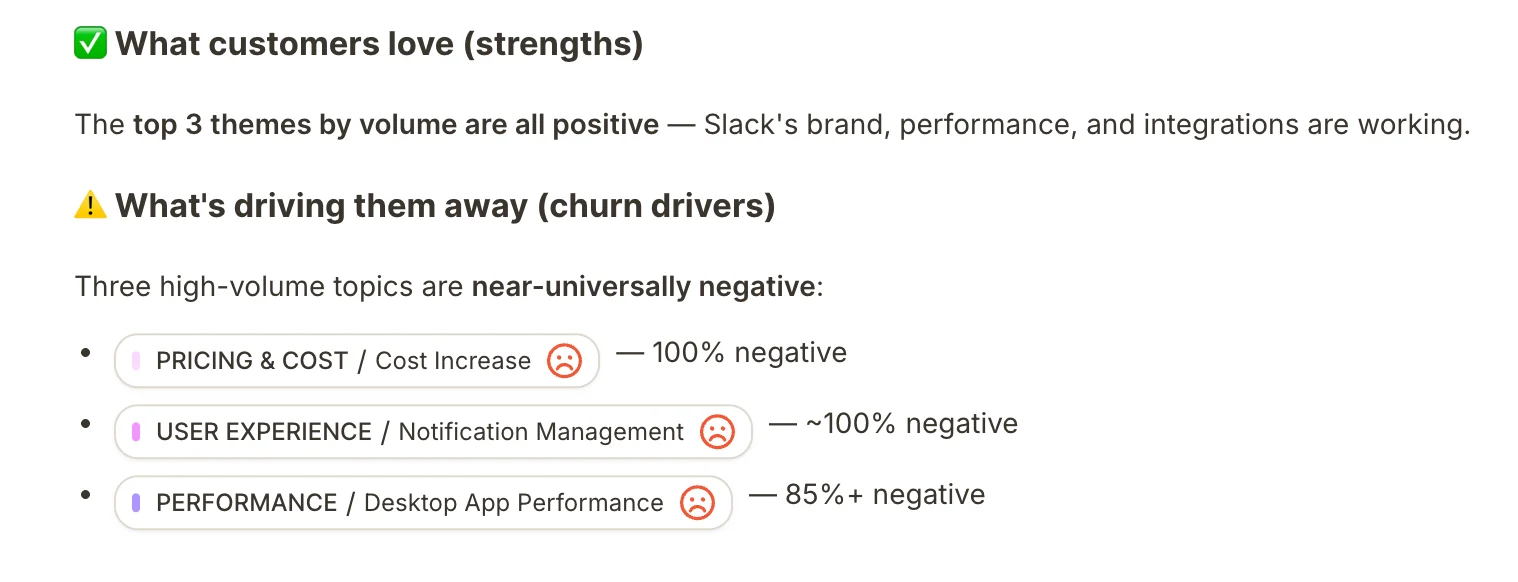
Why use Insight Agent?
It streamlines data analysis, enabling faster decisions and more customer-focused strategies to improve satisfaction and efficiency.How to access Insight Agent
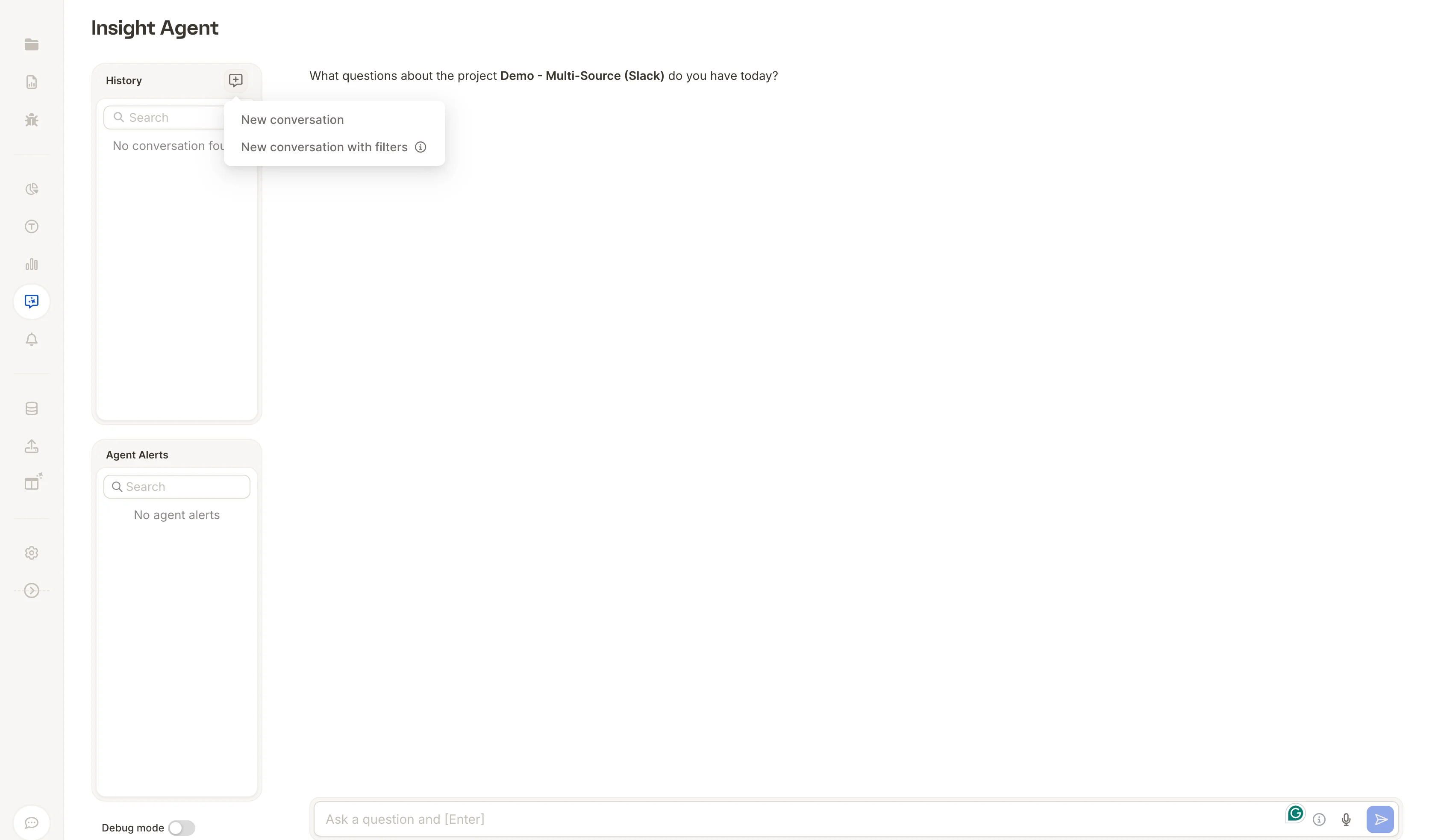
You can open Insight Agent from three places in Caplena:- Insight Agent tab — click the dedicated tab in the left sidebar to open the full Insight Agent interface
- Project overview — use the chat input at the bottom of the project overview page to ask questions directly
- Reports — access it from within any report to ask questions in the context of that report’s data
The interface
Once open, the Insight Agent interface has two panels on the left:- History — search and revisit past conversations, or start a new one. Conversations are stored for 60 days.
- Agent Alerts — view any alerts triggered by the agent
Conversations are only visible where they were created. A chat you start on the project overview appears in that project’s history, while a chat you start on a specific report appears only in that report’s history. If you can’t find a past conversation, check that you’ve opened the Insight Agent from the same place where you originally created it.
- New conversation — start fresh with no filters
- New conversation with filters — narrow your analysis to a specific segment before you begin
Getting insights from your data
Insight Agent is fully conversational — you drive the analysis by asking questions and following up to go deeper. There’s no fixed flow; the more context and direction you give, the sharper the output. A good way to get started:- Orient yourself — “What are the most common themes in this project?”
- Dig into something interesting — “Can you break down sentiment on delivery time by region?”
- Follow up — “Show me specific examples from customers who mentioned that negatively.”
Understanding the insights
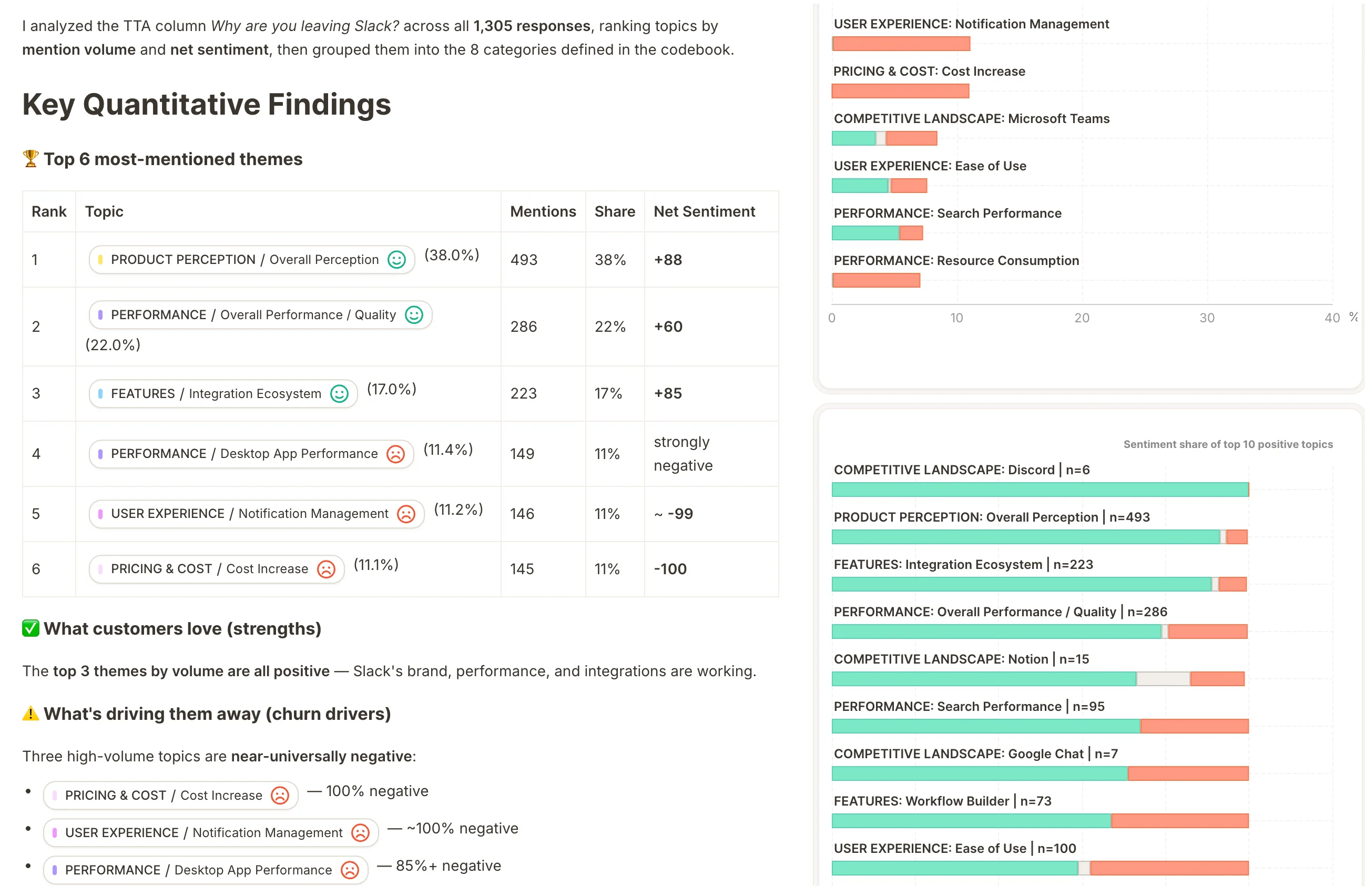
Insights highlight strengths (what customers value most) and weaknesses (recurring issues to address), based on topics with the highest positive and negative sentiment shares. Insight Agent also surfaces driver analysis — showing how specific topics impact customer satisfaction.