

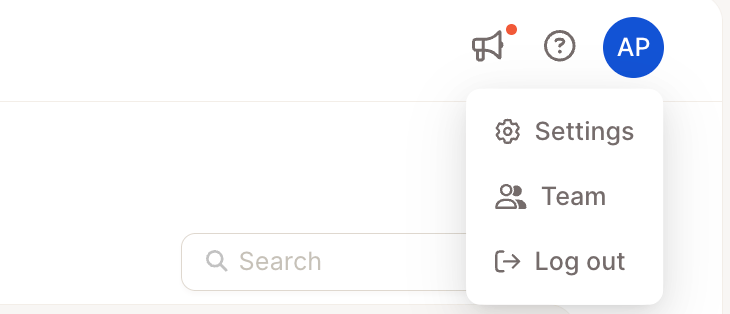
To access settings, click your profile icon in the top-right corner of the screen.
Account settings
Manage your personal profile and application preferences.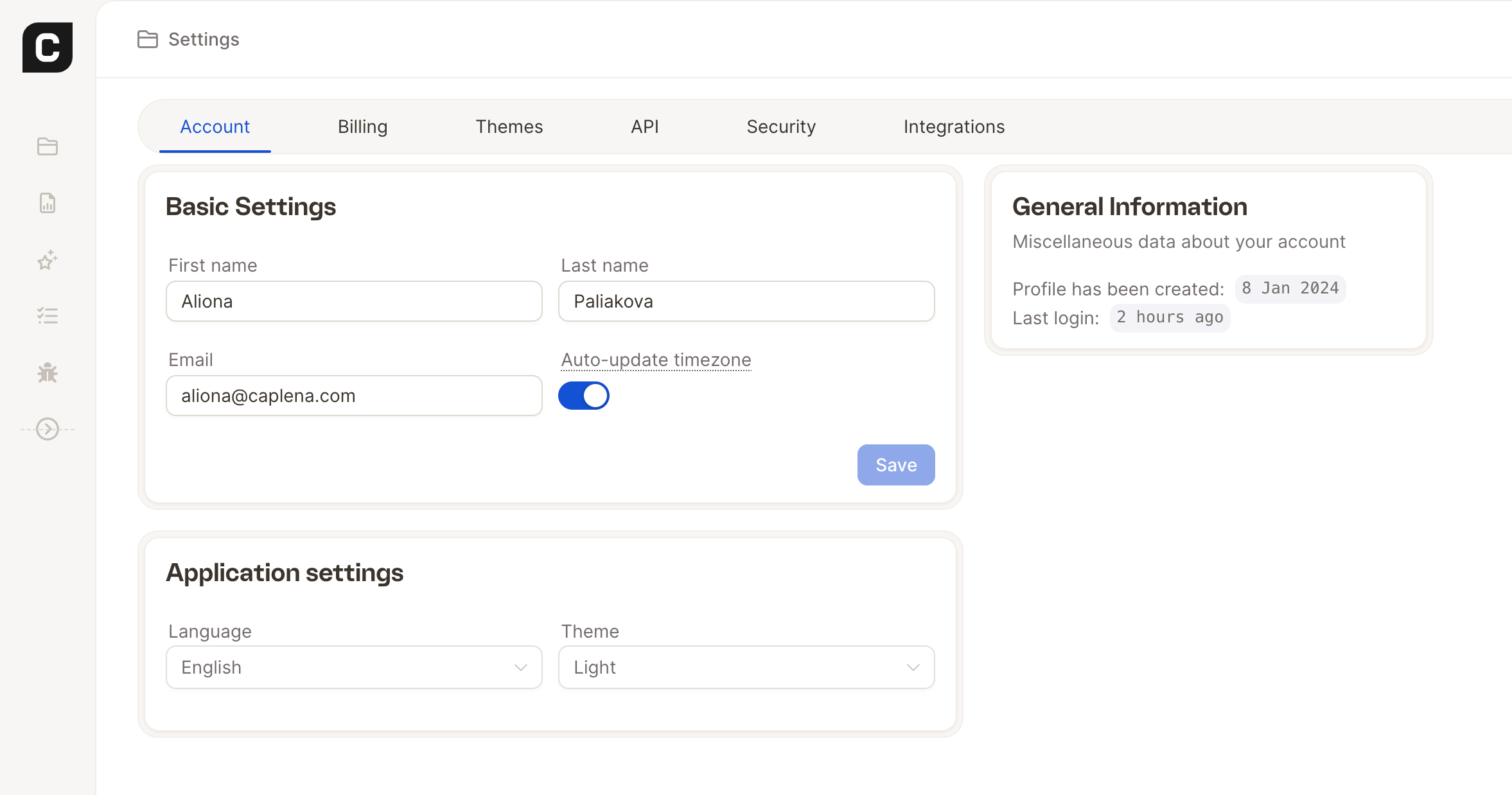
- First & Last Name: Edit how your name appears in Caplena.
- Email Address: Used for notifications, password resets, and communication.
- Profile Created: See when your account was created.
- Last Login: Monitor your recent login activity.
- Language: Choose between English and German.
- Theme: Switch between Light and Dark mode.
- Timezone: Control which timezone Caplena uses to display dates and times across the app (for example, in filters, exports, and report timelines).
- Leave Auto-update timezone enabled to follow your browser’s current timezone automatically. This is the default and works well if you travel or change locations.
- Turn Auto-update timezone off to pick a specific IANA timezone (such as
Europe/ZurichorAmerica/New_York) from the searchable list. Use this when you want all dates to stay in a fixed timezone regardless of where you sign in from. Hover the toggle to see your currently active timezone.
Organization settings
Configure company-wide preferences and billing details.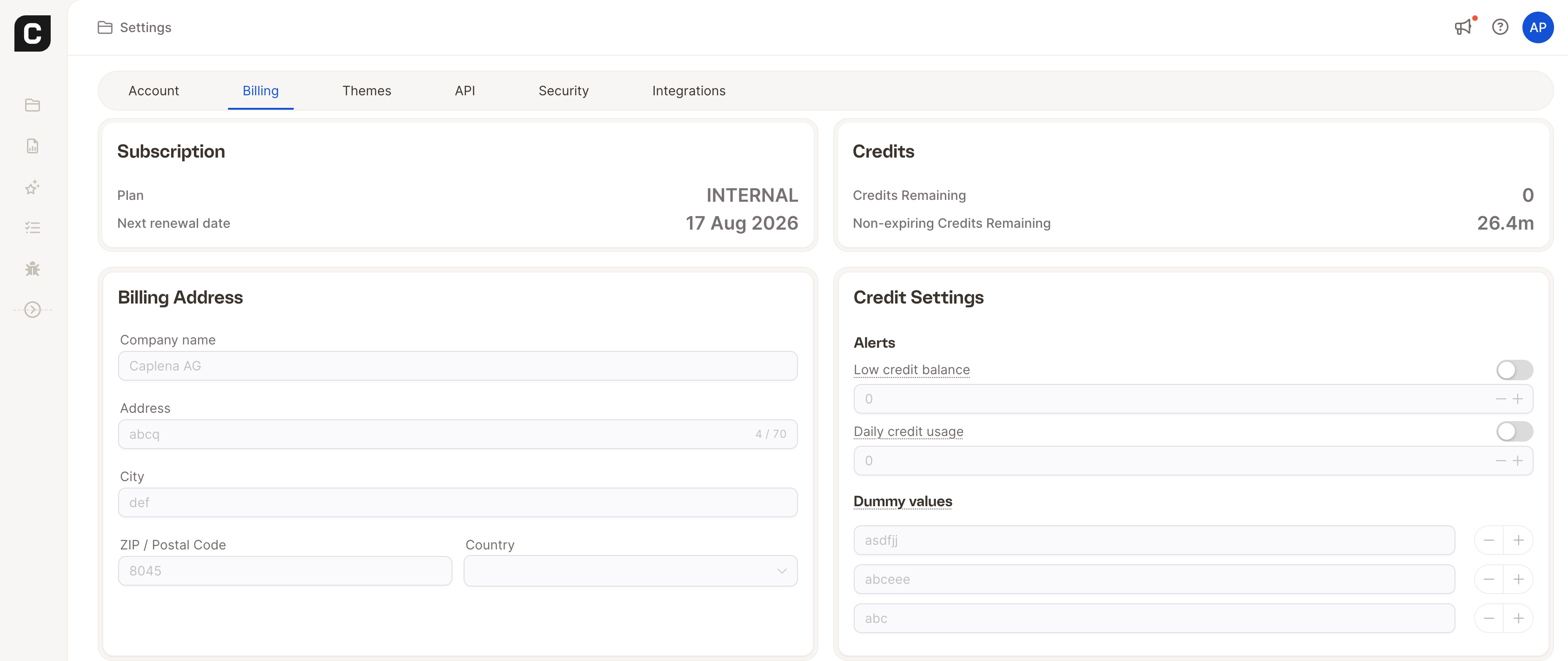
- Add or update your Company Name, Address, City, ZIP, and Country.
- This info appears on all invoices.
- Don’t forget to click Save after making changes.
- Dummy Values: Define up to 3 placeholders (e.g., -99, NULL) to exclude from billing.
- Tracking: Opt out of usage tracking for support/debugging.
Dummy values only apply to newly uploaded data.
Theme settings
Customize your Caplena branding.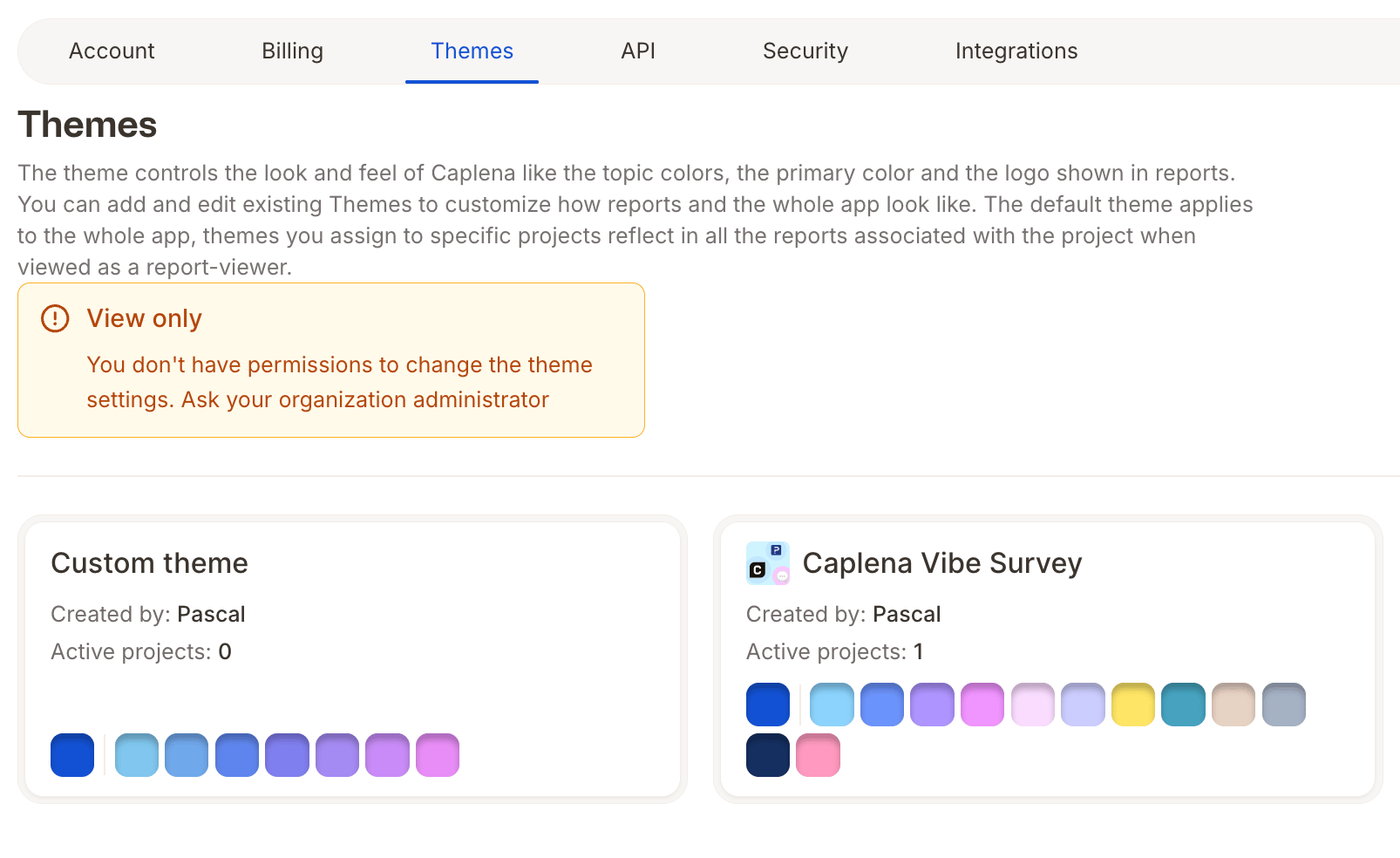
- Default Logo: Upload your company logo (.JPG, .PNG, or .WEBP).
- Global Color: Set your primary platform color.
- Gradient Colors: Choose styling for reports
- Sentiment Colors: Customize colors for sentiment views.
API settings
Generate and manage API keys for external integrations, such as automated data transfers from another platform into Caplena.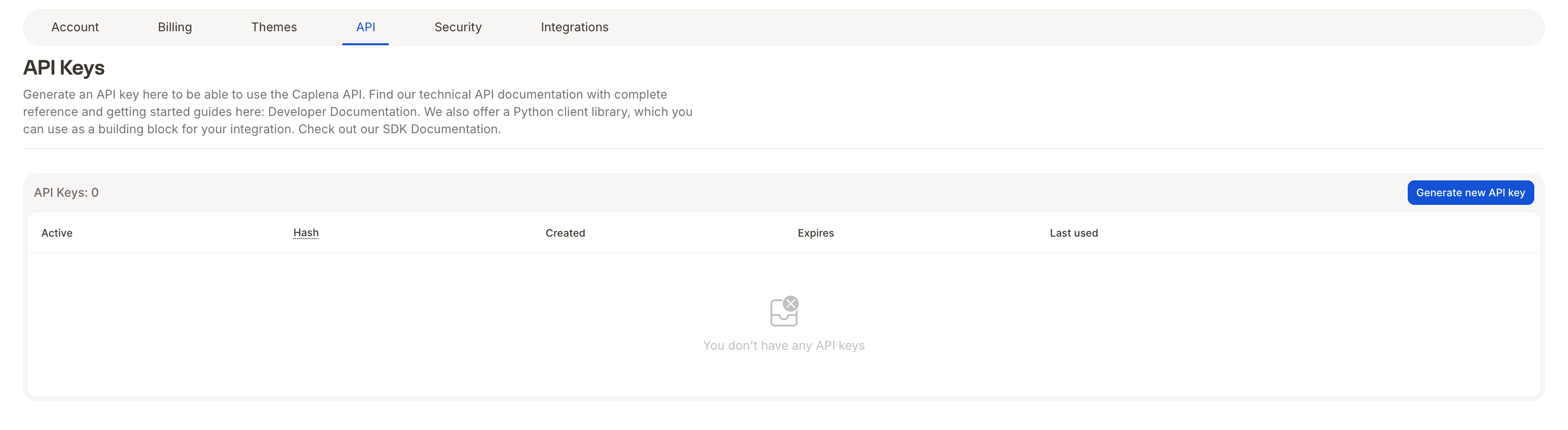
1
Go to Settings → API tab
2
Click Generate New API Key
3
Confirm with your Caplena account password when prompted
4
Copy & store it securely — you won’t see it again
API keys are scoped to the user who generates them, not to a specific project. A key gives programmatic access to every project that user can already access in the app — the same permissions the user has when logged in normally.If you need a key limited to a single project (for example, to set up an automated data transfer with restricted scope), create a dedicated Caplena user with access to only that one project, then generate the API key from that user’s account. There is currently no way to scope an individual API key to a project directly.
Security settings
Keep your account secure with password management and 2FA.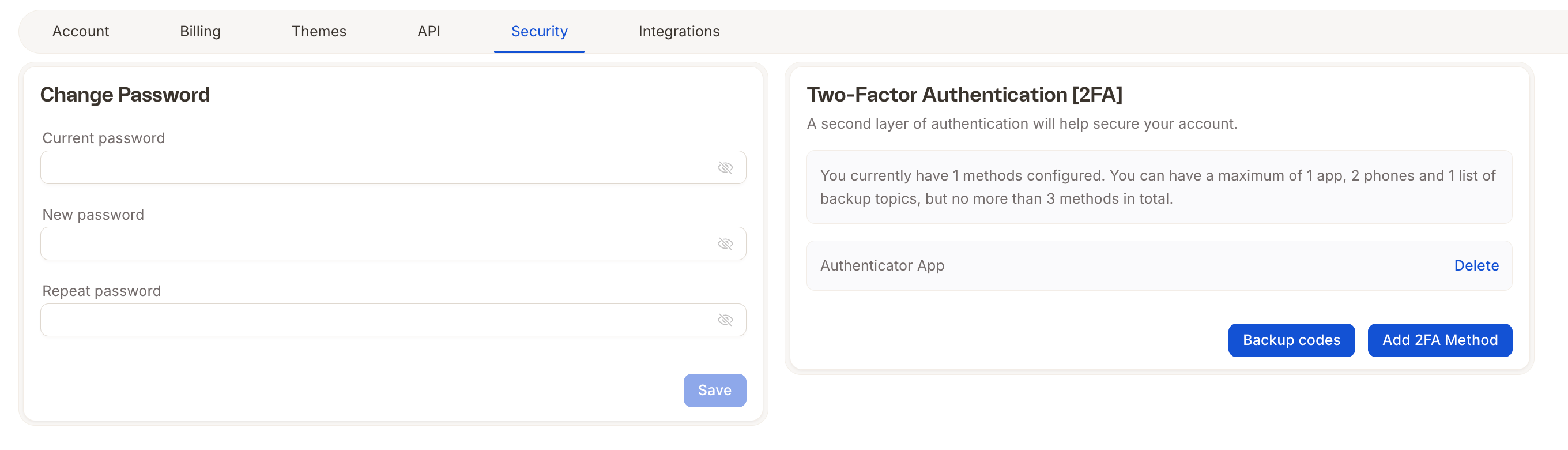
- Enter your current and new password → click Save
- Add protection via:
- Authenticator App
- Phone Number
- Backup Codes
- You can set up to 3 active methods
Integrations
Connect external platforms for smoother data import.