Documentation Index

Fetch the complete documentation index at: https://docs.caplena.com/llms.txt

Use this file to discover all available pages before exploring further.

Caplena makes it easy to merge different data sources in a single project, whether the data is uploaded via file or pulled automatically via integrations. You can:
  • Combine reviews from multiple platforms, such as the Apple App Store and Google Play Store, into one cohesive analysis.
  • Mix manually uploaded data (Excel, CSV) with integrated data sources like Amazon or Trustpilot — all in one place.
This allows for a 360° view of your feedback across channels, perfect for analyzing multiple products, apps, or markets under one project umbrella.
Example: Create one project for a fitness app that includes survey responses from existing users (via Excel upload) and app store reviews (via Google and Apple integrations). This lets you compare internal feedback with public store reviews, all in one place.

Adding a new data source

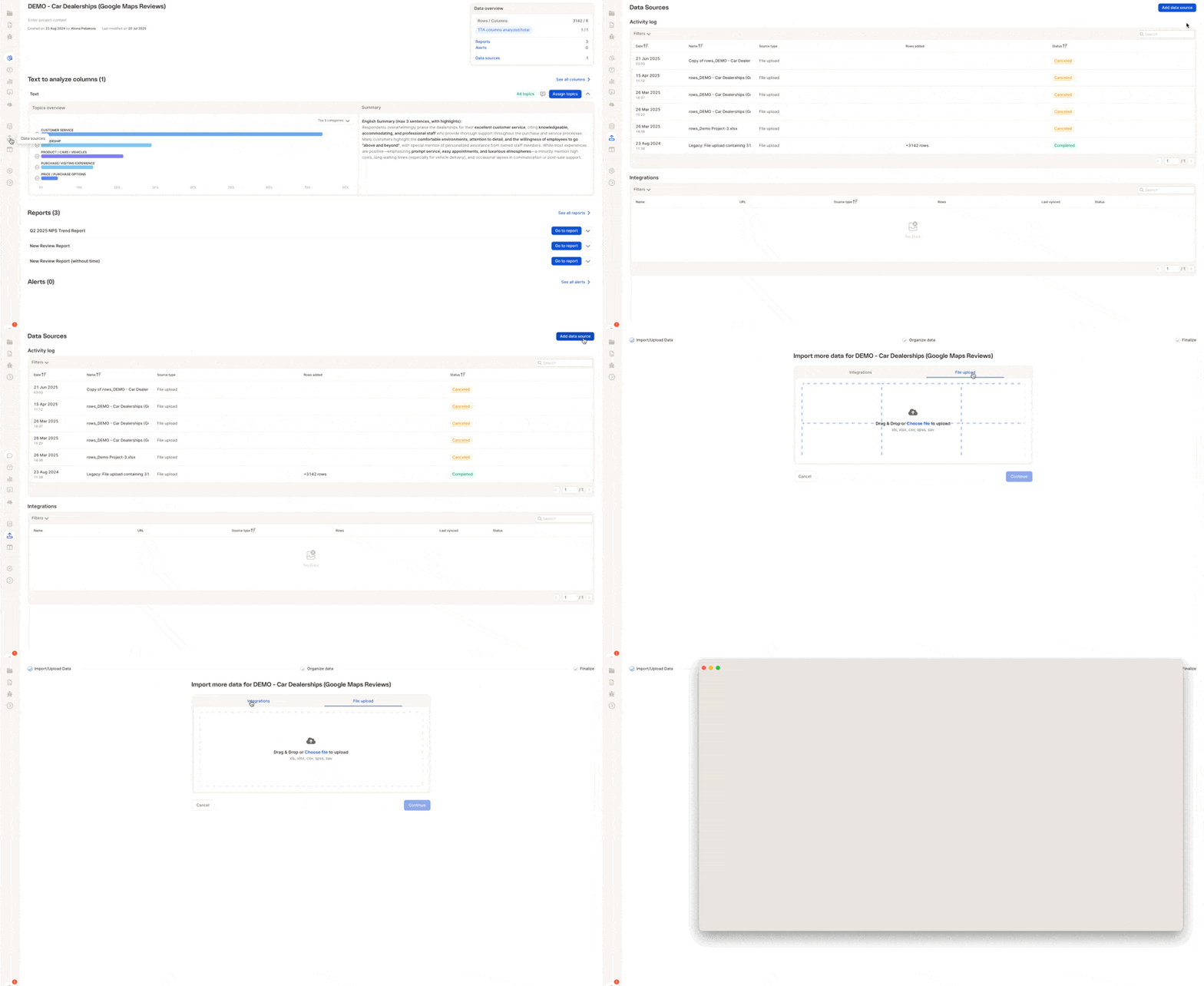
To add a new file or connect an integration, click the “Add data source” button in the Data Sources section of your project. You can either:
  • Upload a file (.xls, .xlsx, .csv, .sav, .spss)
  • Select an integration from platforms like Amazon, Google Play, Trustpilot, etc.
Addingdatasurce
After uploading your file or connecting an integration, you’ll be asked to match your columns to existing ones in the project. Caplena shows:
  • The new columns you’re adding
  • The existing columns in your project
  • Suggested matches, especially for text to analyze (TTA), date fields, etc.
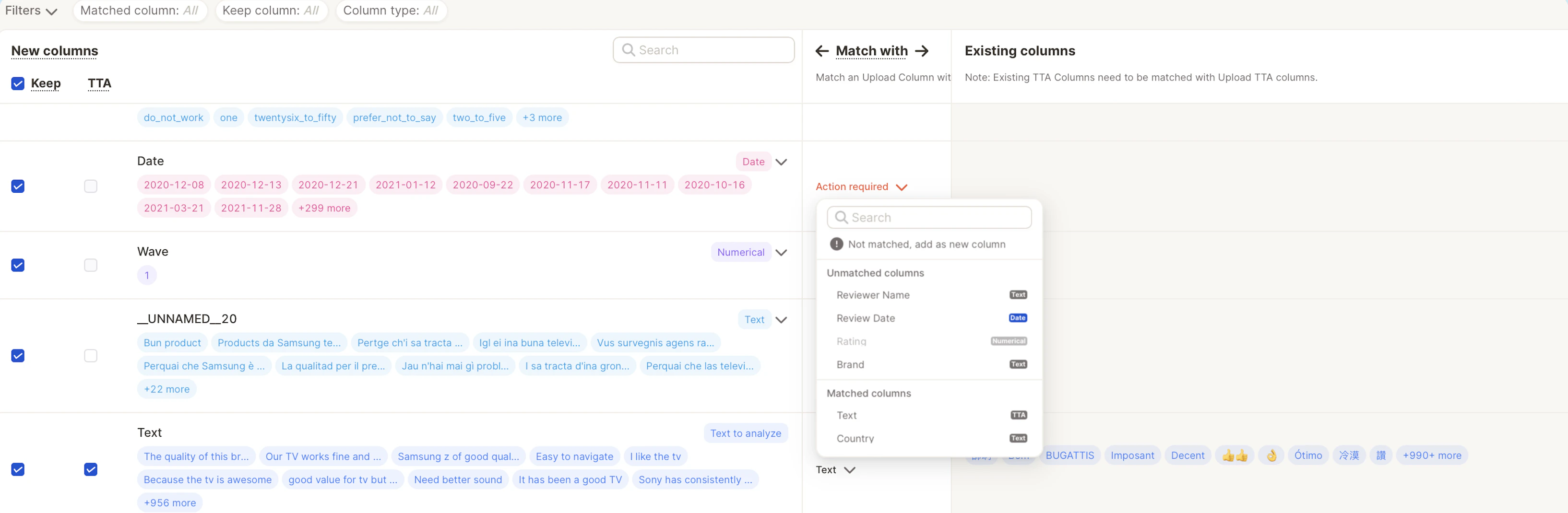
If there’s no exact match, you’ll be prompted to take action.
Screenshot 2026 05 24 At 10 41 30
If you don’t want to include a specific column, simply uncheck the box next to it under the “Keep” column. This is especially useful for skipping irrelevant metadata like internal IDs or unused tags.

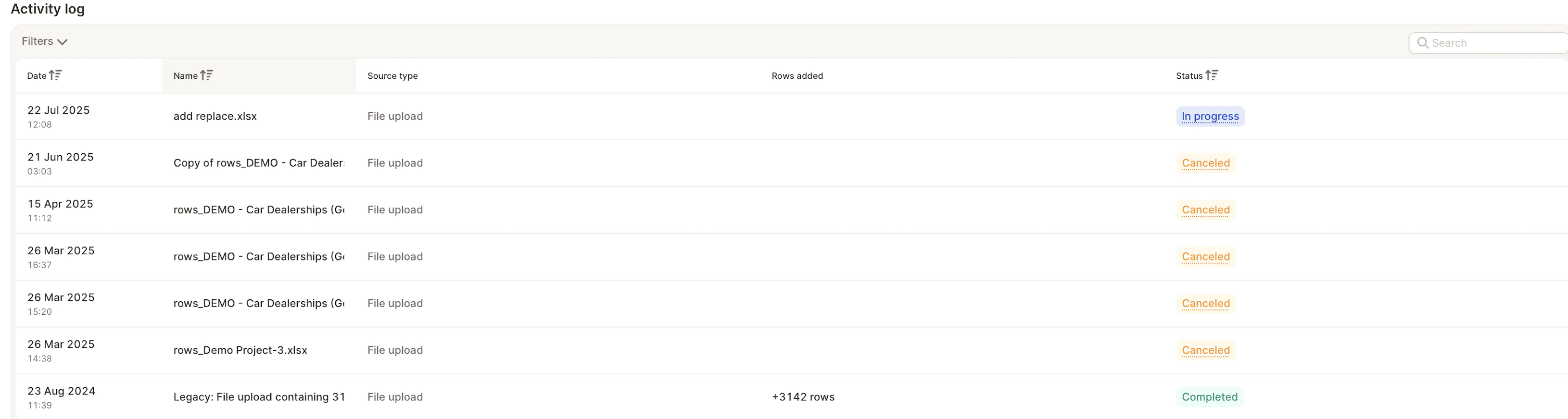
Activity log

The activity log lists recent file uploads, including:
  • Date and time of the upload
  • Name of the source file
  • Number of rows added
  • Status (e.g. Completed, Cancelled)
    Screenshot 2026 05 24 At 10 42 32
Use this log to track upload history, troubleshoot issues, or ensure your latest data made it in.

Integrations

This section shows all active or pending external data connections, including:
  • Name/label of the integration
  • Source URL (e.g. from Trustpilot, Amazon, App Stores, etc.)
  • Type of integration
  • Row count (how many reviews have been imported)
  • Sync status (e.g. Initializing, Completed)
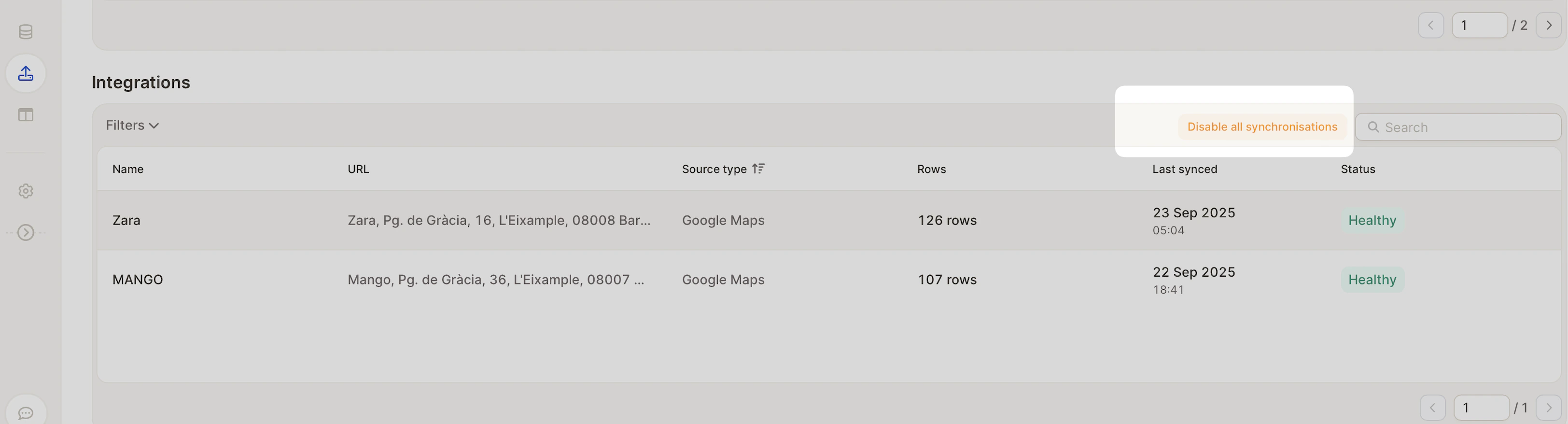
Once initialized, integrations will automatically pull in new data if synchronization is enabled. You can turn synchronization off anytime by toggling it in the integration item settings, or disable it in bulk for all integrations at once:
Screenshot 2026 05 24 At 10 43 38
Last modified on May 30, 2026