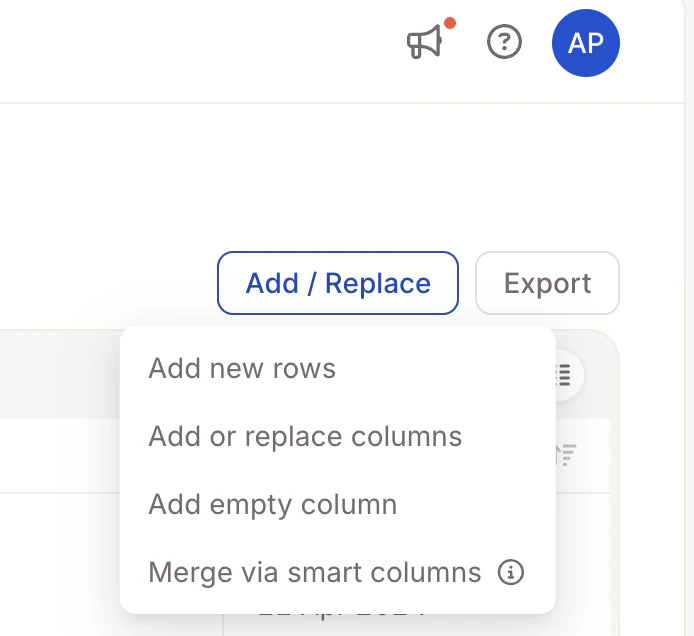
Accessing the Data Tab
To get started, click on Data in the sidebar. You’ll see an interactive table showing the data you uploaded.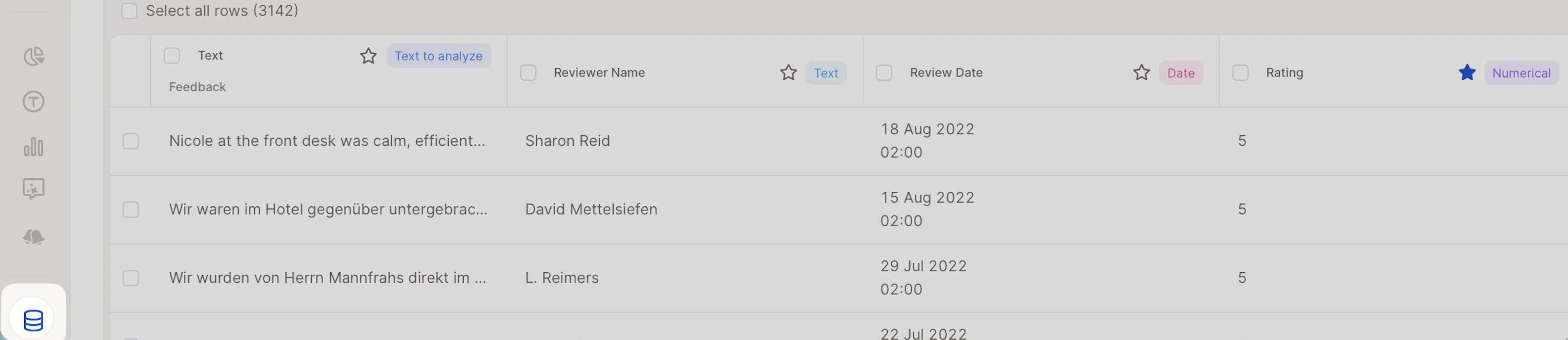
- Toolbar – Filter, edit, and customize your dataset
- Table View – See rows (responses) and columns (data fields)
- Checkboxes – Select rows for bulk actions
Viewing column details
To inspect a column’s full data profile, click on any column header. A Column Details panel will open with two sections.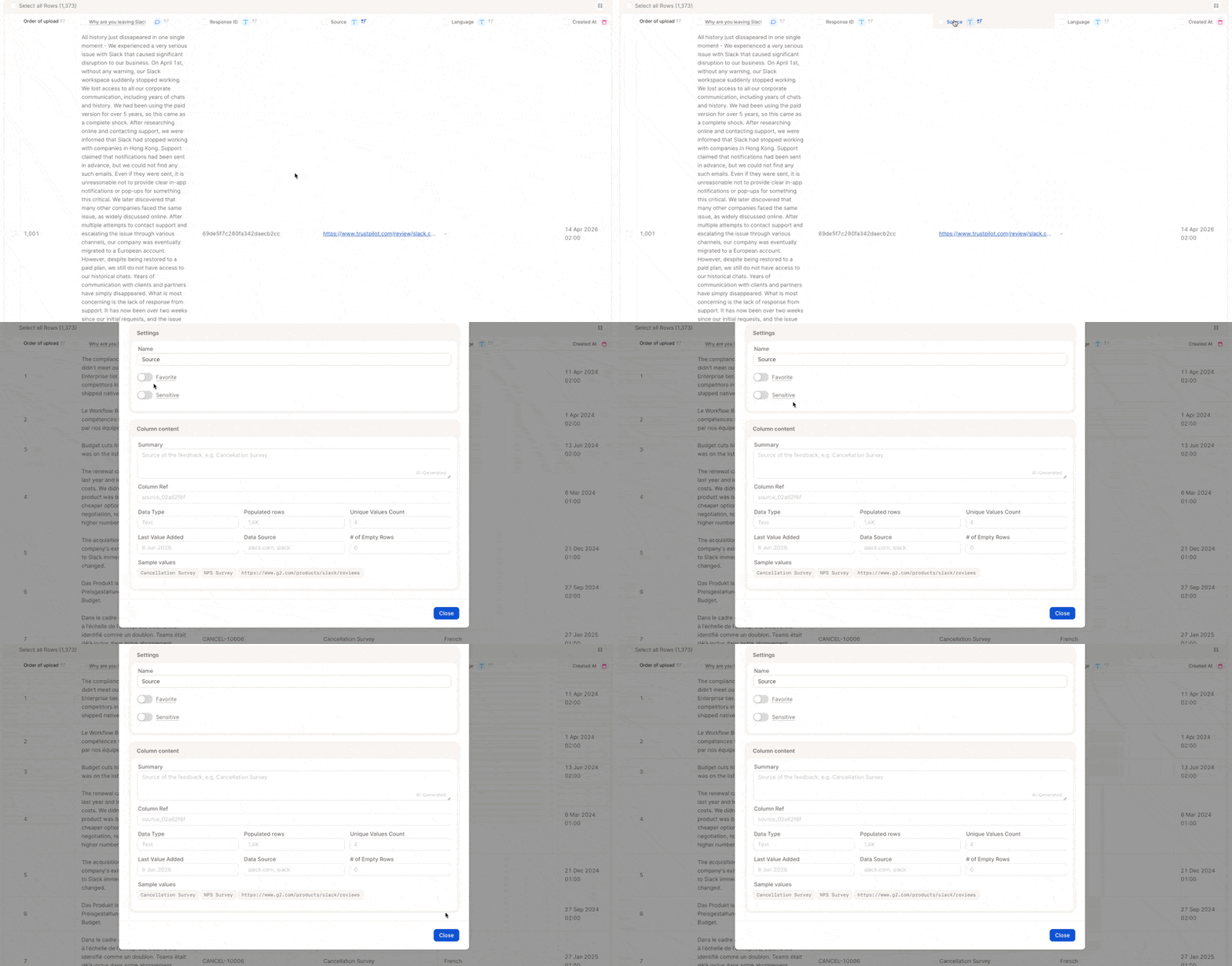
- Name — edit the column’s display name directly
- Favorite — pin this column to the top of dropdowns and filter menus for faster access
- Default score — set this column as the primary scoring reference across your project. When multiple columns could represent a score (e.g. an original NPS column and a synthetic/calculated one, or NPS vs. a star rating in a multi-source study), setting a default reduces the chance that Agent (in reports, alerts, or chat) picks the wrong one on its own. Without a default set, the agent infers which column to use, which can lead to mismatched results between an alert and a report if the underlying data or available columns have changed over time.
- Default date column — set this column as the primary date source for all report widgets and Insights. Useful when a project has more than one date-like column and you want a single, consistent one used by default for trends, filters, and time-based charts.
- Sensitive — mark the column as containing sensitive data (available on auxiliary columns). Only users with the View sensitive columns permission can see the toggle, see sensitive columns in project data, and export them. See object-level permissions for details.
- Column Ref — the internal ID
- Data Type — e.g. Numerical, Text
- Populated rows — how many rows have a value in this column
- Unique Values Count — number of distinct values
- Last Value Added — timestamp of the most recent entry
- Data Source — where the data originated
- # of Empty Rows — rows with no value in this column
- Sample values — a quick preview of actual entries
Favoriting and hiding columns
These features help you focus on relevant fields without permanently changing your dataset.Favorite columns
Mark a column as a favorite to pin it to the top of dropdown menus (e.g. when selecting filters), making it quicker to find and use. This is especially helpful when working with many columns.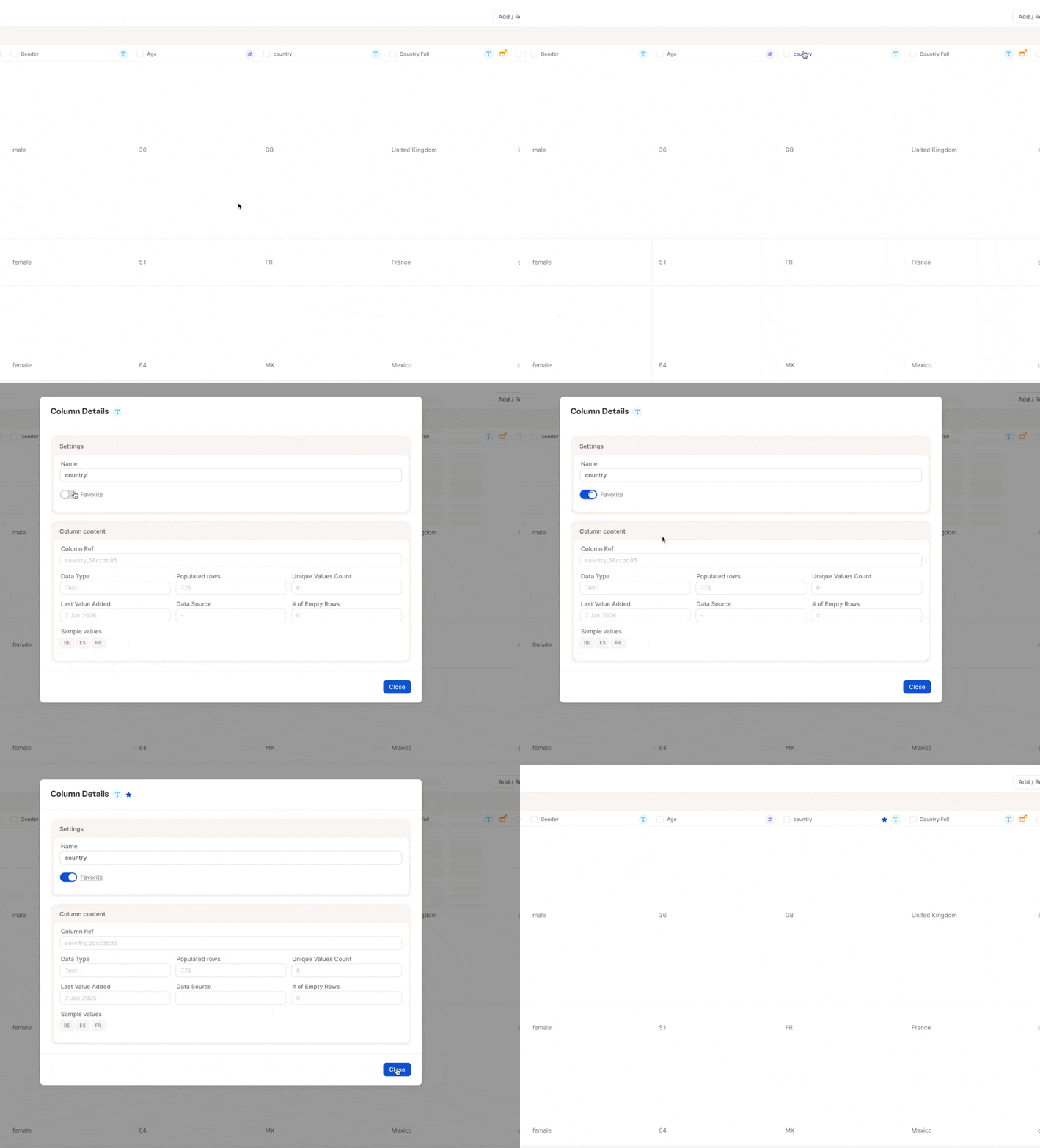
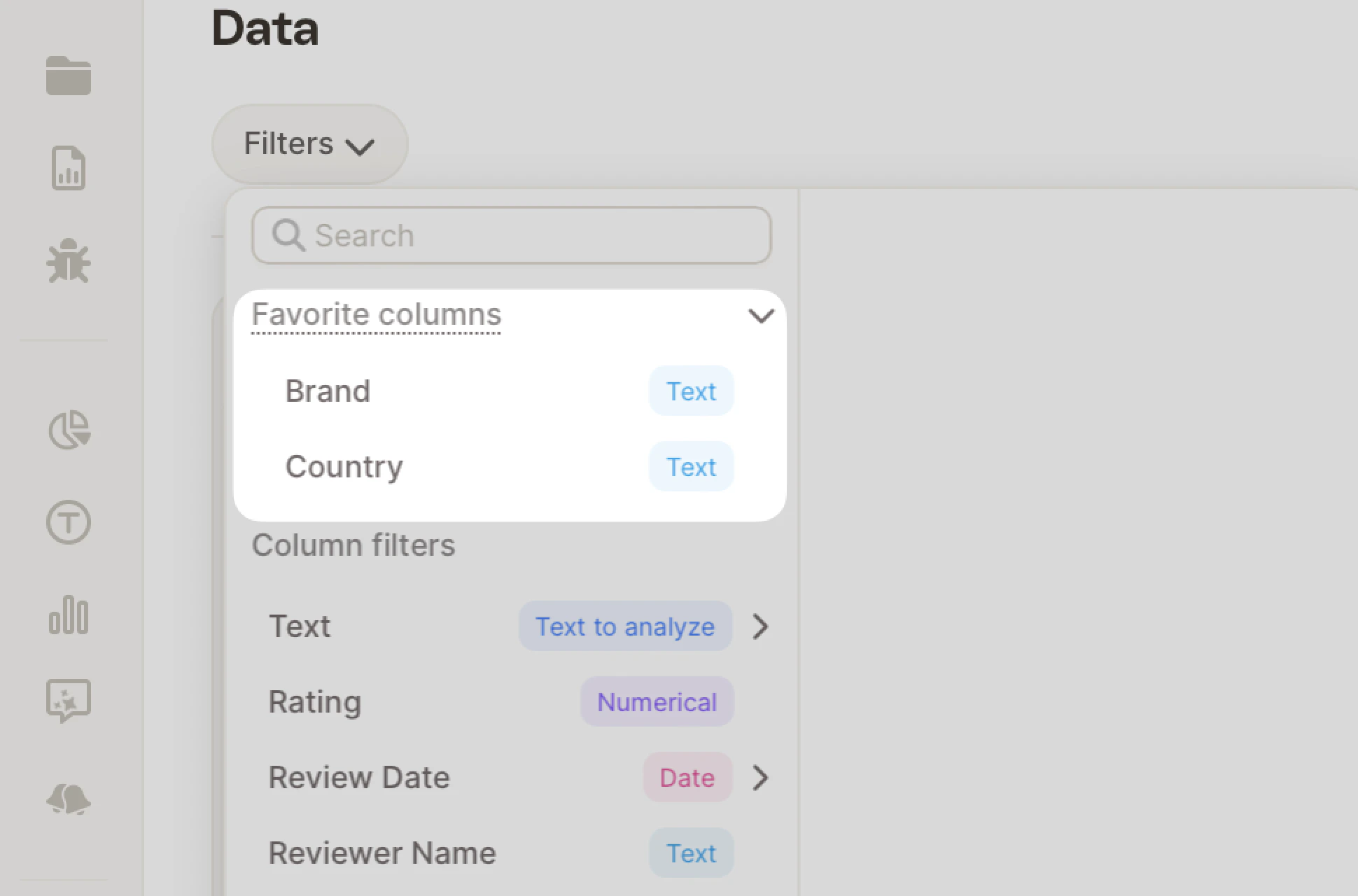
Default score column
If your project has more than one column that could represent a score — for example a raw NPS field alongside a synthetic/calculated NPS, or an NPS column next to a Star Rating in a multi-source study — mark the one you want used by default as the Default score.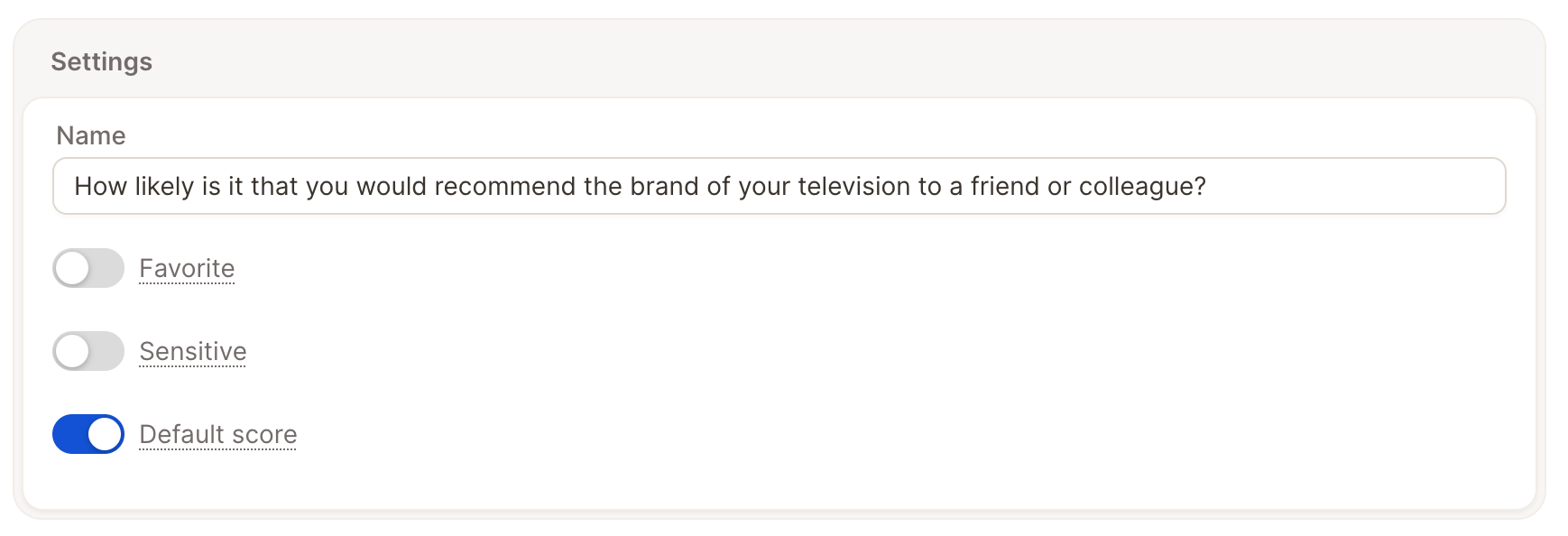
1
Click the column header to open Column Details.
2
Toggle Default score on.
Default date column
If your project has more than one date-like column (e.g. a survey submission date alongside a “Created At” import timestamp), mark the one that should represent “the date” as the Default date column.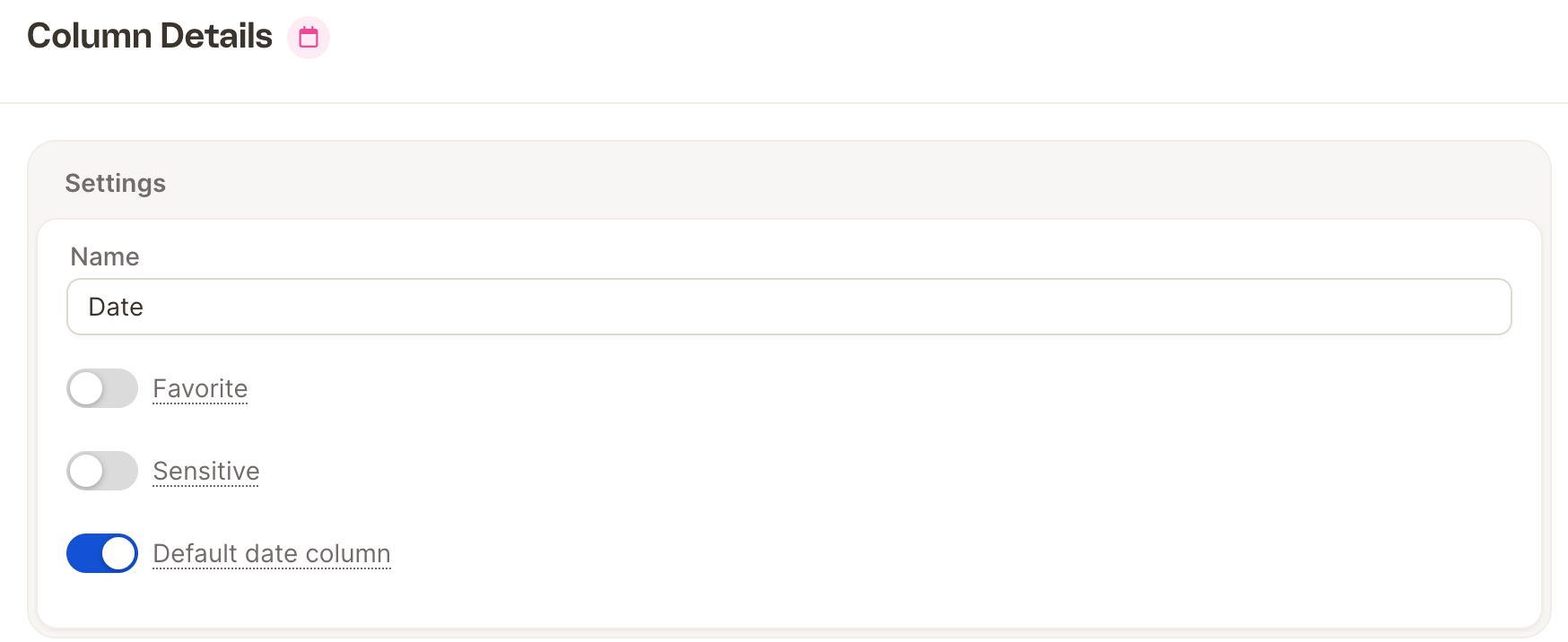
1
Click the column header to open Column Details.
2
Toggle Default date column on.
Hide columns
- Click Show/Hide Columns
- Uncheck any column you don’t want visible
- The table updates immediately
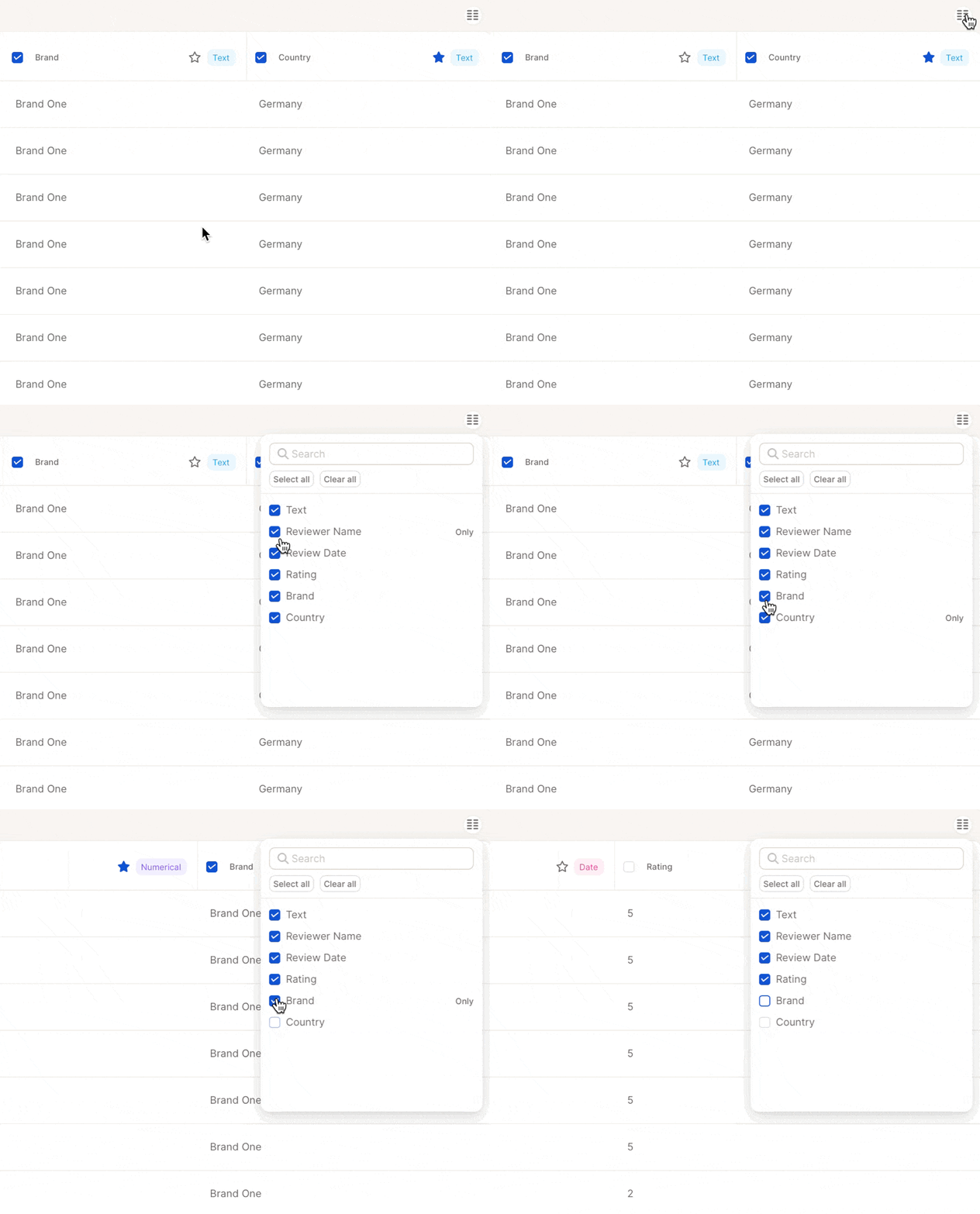
Marking columns as sensitive
Use Sensitive to restrict who can see a column’s values. Sensitive columns are hidden from rows, coding views, and filters for any user who doesn’t have theProjects View Sensitive Columns permission — even if they otherwise have access to the project.
Typical uses include hiding free-text fields that may contain personal data, internal identifiers, or commercially sensitive responses, while still letting analysts work with the rest of the dataset.
To mark a column as sensitive:
1
Click the column header to open Column Details.
2
Toggle Sensitive on.
Projects View Sensitive Columns permission. See Object-level permissions for how to grant it.
Marking a column sensitive controls visibility only. To irreversibly remove personal data from text values, use Anonymization at upload time.
Editing text fields
You can edit responses or text rows directly from the table, which is helpful for fixing typos or clarifying entries.1
Click the field you want to change
2
Make your edits
3
Press Enter, or click outside the cell to save
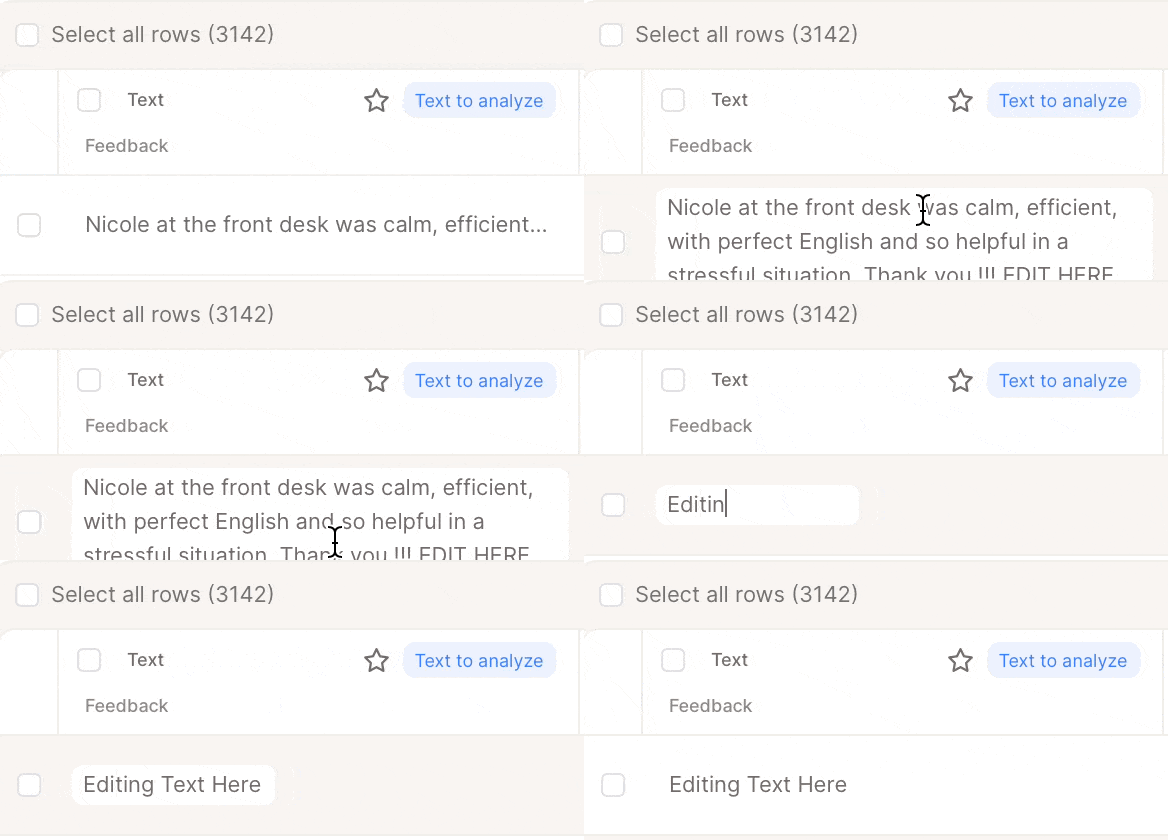
Each verbatim edit uses 1 credit, as Caplena reprocesses the entry to update insights like sentiment and topics.
Deleting rows and columns
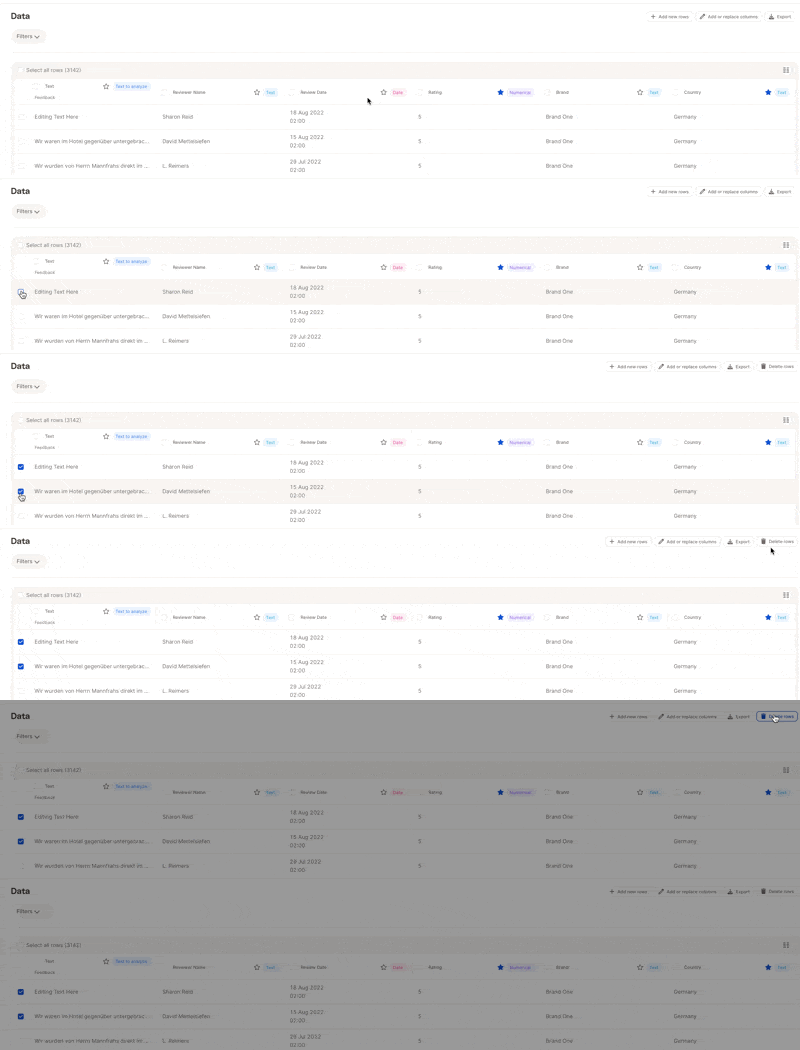
Use this when you want to permanently remove data you no longer need.Delete rows
- Use the checkboxes to select rows
- Click Delete Rows in the toolbar
- Confirm deletion
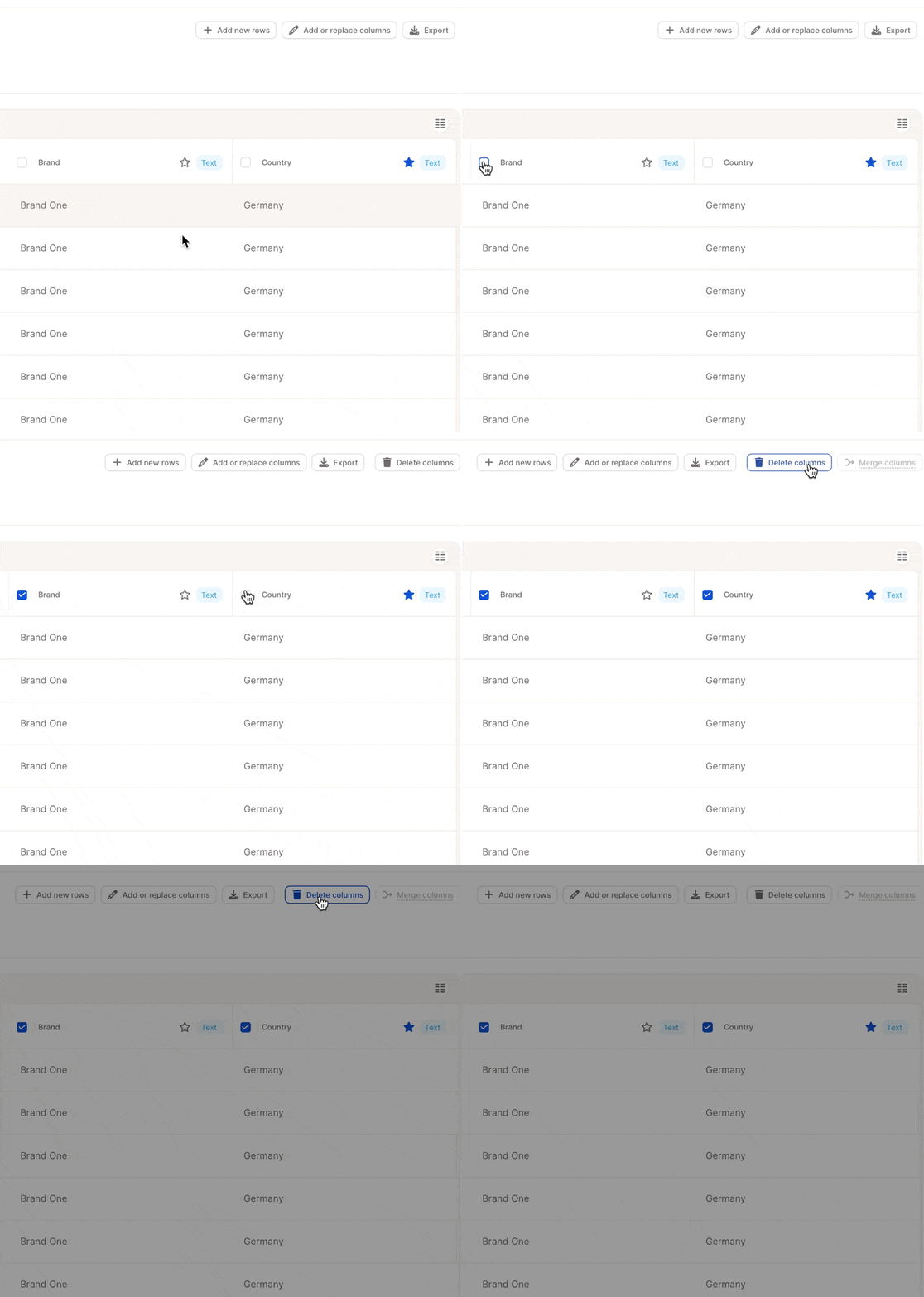
Delete columns
- Click Delete Columns
- Choose the column to remove
- Confirm the action
Filtering the table
Use filters to focus on a specific subset of data (e.g., only 5-star reviews or responses from a certain region).1
Click Filters in the toolbar
2
Select a column
3
Choose a condition
4
Apply the filter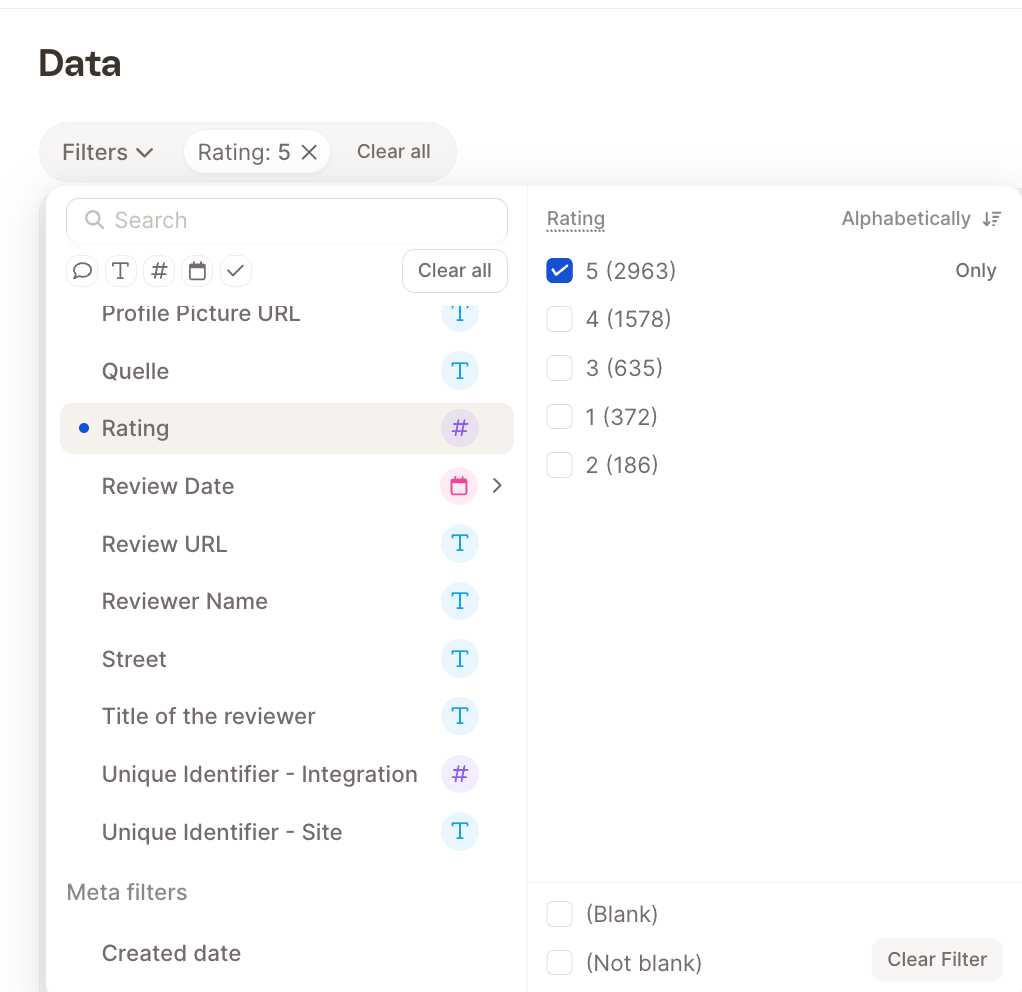
Adding or replacing data
Keep your dataset up to date without having to re-upload everything from scratch.