

Enabling Anonymization
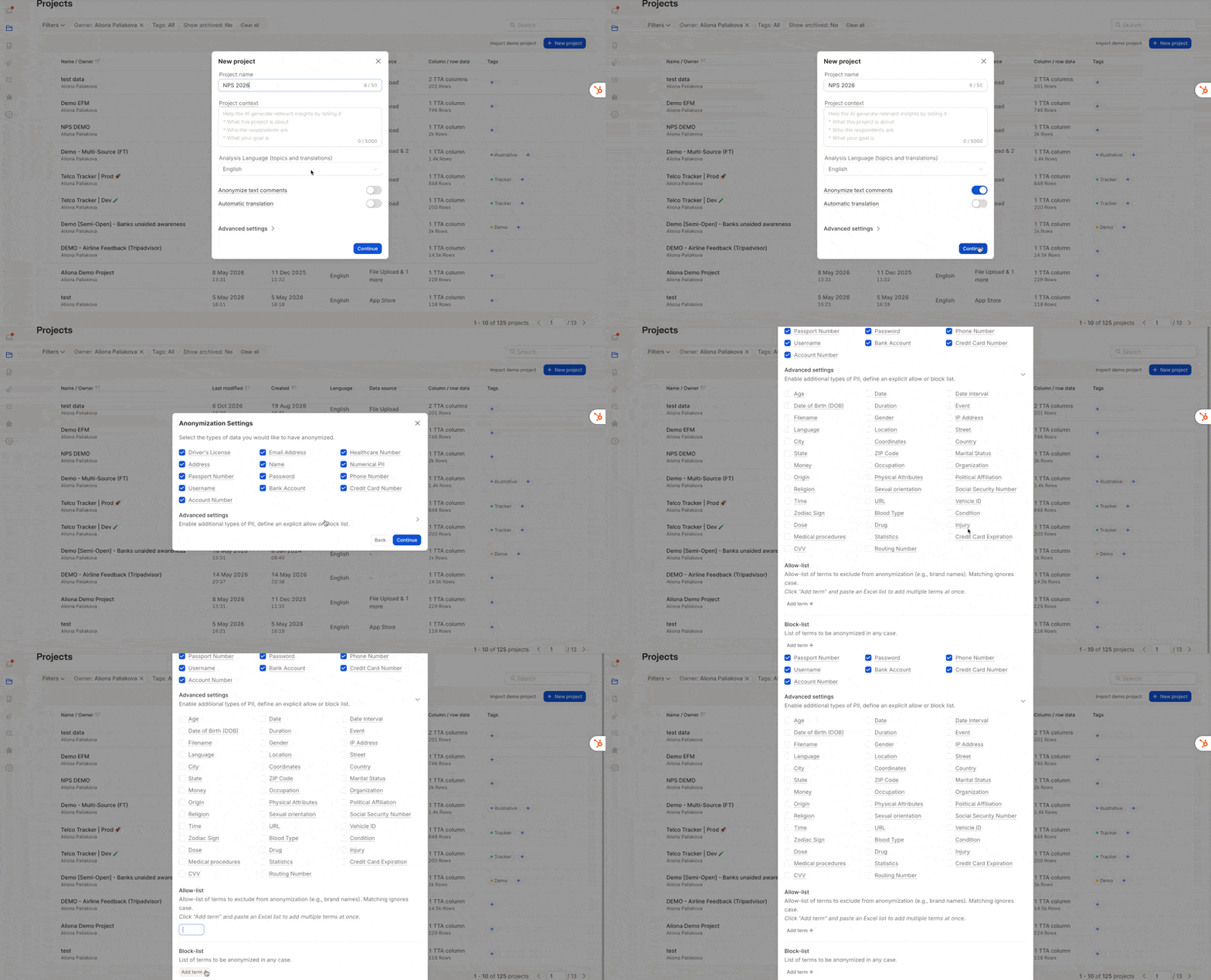
Anonymization is configured when creating a new project:- Click New Project and proceed through the upload flow
- At the Anonymization step, toggle it on
- Select which PII types to anonymize (see below)
- Click Continue to proceed with your import
Anonymization is a plan-gated feature. If your subscription doesn’t include anonymization, creating a project with it enabled is blocked. Contact support to upgrade your plan.
Editing Anonymization Settings After Setup
You can update a project’s anonymization settings at any time from Project Settings → Anonymization.1
Open your project and click the gear icon (⚙️) in the left-hand menu
2
Switch to the Anonymization tab
3
Adjust the enabled PII classes, advanced settings, allow-list, or block-list. Changes are saved automatically.
Choosing What to Anonymize
Once enabled, a settings panel lets you select the PII types to mask: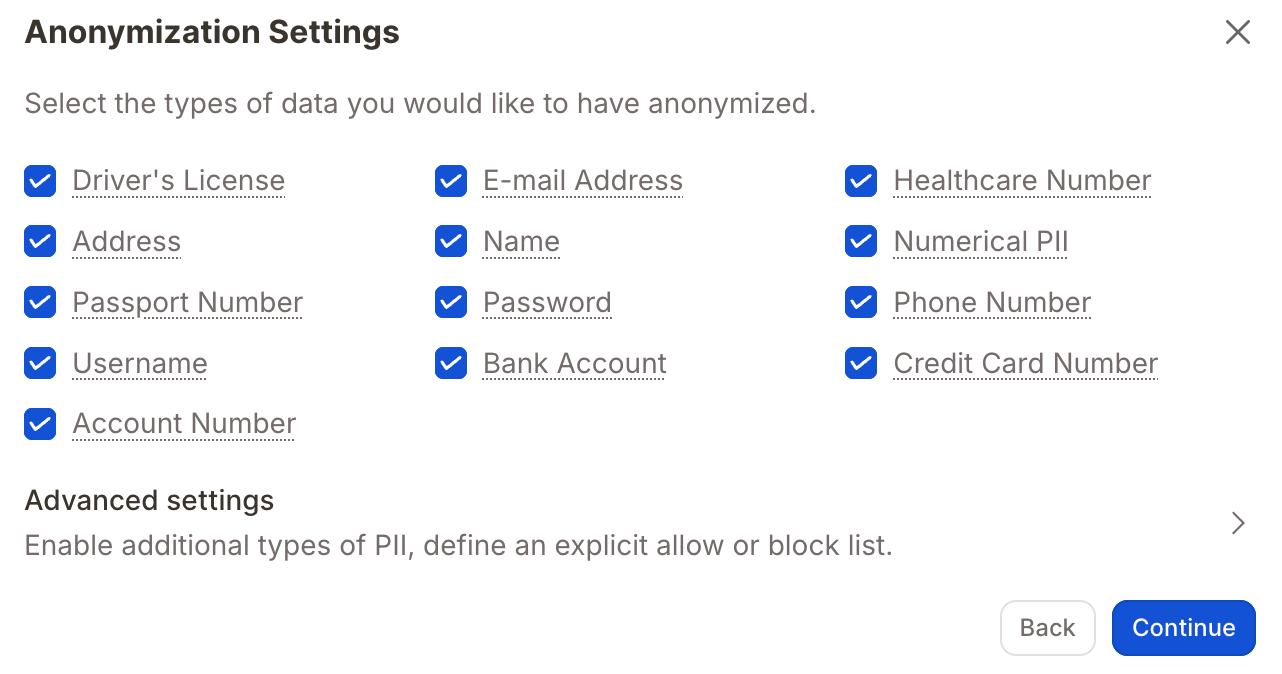
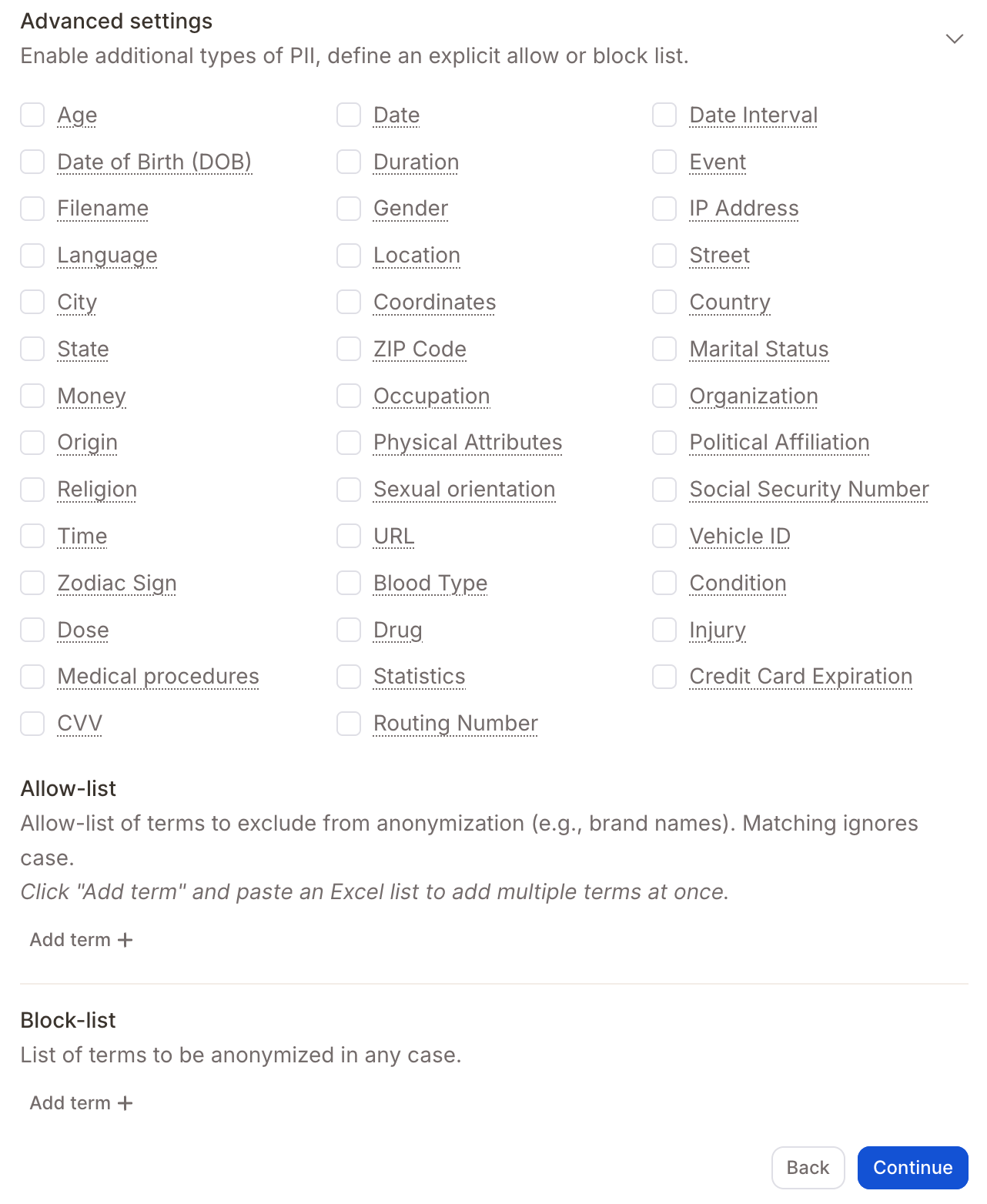
Allow-list & Block-list
Smith, John Doe).
Block-list — Terms that should always be anonymized, even if they aren’t names (e.g. is, very curious).
To add terms, click “Add term” or paste a list directly from Excel. Matching is case-insensitive and whole-word only: a term never matches part of a longer word, and a multi-word term only matches the full phrase.
Allow-list example — Name anonymization enabled, with Smith and John Doe configured as allowed terms:
Block-list example —
is and very curious configured as blocked terms:
Address vs. Location
Caplena distinguishes between two related but different PII types:“I visited Lake Victoria.” → with Location enabled → “I visited [location].” “I live at 12 Abbey Road, 23783 London.” → with Address enabled → “I live at [address].”How Address, Street, City, and ZIP interact:
If you anonymize too much or something goes wrong, you’ll need to re-upload the data in a new project. Reach out to support — we’re happy to help and will reimburse credits if needed.
Anonymization & Translation
Anonymization runs before translation. Anonymized source text will also produce anonymized translations — the two features work seamlessly together.Not all languages are currently supported for anonymization. Texts in unsupported languages may be only partially anonymized.