

All text-to-analyze columns will be translated into the Main Language selected during project setup.
Translation fees are included in your subscription and Ad-Hoc credits — no additional charges apply.
When to Enable Translation
Turn on automatic translation if any of the following apply:- Your dataset contains multiple languages (e.g. English, German, and Chinese in the same file)
- Your text is in a language not natively supported by Caplena
- Your topic collection needs to be in a different language than the source text
- You don’t speak the language your responses are written in
LLM-Based Translation (Recommended)
We recommend LLM-based translation for most projects. Unlike DeepL and Google Translate, which translate each comment in isolation, the LLM takes your project context into account: your project description and column descriptions are passed to the model during translation. This helps it handle the cases where generic translation tools tend to struggle:- Brand and product names that should be kept as-is rather than translated
- Domain-specific terminology and survey-specific vocabulary
- Context-dependent phrasing, where the right translation depends on what was asked
DeepL vs. Google Translate
DeepL generally produces higher quality translations but supports a smaller set of languages. When DeepL is selected, Caplena uses it where supported and automatically falls back to Google Translate for everything else.Language Detection
By default, Caplena auto-detects the source language of each entry. This works well for most text, though single-word entries may occasionally be misidentified. Specifying source language manually If you know the source language, add a dedicated column to your file using ISO 639-1 language codes (e.g.en, de, ja). During upload, set that column type to Source language.
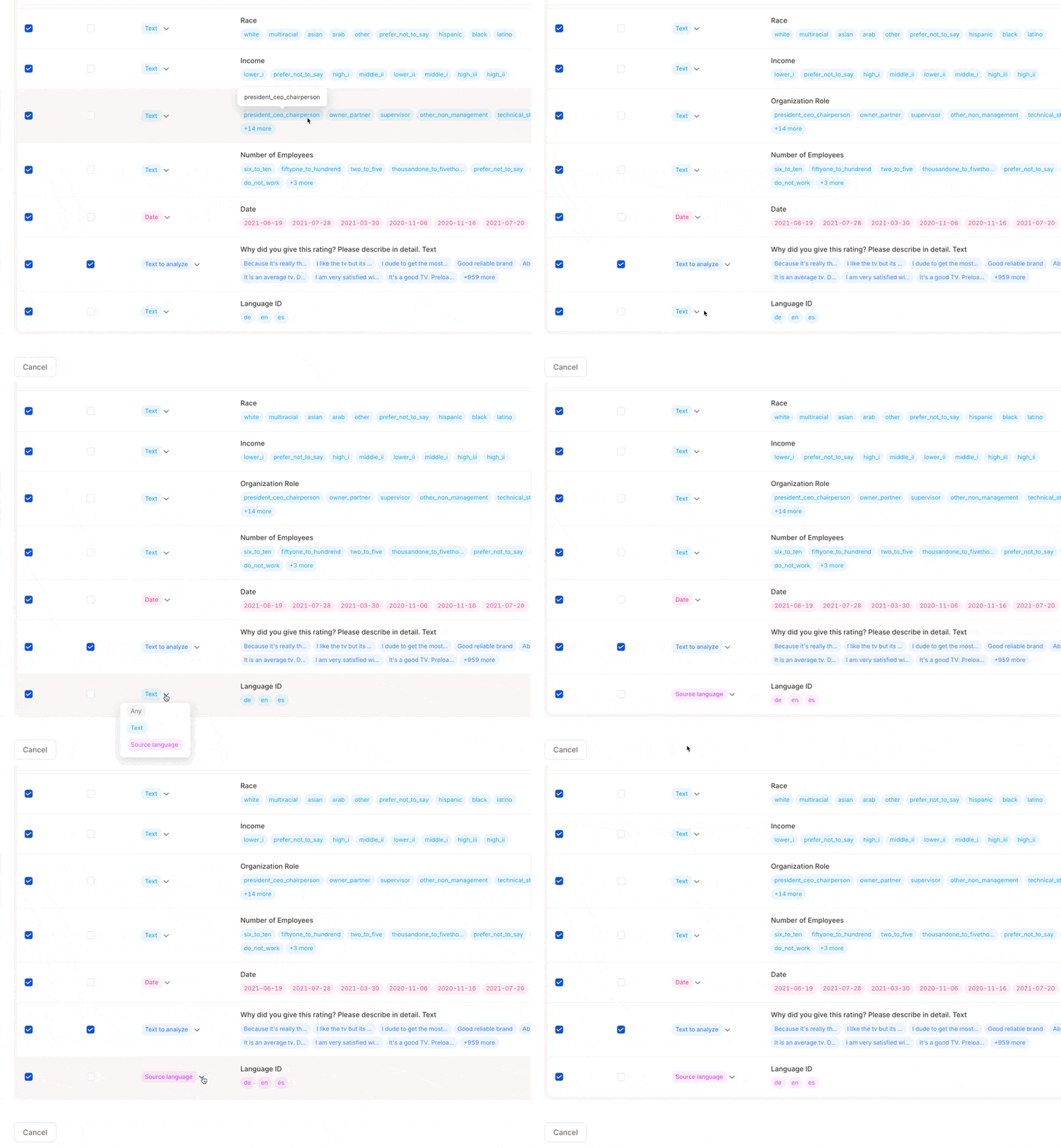
- Caplena may auto-detect the column as a Text column — adjust it manually before confirming the upload if needed
- For multilingual countries (e.g. Switzerland, Belgium), leave the cell blank if unsure — Caplena falls back to auto-detection for that row
- Language codes must be lowercase ISO 639-1 — common mistakes: Japanese is
janotjp, Austrian German isdenotat
Viewing Translations in the App
Translations are accessible throughout Caplena — you’re never locked into one view. Fine-tuning view.gif?s=2a35fd08077f0b87cc9986f2acc93f2a)
.gif?s=f9fc6a0b1a9618e39f71a4a51f0c8321)
.gif?s=2007626e4fe392f9e6d21b93ec45e130)