

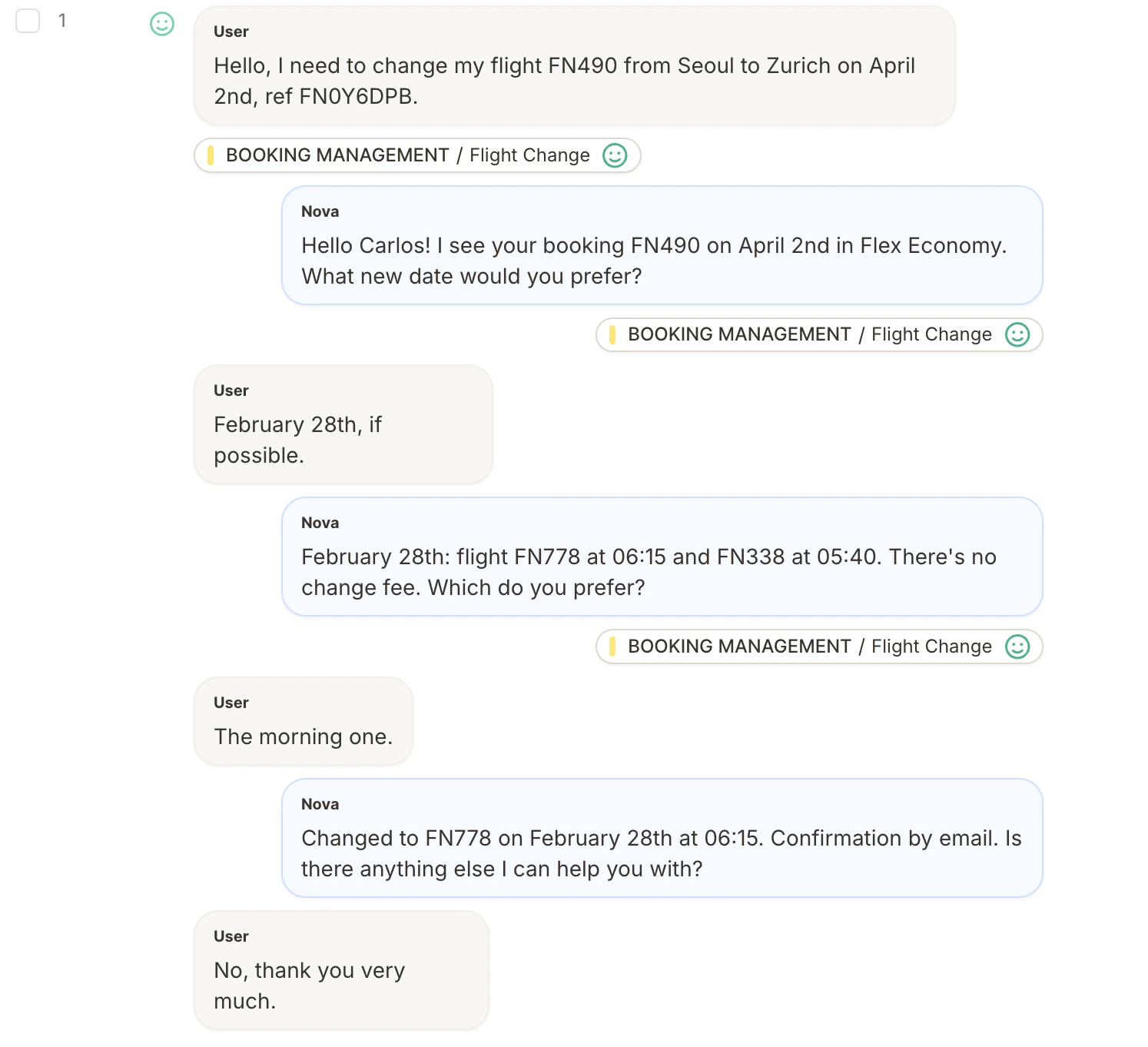
How It Works
Three things need to be in place for chat parsing to work:Speaker Labels
Tell Caplena who said what. Every message must start with one.
Column Configuration
Tell Caplena which labels to look for. Without this, the column shows as plain text.
Consistent Formatting
Ensure every row follows the same pattern so every message gets parsed correctly.
Supported Formats
Speaker labels only
The most common format. Each message starts with a label, followed by the message text:Speaker labels with timestamps
Timestamps before the speaker label are fully supported. Caplena handles the most common date and time formats automatically:Configure Speaker Labels
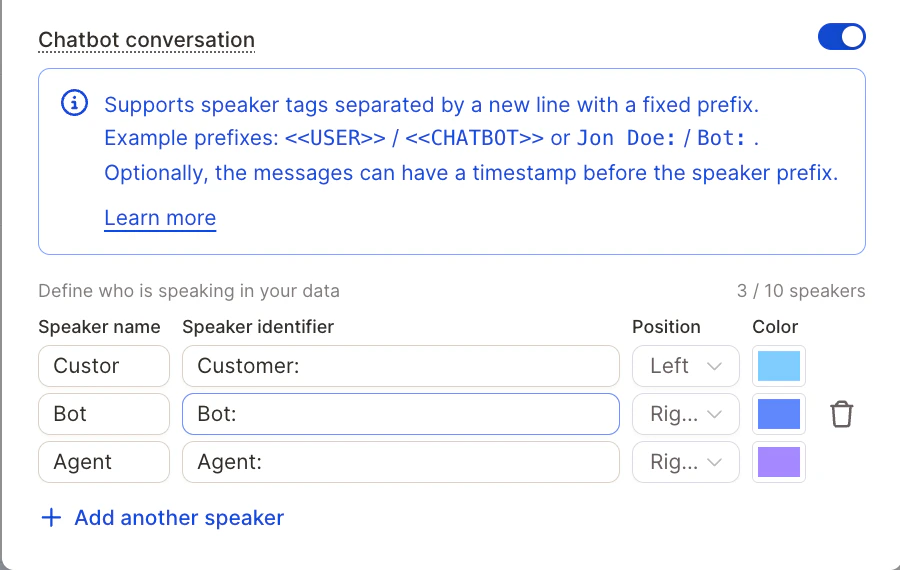
To enable chat parsing, tell Caplena which speaker labels appear in your data. This is done in Project Settings.- Open your project and go to Project Settings
- Enable the Chatbot conversation toggle — this unlocks the speaker configuration fields
- Under Define who is speaking in your data, click + Add speaker
- For each speaker, fill in:
- Speaker name – a display label (e.g. User, Agent). For display only.
- Speaker identifier – the exact prefix string as it appears in your data (e.g.
<<USER>>,Question:,Jon Doe:) - Position – whether the speaker’s bubbles align Left or Right, just like a messaging app (e.g. customer on the left, agent on the right).
- Color – a bubble color so each speaker is easy to tell apart at a glance.
- Add one entry per speaker. You can have up to 10.
Troubleshooting
The conversation isn't showing as chat messages
The conversation isn't showing as chat messages
Why this happens: Speaker labels either weren’t configured or don’t exactly match the data.What to check: Take one real row from the dataset and compare it character by character with what’s been configured. Pay close attention to spaces, brackets, colons, and capitalization. Then check a handful of other rows to confirm the same format is used throughout — different styles across rows can prevent parsing.
Messages are getting merged together
Messages are getting merged together
Why this happens: When a line doesn’t start with a recognized speaker label, Caplena treats it as a continuation of the message above.What to check: Look for label variations that haven’t been configured — a third speaker, a bot with a slightly different label, or a line that was formatted differently. Make sure every label variation that appears in the data has been added to the column configuration.
The raw transcript keeps showing up
The raw transcript keeps showing up
Why this happens: When the format is too inconsistent to parse reliably, Caplena falls back to the original text rather than risk splitting messages incorrectly.What to check: Look for rows that use a different pattern — a different label style, a different timestamp format, or a mix of both. Standardizing those outlier rows before import will usually resolve it.
Translated messages are missing structure
Translated messages are missing structure
Why this happens: Translations sometimes strip or reformat speaker labels, so the translated transcript loses the structure needed for chat parsing.What to check: Compare an original row and its translated counterpart side by side. If labels are missing or reformatted in the translated version, the structured chat view won’t be available for that content.