

How to turn it on
1
Open Settings
Click the three dots (⋯) in the top right of the Data Tab and select Settings.
2
Enable grouping
Toggle on Group identical rows.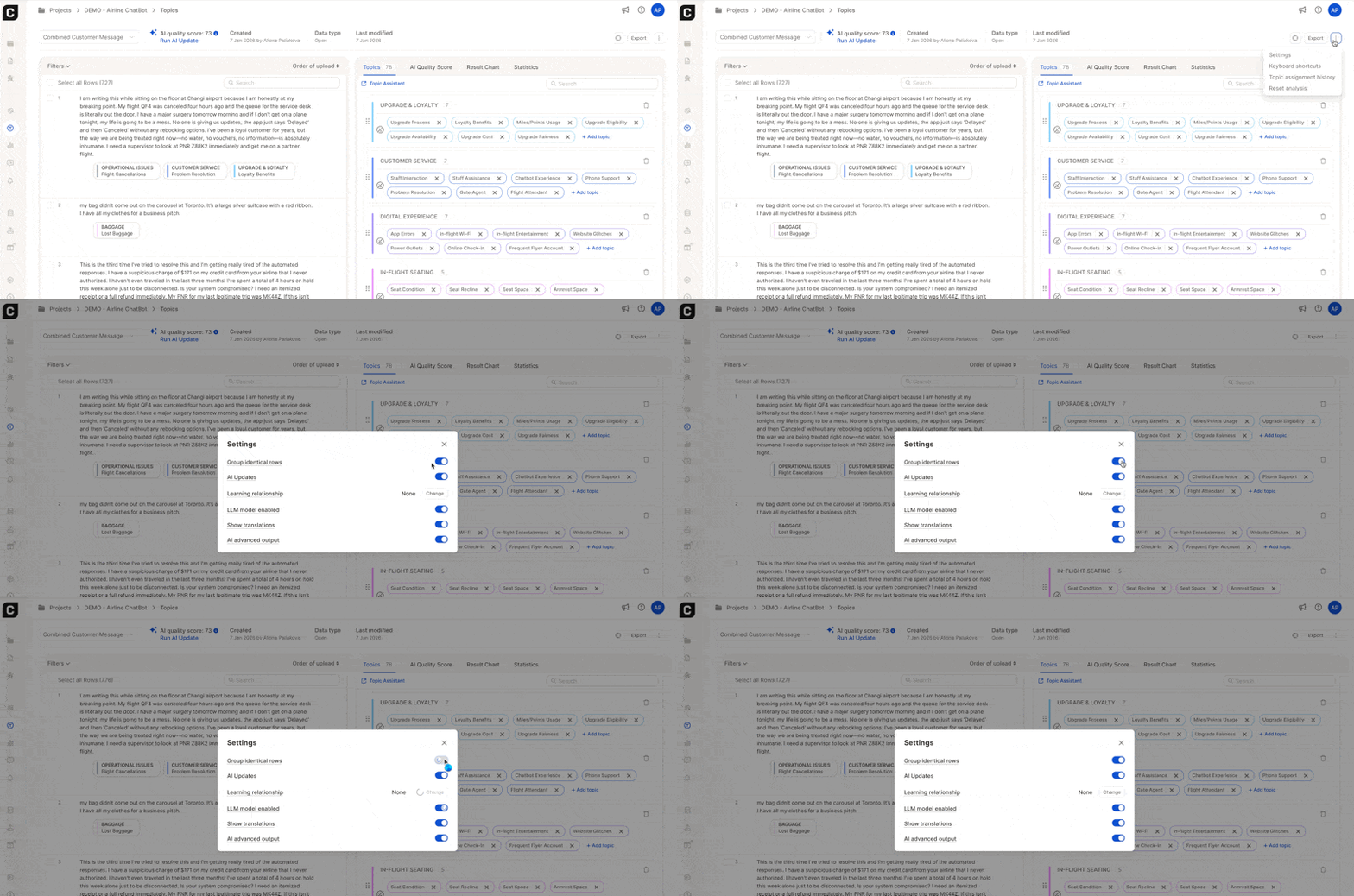
What it does
When enabled, responses with identical text (ignoring capitalization) are shown only once in the list. Topics are still applied to every occurrence behind the scenes, you just see a tidier view. This setting only affects what you see on screen; it has no impact on your data or results.
Example: If 20 respondents all wrote “Great”, you’ll see it appear once in the list. All 20 responses are still counted in statistics and included in exports.
When identical rows aren’t grouped
Rows are only grouped when their text is identical and they have the same topic assignments and review status. If two responses have the same text but different topics, they’re shown as separate rows.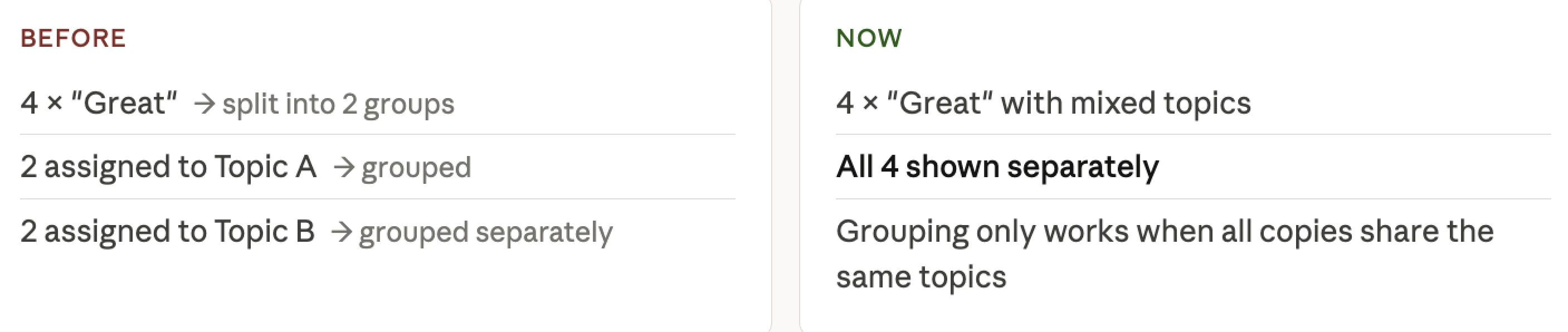
How to regroup duplicates
If responses with the same text are showing separately, it’s because they have different topic assignments or review statuses. Here’s how to fix it:1
Select the duplicate rows
Select all rows with the same response text.
2
Align topic assignments
Use Bulk Assign to give them the same topics.
3
Match review status
Make sure their review status also matches (all reviewed or all unreviewed).
4
Wait for regrouping
Regrouping isn’t instant — it may take a couple of minutes to apply.