

Looking for AI to critique your AI Score or fix assignment quality issues instead? That’s the Topic Critique Agent, a built-in Agent capability reachable via the magic-wand icon next to the AI Score. The Topic Assistant (this page) helps you build the structure; the Topic Critique Agent diagnoses and fixes what’s already hurting your results.
Where to find it
In the Topics editor, the Topic Assistant is located on the right-hand side with the following options: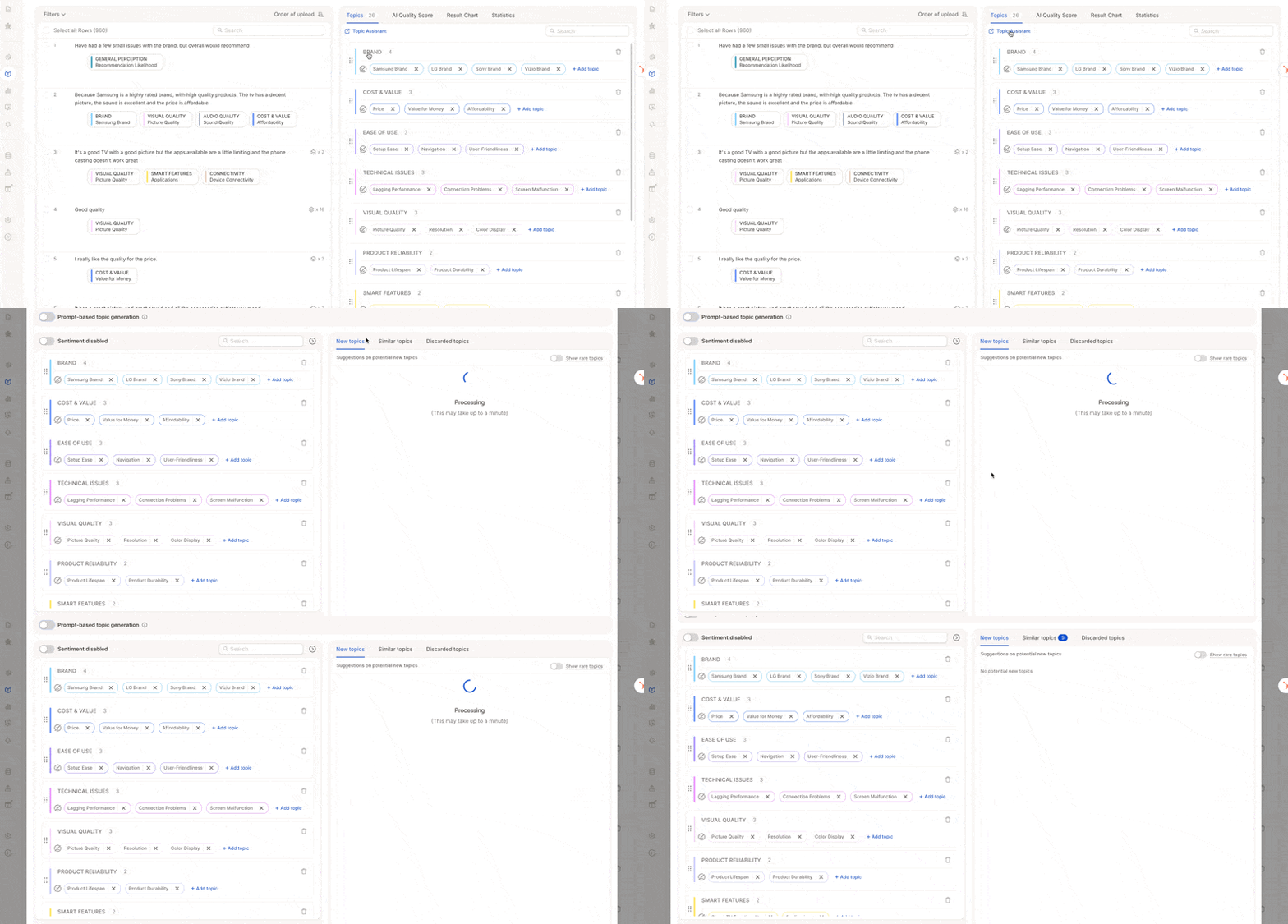
- New topics – Suggestions for potential topics detected in your data.
- Similar topics – Topics that may overlap in meaning and could benefit from merging or clarification.
- Discarded topics – A list of suggestions you have chosen not to include.
- Show rare topics – An optional toggle to surface low-frequency topics. These can reveal niche insights but may also add noise, so use them selectively.
How it works
The AI reviews your responses in relation to the topics you have defined. It proposes new topics where gaps exist, flags similar topics to reduce redundancy, and shows rare topics for deeper exploration. All actions remain under your control — you decide what to add, merge, or discard.Using the Topic Assistant in Tracking & Wave Studies
In tracking projects where you add new data waves regularly, the Topic Assistant is especially valuable for keeping your topic structure up to date without disrupting consistency across waves. The core challenge in tracking studies is that new waves often bring new themes that weren’t in your original codebook. The Topic Assistant helps you spot these without having to manually read through hundreds of new responses.How to review new topic suggestions
When new data is added, the AI scans responses against your existing codebook and surfaces themes that aren’t covered yet. For each suggestion, you can: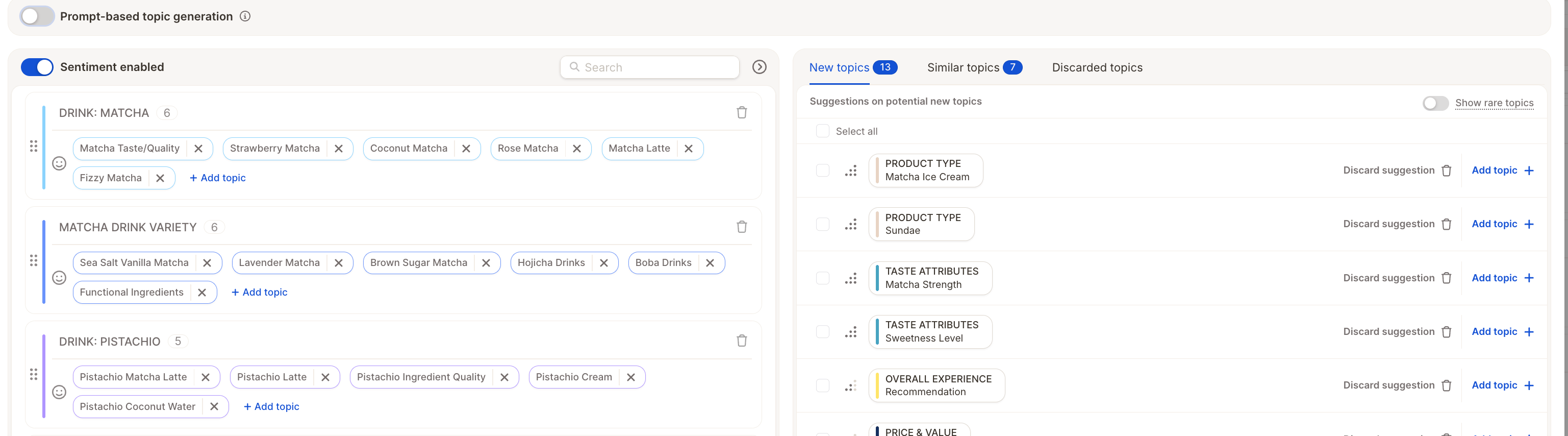
- Add to codebook — the topic is added to your structure and will be assigned going forward. Existing responses in the new wave will be reassigned if relevant once you run the AI update.
- Discard — the suggestion is moved to the Discarded tab. The AI will stop surfacing it, but you can always retrieve it later if you change your mind.
What happens when you discard a topic
Discarding a suggestion tells the AI you don’t want it in your codebook. It moves to the Discarded topics tab and won’t be suggested again. Nothing changes in your existing data — no assignments are affected. If you later decide the topic is relevant, you can retrieve it from the Discarded tab and add it.Rare topics
Enable the Show rare topics toggle to surface themes that appear in only a small number of responses. These are hidden by default because they can add noise, but in tracking studies they’re worth reviewing — a topic with very few mentions in one wave might grow significantly in the next.Collapse topic suggestions
Hide the right-hand panel with AI-generated topic suggestions (New, Similar, Discarded) to focus on your current topic structure. You can reopen it anytime to continue reviewing AI insights.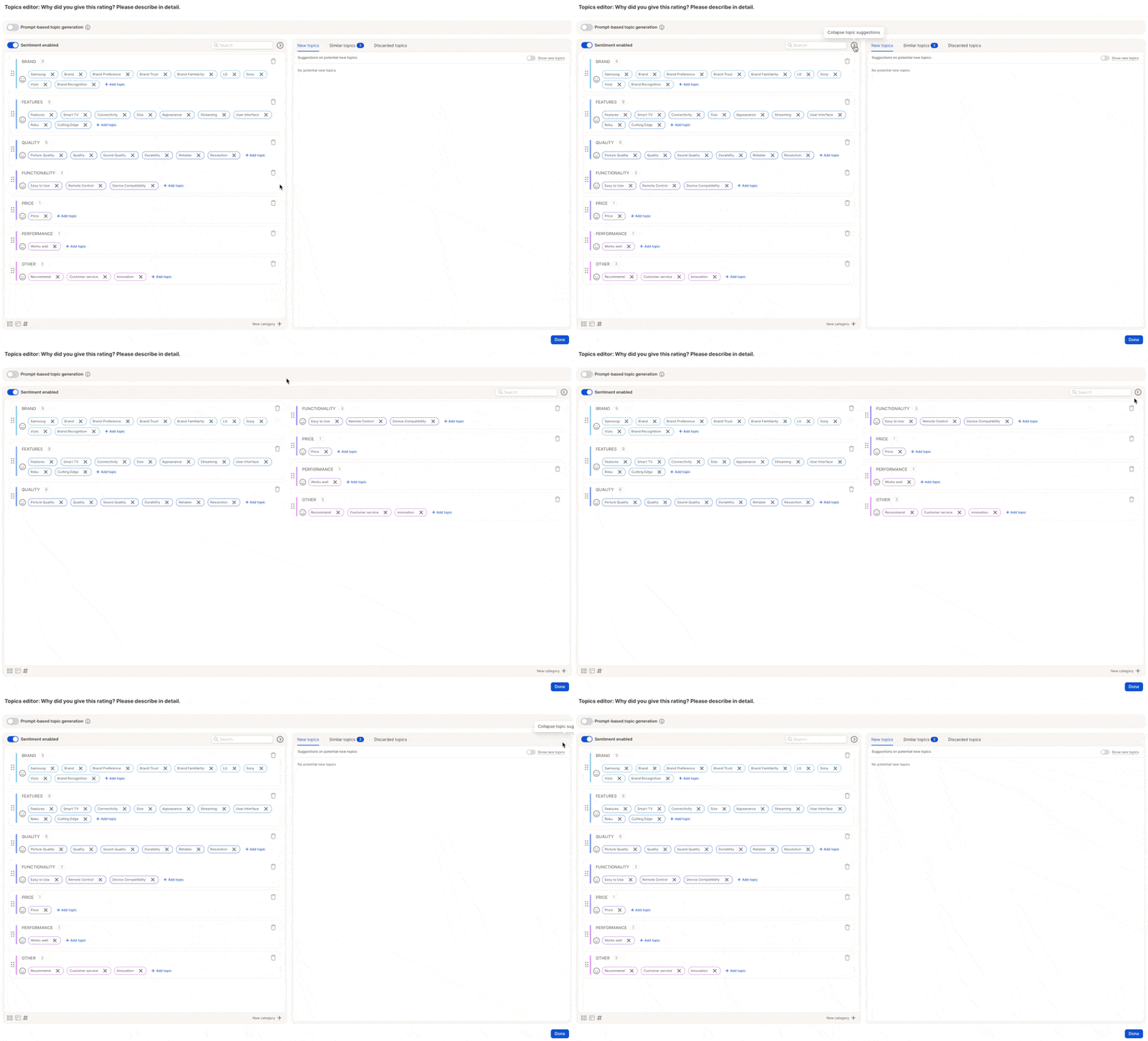
Mention counts at a glance
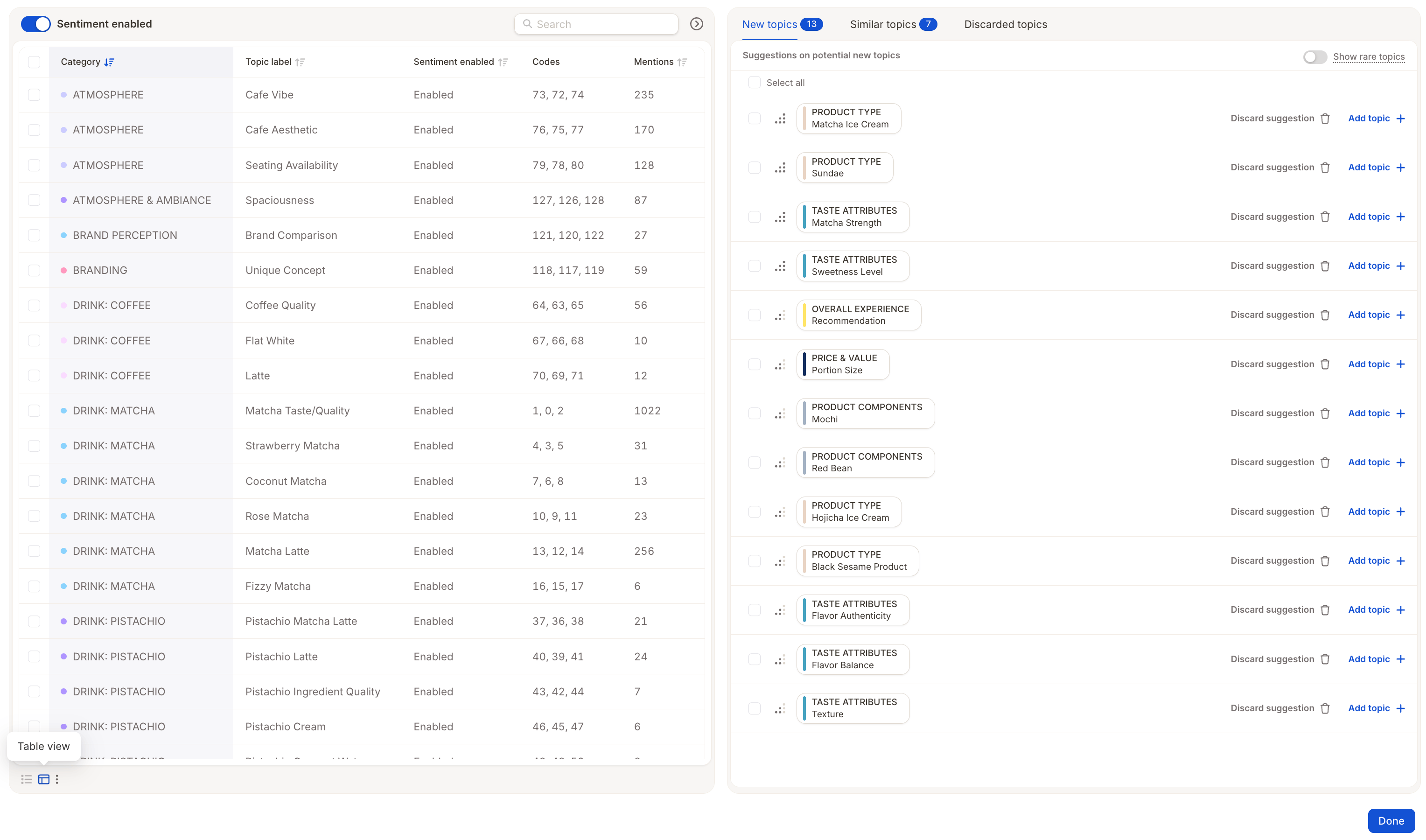
You can now see how often each suggested topic appears in your data, right from the Assistant table view. This makes it much easier to:- Spot topics with just a handful of mentions
- Decide what to clean up, merge, or discard — without opening charts
Renumber topic codes
Want your topic codes neat and in order? You can easily renumber them right inside the Topics editor.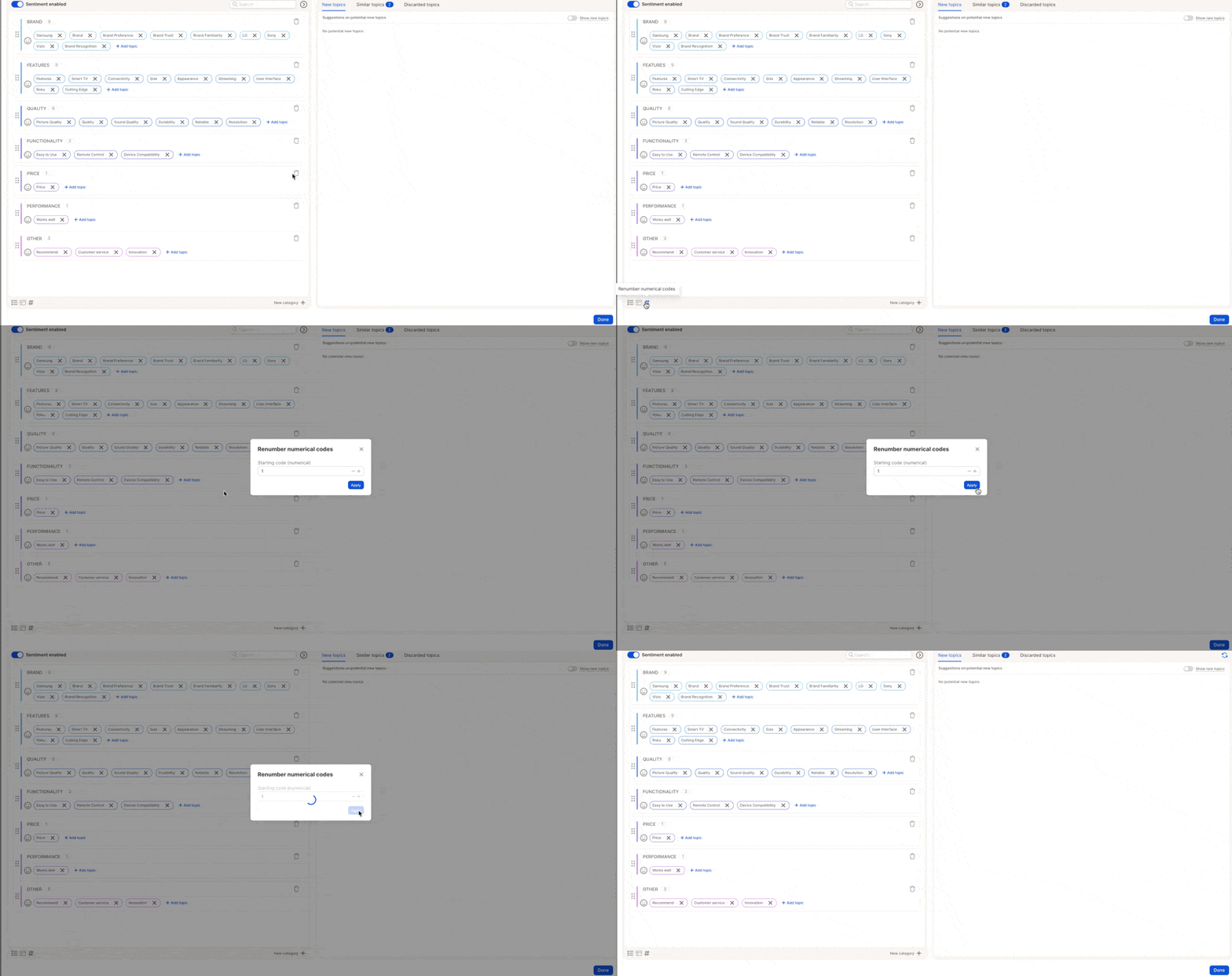
1
Click Renumber
At the bottom of the topic list, click # Renumber.
2
Set your starting number
Choose your starting number (e.g.,
1) and click Apply.Enable or disable sentiment in bulk
The Topic Assistant lets you turn sentiment on or off for multiple topics at once, instead of opening each topic one by one. This is the recommended way to update sentiment across an entire codebook. How to do it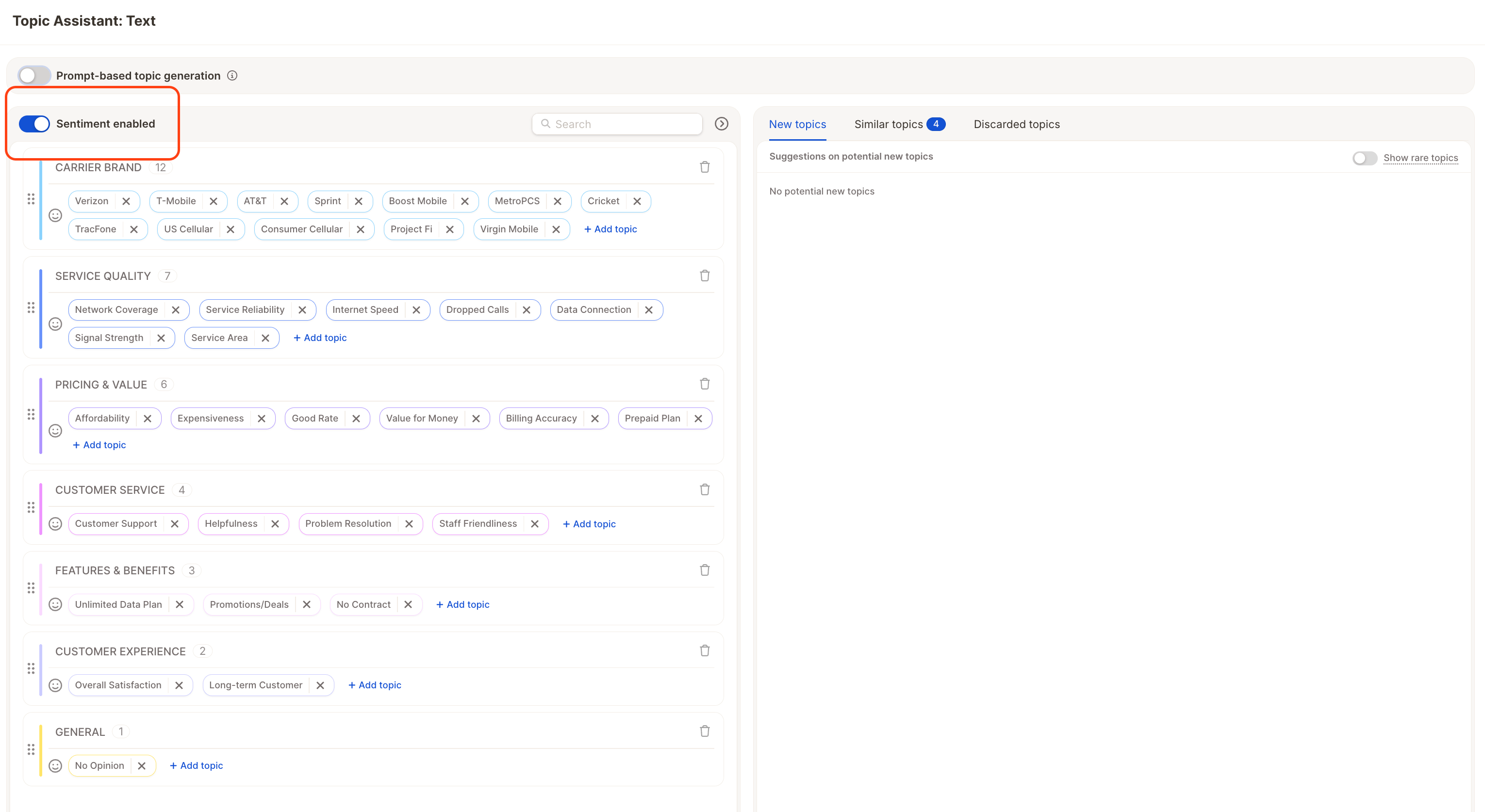
- Open the Topic Assistant from the Topics editor.
- In the bulk actions menu, click either:
- Enable sentiment — to start classifying responses as positive, neutral, or negative for the selected topics.
- Disable sentiment — to remove sentiment from the topics.
💡 If you only need to change sentiment on a single topic, you can also do it directly from that topic’s settings. See Disabling sentiment in Key concepts for the individual flow.