

Import a codebook from a file
If you already have a list of codes, for example from a previous study or a client’s coding scheme, you can upload it instead of letting the AI generate topics from scratch.1
Prepare your file
Put your codebook in a CSV or Excel file, one topic per row, using the column names below. A plain text list can’t be imported directly. Paste it into Excel first, with one topic per row in a
topic column.2
Start the analysis
Open your project and click Start analysis now on the Overview panel.
3
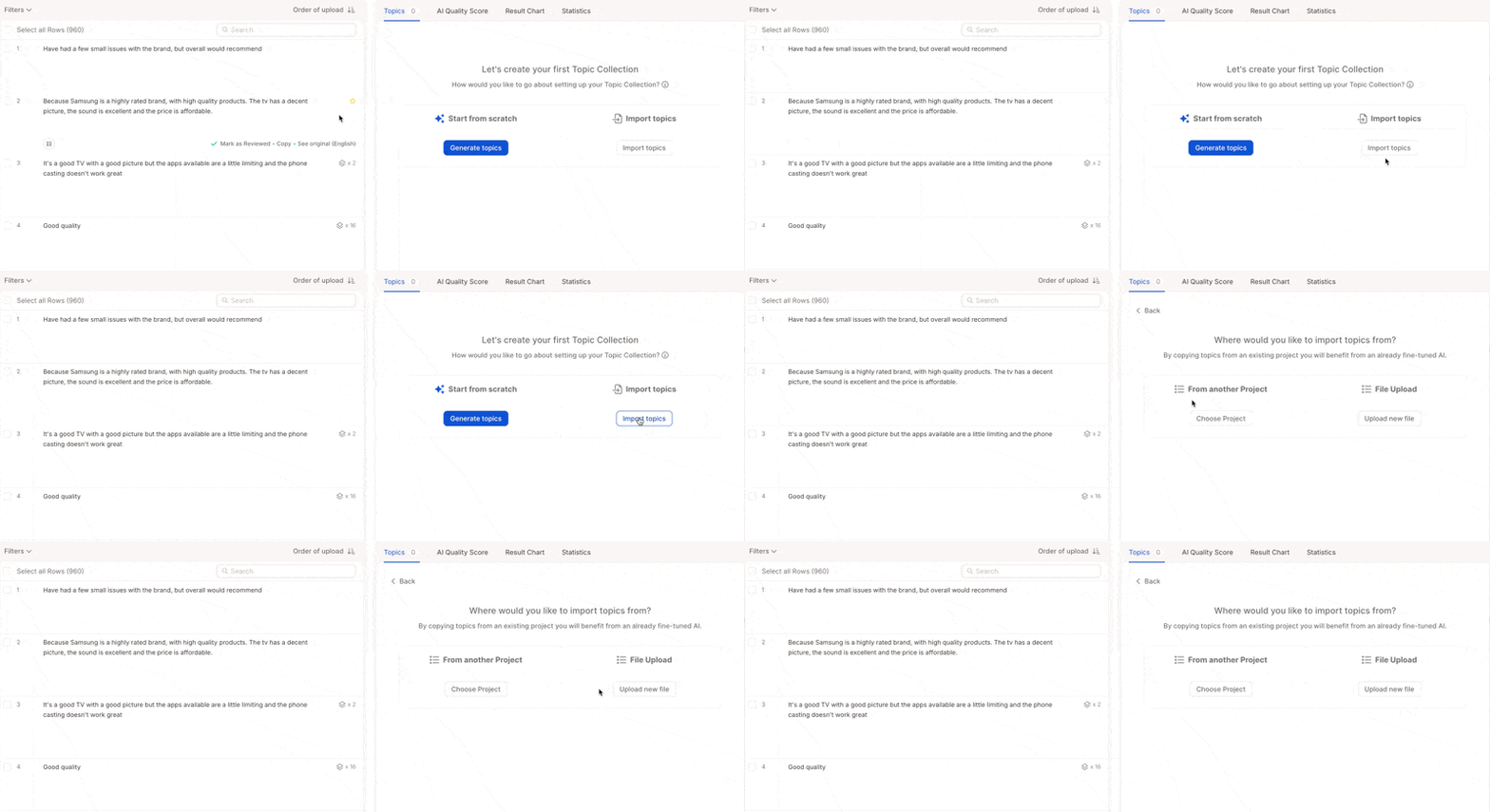
Choose Import existing topics
Choose how to start, select Import existing topics, then Upload File, and upload your file.
File format
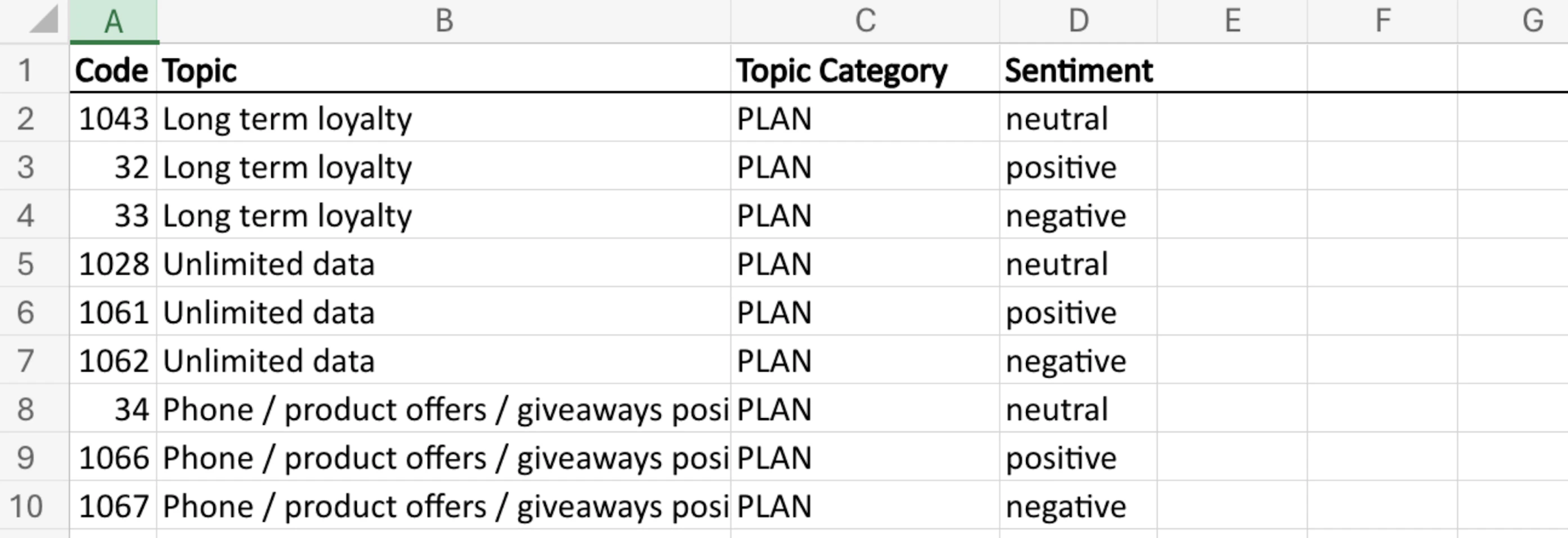
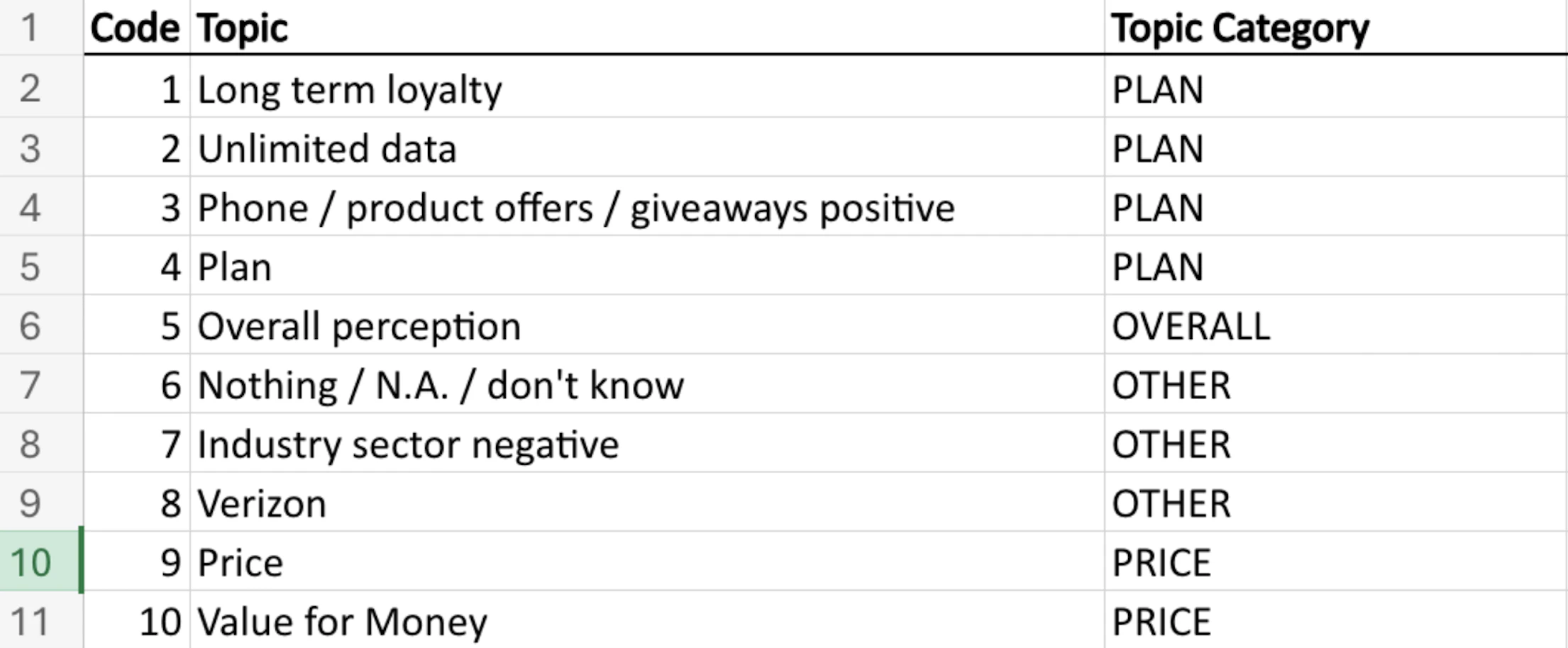
Your file must match one of these two layouts.
- With sentiment
- Without sentiment
- With descriptions

Reuse a codebook from another Caplena project
Reusing a codebook across projects makes sense when the projects really need to be separate, for example a different study that should use the same coding scheme, or a DEV/PROD tracker setup. There is a way to do it.1
Start the analysis
In the project that needs the codebook, click Start analysis now.
2
Choose Other project
Select Import existing topics, then Other project.
3
Select the source
Choose the project and the text column whose codebook you want, then click Inherit topic collection.
Inheriting topics with the LLM model works best when the new dataset asks the same question in the same context. If the question wording or column context differs, review the inherited descriptions before running the AI. See Learning Relationships Between Projects for details.
Export your codebook
Topic summary (download your codebook)
The Topic summary export is how you download your codebook.
For topics with sentiment enabled, each sentiment variant (neutral, negative, positive) is a separate row with its own code. For example,
AI Topic Detection might appear as codes 1 (neutral), 2 (negative), and 3 (positive). Keep this in mind when matching codes in SPSS or another tabulation tool.1
Open the export dialog
Go to the Topics view and click Export (top right).
2
Choose Topic summary
Click the Topic summary tab and choose a file type, for example Excel.
3
Export
Click Export.
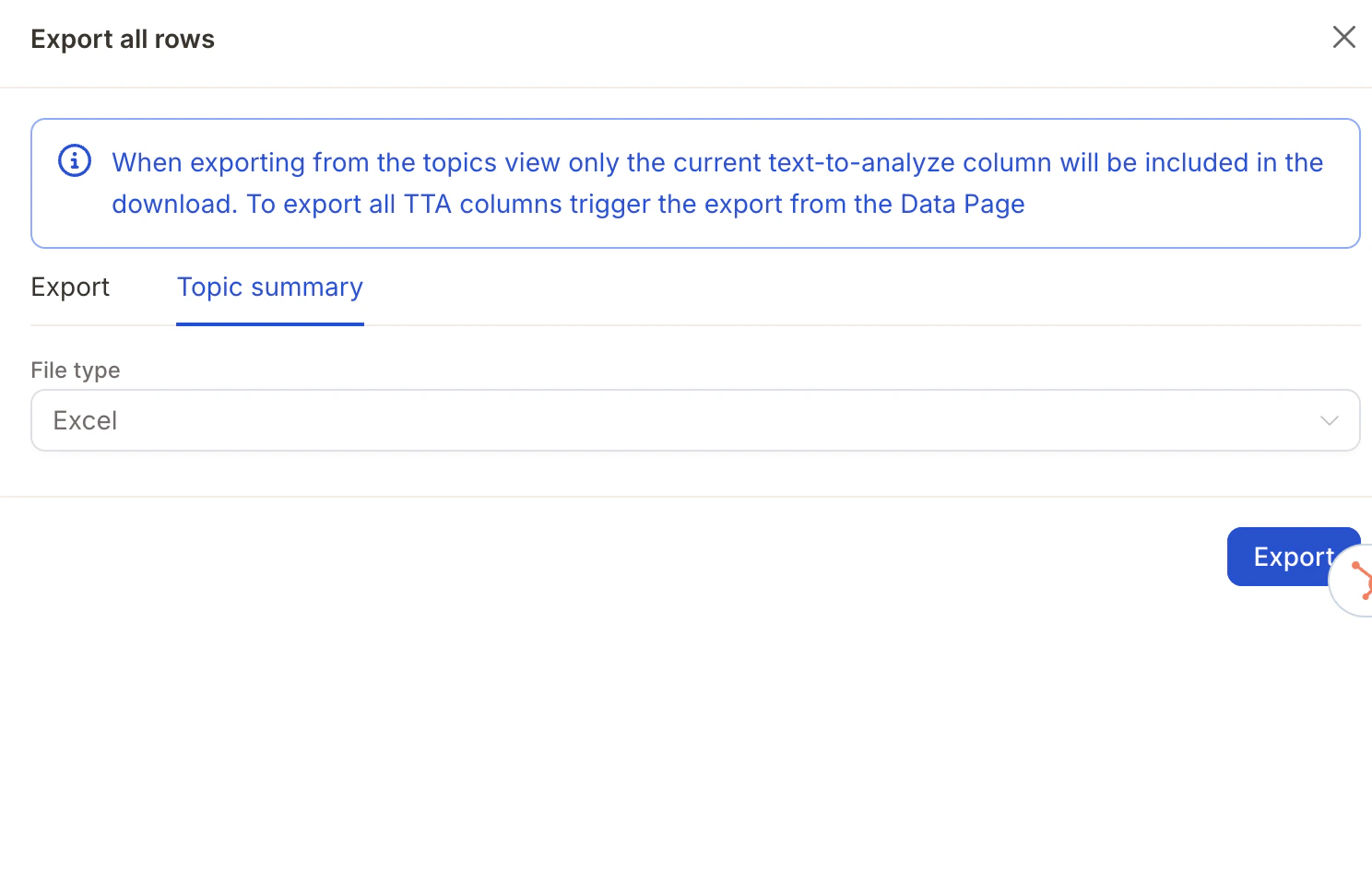
The Topic summary is exported per topic collection, so one text column at a time. If your project has several text columns, export the summary for each one.
Common questions
How do I download my codebook?
How do I download my codebook?
Go to the Topics view, click Export, open the Topic summary tab, and export to Excel or CSV. You’ll get every topic with its code, category, sentiment, description, and keywords. See Topic summary.
Can I edit my codebook in Excel and upload it again?
Can I edit my codebook in Excel and upload it again?
Yes. Export the Topic summary, make your changes in Excel, and upload the file through Import existing topics → Upload File. You don’t need to rename or remove columns. Caplena picks up the ones it needs.
Can I keep my existing code numbers?
Can I keep my existing code numbers?
Yes. Include a
code column in your upload file. You can also set codes manually on each topic. See Code.I have my codes as a plain text list. Can I paste them in?
I have my codes as a plain text list. Can I paste them in?
Not directly. Paste the list into Excel with one topic per row under a
topic header, add category or other columns if you have them, and upload the file.I want the same codebook for two waves of the same survey
I want the same codebook for two waves of the same survey
The simplest setup is one project for all waves. Append the new wave’s rows to the existing project and add a wave or year column to tell them apart, so every wave uses the same codebook and you can compare them in one report. See Append Rows to an Existing Project and Creating a Helper Column.
Can I import a codebook into a project that's already been analyzed?
Can I import a codebook into a project that's already been analyzed?
Yes, but importing a new codebook restarts the analysis, and topics are assigned again from scratch. Before you import, export the current Topic summary so you have a copy of the existing codebook to go back to.
I want to test changes to my codebook without losing the current version
I want to test changes to my codebook without losing the current version
Use a separate test project and copy the codebook there, then copy it back once you’re happy. See Tracker Setup: Best Practices.
Related pages
Starting the analysis
All the ways to create your first topic collection.
Key concepts
Categories, topics, codes, and sentiment explained.
Tracker Setup: Best Practices
Manage recurring studies with a DEV and PROD project.
Exporting Your Data
All export formats for coded data.