

Surveys is in closed beta and not yet available to all customers. Join the waitlist to get access. See Surveys overview for current limitations.
Start a new survey
1
Open a project and go to Collect → Surveys in the sidebar.
2
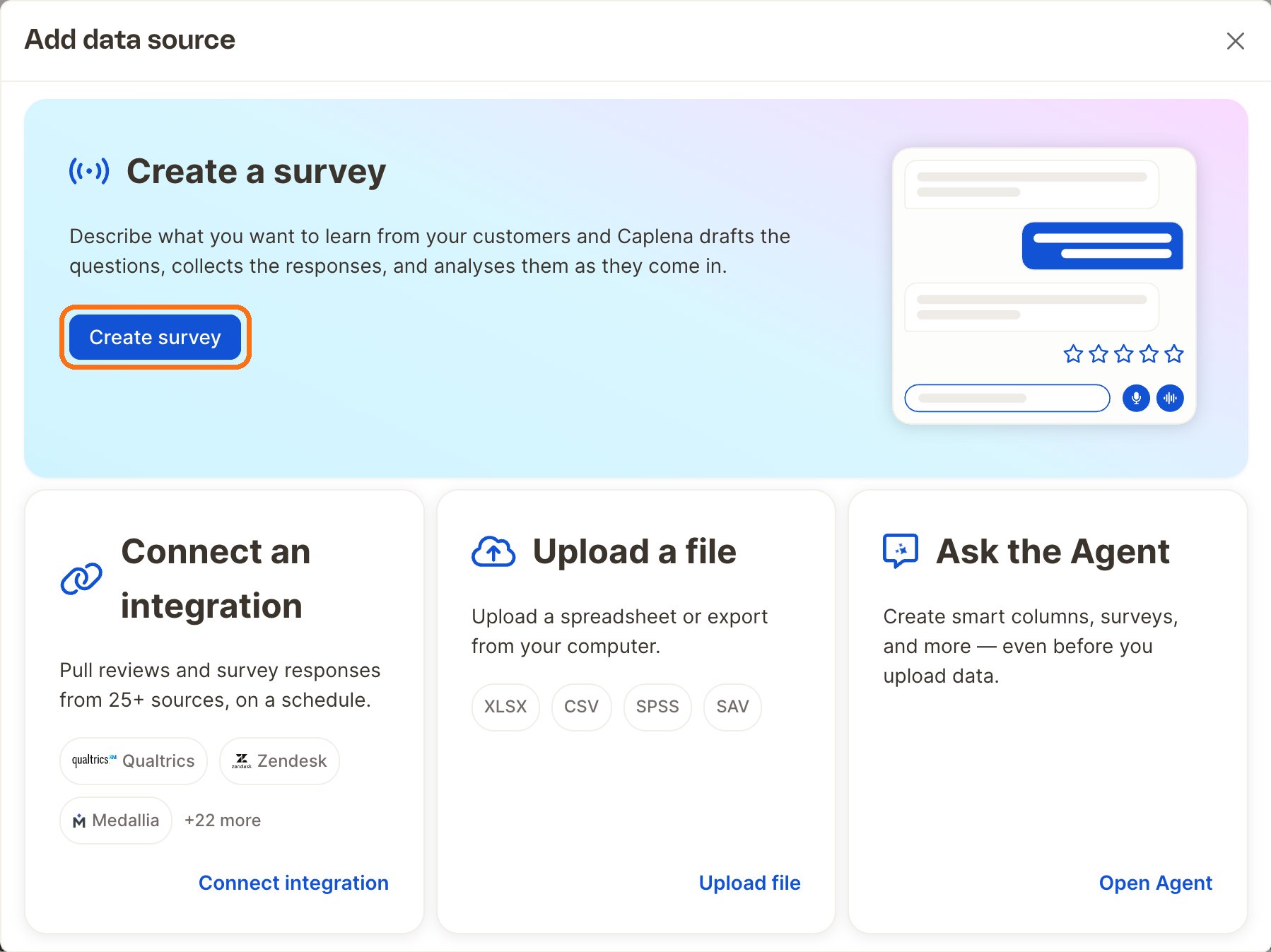
Click New survey. Alternatively, on the Data sources page click Add data source and then Create survey in the Create a survey box at the top (highlighted below).
1. Write the brief
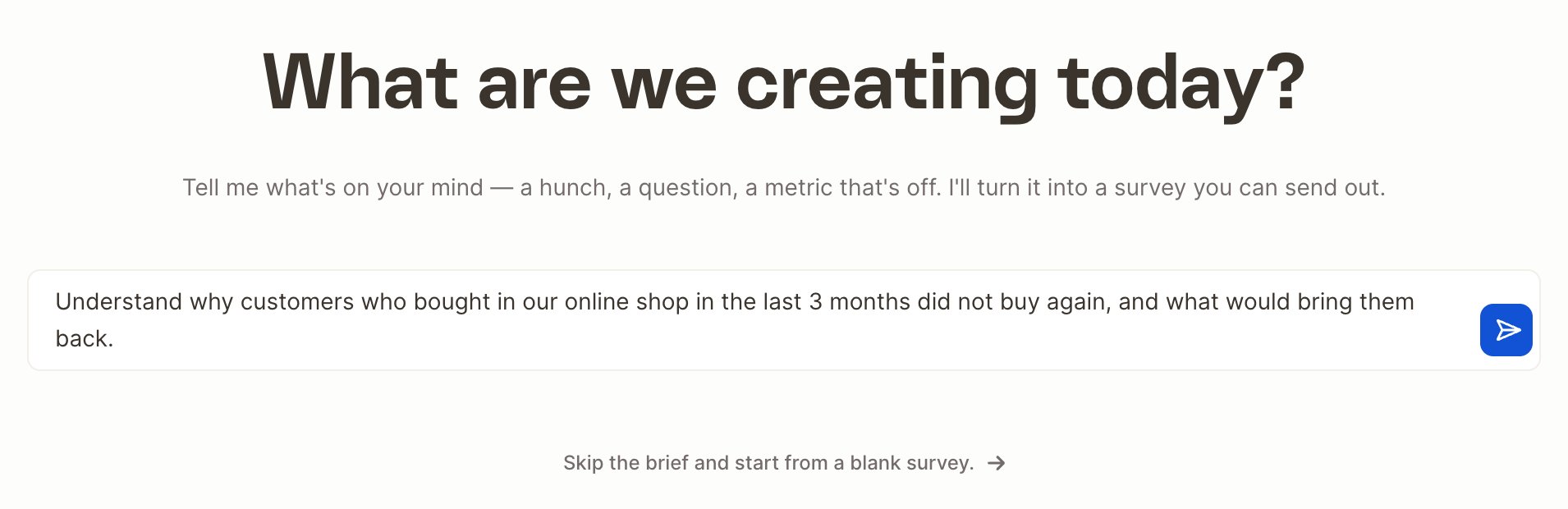
The brief screen asks “What are we creating today?”. Describe what you want to learn, in your own words. A hunch, a business question or a metric that’s off is enough. For example:Understand why customers who bought in our online shop in the last 3 months didn’t buy again, and what would bring them back.Press Enter to continue. The brief is saved as the survey goal and guides everything the agent does afterwards.
2. Answer the follow-up questions
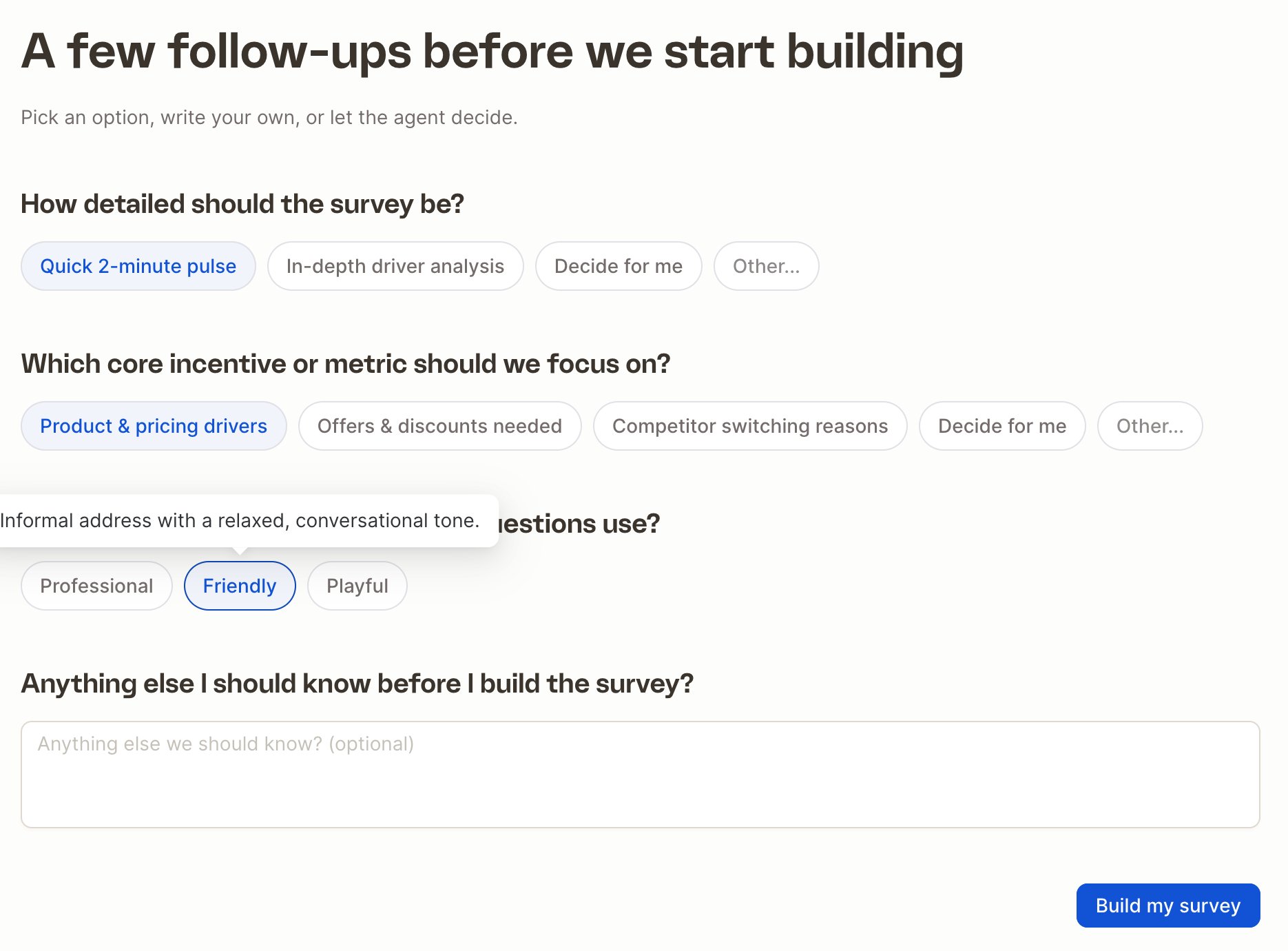
Next, the agent asks a few follow-ups before it starts building. These are generated from your brief, for example about the target audience or which metric matters most. For each question, pick an option, write your own under Other…, or choose Decide for me. You’re always asked:- Which tone and wording should the questions use?
- Professional: formal address with respectful, business-appropriate phrasing.
- Friendly: informal address with a relaxed, conversational tone.
- Playful: informal, casual address with upbeat phrasing and emojis ✨
- Anything else we should know? (optional)
3. Let the agent draft the survey
The survey builder opens and the agent drafts your survey. A typical first draft contains:- 5 to 12 questions, with an introductory message if it helps.
- One headline metric, such as NPS, CSAT, CES, a star rating or a Likert question.
- An open-text “why” question with AI follow-up questions (probing) turned on.
- A matrix when several items are rated on the same scale.
- A survey name, a start screen title and a closing message.
4. Refine with the agent
The Agent panel on the left stays available while you edit. Ask it for changes in plain language, for example:- “Add a question about delivery speed after the likelihood question.”
- “Only show the question about what would bring them back to people who answered 1–3.”
- “Make the tone more casual and shorten all questions.”
- “Turn off voice mode.”
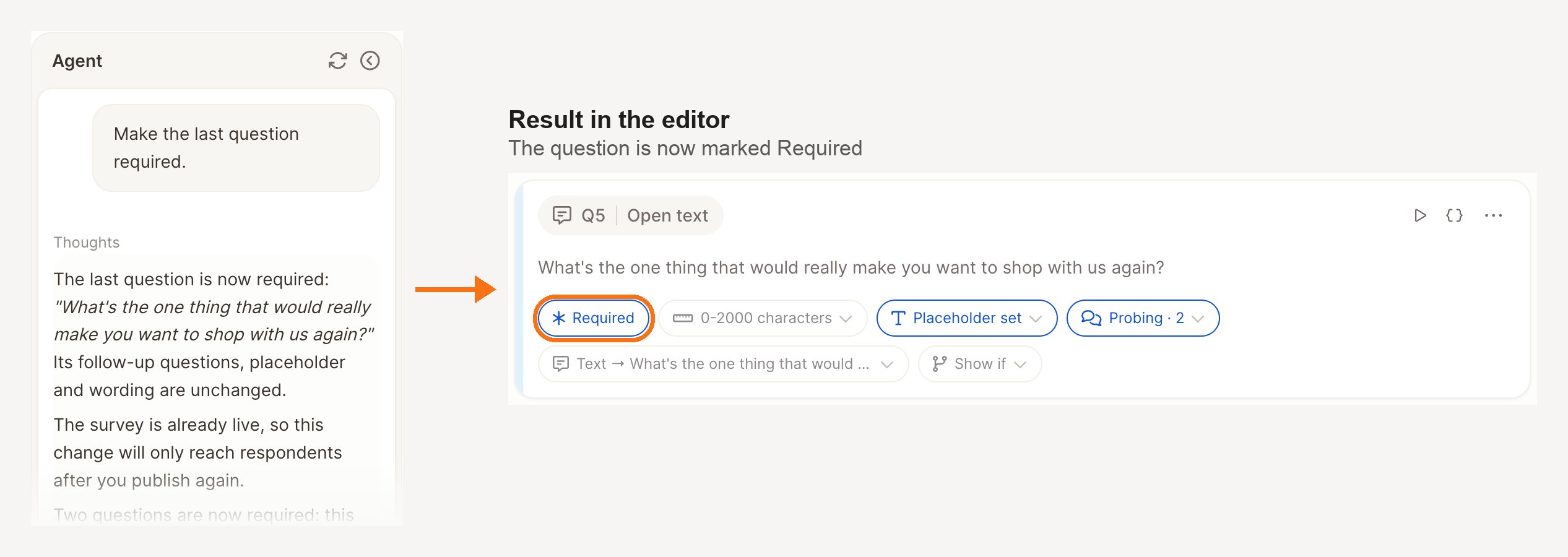
- “Make the last question required.”
Next steps
Edit your survey
Fine-tune questions, settings, branding and the closing screen.
Question types
All question types and their settings.