

Surveys is in closed beta and not yet available to all customers. Join the waitlist to get access. See Surveys overview for current limitations.
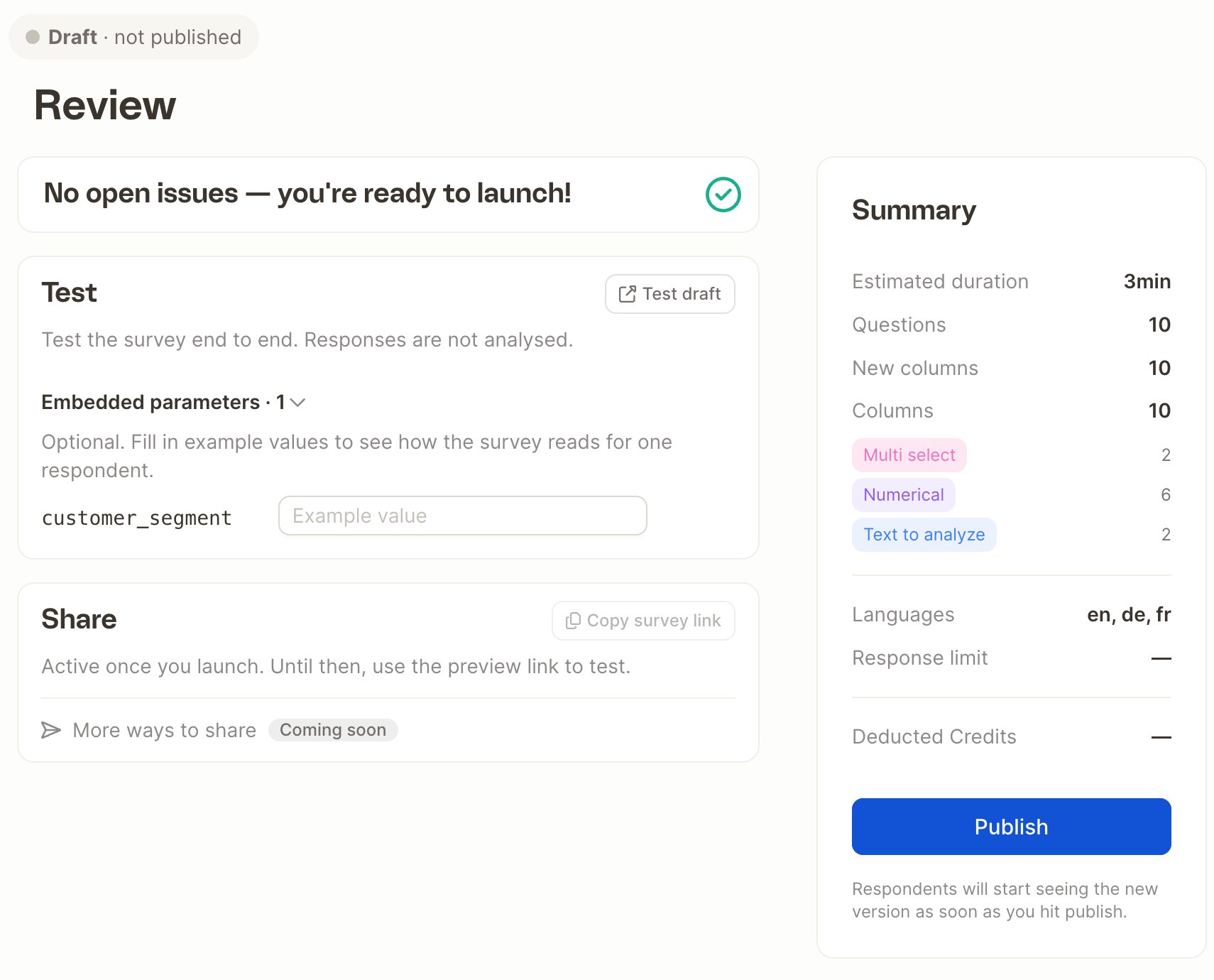
Open issues
Caplena checks the survey automatically and lists everything it finds under Open issues. Each issue has a Fix button that takes you to the affected question or setting.
If your draft is the same as the live version, the review shows this as Info, and Publish stays disabled because there’s nothing new to publish.
When everything is resolved, you’ll see No open issues — you’re ready to launch!
Changes
For a survey that’s already live, Changes lists what’s different in your draft: questions that are New, Updated, Moved or Removed. Click Compare to live for a side-by-side comparison.Test the survey
Click Test draft to open the survey in a new tab and answer it end to end, exactly as respondents will. If the survey uses URL parameters, enter example values under Embedded parameters first to see how the survey reads for such a respondent. Test responses are not added to your project and don’t count in monitoring.Summary and publish
The Summary card shows the estimated duration, the number of questions, the new columns that will be created in your project, and the languages. Click Publish to make the survey live. Respondents see the new version as soon as you publish. The status at the top changes to Live, and the Monitor step gets a green dot. The summary also shows Response limit and Deducted Credits. These aren’t in use yet during the closed beta.How versions work
Every time you publish, Caplena saves a copy of the survey as a numbered version: the first publish is v1, the next one v2, and so on. Each version keeps its questions, settings, branding and translations exactly as they were, so you can always look back at them.- You always edit a draft. Respondents keep seeing the live version until you publish again.
- New respondents get the latest published version. Respondents who are already in the middle of the survey finish the version they started.
- All versions add their responses to the same project, so you can analyze them together.
- Draft · not published: the survey has never been published.
- Draft · 3 changes from v2: you’ve made 3 changes since you published version 2. Respondents still see version 2.
- Live: your draft is the same as the version respondents see.
Version history
Click the version status in the builder to open Version history.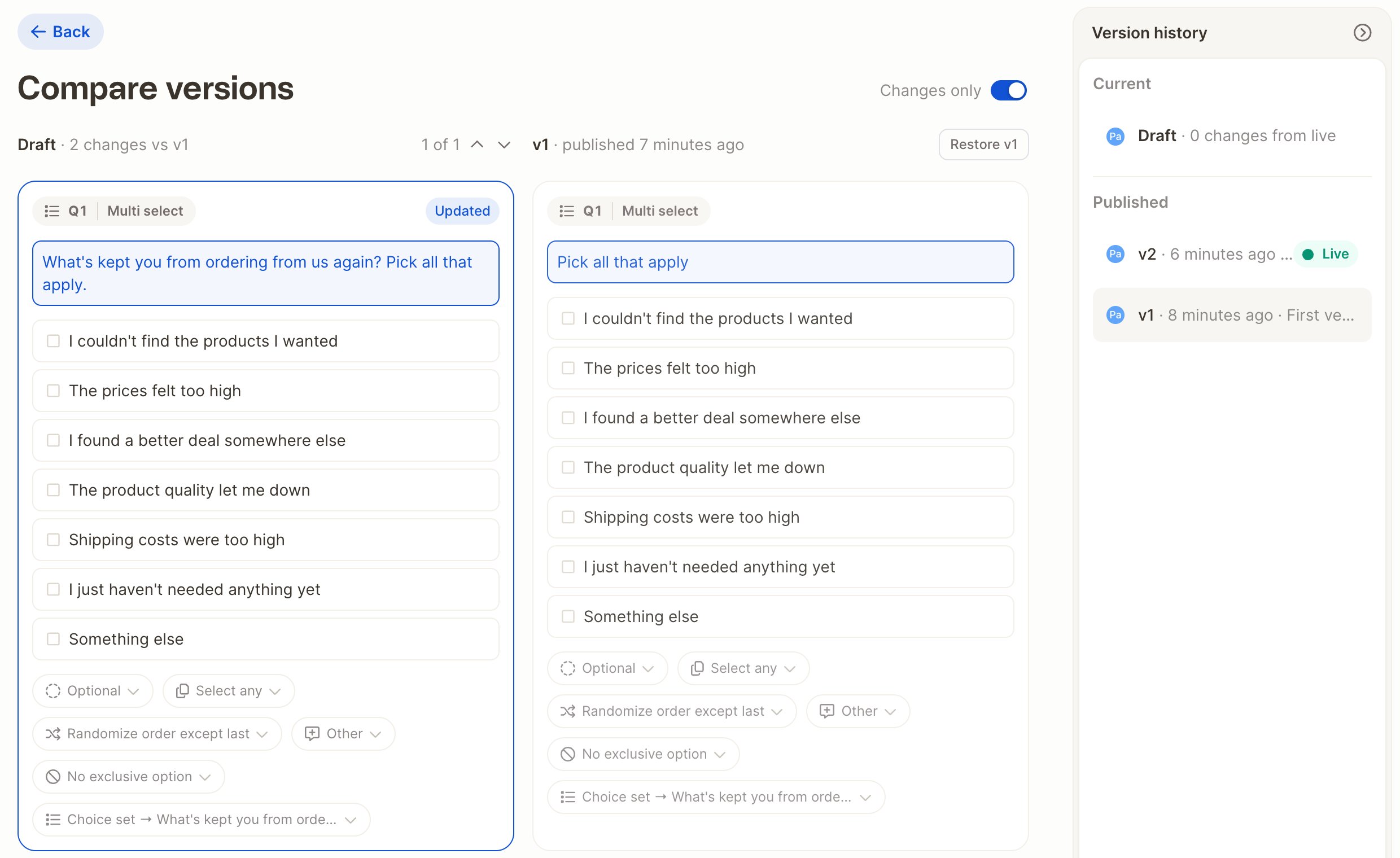
- The Version history panel on the right lists your current draft and all published versions. The live one is marked Live.
- Select a version to compare it with your draft side by side. Changed questions are marked New, Updated, Moved or Removed. Turn on Changes only to hide unchanged questions.
- To go back to an earlier version, select it and click Restore (for example Restore v1). This copies that version into your draft. Respondents keep seeing the live version until you publish, and any unpublished changes in your draft are replaced.
Archive or delete a survey
From the survey list, open a survey’s menu:- Archive: the survey stays in the list but can no longer collect responses.
- Delete: removes the survey and its draft. Published versions and collected responses are kept in your project.