

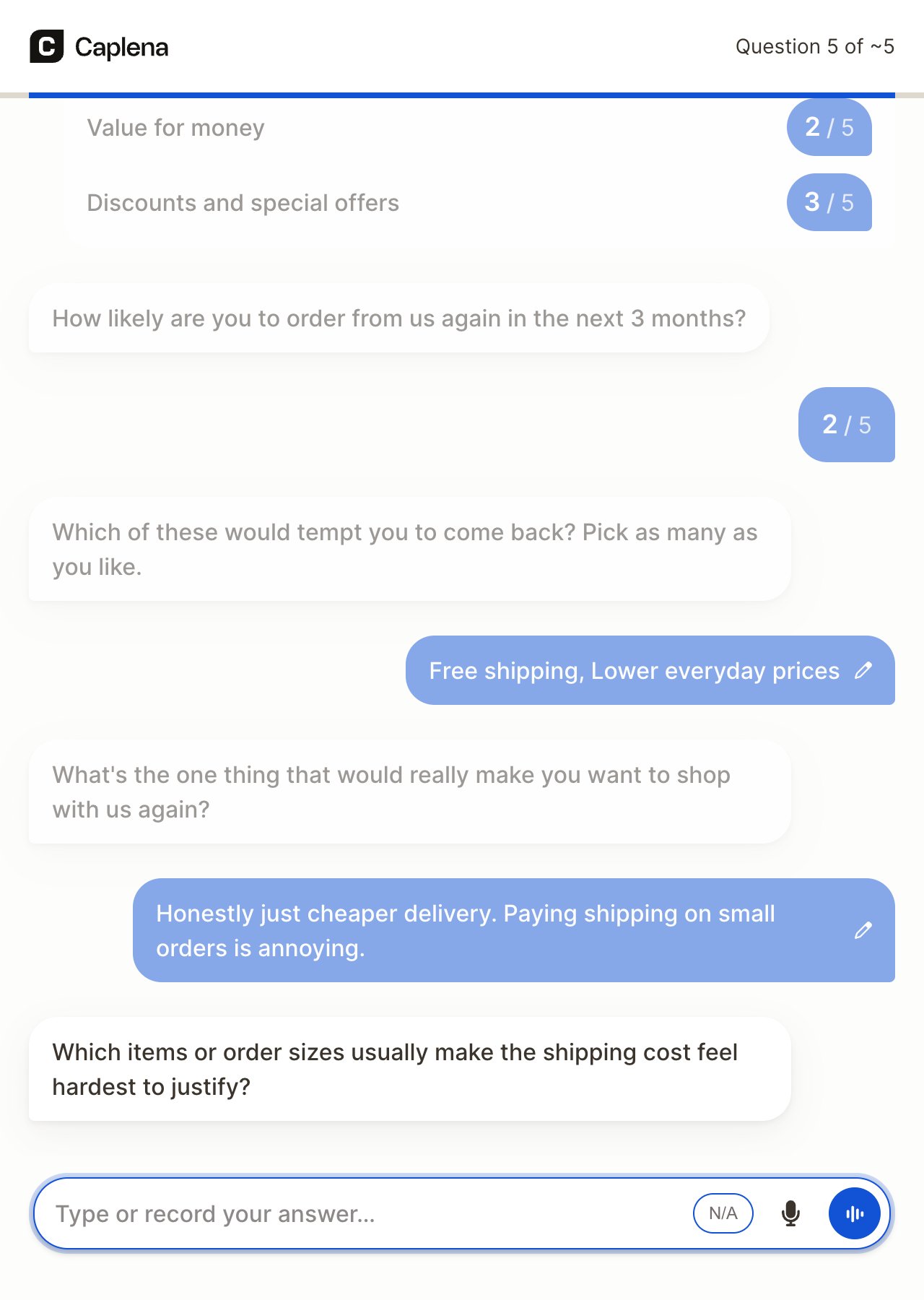
Respondents answer in a chat. Here the AI asks a follow-up question about an open-text answer.
How it works
1
Create
Describe your goal in a short brief. The agent asks a few follow-up questions, then drafts a complete survey that you can edit by hand or by chatting with the agent. See Create a survey.
2
Review and publish
The Review step checks the survey for problems, shows what changed since the last version and lets you test it end to end. Publishing makes the survey live. See Review and publish.
3
Collect
Share the survey link. Respondents answer in a conversational interface on desktop or mobile, in their browser language, by typing or by voice. See Share and collect responses and The respondent experience.
4
Monitor and analyze
Follow completes and completion rate in Monitor. Responses are added to your project automatically, so you can start analysis while the survey is still running. See Monitor and analyze.
What makes Caplena surveys different
Agent-drafted questionnaires
Start from a goal instead of a blank page. The agent picks question types, writes the wording and sets up logic.
AI follow-up questions
Open-text questions can probe: the AI asks short follow-ups to get richer, more specific answers.
Voice or typing
Respondents can talk through the whole survey in voice mode, or dictate single answers. Spoken answers are matched to the right option, even for ratings and choices.
Built for analysis
Every question maps to a project column. Open text goes straight into topic analysis, with no export or import step.
Where to find Surveys
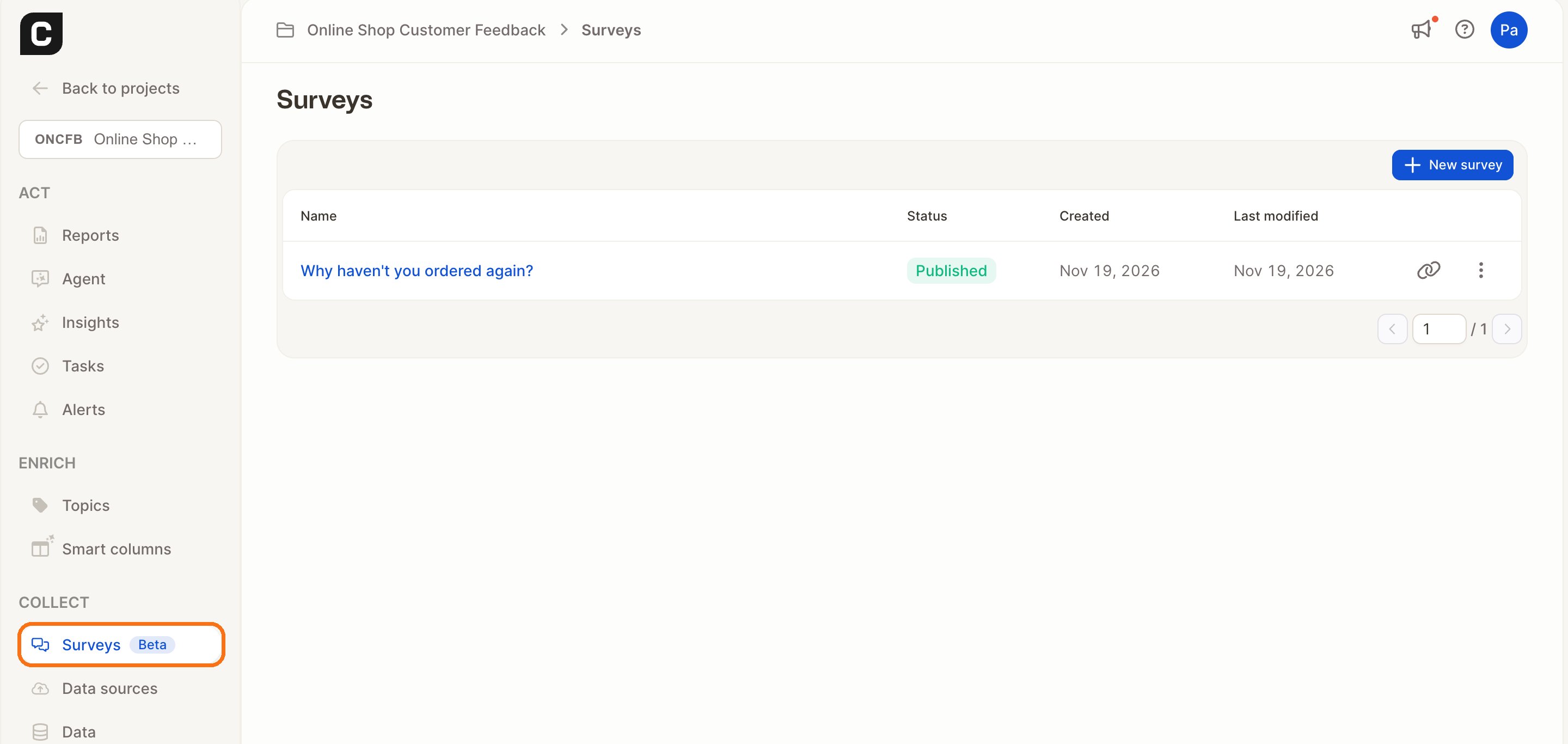
Surveys live inside a project. You can open them from:- The project sidebar: Collect → Surveys (marked Beta).
- Data sources: click Add data source and choose Create a survey.
- An empty project: a new project without data offers Create a survey as one of the ways to add data.
Permissions
See Understanding role-based permissions for details.
Closed beta limitations
During the closed beta, keep in mind:- Each survey has one public link. Personal invites (email, SMS, WhatsApp), embedding in your app, triggering via API, and QR codes are not available yet.
- Links are anonymous. There is no protection against the same person answering more than once.
- Buttons, hints and system messages in the respondent interface are in English, and translations of some texts (such as answer options) aren’t shown yet. See Languages and translations.
- Respondents can only change their most recent answer.
- The Monitor step shows headline metrics only (completes, completion rate, duration). Use the project’s data and reports for deeper analysis.
- The Response limit and Deducted credits fields in the review summary are placeholders.