Surveys is in closed beta and not yet available to all customers. Join the waitlist to get access. See Surveys overview for current limitations.
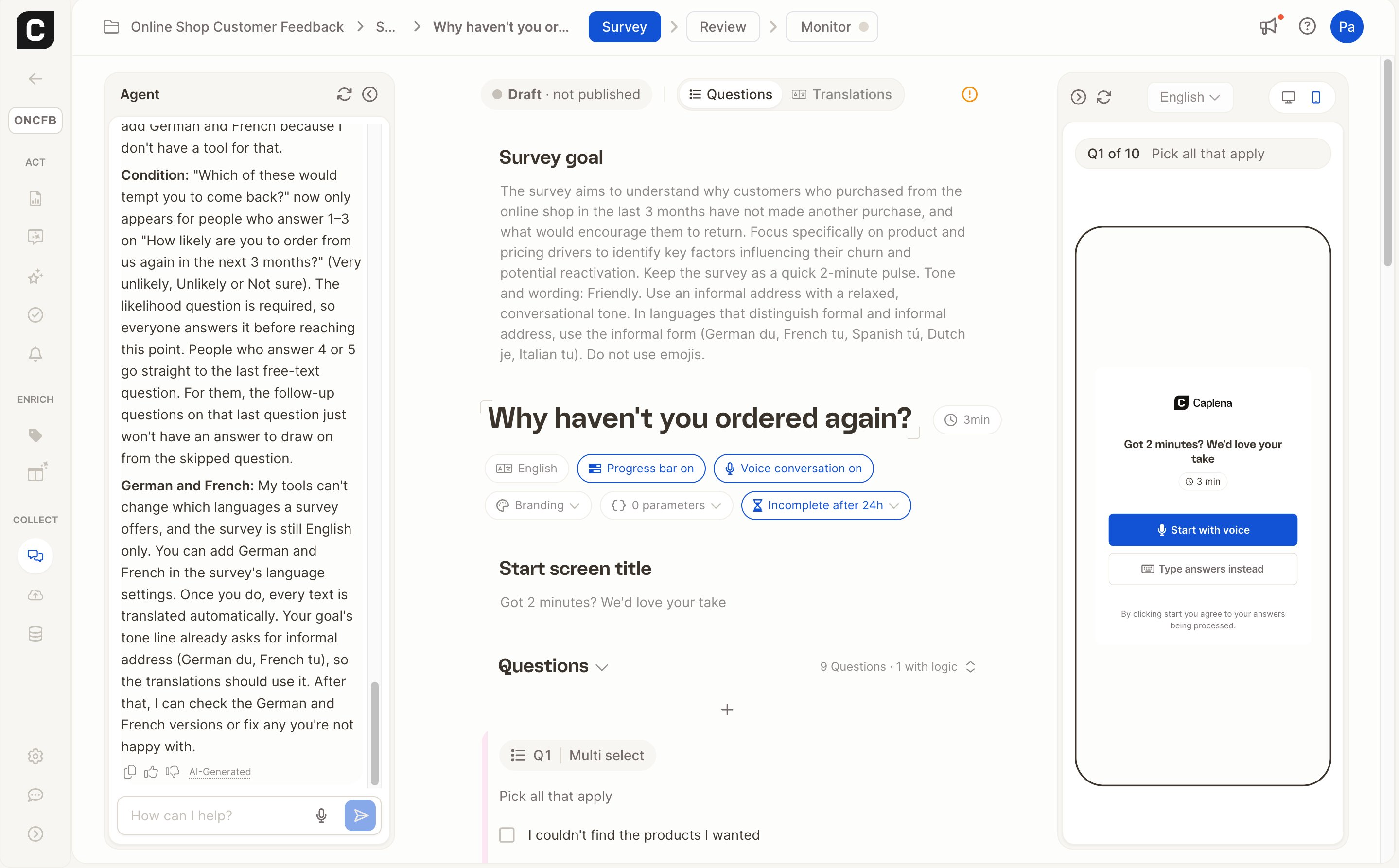
All changes save automatically. They go to the draft: respondents keep seeing the published version until you publish again.
The editor header
At the top of the editor you’ll find:- Version status: for example Draft · not published, Draft · 3 changes from v2, or Live. Click it to open the version history. See How versions work.
- Questions / Translations: switch between editing questions and managing translations.
- Issues: problems the review found, with a Fix button that jumps to the affected question.
Survey settings
The row of settings under the survey name applies to the whole survey. Click a setting to change it.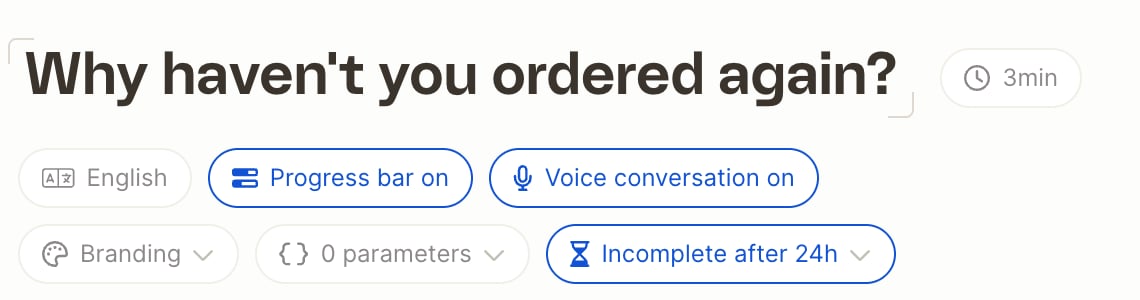
When Voice conversation is on, you can also set a Start screen title (up to 55 characters). It’s shown on the welcome screen respondents see before the survey starts.
Branding
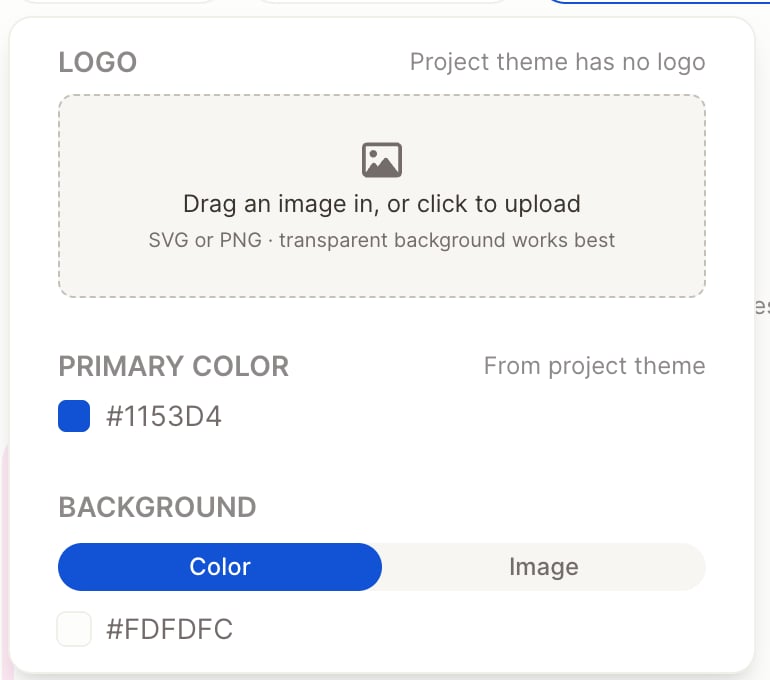
Open Branding to make the survey look like your brand. By default, the survey uses your project’s custom theme.- Logo: upload an SVG or PNG. A transparent background works best.
- Primary color: used for buttons, the respondent’s answer bubbles, selected options and the progress bar.
- Background: a solid color, or an image (JPG or PNG, at least 1920 × 1080 px). For images, set an image overlay to tint the image so text stays readable.
Incomplete responses
Some respondents start a survey and don’t finish it. With Ingest incomplete responses turned on (default), an unfinished response is marked as partial and added to your project once the respondent has been inactive for a while. You choose how long under Inactive before ingest (1 to 72 hours, default 24). When it’s off, incomplete responses are discarded.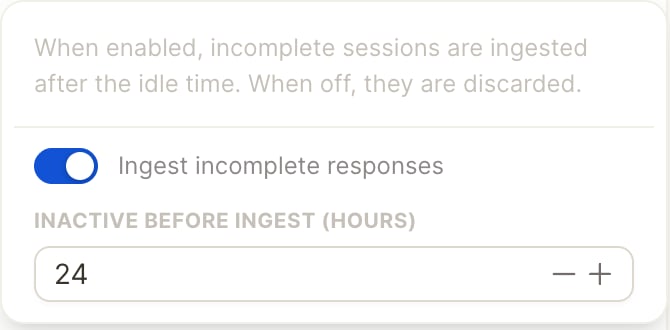
Questions
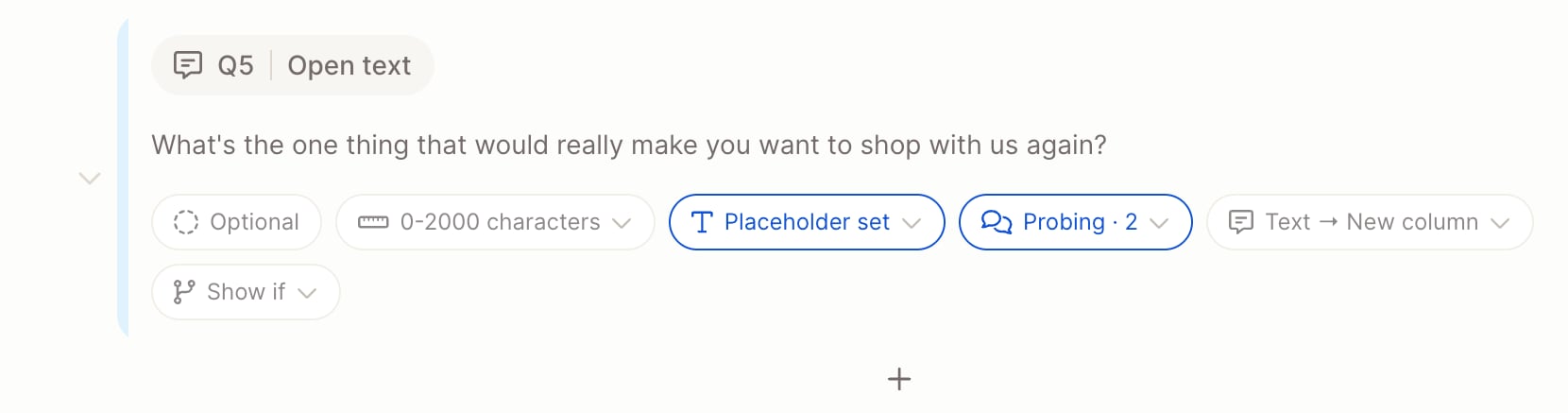
- Add a question: click Add question at the end of the list, or hover between two questions to insert one there. Pick a type from the menu. See Question types.
- Edit: click into the question text to edit it. The question’s settings are shown underneath; click one to change it.
- Reorder: drag a question by its handle.
- Duplicate or delete: use the actions on the question.
- Preview from here: opens the preview at this question, with the earlier questions already answered with sample answers.
- Required / Optional: optional questions show an N/A button to respondents.
- Column: where the answer is stored in your project. By default each question creates a new column. Choose Use existing column to add the answers to a column you already have, for example to compare them with an earlier survey wave or an imported file.
- Show if: show the question only when a condition is met. See Logic.
Closing screen
The Closing section at the end of the list holds the closing message: the last message respondents see after the final question (up to 500 characters). A closing message is required to publish.Preview
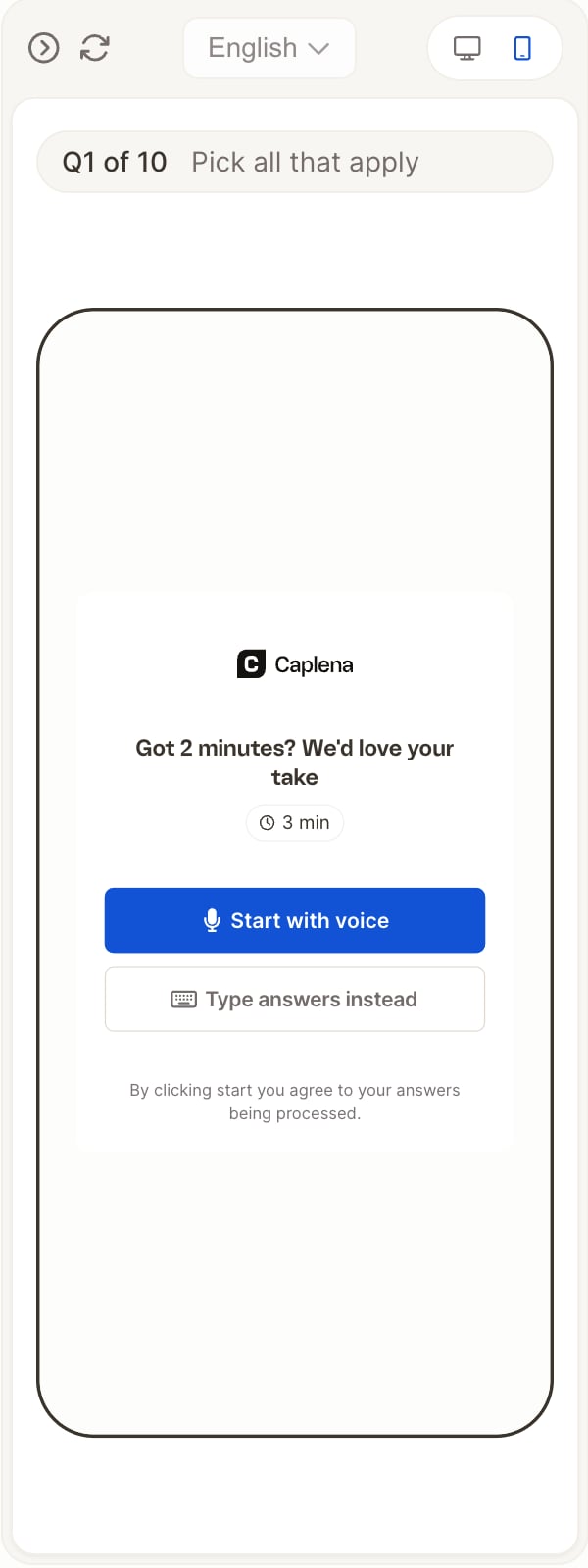
The Preview panel on the right runs the real respondent experience against your current draft. Switch between desktop and mobile, pick a language, and refresh to start over.