

Surveys is in closed beta and not yet available to all customers. Join the waitlist to get access. See Surveys overview for current limitations.
AI follow-up questions (probing)
Short or vague open-text answers are hard to analyze. With probing, the AI reads each answer and, when it helps, asks a short follow-up question, the way a good interviewer would. For example:Q: What’s the one thing that would really make you want to shop with us again?Probing is available on Open text questions. The survey agent turns it on for the main “why” question by default.
Respondent: Honestly just cheaper delivery. Paying shipping on small orders is annoying.
Follow-up: Which items or order sizes usually make the shipping cost feel hardest to justify?
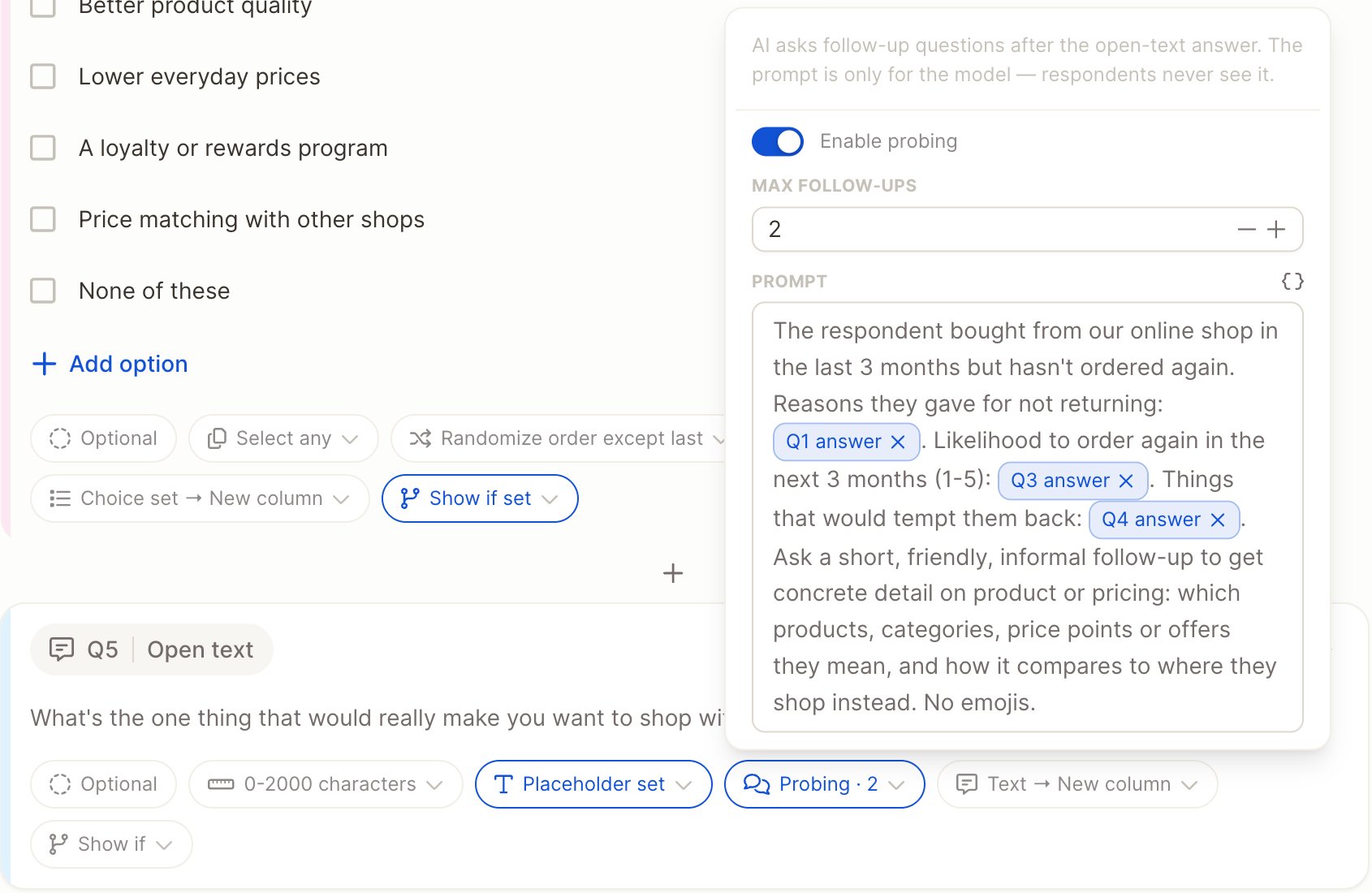
Follow-up questions are asked in the respondent’s language. On an optional question, respondents can skip a follow-up with N/A. On a required question, they answer follow-ups until the AI is done or the maximum is reached.
The full exchange is saved as one answer, as a short transcript:
Show if logic
Use Show if to show a question only to some respondents, for example to ask detractors what to improve.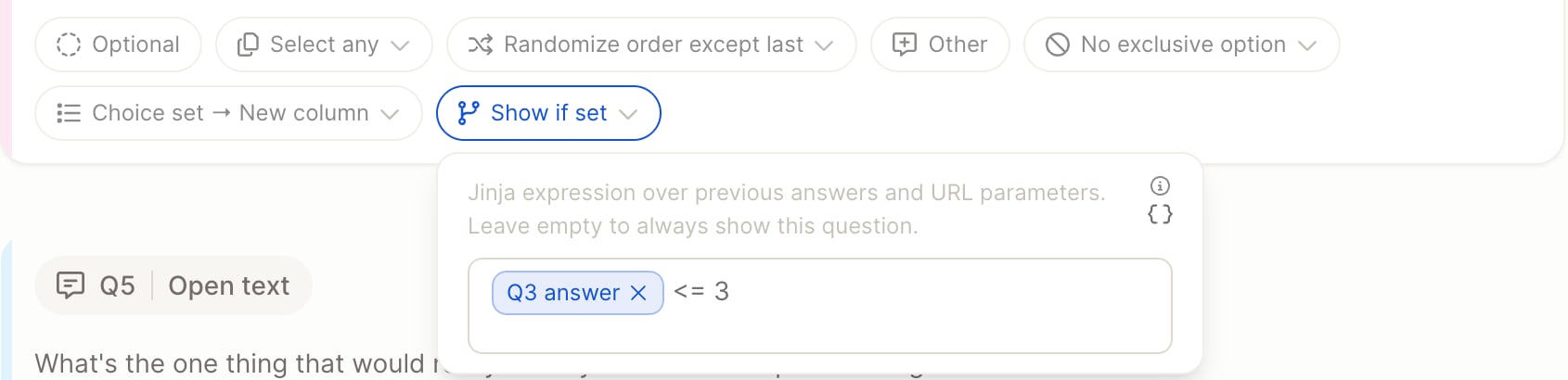
- Click the
{ }button and pick the earlier question (or URL parameter) the condition depends on. It’s inserted as a field, such as Q3 answer. - Type how to compare it, for example
<= 3.
== means “is equal to”, != “is not equal to”, and <= / >= “at most” / “at least”. You can combine conditions with and / or, for example Q3 answer <= 3 and Q2 answer == true.
A question with a condition shows Show if set.
- Leave the field empty to always show the question.
- Conditions can only refer to earlier questions.
- If a condition refers to a question the respondent didn’t answer (for example because it was hidden itself), the question is hidden too.
- The question list shows how many questions have logic, for example 12 Questions · 3 with logic.
URL parameters
Parameters let you pass extra information about a respondent through the survey link, such as their customer segment, a store ID or the campaign they came from. The respondent doesn’t have to answer anything for it. You can then:- store it alongside the response, for filtering and segmenting in your reports,
- use it in Show if conditions,
- insert it into question text.
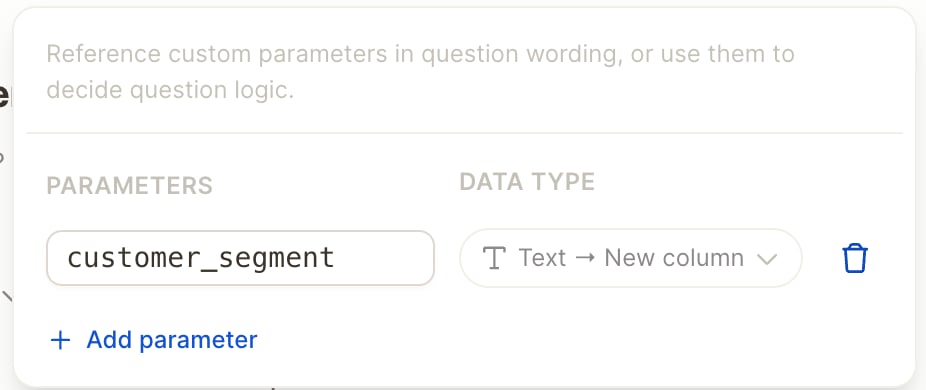
Set up parameters
1
Click Parameters in the survey settings under the survey name (for example 0 parameters).
2
Click Add parameter and enter a name, for example
customer_segment. Use only lowercase letters, numbers and underscores (_), starting with a letter.3
Choose what kind of value it holds: Text, Numerical, Boolean (yes/no) or Date. Each parameter is stored in its own column in your project.
Add parameters to the link
Add each parameter to the end of the survey link asname=value. Put a ? before the first one and a & between them:
<link-id> stands for the code in your own survey link. Most email and CRM tools can fill in a different value for each contact automatically, for example with a merge field like ?customer_segment={{segment}}.
- Only parameters defined in the survey are stored. Others are ignored.
- The values are saved when the respondent opens the survey and can’t change afterwards.
- Don’t use these names for your own parameters, because Caplena uses them in survey links:
rt(resume on another device),lang(survey language),freshandis_preview(used for previews).
Dynamic text in questions
You can insert earlier answers and parameters into question wording. While editing a question, use the{ } button to add a previous answer or a URL parameter. It appears as a field in the text.
You gave us a Q1 answer. What’s the one thing we could do to make it a 10?The same fields can be used in the probing Prompt, so the AI knows what the respondent said earlier. Respondents see the actual value. You can only insert answers from earlier questions.