

Surveys is in closed beta and not yet available to all customers. Join the waitlist to get access. The respondent experience may still change.
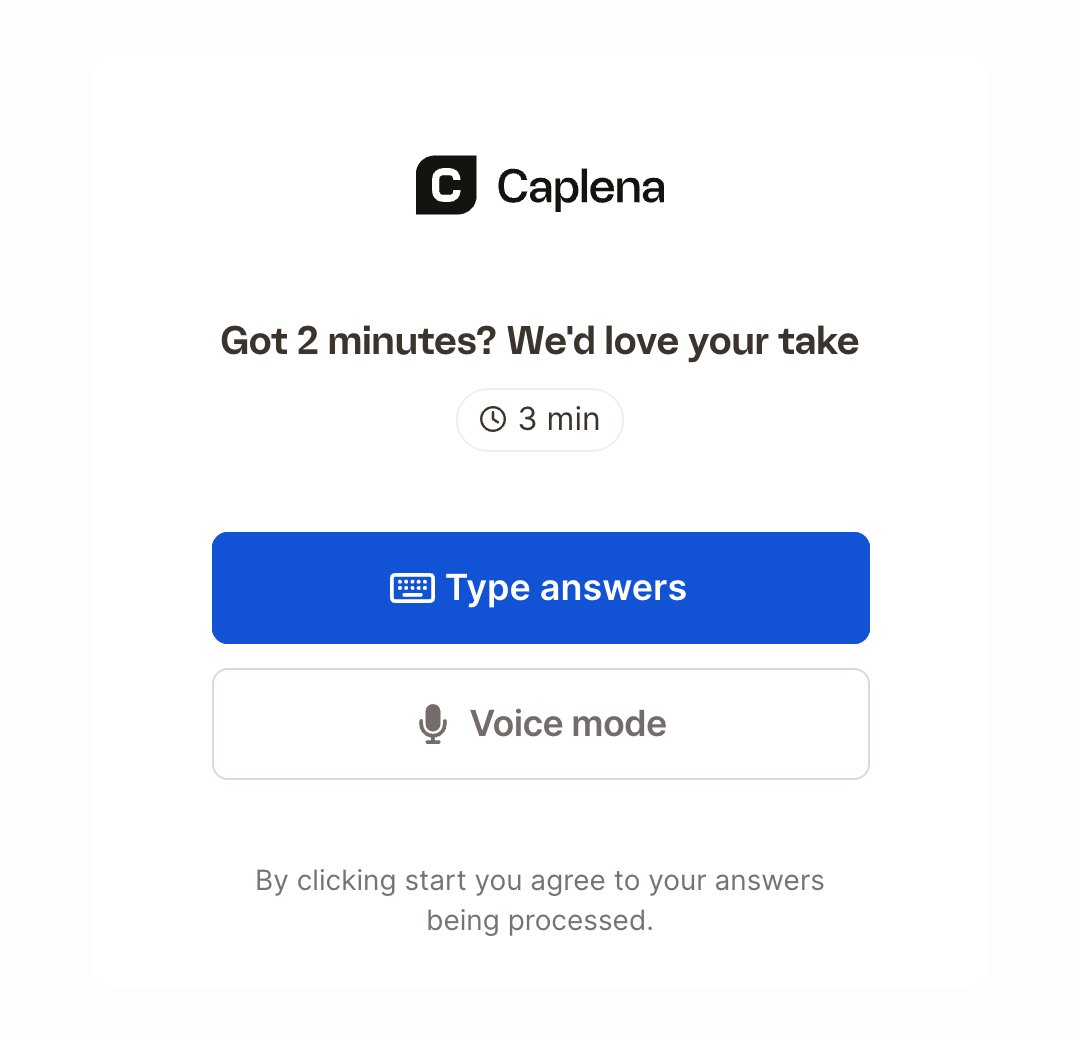
Start screen
When Voice conversation is on (default), respondents first see a start screen with your logo, the start screen title and the estimated time to complete. They choose how to answer:- On mobile: Start with voice or Type answers instead
- On desktop: Type answers or Voice mode
Answering questions
- Each question appears as a message. Respondents answer with the buttons, sliders or pickers below the question, or by typing in the message box at the bottom.
- Choices, scales and ratings are saved as soon as they’re tapped. Multi-select questions have an Apply button.
- Open-text answers are typed in the message box and sent with Enter (Shift + Enter adds a new line).
- Optional questions have an N/A button to skip them.
- Respondents can change their most recent answer with the edit icon next to it.
- The header shows progress as “Question 3 of ~8”, plus a progress bar unless you’ve turned it off.
- Answers are saved continuously, so nothing is lost if the respondent closes the tab.
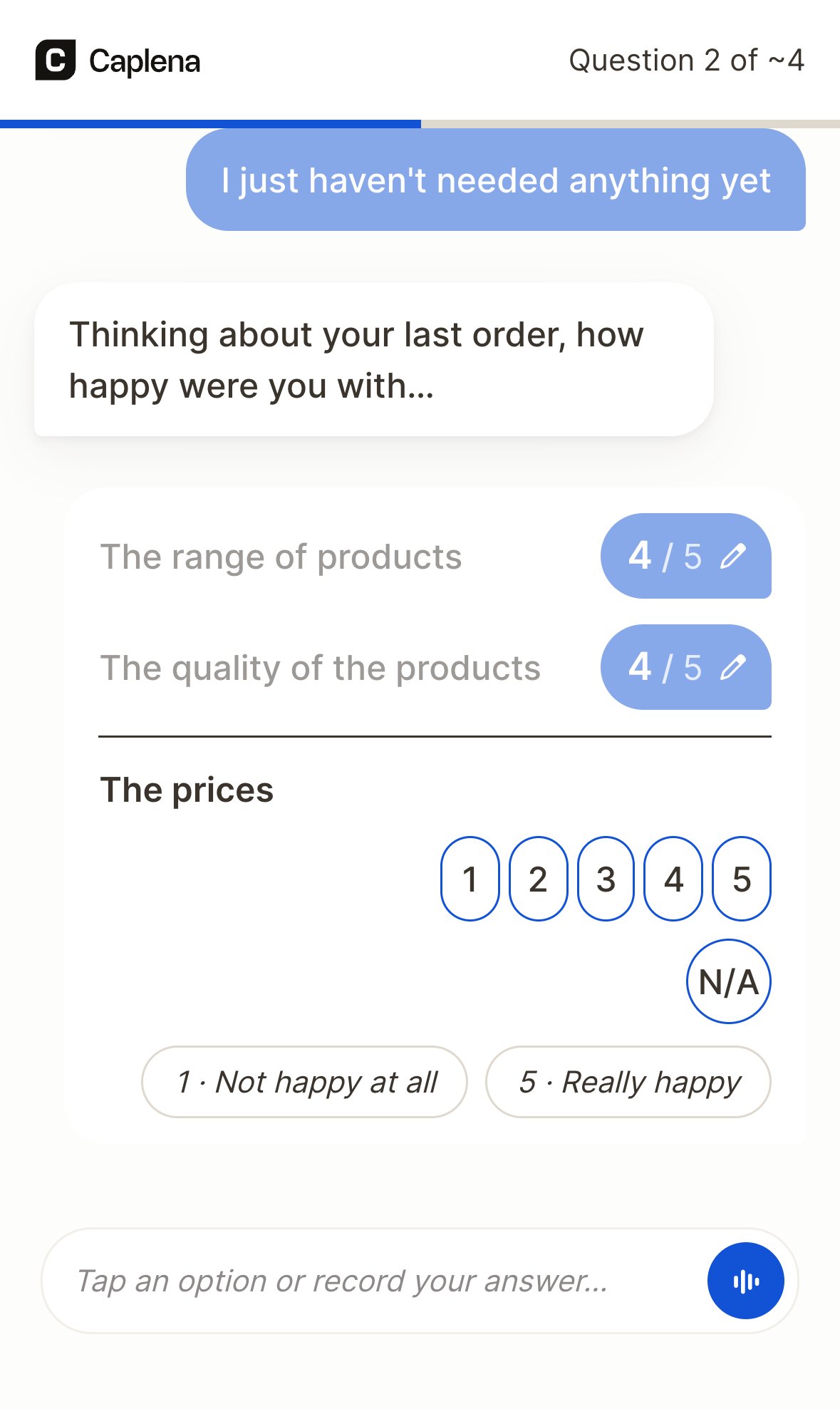
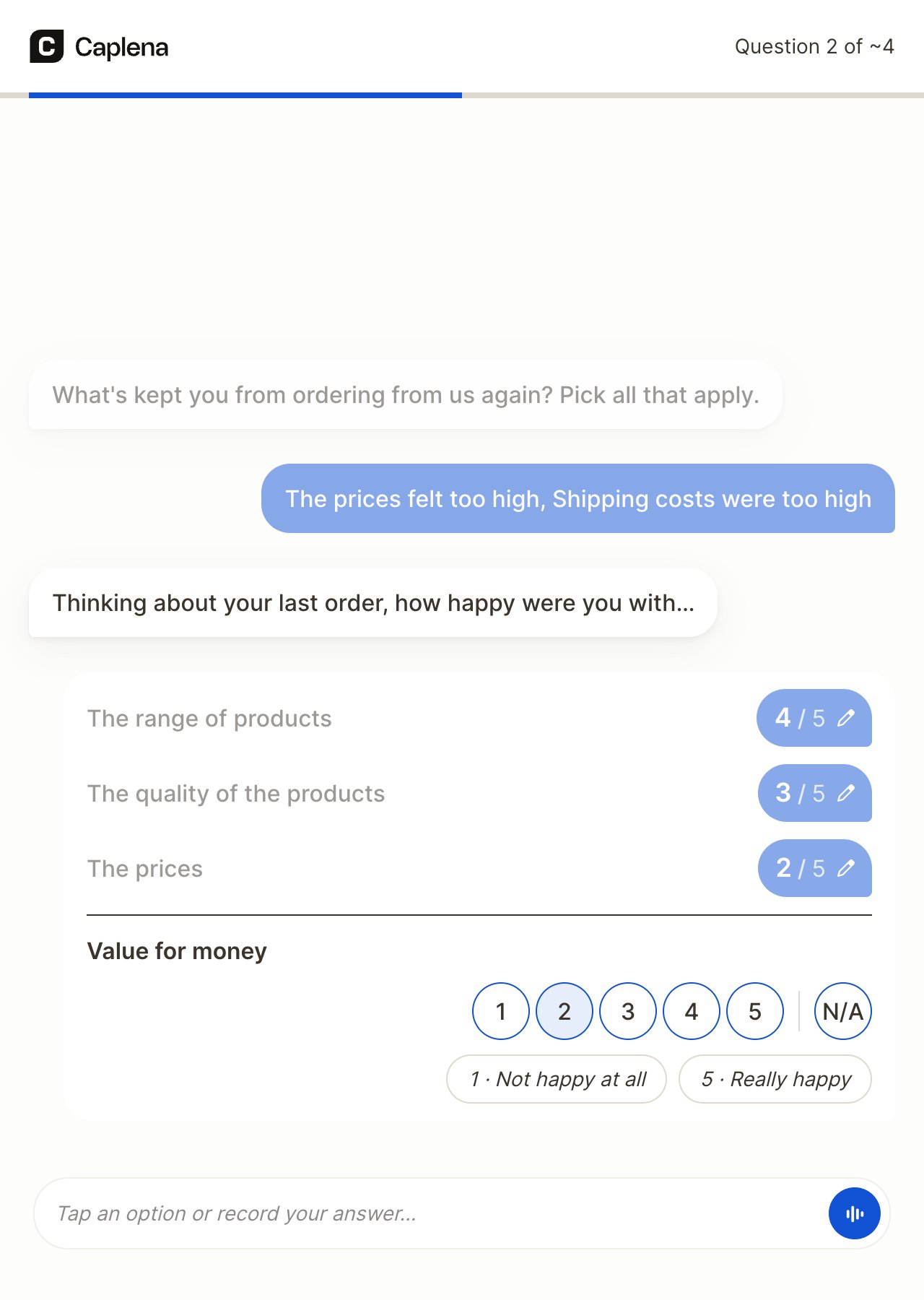
Matrix questions
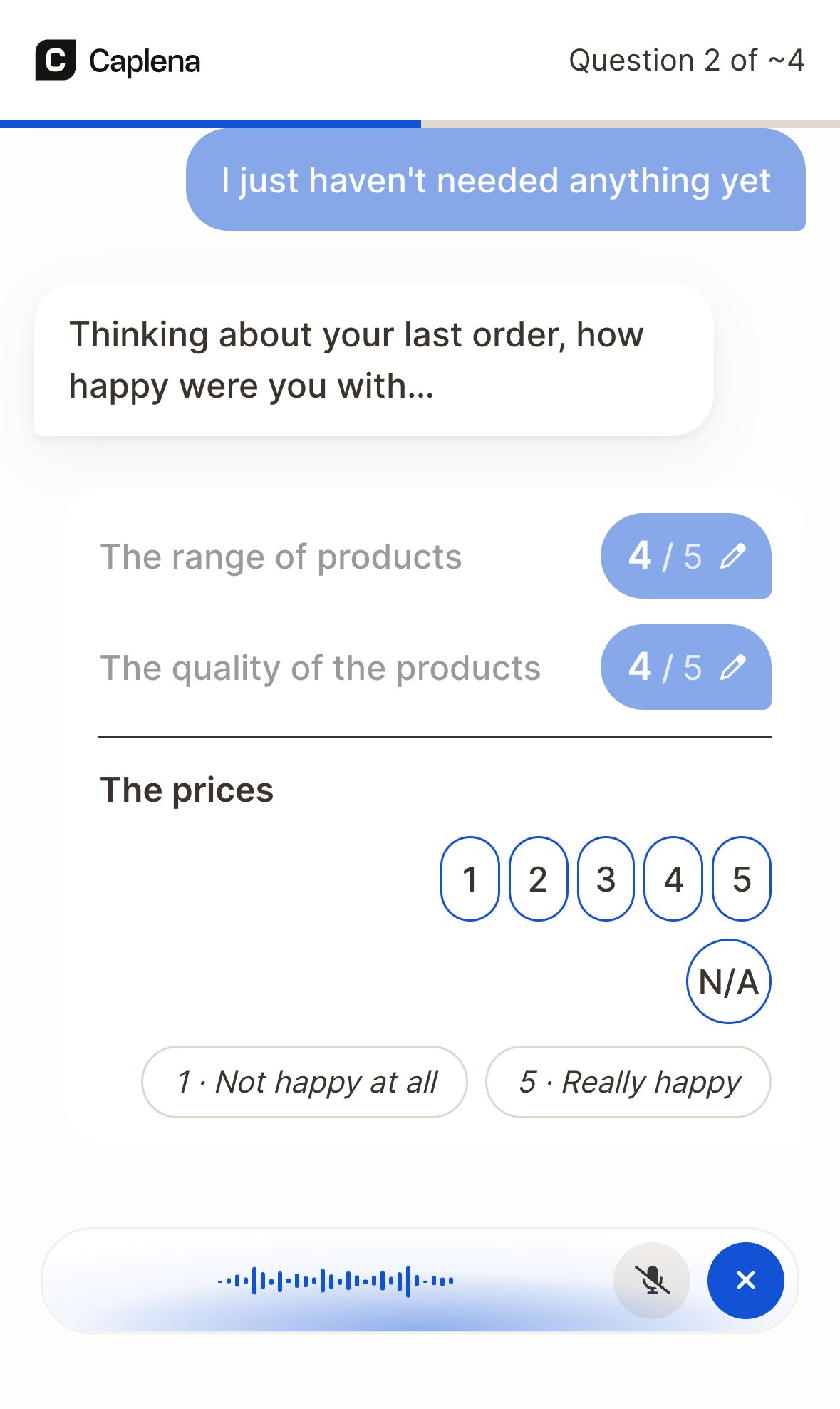
Matrix rows are shown one after the other in a single card. Answered rows collapse into a summary with the chosen value (for example 4 / 5), so respondents can see their progress through the list and change a row with the edit icon.Follow-up questions
When probing is on, a follow-up question may appear right after an open-text answer, in the same conversation. Respondents answer it like any other question.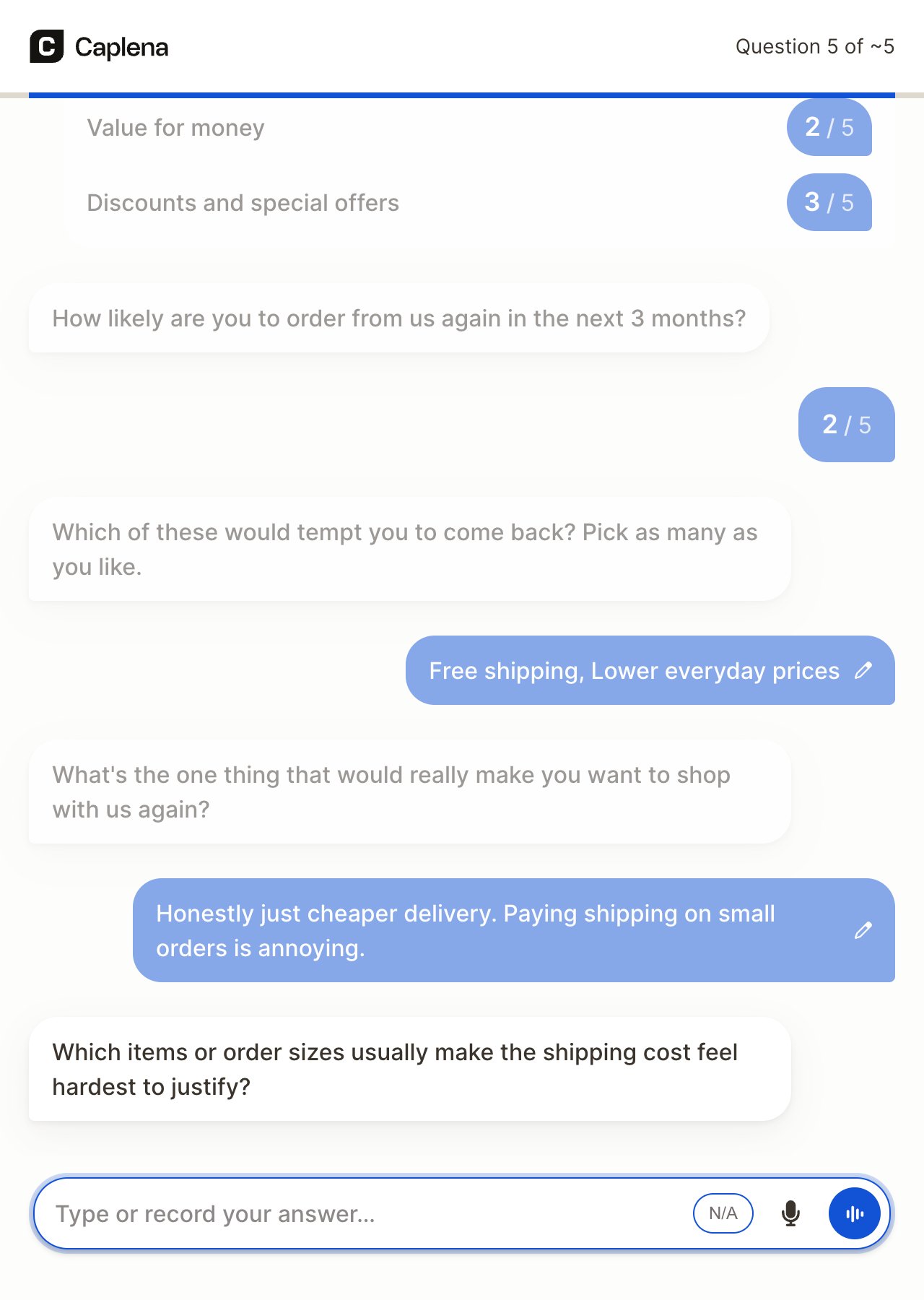
Answering by voice
Respondents can speak instead of typing in two different ways. Both are in the message box at the bottom of the survey: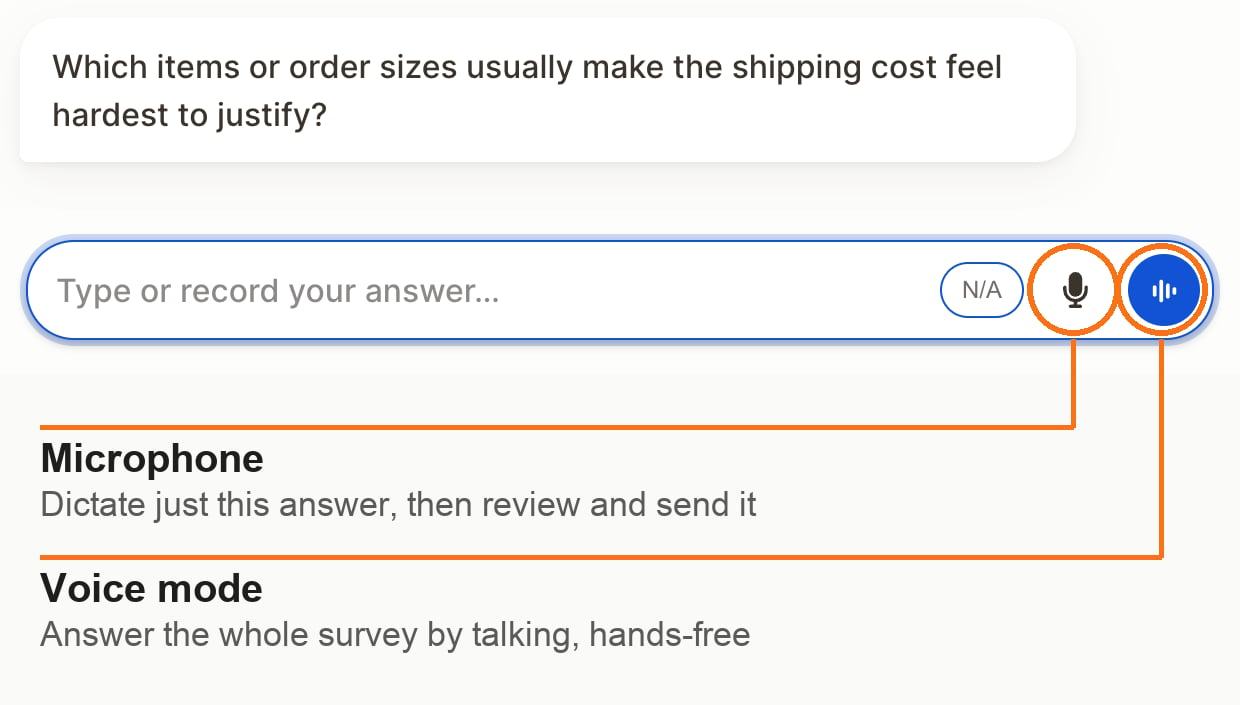
Microphone: dictate one answer
The microphone is a typing shortcut. The respondent taps it, speaks, and taps it again to stop. The spoken words appear as text in the message box, where the respondent can correct them before sending, just like a typed answer.Voice mode: talk through the whole survey
Voice mode turns the survey into a spoken conversation, a bit like a phone interview:- The respondent starts it with the sound-wave button, or with Start with voice (mobile) or Voice mode (desktop) on the start screen.
- The microphone stays on. The respondent answers each question out loud and the survey moves on to the next one by itself.
- Spoken answers are matched to the question automatically. For a rating, “I’d say a nine… actually, eight” is saved as 8. For a choice question, the respondent can say the option in their own words.
- For open-text questions and questions where several options can be picked, the respondent says “next” when they’re done.
- taps an option or types an answer. The survey shows “Voice mode was stopped because you typed or selected an answer.” and the answer is kept,
- edits an earlier answer, or
- stays silent for 30 seconds.
Turning off Voice conversation only removes voice mode and the voice options on the start screen. The microphone for dictating open-text answers stays available.
End of the survey
There’s no submit button. When the respondent has answered the last question shown to them, the response is completed automatically. They see your closing message, and the header shows Completed.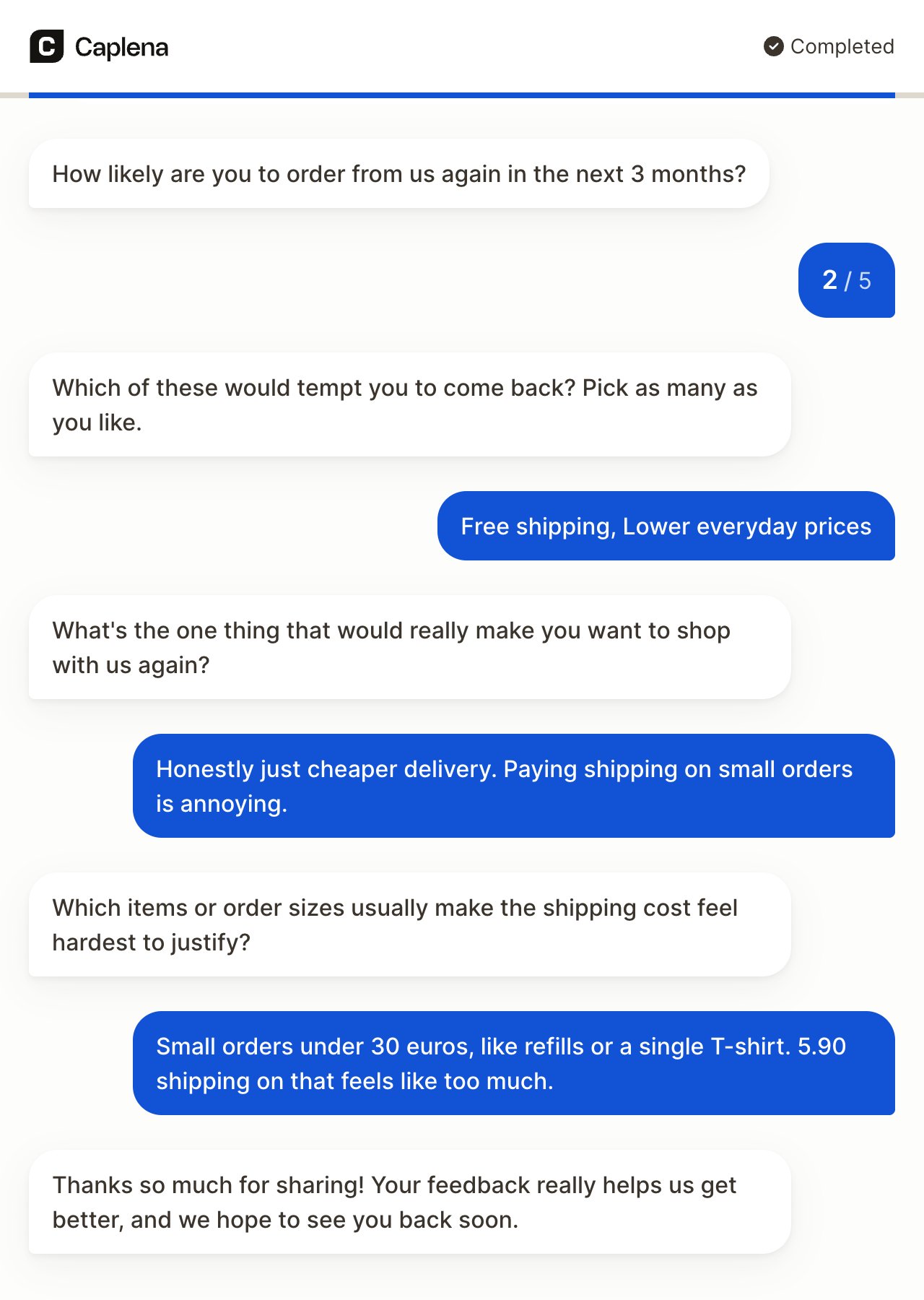
Branding and devices
- Your logo, primary color and background from Branding are applied throughout.
- The survey is built mobile first and works in any modern browser on phones, tablets and computers. On phones, native date and country pickers are used.