

Surveys is in closed beta and not yet available to all customers. Join the waitlist to get access. See Surveys overview for current limitations.
Monitor your survey
Open Monitor from the steps bar at the top of a survey. A green dot on Monitor means the survey is live.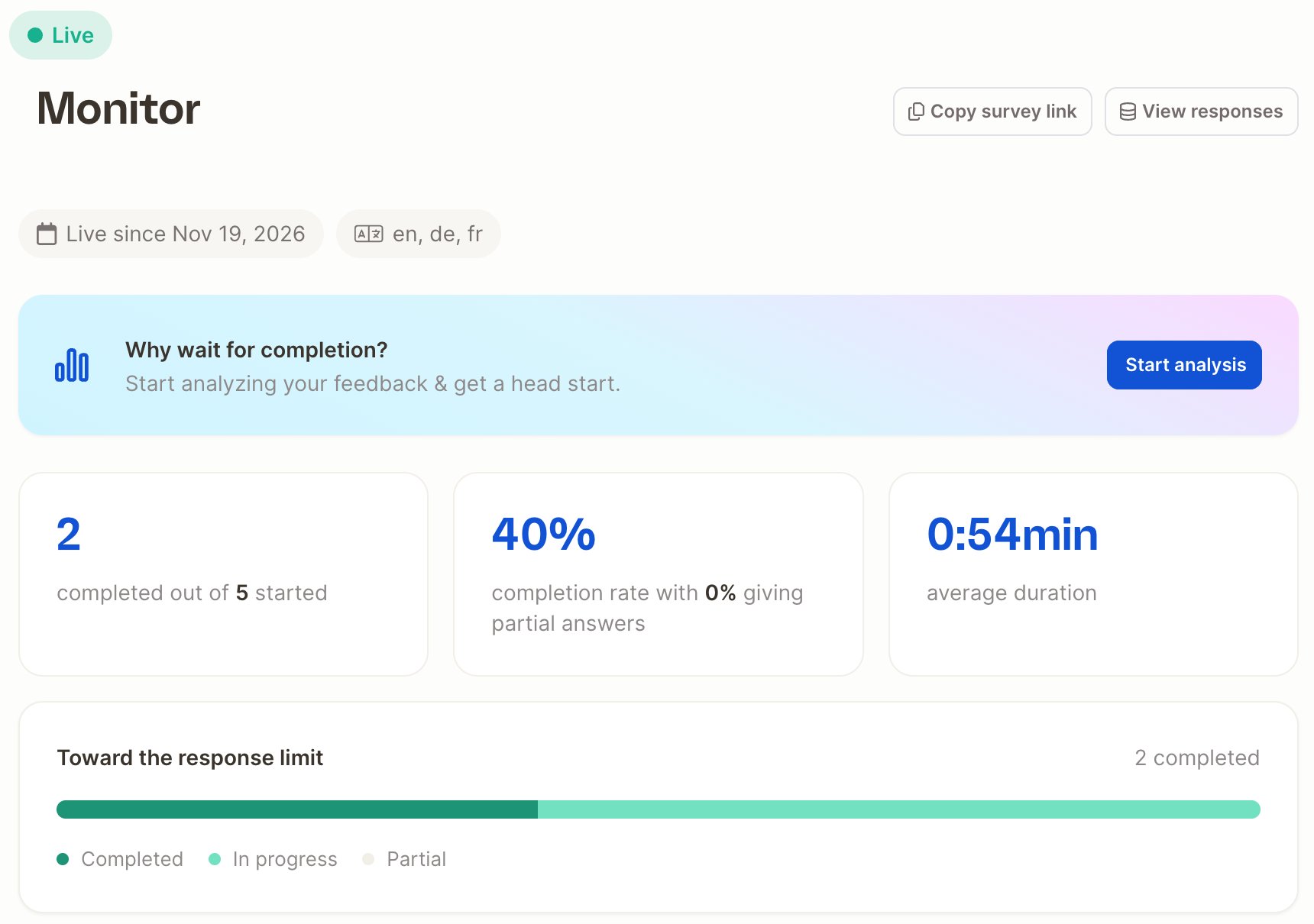
The progress bar breaks responses down into Completed, In progress and Partial.
Test and preview responses are not counted.
Where responses go
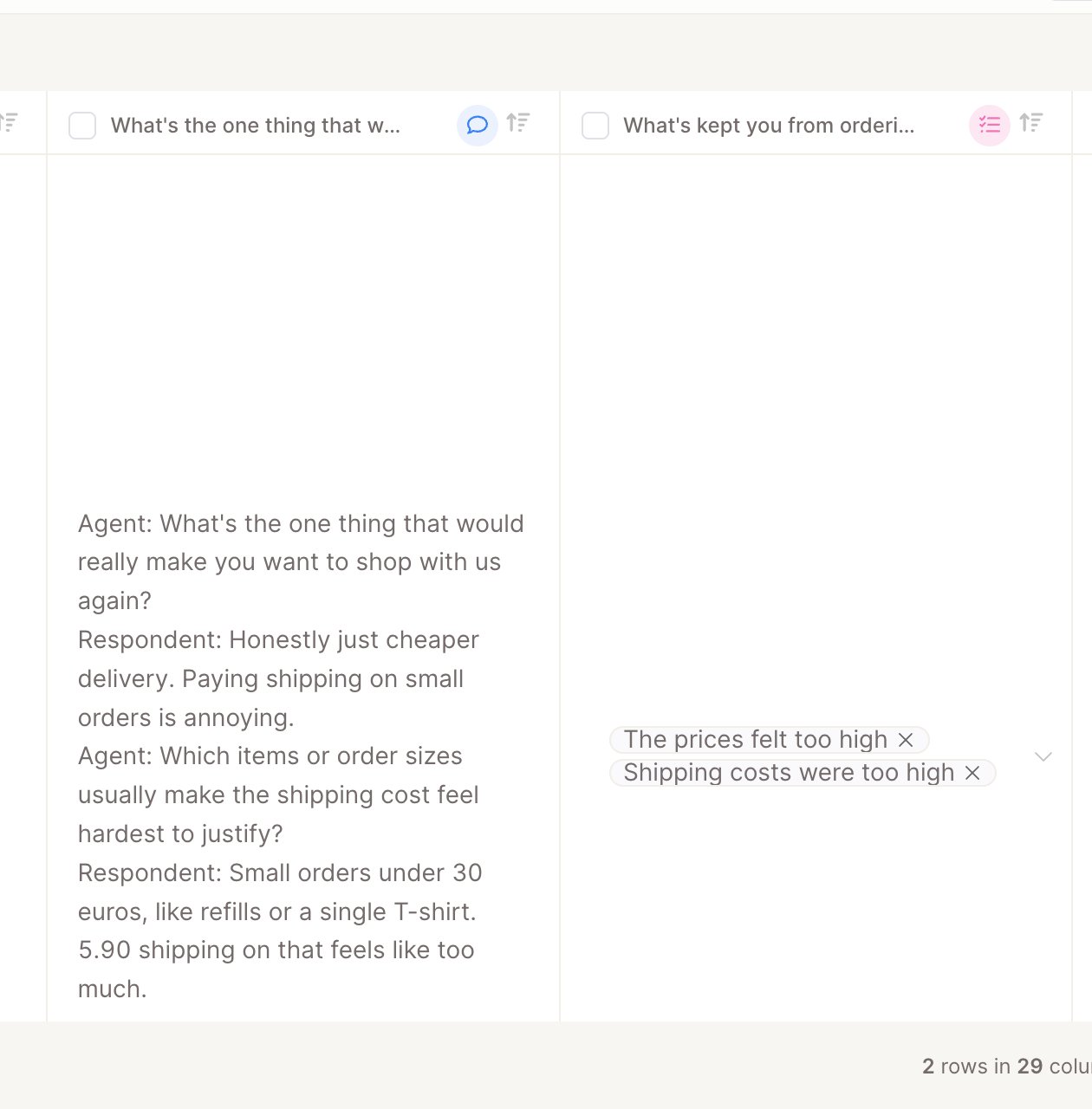
Each response becomes one row in the survey’s project, and each question writes into its own column.
The project also gets columns describing each response, such as status, language, dates, input mode, device and country. See Data collected with each response.
Completed responses are added within about a minute. Incomplete responses are added after the inactivity time you set under Incomplete responses.
Click View responses to open the project’s data, filtered to this survey.
Analyze while you collect
You don’t have to wait until the survey is closed. Click Start analysis in the Monitor step to set up topics for your open-text questions. Once topics are in place, new responses are assigned to them automatically as they come in, just like rows you append to any project. From there, everything works as for any other Caplena project:- Topic analysis on open-text answers, including probing follow-ups
- Reports with filters and segments on scores, choices and parameters
- The Insight Agent to ask questions about your results
- Alerts when topics or scores change