

When to use it
- DEV + PROD trackers: You develop and test topics in a small DEV project, then push the final topic collection to your large PROD project. See Tracker Setup: Best Practices for the full workflow.
- Recurring waves: You refined the topics in last wave’s project and want the new wave to use the same topics.
- Shared topic collections: Several projects use the same topic collection and you maintain it in one main project.
Before you start
- The text-to-analyze column needs a learning relationship to a column in another project. If it doesn’t have one, the menu entry doesn’t appear. To set one up, see Starting the Analysis.
- You need edit permissions on the project. With read-only access, you can open the comparison but can’t apply it.
The sync always goes in one direction: from the source project into the project you’re working in. The source project is never changed.
Open the comparison
1
Open the Topics view
Open the project that should receive the changes, go to the Topics view and select the text-to-analyze column you want to update.
2
Open the menu
Click the ⋮ button next to Export in the top-right corner of the topic list, then select Re-Sync topics from Learning Relationship.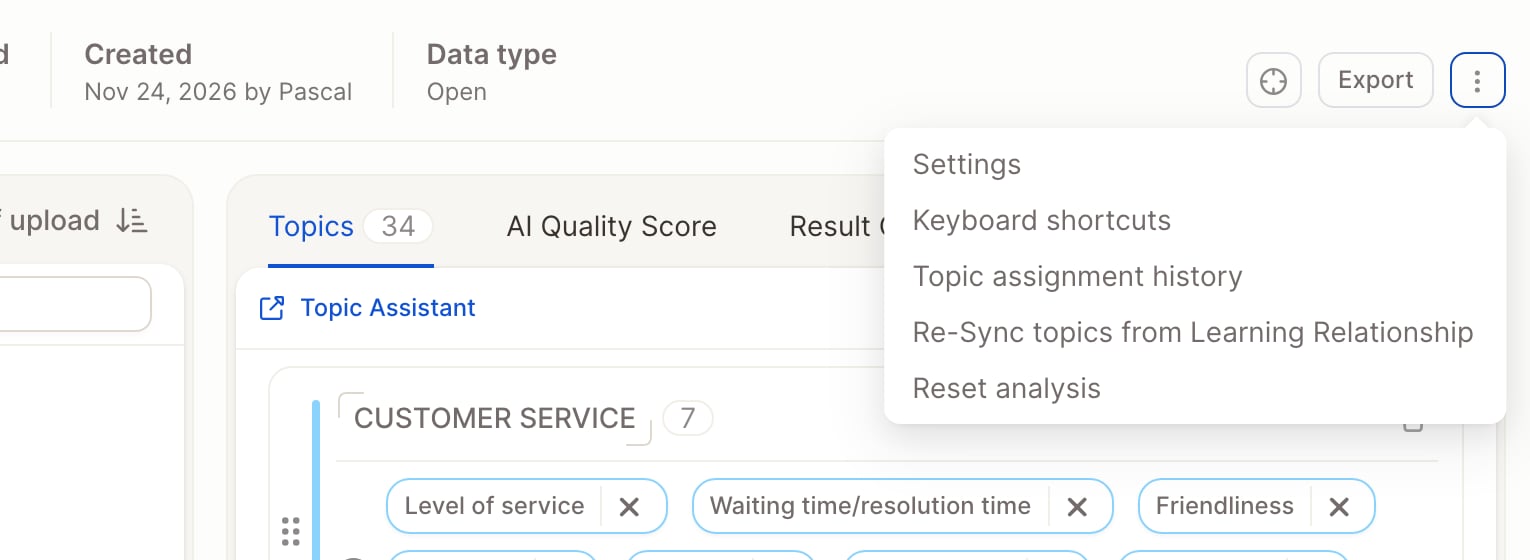
Review the differences
The comparison window shows two topic collections side by side:- Current project (left): the topics in the project you’re working in.
- Parent project (right, highlighted): the topics in the source project.
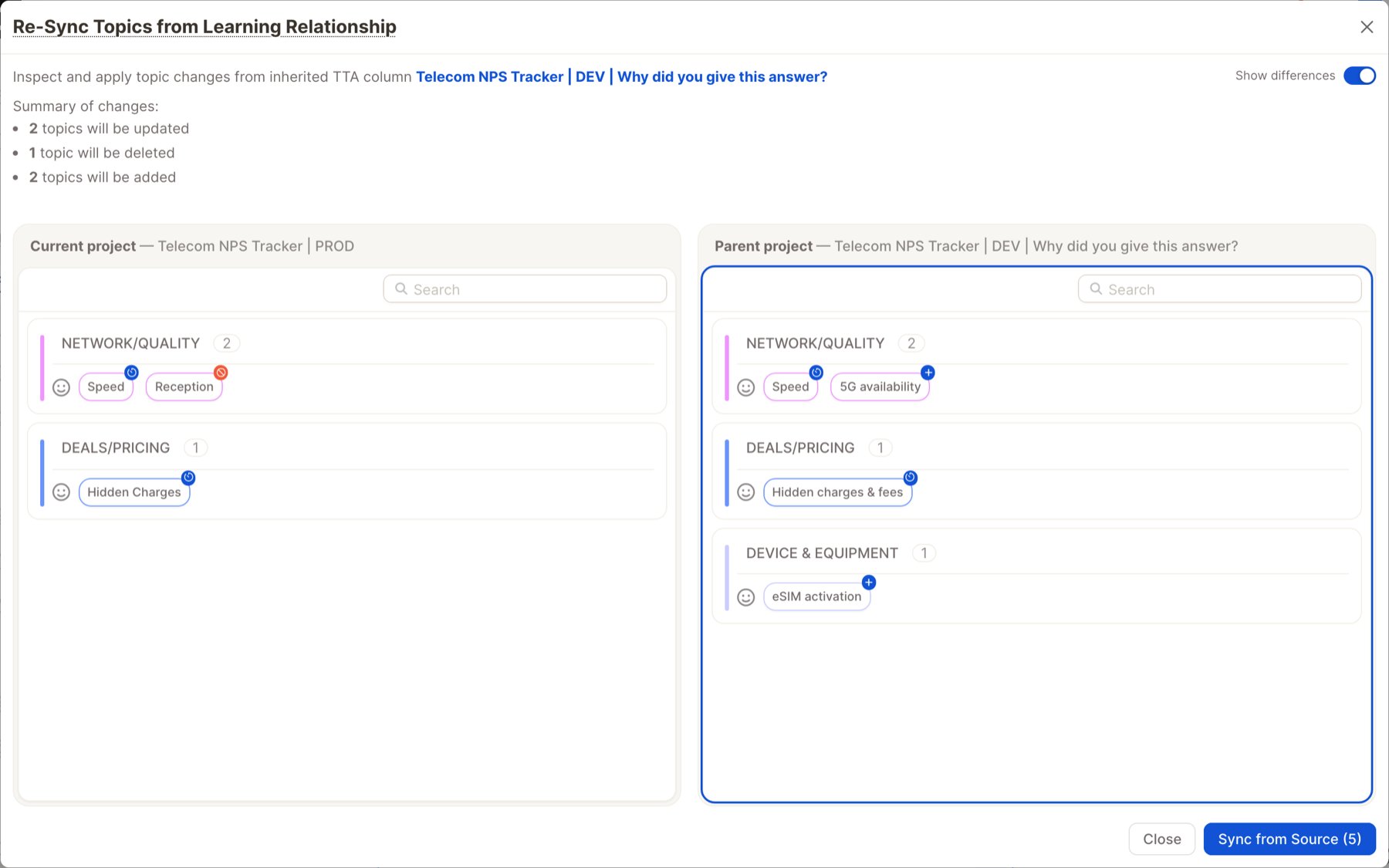
In this example, the PROD project learns from a DEV project. Syncing updates 2 topics, deletes 1 and adds 2.
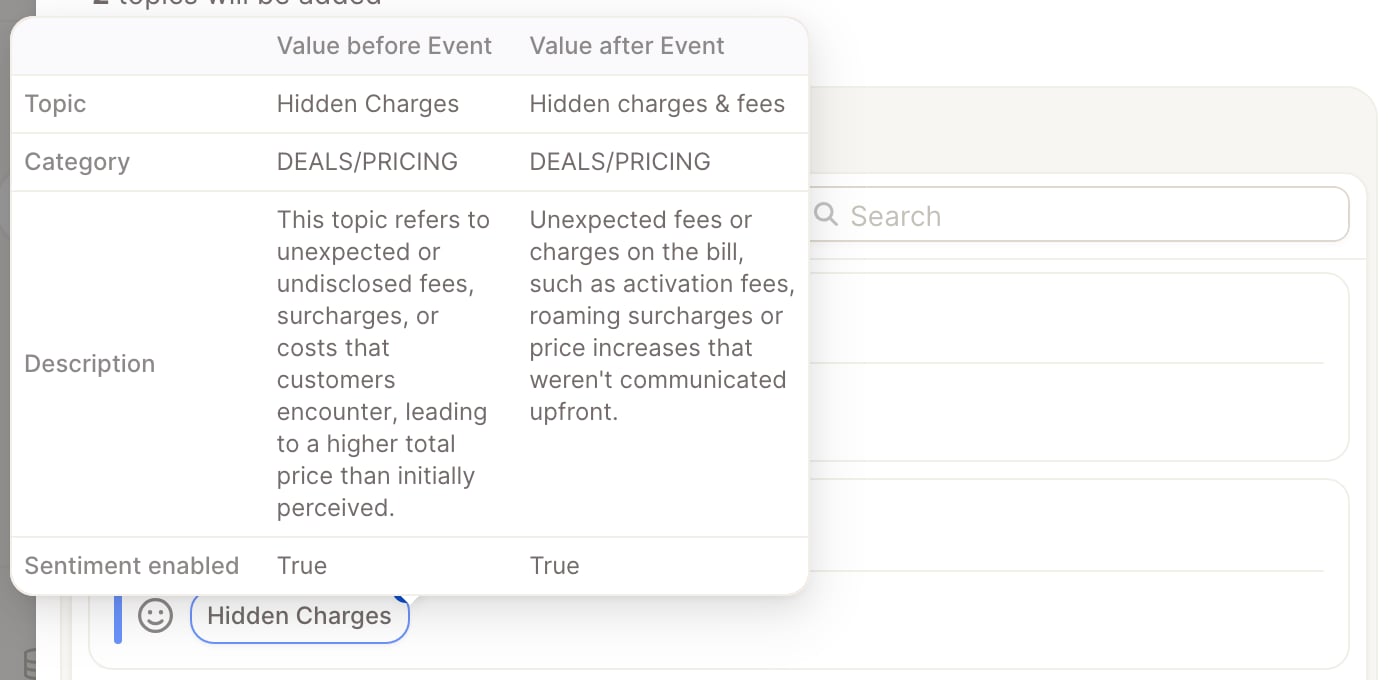
Hover over a badge to see the details. For an updated topic, you see the values before and after the sync side by side, for example a new label and description.
Conflicts
A conflict means the same topic was changed in both projects since the topics were copied. When there are conflicts, a warning shows how many topics are affected. If you sync anyway, the version from the source project wins and replaces your local changes.Apply the sync
1
Click Sync from Source
Click Sync from Source in the bottom-right corner. The number in brackets shows how many topics will change.
2
Confirm
Click Sync from Source in the confirmation dialog. Your topic collection is updated to match the source project.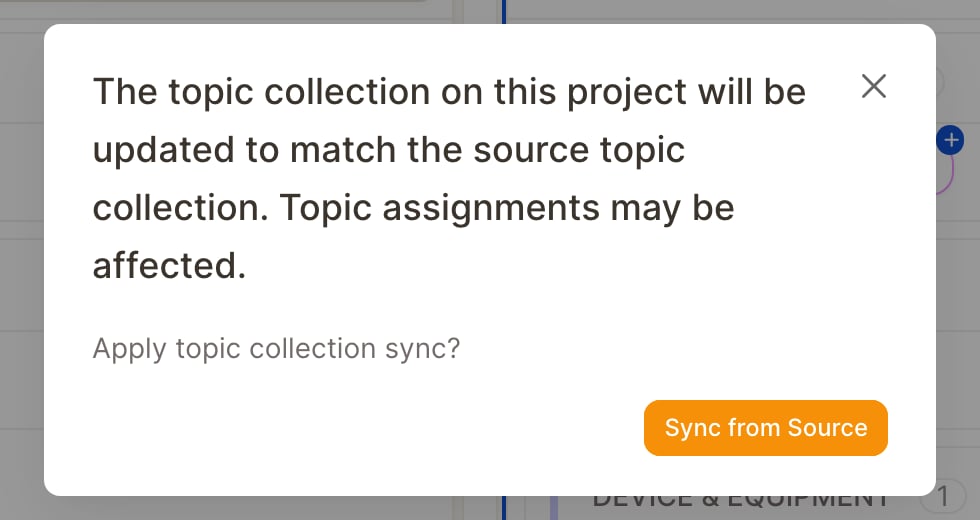
3
Run an AI update
New and changed topics aren’t applied to your rows until you run an AI update. Click Run AI Update in the Topics view to assign them to your data.
How topics are matched
Caplena matches topics between the two projects by their label and category (ignoring upper and lower case). For topics that differ, Caplena looks back to the last point in time when both topic collections were identical. This tells it whether a topic was changed in the source project (an update), in your project, or in both (a conflict).Related
Tracker Setup: Best Practices
Use re-sync to move topics between a DEV and a PROD project.
Learning Relationships Between Projects
How topic inheritance works in the Legacy Model and the LLM Model.