

Creating a task from an insight
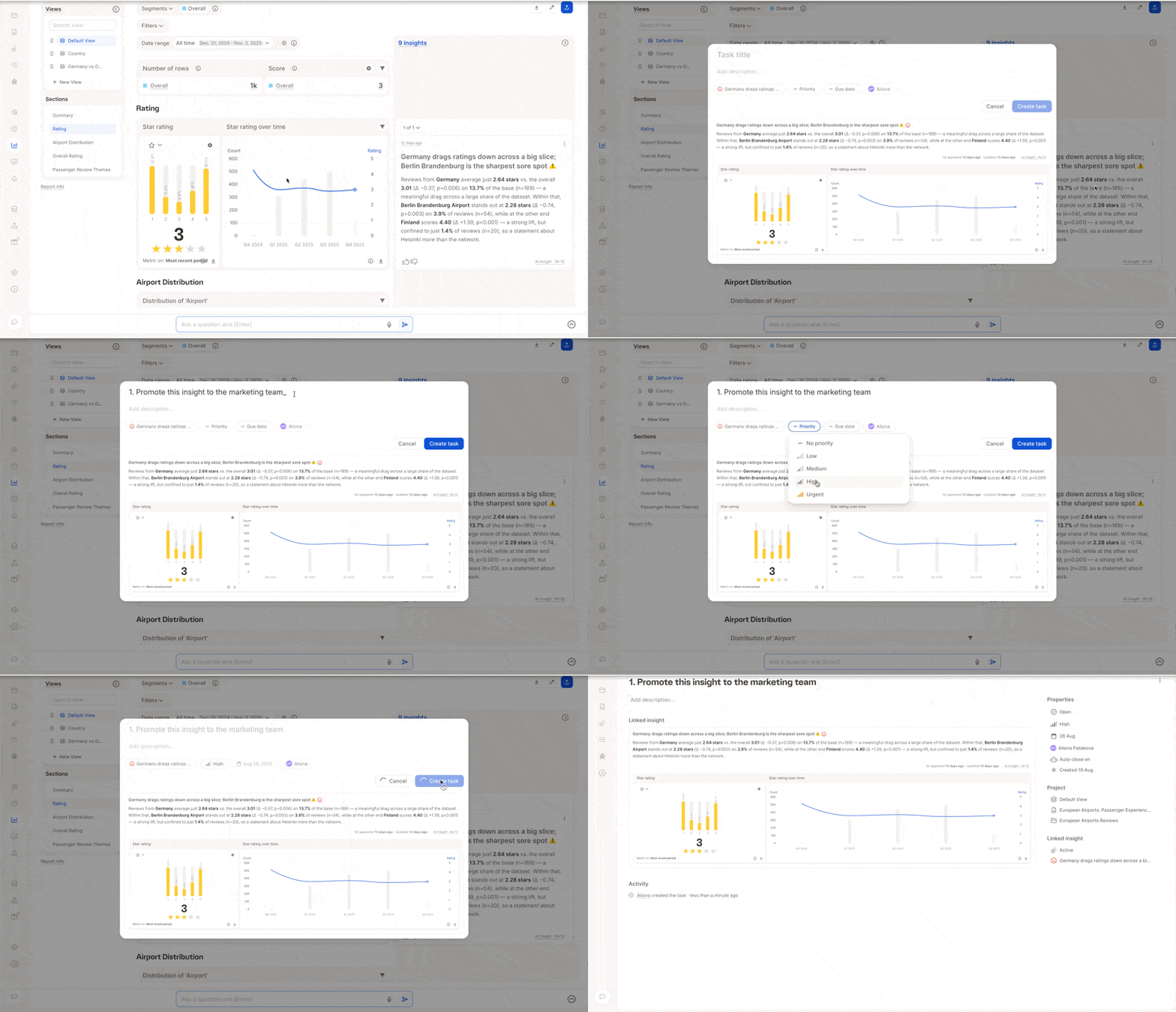
- Open an insight’s burger menu and choose to open its detail page, or create a task directly from the menu.
- On the insight detail page, use the linked tasks sidebar to create a new task — give it a title (for example, “Promote this insight to the marketing team”).
- Set a priority, optionally a due date, and an owner (defaults to you, or reassign to someone else).
- Click Create.
The task detail page
Opening a task shows: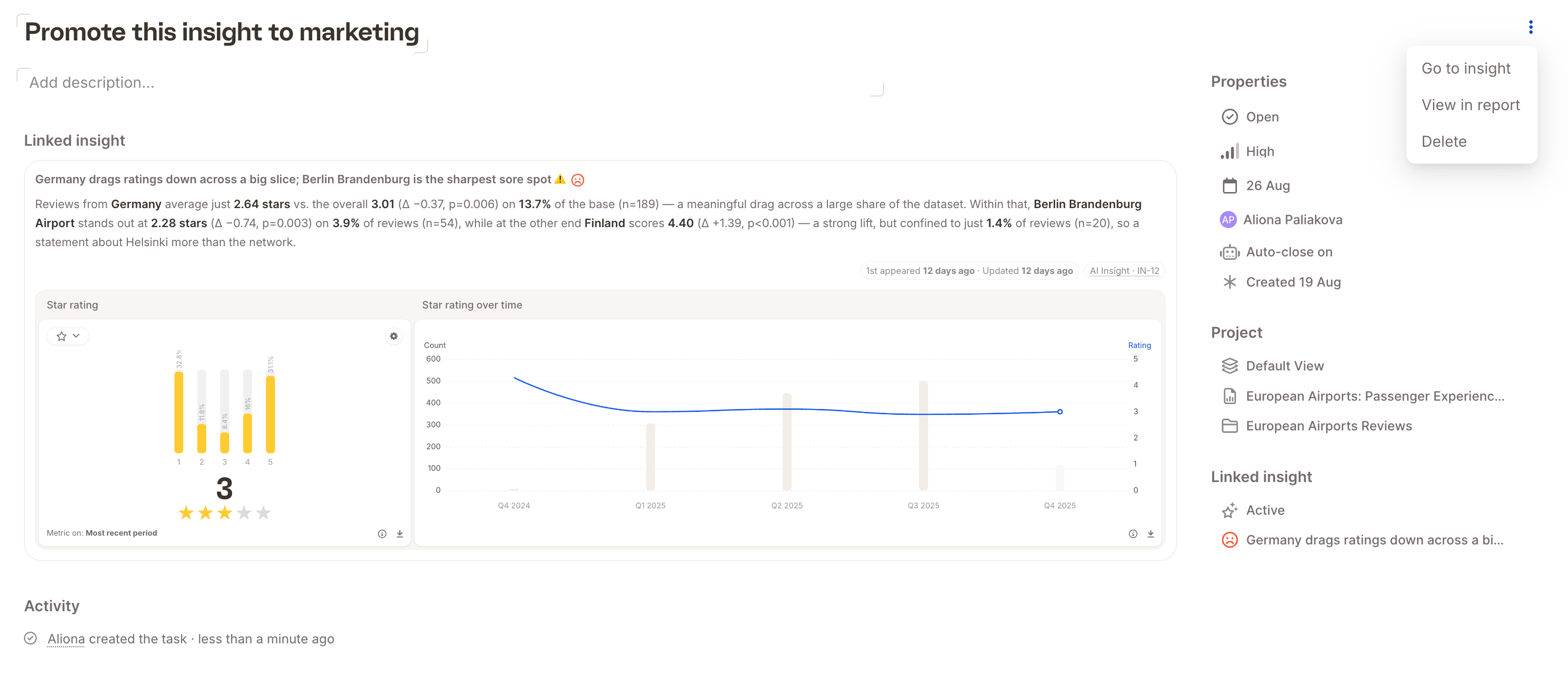
- An inline-editable title and description.
- A linked insight section (if the task was created from one) with a link back to the insight’s detail page. If the task wasn’t created from an insight, this section is empty.
- An activity section — when the task was created, and any changes since.
- Properties, on the right-hand side:
- Status — open or closed; you can close and reopen a task at any point.
- Priority.
- Due date.
- Owner — reassign to any teammate.
- Auto-close toggle — when on, the task closes automatically once its linked insight is retired or dismissed. When off, you have to close the task yourself. Tasks with no linked insight don’t use this setting.
- Project info — which view, report, and project the task belongs to.
Both insights and tasks live at the report view level. If you reassign a task to someone who doesn’t yet have access to that view, you’ll be prompted to grant them access — either to the specific view or to the full report — before the reassignment takes effect.
Creating a task from scratch
You don’t need an insight to create a task: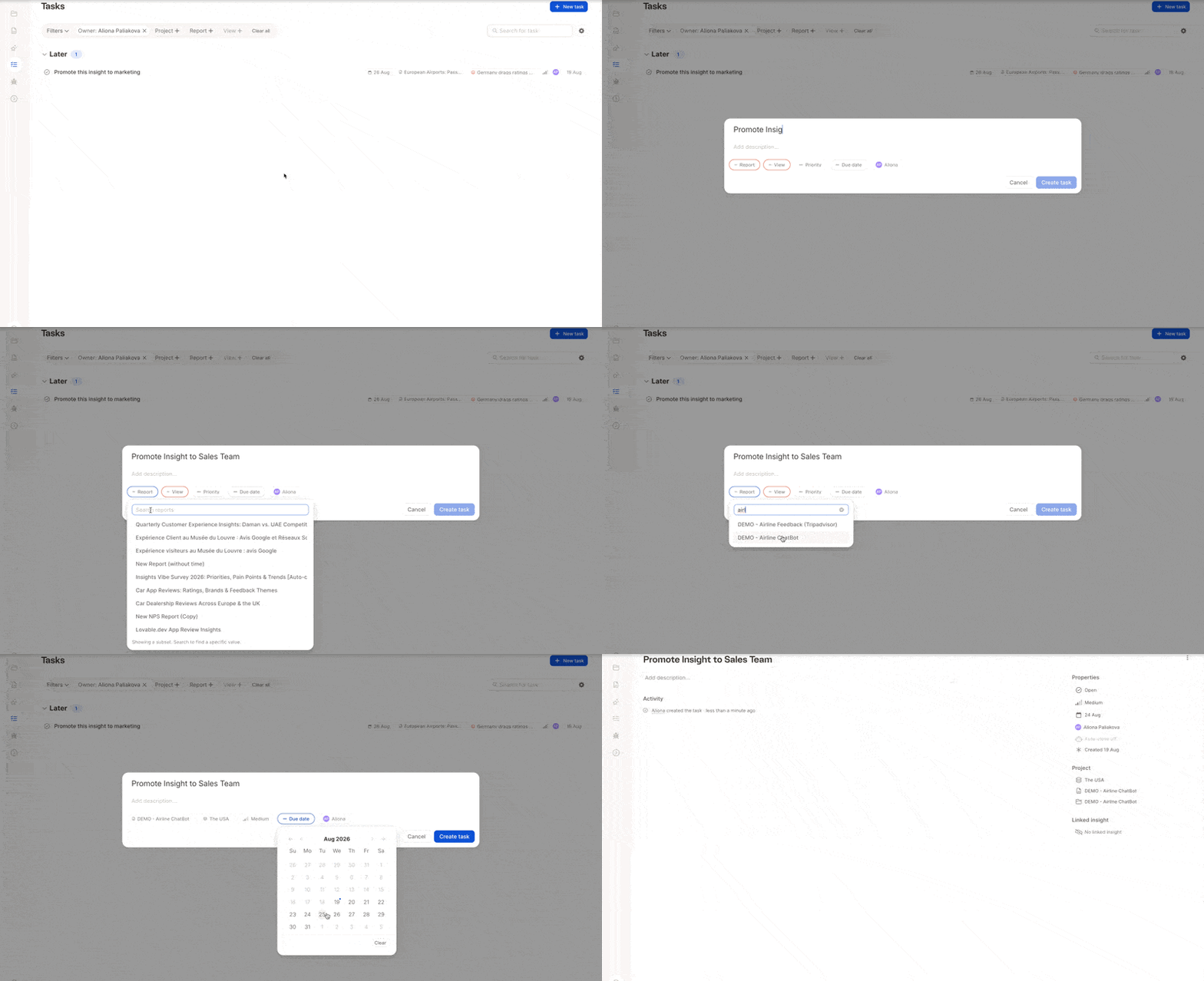
- Open the Tasks list (left-hand top navigation).
- Click the create task button in the top-right.
- Give it a title and description.
- Select the report and then the view you want to tie the task to (required, since tasks live at the view level).
- Click Create.
The Tasks list
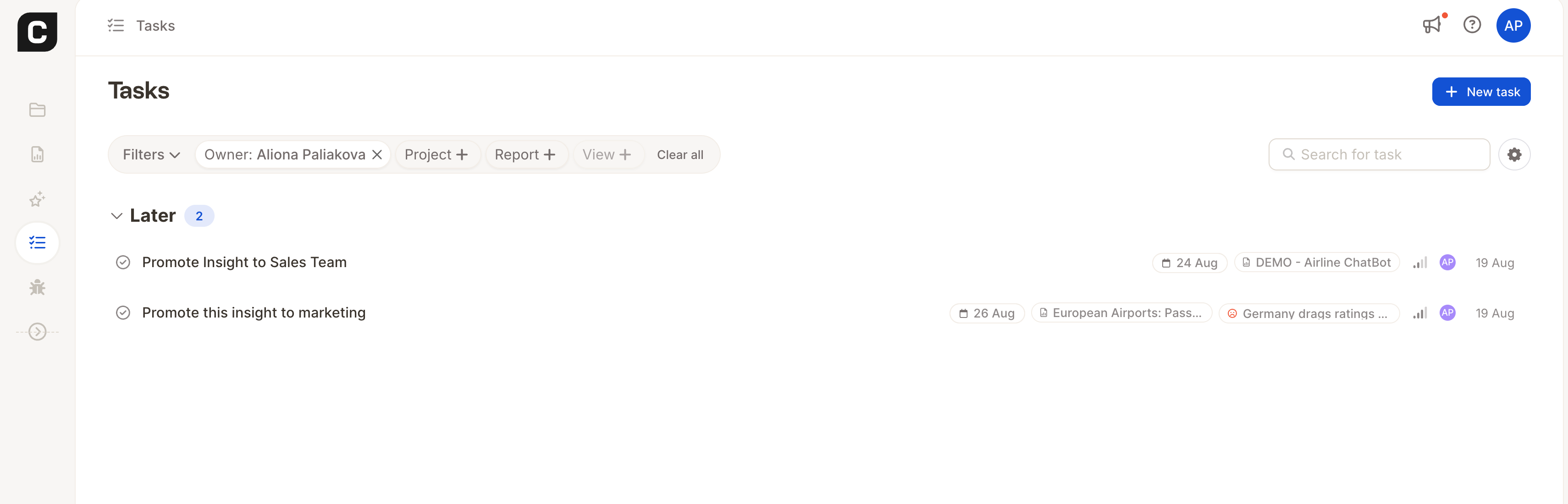
- Filter by owner (for example, to see only tasks assigned to you) — and other filters via the search field.
- Group by priority, due date, or project.
- Sort within groups.
- Show/hide completed tasks based on a time frame, or hide them entirely (they then move to the bottom of the list).
- Tick off a task directly from the list to close it (and undo if needed).
How Insights and Tasks work together
Insights Radar and Tasks bridge the gap between exploring your data and acting on it: an insight surfaces something worth knowing, and a task turns that into assigned, trackable follow-up work. They’re closely interconnected:- An insight can spawn one or more tasks.
- A task can (optionally) auto-close when its linked insight is no longer relevant (retired or dismissed).
- Both live at the same report-view level, so permissions stay consistent between them — reassigning a task may require granting the new owner access to that view.
Related
- Insights Radar — how findings are surfaced automatically, and how the insight lifecycle works.